1. Introduction
This manual provides instructions for the installation, operation, and maintenance of the Generic USB FC2A-KC2 PLC Programming Cable. This cable facilitates communication between a computer's USB port and IDEC Micro3 or Square D Programmable Logic Controllers (PLCs) for programming, monitoring, and debugging purposes.
2. Safety Information
- Electrical Safety: Always ensure that the PLC and computer are properly grounded. Disconnect power before connecting or disconnecting the cable to the PLC if specified by the PLC manufacturer's guidelines.
- Handling: Do not bend, twist, or pull the cable excessively. Avoid exposing the cable to extreme temperatures, moisture, or corrosive environments.
- Intended Use: This cable is designed for programming IDEC Micro3 and Square D PLCs. Do not use it for purposes other than its intended function.
- Modifications: Do not attempt to modify or repair the cable. Unauthorized modifications can lead to damage, malfunction, or safety hazards.
3. Package Contents
Verify that all items are present in the package:
- 1 x Generic USB FC2A-KC2 PLC Programming Cable
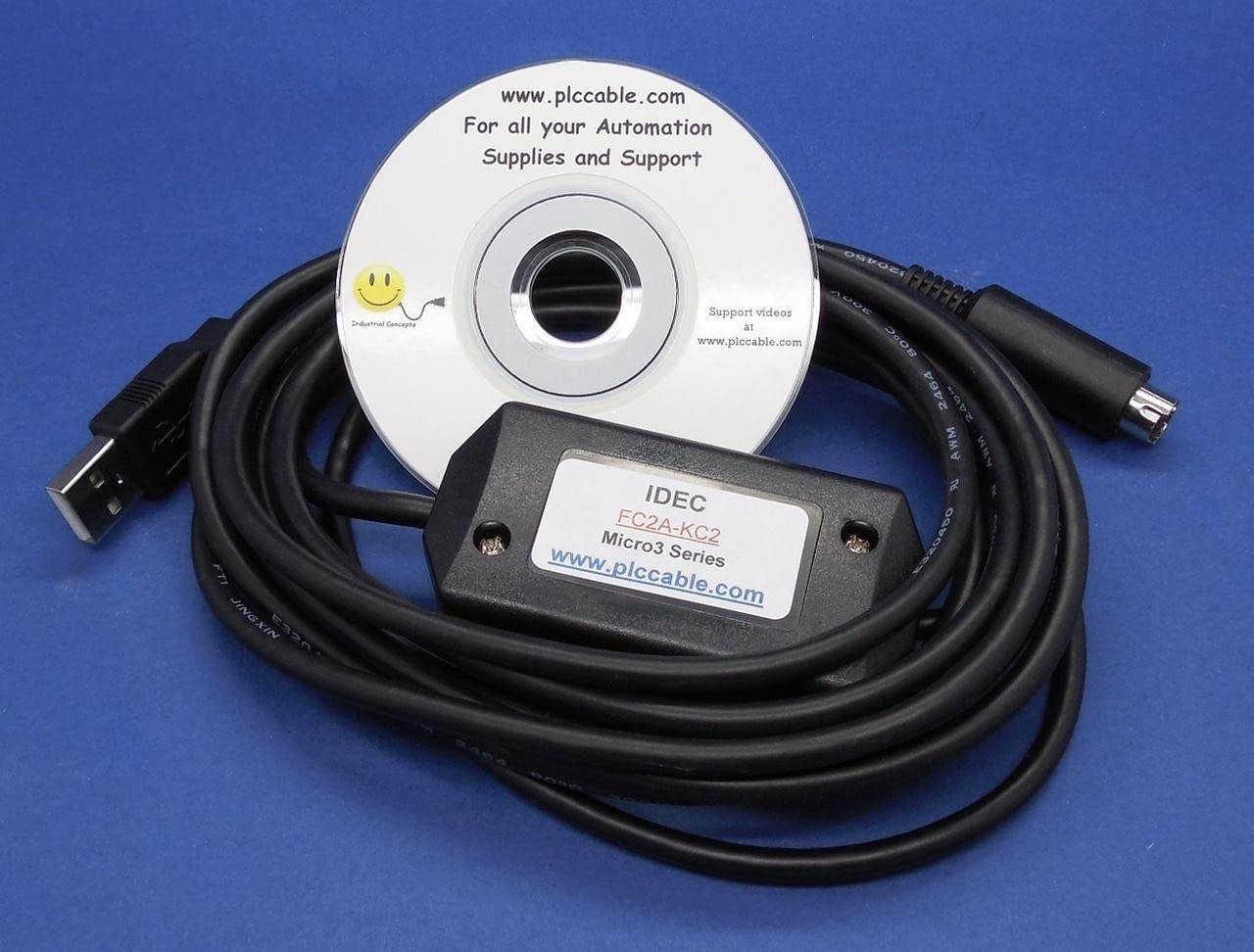
Image 1: The Generic USB FC2A-KC2 PLC Programming Cable. This image shows a black USB cable with a standard USB-A connector on one end and a larger, rectangular multi-pin connector on the other end, designed for connecting to compatible PLCs.
4. System Requirements
To use this programming cable, ensure your system meets the following requirements:
- Operating System: Windows 2000/XP/Vista/7/8/10 (32-bit and 64-bit versions).
- USB Port: An available USB 1.1 or 2.0 port.
- Programming Software: Compatible PLC programming software for IDEC Micro3 or Square D PLCs (e.g., WindLDR for IDEC, or relevant software for Square D).
- Driver Software: USB driver for the FC2A-KC2 cable. This is typically provided on a mini-CD or available for download from the manufacturer's website.
5. Setup Instructions
5.1. Driver Installation
- Insert Driver Media: If a driver CD is provided, insert it into your computer's CD/DVD drive. If not, download the appropriate USB driver from the manufacturer's support website.
- Run Installer: Locate and run the driver setup executable (e.g., `setup.exe`).
- Follow Prompts: Follow the on-screen instructions to complete the driver installation. You may need to restart your computer after installation.
- Verify Installation: After restarting, connect the USB end of the programming cable to an available USB port on your computer. Open Device Manager (right-click 'My Computer' or 'This PC' > 'Manage' > 'Device Manager'). Look under 'Ports (COM & LPT)' for a new COM port entry, typically labeled 'USB Serial Port' or similar. Note the assigned COM port number.
5.2. Connecting the Cable
- Connect to PC: Plug the USB-A connector of the programming cable into an available USB port on your computer.
- Connect to PLC: Connect the multi-pin connector of the programming cable to the designated programming port on your IDEC Micro3 or Square D PLC. Ensure a secure connection.
5.3. Software Configuration
- Open PLC Software: Launch your PLC programming software (e.g., WindLDR).
- Configure Communication Settings: Navigate to the communication settings or options within the software.
- Select COM Port: Choose the COM port number identified in Device Manager during driver installation.
- Set Baud Rate/Parity: Configure other communication parameters (e.g., baud rate, data bits, parity, stop bits) to match the settings of your specific PLC. Refer to your PLC's documentation for these settings.
- Test Connection: Use the software's 'Test Communication' or 'Connect' function to verify the link between your computer and the PLC.
6. Operating Instructions
Once the cable is connected and configured, you can perform various operations:
- Uploading Programs: Transfer the program from the PLC to your computer for backup or modification.
- Downloading Programs: Transfer a new or modified program from your computer to the PLC. Ensure the PLC is in programming mode if required.
- Monitoring PLC Status: View the real-time status of PLC inputs, outputs, internal relays, and data registers.
- Debugging: Use the software's debugging tools to troubleshoot PLC logic and program execution.
- Firmware Updates: If supported by your PLC and software, the cable can be used for firmware updates.
Always refer to your specific PLC programming software's user manual for detailed instructions on these operations.
7. Maintenance
Proper care ensures the longevity and reliable performance of your programming cable:
- Cleaning: Keep the cable and connectors clean. Use a soft, dry cloth to wipe away dust or debris. Do not use liquid cleaners directly on the connectors.
- Storage: Store the cable in a cool, dry place away from direct sunlight and extreme temperatures. Avoid tightly coiling the cable to prevent internal wire damage.
- Inspection: Periodically inspect the cable for any signs of damage, such as frayed insulation, bent pins, or cracked connectors. Replace the cable if any damage is observed.
8. Troubleshooting
If you encounter issues, consider the following troubleshooting steps:
| Problem | Possible Cause | Solution |
|---|---|---|
| Cable not recognized by PC | Driver not installed or incorrectly installed. Faulty USB port. | Reinstall the USB driver. Try a different USB port on your computer. Check Device Manager for errors. |
| Cannot establish communication with PLC | Incorrect COM port selected in software. Incorrect communication parameters (baud rate, etc.). Cable not securely connected. PLC not powered on or in programming mode. | Verify the COM port in Device Manager and PLC software. Match communication parameters to PLC specifications. Ensure cable is firmly connected to both PC and PLC. Confirm PLC is powered and in the correct mode. |
| Communication errors or intermittent connection | Cable interference. Damaged cable. Driver issues. | Keep the cable away from strong electromagnetic interference. Inspect the cable for damage. Reinstall drivers. |
| Slow data transfer | USB 1.1 port being used instead of USB 2.0. System resource issues. | Connect to a USB 2.0 or higher port. Close unnecessary applications on your computer. |
9. Specifications
- Model: FC2A-KC2
- Connector Type (PC Side): USB-A Male
- Connector Type (PLC Side): Proprietary multi-pin connector for IDEC Micro3 / Square D PLCs
- Cable Type: USB Programming Cable
- Indoor/Outdoor Usage: Indoor, Outdoor
- Manufacturer: PLC Cables, Inc
- UPC: 791109157589
10. Warranty and Support
For technical support, warranty information, or to report issues with your Generic USB FC2A-KC2 PLC Programming Cable, please contact the seller or manufacturer directly. Refer to your purchase documentation for specific contact details and warranty terms.


