
1. Introduction
The Garosa VK-162 USB GPS Receiver is a versatile navigation module designed for various applications including vehicle navigation, tracking, and distance measurement. This device offers reliable GPS signal reception and is compatible with a range of operating systems, making it a suitable accessory for laptops, PCs, and other compatible devices.
2. Product Features
- Wide Applicability: Suitable for vehicle navigation, vehicle tracking, and ranging. Supports many devices and commonly used operating systems.
- Software Compatibility: Easily connects to laptops via USB and works with most commercial or mapping software, including Earth.
- DGPS Support: Supports Differential GPS (DGPS) for enhanced accuracy, including WAAS and MSAS.
- High Channel Count: Features 50 channel GPS C/A coding with a 1.023MHz stream for robust signal acquisition.
- Operating Temperature: Designed to operate in a wide temperature range from -30 degrees Celsius to +80 degrees Celsius.
- Broad OS Compatibility: Supports Windows 8/7/Vista/XP/CE operating systems.
3. What's in the Box
- 1 x Garosa VK-162 USB GPS Module
- 1 x USB Cable (integrated)
4. Specifications
| Feature | Detail |
|---|---|
| Brand | Garosa |
| Vehicle Service Type | Car, Truck |
| Connectivity Technology | USB |
| Map Type | Road |
| Human Interface Input | Buttons |
| Control Method | App |
| Batteries Included | No |
| Supported Satellite Navigation System | GPS |
| Unit Count | 1.0 Count |
5. Setup
5.1 Connecting the Device
Connect the USB plug of the Garosa VK-162 GPS Receiver to an available USB port on your computer or laptop. The device is designed for easy plug-and-play functionality.

Image: The Garosa VK-162 USB GPS Receiver, a compact black unit with an integrated USB cable, is shown. The top surface is smooth, and the USB-A connector is visible at the end of the cable.
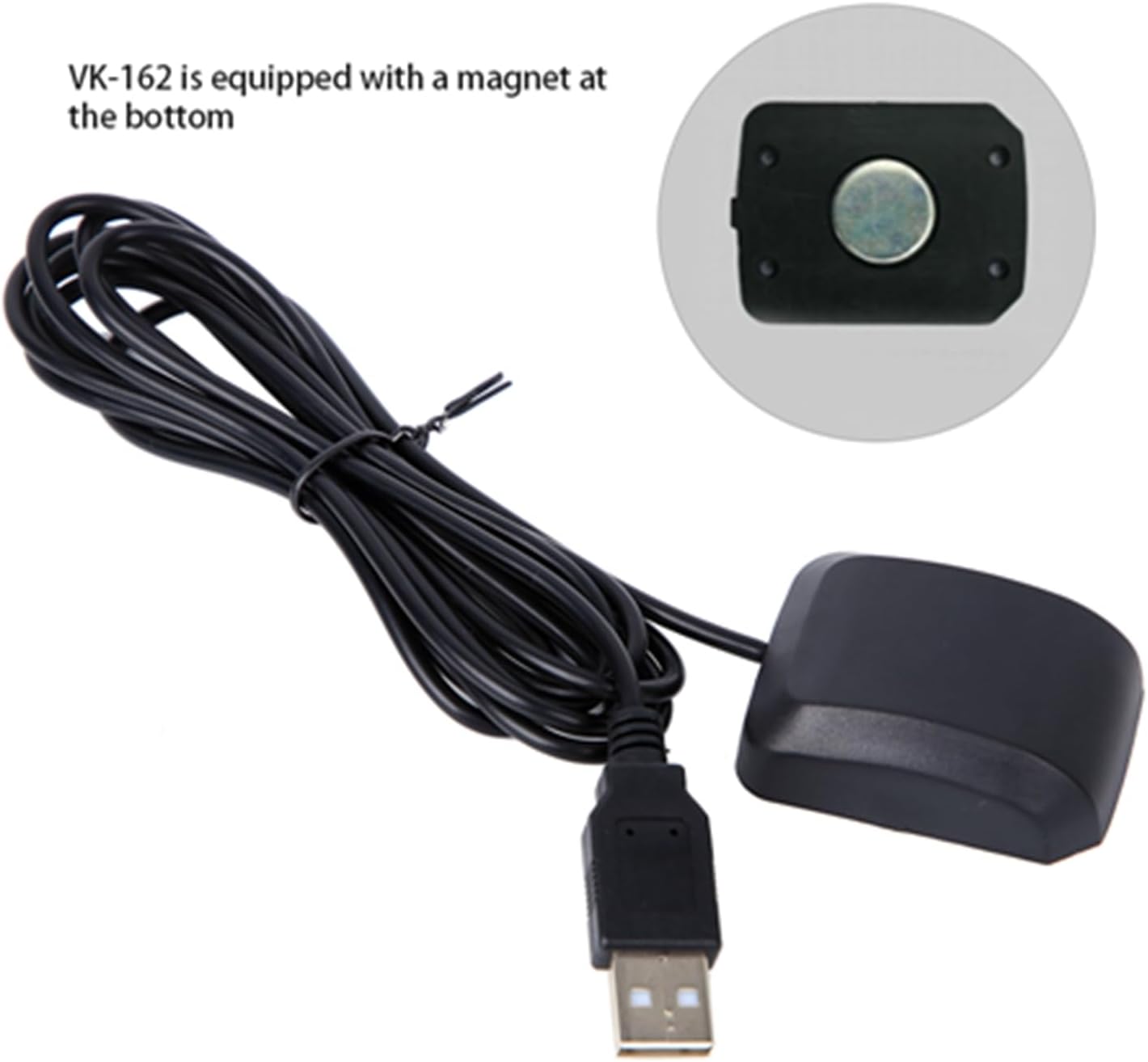
Image: The underside of the Garosa VK-162 USB GPS Receiver is visible, displaying 'G-MOUSE', 'DIYMall', 'Voltage: DC3.3V-5.0V', 'RoHS', and 'IPX6' labels. The integrated USB cable is coiled next to it.
5.2 Driver Installation
Upon connecting the device, your operating system (Windows 8/7/Vista/XP/CE) may automatically install the necessary drivers. If automatic installation does not occur or if you encounter issues, manual driver installation may be required.
Manual Driver Installation:
- Identify COM Port: Open 'Device Manager' on your computer. Look under 'Ports (COM & LPT)' to identify the COM port assigned to the 'Prolific PL2303GC USB Serial COM Port'. Note the COM port number (e.g., COM3, COM4).
- Download Drivers: Visit the official GlobalSat website (www.globalsat.com.tw). Navigate to the 'Support' section and locate the drivers for the BU-353N (which uses a similar driver to the VK-162). Download the appropriate driver for your operating system (Windows, Mac, or Linux).
- Install Driver: Run the downloaded driver installation file. Follow the on-screen prompts to complete the installation.
- Update Driver (if needed): If the device appears under 'Other devices' or has a warning sign, right-click on it in Device Manager, select 'Update driver', and choose 'Search automatically for drivers'.
Video: A demonstration on how to install and verify the VK-162 GPS USB driver on a Windows computer. It shows connecting the device, checking Device Manager for the COM port, and downloading drivers from the GlobalSat website.
6. Operating the Device
6.1 Verifying Functionality with GPS Info Tool
To confirm your GPS receiver is functioning correctly and receiving satellite signals, you can use a GPS Info Tool. This tool is often available for download from the manufacturer's support page.
- Download GPS Info Tool: From the GlobalSat support page (or similar for Garosa), download the 'GPS Info Tool for Windows'.
- Launch Tool: Open the downloaded application.
- Configure Settings: In the tool, select the correct COM port (identified in Device Manager) and set the Baud Rate to 4800.
- Start GPS: Click 'Start GPS'. You should see NMEA data scrolling and blue bars indicating satellite signal strength.
Video: This video demonstrates how to use a GPS Info Tool on Windows to verify the functionality of the VK-162 GPS receiver. It shows selecting the COM port, setting the baud rate, and observing NMEA data and satellite signal bars.
6.2 Achieving a GPS Fix
For optimal performance and to achieve a GPS fix, ensure the receiver has a clear view of the sky. Place the device near a window or in an open-sky environment. The red LED indicator on the device will blink when a GPS fix is acquired. If the LED is solid red, it means a fix has not yet been established.

Image: The Garosa VK-162 USB GPS Receiver is shown with its integrated USB cable coiled. The device is black and compact, with a blue background suggesting a digital map or sky. Text on the image indicates its use in car navigation and tracking.
Video: A short video demonstrating the physical appearance of the VK-162 G-Mouse USB GPS Dongle Navigation Module. It shows the device being handled and its USB connector.
6.3 Using with Navigation Software
Once the GPS receiver has a fix, close the GPS Info Tool (as the device can only communicate with one program at a time). Then, open your preferred navigation or mapping software and select the correct COM port for the GPS receiver. The software should now receive location data from the device.
7. Maintenance
- Cleaning: Wipe the device with a soft, dry cloth. Avoid using harsh chemicals or abrasive cleaners.
- Storage: Store the device in a cool, dry place away from direct sunlight and extreme temperatures when not in use.
- Cable Care: Avoid bending or twisting the USB cable excessively to prevent damage.
- Environmental Protection: While the device has an IPX6 rating (water resistant), avoid submerging it in water or exposing it to heavy rain for prolonged periods.
8. Troubleshooting
- Device Not Recognized: Ensure the USB cable is securely connected. Try a different USB port or computer. Verify driver installation in Device Manager.
- No GPS Fix (Solid Red LED): Move the device to an area with a clear, unobstructed view of the sky (e.g., near a window, outdoors). Allow several minutes for the device to acquire satellite signals.
- Software Not Receiving Data: Ensure no other GPS applications are running simultaneously. Close any GPS Info Tools before opening your navigation software. Verify the correct COM port is selected in your navigation software.
- Inaccurate Readings: Ensure the device has a clear view of the sky. Interference from tall buildings, dense foliage, or indoor environments can affect accuracy.
9. Warranty and Support
For warranty information, technical support, or further inquiries, please refer to the official Garosa product documentation or visit the manufacturer's website. Contact details for support are typically provided in the product packaging or on the official website.
Manufacturer: Garosa
Website: For driver downloads and additional support, please visit www.globalsat.com.tw (Note: GlobalSat is a common provider for similar GPS modules, and their support site may offer relevant resources).


