
1. Introduction
Thank you for choosing the MNN Portable Monitor. This 14-inch Full HD (1920x1200P) display is designed to enhance your productivity and entertainment on the go. Featuring an advanced IPS matte screen with a 178° full viewing angle, it delivers accurate and vibrant colors while effectively reducing blue light radiation for eye comfort during prolonged use. Its ultra-slim and lightweight design makes it an ideal companion for travelers, students, gamers, and professionals.
2. Key Features and Benefits
- Full HD Portable Monitor: 14-inch display with 1920x1200P resolution, advanced IPS matte screen, and 178° full viewing angle for accurate, vibrant colors and reduced blue light radiation.
- Dual Type-C Ports: Features two full-function USB-C ports for true plug-and-play. A single USB Type-C cable can transmit both power supply and display signal. Compatible with laptops, PCs, phones, MacBooks, PS5/PS4, and Switch.
- Lightweight and Ultra-Slim: Easily fits into backpacks and suitcases, providing stress-free portability for various users.
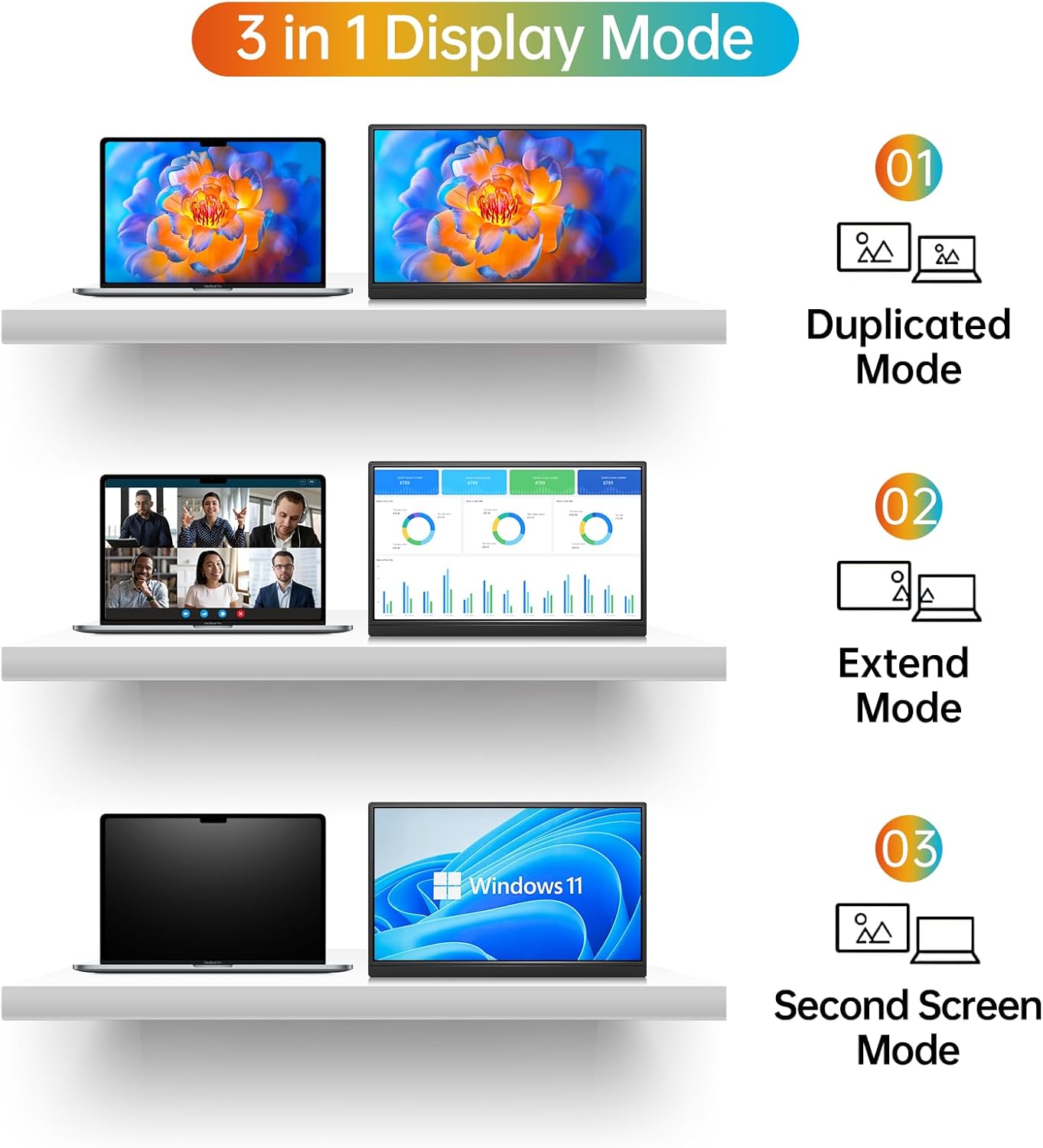
- Versatile Display Modes: Supports Copy Mode, Extended Mode, Second Screen Mode, and Portrait Mode to enhance work efficiency and gaming experience.
- HDR Mode: Upgrades image quality with brighter highlights, deeper colors, and more realistic visuals.
- Built-in Stand: Convenient integrated stand on the back for easy setup anywhere.
3. What's in the Box
The MNN Portable Monitor package includes everything you need to get started:
- MNN Portable Monitor (14 inch FHD 1920x1200P)
- Smart Cover (doubles as a stand)
- USB-C to USB-C Cable
- HDMI to Mini HDMI Cable
- User Guide
4. Setup Instructions
The MNN Portable Monitor is designed for easy plug-and-play setup. Follow these steps to connect your device:
- Unpack the Monitor: Carefully remove the monitor and all accessories from the packaging.
- Position the Monitor: Use the included smart cover to prop up the monitor to your desired viewing angle. The magnetic cover allows for stable positioning.
- Connect to Your Device:
- Using USB-C (Single Cable Solution): If your laptop, PC, phone, or gaming console supports Thunderbolt 3.0 or USB 3.1 Type-C DP Alt-Mode, connect one end of the provided USB-C to USB-C cable to the monitor's full-function USB-C port and the other end to your device's compatible USB-C port. This single cable will provide both power and video signal.
- Using HDMI (Video Only): Connect one end of the provided HDMI to Mini HDMI cable to the monitor's Mini HDMI port and the other end to your device's HDMI output. For power, connect a USB-C power adapter (not included) to one of the monitor's USB-C ports.
- Power On: The monitor should automatically power on and display your device's screen. If not, press the power button on the monitor.
5. Operating Instructions
5.1. Display Modes
The MNN Portable Monitor supports multiple display modes to suit your needs:
- Copy Mode: Duplicates your main screen, ideal for presentations or sharing content.
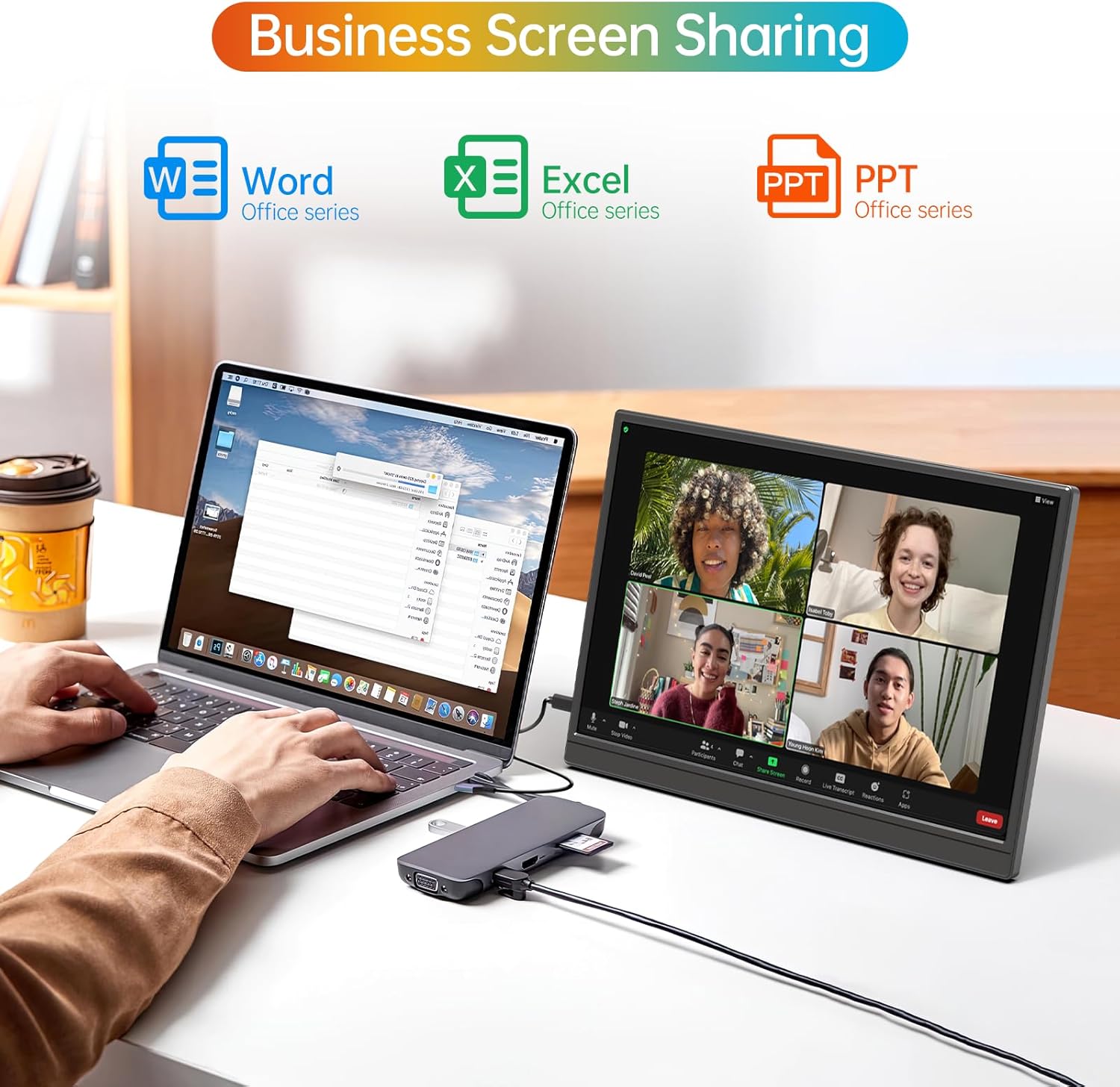
- Extended Mode: Extends your desktop space, allowing you to multitask efficiently with different applications open on each screen.
- Second Screen Mode: Uses only the portable monitor as the display.
- Portrait Mode: Rotates the display for vertical viewing, beneficial for coding, document review, or social media feeds.
5.2. On-Screen Display (OSD) Menu
The OSD menu allows you to adjust various settings for optimal viewing. Use the buttons on the side of the monitor to navigate and select options.
- Power / Back Button: Turns the monitor on/off and navigates back in the OSD menu.
- Brightness +/- Buttons: Adjusts the screen brightness.
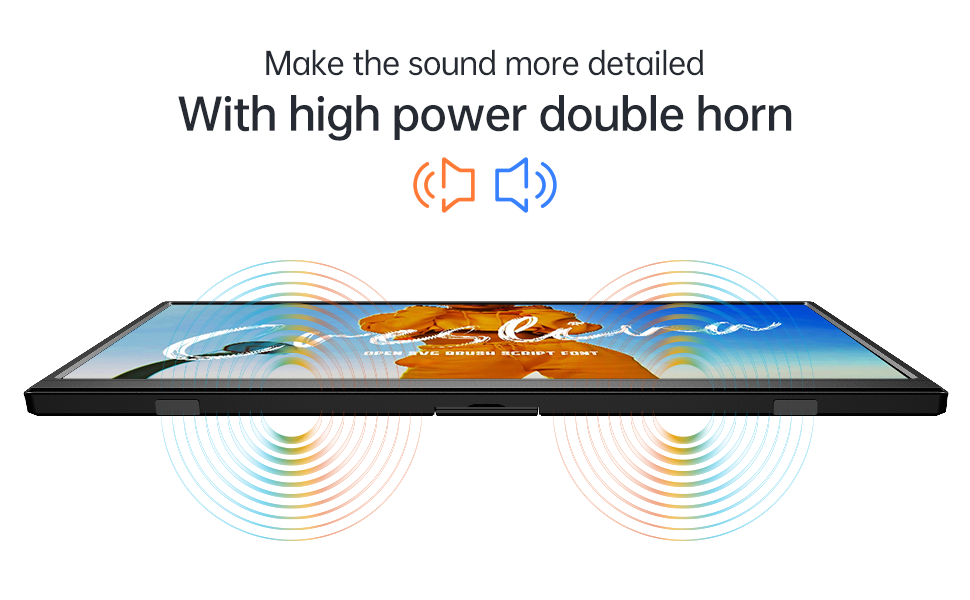
- Volume +/- Buttons: Controls the audio output from the built-in speakers or connected headphones.
- OSD Button: Opens the OSD menu.
- 3.5mm Headphone Jack: Connect external headphones for private audio.

6. Maintenance
To ensure the longevity and optimal performance of your MNN Portable Monitor, follow these maintenance guidelines:
- Cleaning the Screen: Use a soft, lint-free cloth slightly dampened with water or a screen-cleaning solution. Avoid harsh chemicals or abrasive materials.
- Cleaning the Casing: Wipe the monitor's casing with a soft, dry cloth.
- Storage: When not in use, especially during travel, keep the monitor protected by its smart cover to prevent scratches and damage.
- Avoid Extreme Conditions: Do not expose the monitor to extreme temperatures, humidity, or direct sunlight for prolonged periods.
- Handle with Care: Although designed for portability, avoid dropping or subjecting the monitor to strong impacts.
7. Troubleshooting
If you encounter any issues with your MNN Portable Monitor, refer to the following common solutions:
| Problem | Possible Solution |
|---|---|
| No display/No signal |
|
| No sound or low volume |
|
| Screen flickering or unstable image |
|
| Monitor not powering on |
|
| Poor picture quality/washed out colors |
|
8. Specifications
| Feature | Detail |
|---|---|
| Brand | MNN |
| Model Name | M140F1 |
| Screen Size | 14 Inches |
| Native Resolution | 1920x1200 (FHD 1200P) |
| Aspect Ratio | 16:10 |
| Screen Surface Description | Matte |
| Display Technology | IPS LCD |
| Viewing Angle | 178 Degrees |
| Brightness | 400cd/m² |
| Contrast Ratio | Approximately 500:1 to 1000:1 |
| Refresh Rate | 60 Hz |
| Response Time | 5 Milliseconds |
| Connectivity | 2x Full-function USB Type-C, 1x Mini HDMI |
| Audio | Built-in Speakers, 3.5mm Headphone Jack |
| Special Features | HDR, Low Blue Light, Flicker-Free, Built-in Stand |
| Item Dimensions (D x W x H) | 17"D x 2.3"W x 10.7"H |
| Item Weight | 1.35 Kilograms |
| Compatible Devices | Laptop, PC, Phone, MacBook, PS5/PS4, Switch |
| UPC | 795847642673 |
9. Warranty & Support
MNN is committed to providing customer-centric quality service.
- Warranty: The MNN Portable Monitor comes with a Full Warranty, valid for 2 years from the date of purchase. This covers manufacturing defects and malfunctions under normal use.
- Customer Support: For any questions, problems, or support needs, please feel free to contact MNN customer service.
Contact Information:
Email: support@mnntech.com