
TRIFO Emma-S
TRIFO Ollie Robot Vacuum Cleaner User Manual
Model: Emma-S
Brand: TRIFO
1. Introduction
The TRIFO Ollie Robot Vacuum Cleaner is designed to provide efficient and automated cleaning for your home. Featuring 3D SLAM visual navigation, powerful suction, and smart app control, it simplifies your cleaning routine. This manual provides essential information for setting up, operating, and maintaining your robot vacuum cleaner.
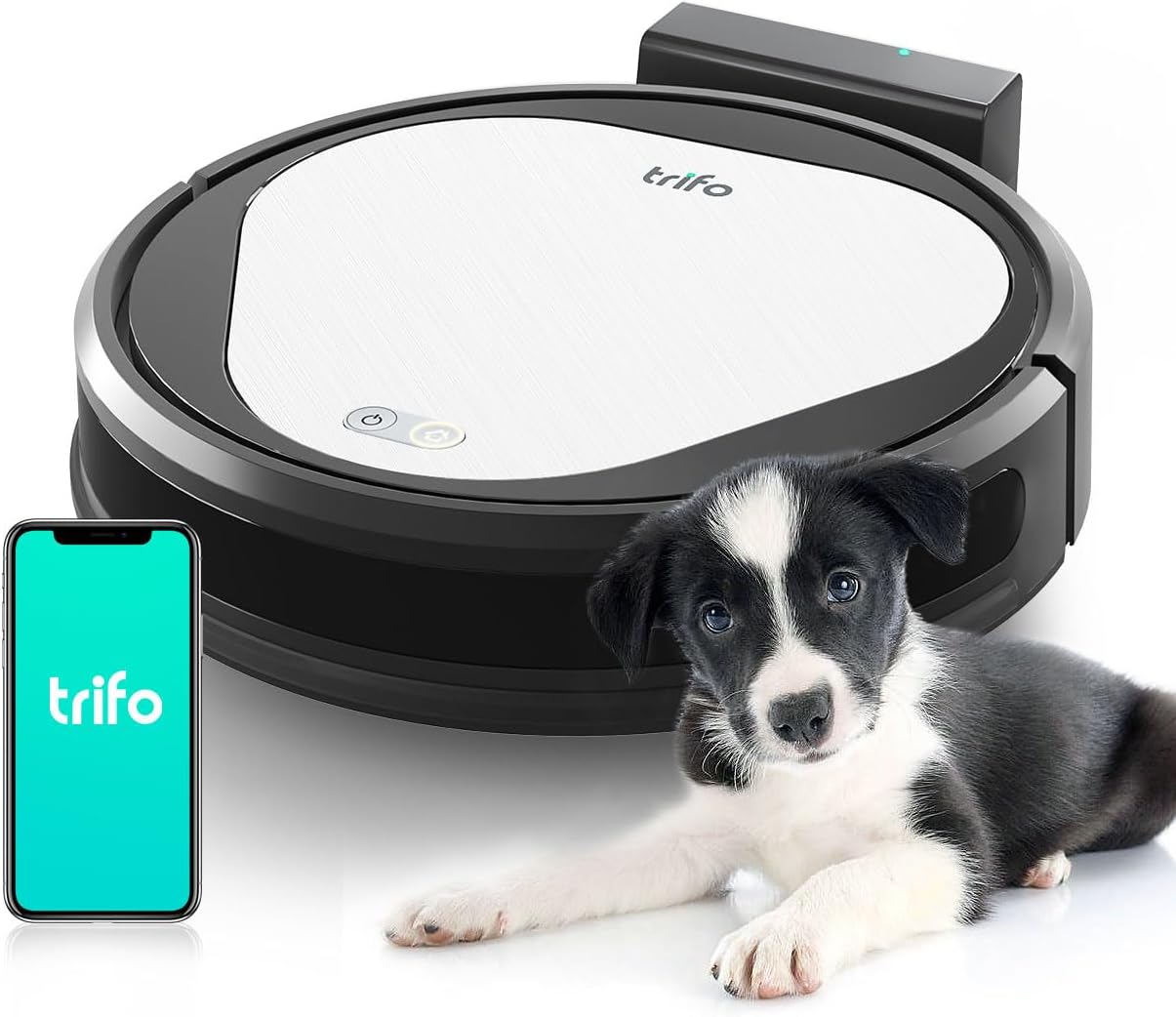
Figure 1.1: The TRIFO Ollie Robot Vacuum Cleaner, showcasing its compact design, accompanied by a puppy and a smartphone illustrating the companion application.
2. Safety Instructions
Please read these safety instructions carefully before using your TRIFO Ollie Robot Vacuum Cleaner and keep them for future reference. Failure to follow these instructions may result in electric shock, fire, or serious injury.
- Do not use the robot vacuum cleaner outdoors or on wet surfaces.
- Do not allow children or pets to operate the robot vacuum cleaner. Supervise children when the device is in use.
- Use only the original charging dock and power adapter provided by TRIFO.
- Ensure the charging dock is placed on a level surface against a wall, with adequate clear space around it.
- Do not handle the robot vacuum cleaner or its charger with wet hands.
- Keep hair, loose clothing, fingers, and all parts of the body away from openings and moving parts.
- Do not pick up flammable or combustible materials, such as gasoline, or use in areas where they may be present.
- Do not pick up anything that is burning or smoking, such as cigarettes, matches, or hot ashes.
- Check the dustbin and filter regularly and clean them to maintain optimal performance.
- If the power cord is damaged, it must be replaced by the manufacturer, its service agent, or similarly qualified persons to avoid a hazard.
3. Package Contents
Verify that all items are present and in good condition upon unpacking:
- TRIFO Ollie Robot Vacuum Cleaner
- Charging Dock
- Power Adapter
- Side Brushes (2x)
- Main Brush (pre-installed)
- Dustbin (pre-installed)
- High-Efficiency Filter (pre-installed)
- Cleaning Tool
- User Manual
4. Product Features
The TRIFO Ollie Robot Vacuum Cleaner is equipped with advanced features for superior cleaning performance:
4.1 Powerful Suction
Offers an impressive suction power of up to 3000 Pa, ensuring thorough cleaning of dust, hair, and debris on various floor types, including carpet, wood, and tile.

Figure 4.1: The underside of the robot vacuum cleaner demonstrating its powerful 3000Pa suction capability, effectively lifting dirt and debris from the floor.
4.2 Efficient Cleaning Path
Features a 21 cm main brush and a U-shaped cleaning path to significantly reduce cleaning time. The 600ml dustbin allows for extended cleaning sessions without frequent emptying.
4.3 Compact Design for Hard-to-Reach Areas
With a height of only 8.4 cm and an elongated side brush, the robot vacuum cleaner can effectively reach and clean under sofas, beds, and cupboards. Ensure a minimum clearance of 2 cm between the furniture and the floor for optimal movement.

Figure 4.2: The compact design of the TRIFO Ollie allows it to easily navigate and clean under low-clearance furniture such as sofas, ensuring comprehensive coverage.
4.4 Pet Hair Friendly
Designed to effectively pick up pet hair, making it an ideal cleaning solution for households with pets.

Figure 4.3: The TRIFO Ollie is specifically engineered to handle pet hair, making it a valuable tool for pet owners to maintain a clean home environment.
4.5 Intelligent Protection and Navigation
Equipped with sensors on the bottom to prevent falls from stairs and other elevated surfaces. Side sensors assist the robot in navigating precisely along walls and avoiding collisions with furniture.
4.6 App and Alexa Control
Control your robot vacuum cleaner conveniently via the dedicated smartphone app or using Alexa voice commands. The app allows for cleaning scheduling, setting times, and manually selecting cleaning areas. Note: Connection requires a 2.4 GHz wireless network.
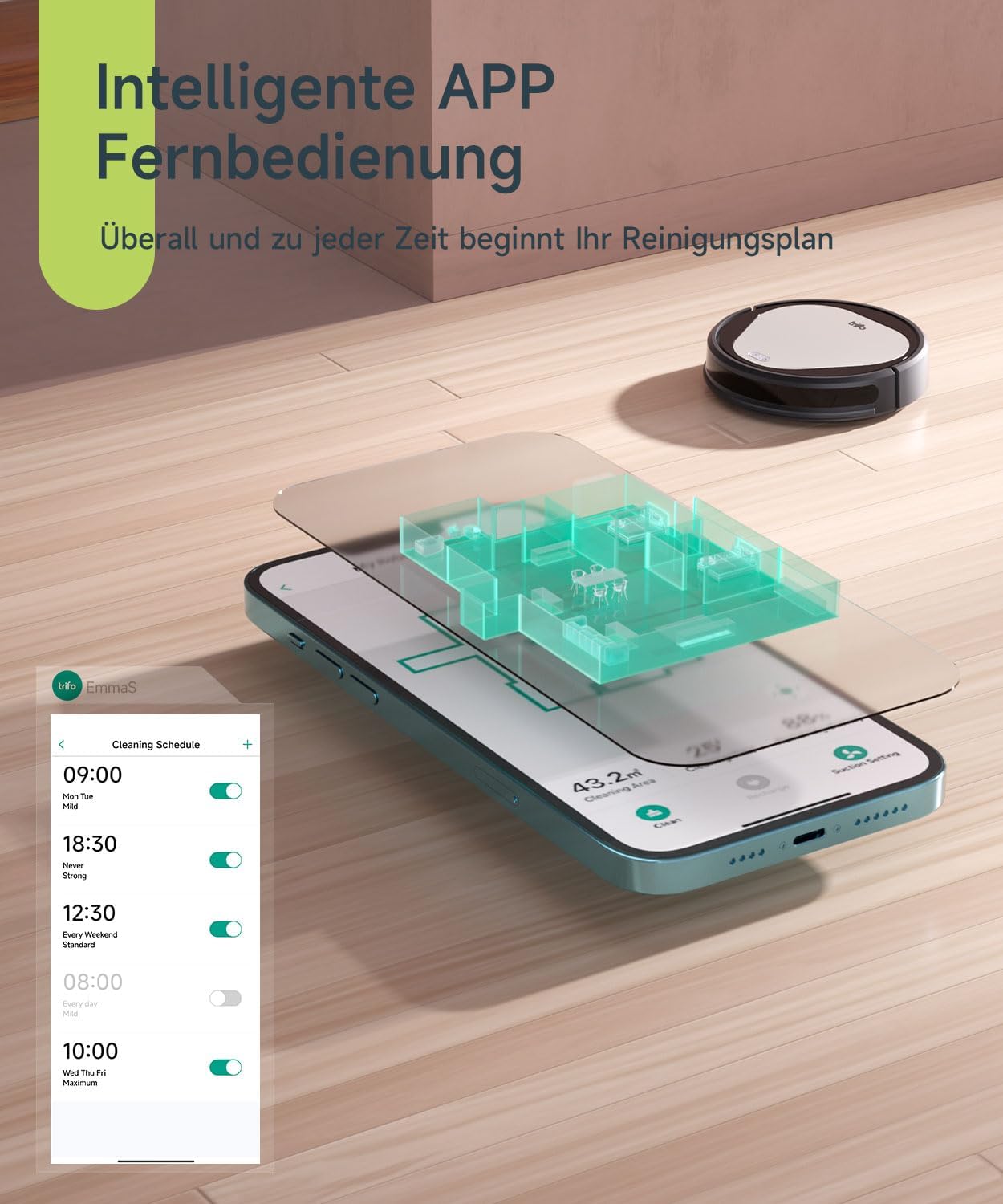
Figure 4.4: The TRIFO companion app provides comprehensive control, allowing users to schedule cleaning, view room maps, and manage cleaning areas directly from their smartphone.
4.7 Automatic Charging
The robot automatically returns to its charging station when cleaning is complete or when the battery level is low, ensuring it is always ready for the next cleaning cycle.

Figure 4.5: The robot vacuum cleaner automatically navigates back to its charging dock when its battery is low or after completing a cleaning task, ensuring continuous operation.
5. Setup Guide
5.1 Unpacking and Initial Placement
- Carefully remove the robot vacuum cleaner and all accessories from the packaging.
- Remove any protective films or packing materials from the robot and charging dock.
- Place the charging dock against a wall on a hard, level surface. Ensure there is at least 0.5 meters (1.6 feet) of clear space on both sides and 1.5 meters (4.9 feet) in front of the charging dock.
- Connect the power adapter to the charging dock and plug the other end into a wall outlet. Ensure the power indicator on the charging dock illuminates.
5.2 Initial Charging
Place the robot vacuum cleaner onto the charging dock, ensuring the charging contacts on the robot align with those on the dock. The robot will begin charging automatically. For first-time use, fully charge the robot before operation (approximately 4-5 hours).
5.3 App Download and Wi-Fi Connection
- Download the "TRIFO Home" app from the App Store (iOS) or Google Play Store (Android).
- Open the app and create an account.
- Follow the in-app instructions to add your TRIFO Ollie device. Ensure your smartphone is connected to a 2.4 GHz Wi-Fi network during the pairing process. The robot vacuum cleaner only supports 2.4 GHz Wi-Fi.
- Once connected, you can control the robot, view cleaning maps, set schedules, and access various features through the app.
6. Operating Instructions
6.1 Starting a Cleaning Cycle
- Via Robot Button: Press the power button on the robot once to start an automatic cleaning cycle. Press again to pause.
- Via TRIFO Home App: Open the app and tap the "Start Cleaning" button. You can also select specific cleaning modes or areas.
- Via Voice Command (Alexa): If integrated with Alexa, say "Alexa, ask [Robot Name] to start cleaning."
6.2 Pausing and Resuming
During a cleaning cycle, you can pause the robot by pressing the power button on the robot or through the app. To resume, press the button again or use the app.
6.3 Returning to Charging Dock
The robot will automatically return to its charging dock when the battery is low or when a cleaning cycle is completed. You can also manually send it back to the dock via the app or by pressing the home button on the robot (if available).
6.4 Scheduling Cleaning
Use the TRIFO Home app to set up daily or weekly cleaning schedules. This allows the robot to clean automatically at your preferred times.
7. Maintenance
Regular maintenance is crucial for optimal performance and longevity of your TRIFO Ollie Robot Vacuum Cleaner. Perform these tasks regularly:
7.1 Emptying the Dustbin
- Press the dustbin release button and pull out the dustbin.
- Open the dustbin lid and empty its contents into a trash can.
- Rinse the dustbin with water if necessary (ensure it is completely dry before re-inserting).
7.2 Cleaning the Filter
- Remove the filter from the dustbin.
- Tap the filter gently to remove dust and debris. Do not wash the high-efficiency filter with water.
- Replace the filter every 3-6 months, depending on usage.
7.3 Cleaning the Main Brush
- Flip the robot over and remove the main brush cover.
- Lift out the main brush.
- Use the provided cleaning tool to remove hair and debris tangled around the brush.
- Reinstall the main brush and cover.
7.4 Cleaning the Side Brushes
- Check the side brushes for tangled hair or debris.
- If necessary, remove the side brushes (they may be screwed in) and clean them.
- Reattach or replace if worn.
7.5 Cleaning Sensors and Charging Contacts
- Wipe all sensors (cliff sensors on the bottom, wall sensors on the side) and charging contacts on both the robot and the charging dock with a clean, dry cloth.
- Ensure no dust or debris obstructs the sensors.
8. Troubleshooting
Refer to this section for common issues and their solutions:
| Problem | Possible Cause | Solution |
|---|---|---|
| Robot does not turn on or charge. | Battery low; charging contacts dirty; power adapter not connected. | Place robot on charging dock; clean charging contacts; ensure power adapter is securely plugged in. |
| Robot gets stuck frequently. | Obstacles (cables, rugs); low clearance furniture. | Clear obstacles from cleaning path; ensure sufficient clearance under furniture (min. 2 cm). |
| Poor cleaning performance. | Dustbin full; filter clogged; main/side brushes tangled. | Empty dustbin; clean/replace filter; clean main and side brushes. |
| Cannot connect to Wi-Fi/App. | Incorrect Wi-Fi password; not 2.4 GHz network; robot too far from router. | Verify Wi-Fi password; ensure connection to 2.4 GHz network; move robot closer to router. |
| Robot falls down stairs. | Cliff sensors dirty or obstructed. | Clean cliff sensors on the bottom of the robot. |
9. Specifications
| Feature | Detail |
|---|---|
| Model | Emma-S (Ollie) |
| Brand | TRIFO |
| Item Weight | 5.16 Kilograms |
| Form Factor | Portable |
| Batteries Required | Yes |
| Included Components | Battery, Side Brush (and others as per package contents) |
| ASIN | B0BQ74NLPW |
| Date First Available | 23 December 2022 |
| Surface Recommendation | All Floor Types |
| Special Features | Logical Navigation, Pet Hair Pick Up |
| Controller Type | Amazon Alexa, Mobile App |
| Suction Power | Up to 3000 Pa |
| Dustbin Capacity | 600ml |
| Robot Height | 8.4 cm (3.34 inches) |
10. Warranty and Support
TRIFO products are manufactured to high-quality standards. For information regarding warranty coverage, please refer to the warranty card included in your product packaging or visit the official TRIFO website.
For technical support, troubleshooting assistance, or inquiries about replacement parts, please contact TRIFO Customer Service. Contact details can typically be found on the TRIFO website or within the TRIFO Home app.
Online Support: Visit the official TRIFO website for FAQs, video tutorials, and support contact information.
App Support: Access support resources directly through the TRIFO Home app.