
Yanzeo C2010
YANZEO C2010 2D Barcode Scanner User Manual
Model: C2010
Introduction
This manual provides comprehensive instructions for the YANZEO C2010 2D Barcode Scanner. The C2010 is a versatile handheld barcode scanner offering 3-in-1 connection options: 2.4G wireless, USB wired, and Bluetooth. It is designed for high-speed scanning of 1D, 2D, and QR codes, making it suitable for various applications including supermarkets, warehouses, and libraries.
The device features a durable ABS+PC construction and is compatible with Windows XP/7/8/10 operating systems. It supports a wide range of barcode symbologies, ensuring broad compatibility for your scanning needs.
Package Contents
- 1 x YANZEO C2010 2D Barcode Scanner
- 1 x USB Cable
- 1 x 2.4G Wireless USB Dongle
- 1 x User Manual (this document)

Figure 1: YANZEO C2010 Barcode Scanner, showing the scanner unit, USB cable, and 2.4G wireless USB dongle.
Product Overview

Figure 2: Front view of the scanner, highlighting the scanning window and trigger button.
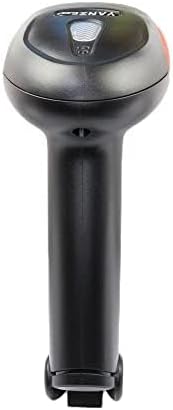
Figure 3: Back view of the scanner, showing the ergonomic grip and YANZEO branding.
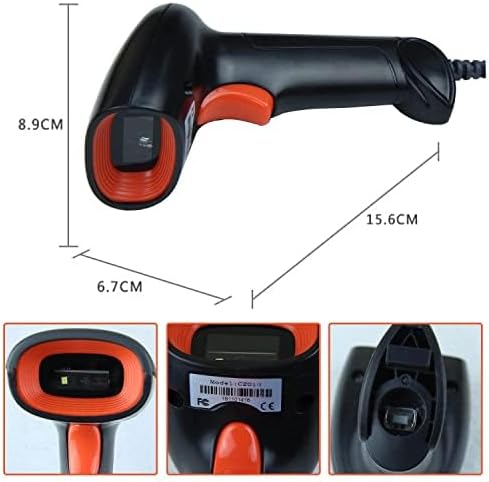
Figure 4: Physical dimensions of the YANZEO C2010 scanner, showing approximate length of 15.6 cm, height of 8.9 cm, and width of 6.7 cm.
Setup
1. Charging the Scanner
Before first use, ensure the scanner is fully charged. Connect the provided USB cable to the scanner's charging port and the other end to a USB power adapter (not included) or a computer's USB port. The indicator light will show charging status.
2. Connection Modes
The YANZEO C2010 supports three connection modes: 2.4G Wireless, USB Wired, and Bluetooth. The scanner is plug-and-play, requiring no driver installation for basic functionality.
2.1. 2.4G Wireless Mode
- Insert the 2.4G wireless USB dongle into an available USB port on your computer.
- Turn on the scanner. It will automatically attempt to connect to the dongle.
- A successful connection is indicated by a specific sound or light pattern (refer to scanner's indicator guide).

Figure 5: Detail view of the 2.4G wireless USB dongle and the scanner's USB port, used for both wired connection and charging.
2.2. USB Wired Mode
- Connect the scanner directly to your computer using the provided USB cable.
- The scanner will be recognized as a HID keyboard device.
- No additional drivers are typically required for this mode.
2.3. Bluetooth Mode
- Ensure the scanner is powered on.
- Scan the "Bluetooth Pairing" barcode (usually found in a quick start guide or on the scanner itself, if not, refer to the manufacturer's website).
- On your host device (computer, tablet, smartphone), enable Bluetooth and search for new devices.
- Select "YANZEO C2010" or a similar name from the list of available devices to pair.
- Some devices may require you to scan a confirmation barcode displayed on the screen.

Figure 6: The scanner demonstrating compatibility with various devices including iOS, Android, and laptops, suitable for Bluetooth connection.
Operating Instructions
1. Basic Scanning
- Ensure the scanner is connected to your host device in the desired mode.
- Open an application where you want the scanned data to appear (e.g., Notepad, Word document, spreadsheet, or a specific inventory software).
- Point the scanner's window at the barcode you wish to scan.
- Press and hold the trigger button. A red aiming line or light will appear.
- Align the aiming line across the entire barcode.
- Once successfully scanned, the scanner will emit a beep and/or the indicator light will flash, and the barcode data will appear in your application.

Figure 7: Proper handling of the scanner while demonstrating its ability to scan various 2D barcode types, including PDF417, QR Code, and Datamatrix.
2. Supported Barcode Symbologies
The YANZEO C2010 supports a wide range of 1D and 2D barcode types:
- 1D Barcodes: UPC-A, UPC-E, EAN-8, EAN-13, Code 39, Code 93, Code 32, Code39 (ASCII), Industrial 2/5, Interleave 2/5, Matrix 2/5, NW7 (Codabar), Code 128, UCC/EAN128, USD-8, MSI/Plessey, UK/Plessey, GS1 DataBar, Postal codes.
- 2D Barcodes: DataMatrix (ECC 200), QR Code, PDF 417.
3. Advanced Settings (Configuration Barcodes)
The scanner's behavior can be customized by scanning specific configuration barcodes. These barcodes are typically found in the full user manual provided with the product or available on the Yanzeo official website. Common settings include:
- Adding prefix/suffix to scanned data.
- Adjusting volume of the beep.
- Enabling/disabling specific barcode types.
- Setting sleep time.
Maintenance
- Cleaning: Use a soft, dry cloth to clean the scanner's exterior. For the scanning window, use a lint-free cloth lightly dampened with a mild glass cleaner. Avoid abrasive cleaners or solvents.
- Storage: Store the scanner in a cool, dry place away from direct sunlight and extreme temperatures.
- Battery Care: To prolong battery life, avoid fully discharging the battery frequently. If storing for a long period, charge the battery to about 50% and recharge every few months.
- Physical Protection: While the scanner is made of durable ABS+PC material, avoid dropping it or subjecting it to severe impacts.
Troubleshooting
| Problem | Possible Cause | Solution |
|---|---|---|
| Scanner does not power on. | Low battery. | Charge the scanner using the provided USB cable. |
| Scanner does not scan. | Not connected; barcode damaged; incorrect symbology enabled. | Ensure proper connection (wired, 2.4G, or Bluetooth). Try scanning a different, known-good barcode. Check scanner settings to ensure the barcode type is enabled. |
| Scanned data is incorrect or incomplete. | Poor scan angle; barcode damaged; incorrect keyboard layout. | Ensure the aiming line covers the entire barcode. Try scanning from a different angle. Verify the host device's keyboard layout matches the scanner's output. |
| 2.4G Wireless connection fails. | Dongle not inserted; out of range; interference. | Ensure the USB dongle is securely inserted. Move closer to the dongle. Avoid strong electromagnetic interference. Re-pair the scanner with the dongle if necessary. |
| Bluetooth connection fails. | Not in pairing mode; host device Bluetooth off; out of range. | Ensure the scanner is in Bluetooth pairing mode. Verify Bluetooth is enabled on your host device. Move closer to the host device. Re-pair the scanner. |
Specifications
| Feature | Description |
|---|---|
| Model | C2010 |
| Connectivity | 2.4G Wireless, USB Wired, Bluetooth |
| Supported Barcodes (1D) | UPC-A, UPC-E, EAN-8, EAN-13, Code 39, Code 93, Code 32, Code39 (ASCII), Industrial 2/5, Interleave 2/5, Matrix 2/5, NW7 (Codabar), Code 128, UCC/EAN128, USD-8, MSI/Plessey, UK/Plessey, GS1 DataBar, Postal codes |
| Supported Barcodes (2D) | DataMatrix (ECC 200), QR Code, PDF 417 |
| Compatibility | Windows XP/7/8/10, Desktop, Laptop, iOS, Android (via Bluetooth) |
| Material | ABS+PC |
| Power Source | Battery-powered (1 Lithium Polymer battery included) |
| Dimensions (Approx.) | 15.6 cm (L) x 8.9 cm (H) x 6.7 cm (W) |
| Weight (Approx.) | 281 g |
Warranty and Support
For warranty information and technical support, please refer to the official YANZEO website or contact their customer service directly. Keep your purchase receipt as proof of purchase for warranty claims.
Official Website: https://www.yanzeo.com/
Ask a question about this manual
Ask about setup, troubleshooting, compatibility, parts, safety, or missing instructions. Manuals+ will review the question and use this page’s manual context to help answer it.