
1. Introduction
This manual provides detailed instructions for the operation and maintenance of your Cawevon Powkiddy X70 HD Retro Handheld Game Console. Please read this manual thoroughly before using the device to ensure proper functionality and to maximize your gaming experience.
2. Product Overview
The Powkiddy X70 is a handheld game console designed for retro gaming, featuring a 7-inch IPS screen and a Linux operating system. It comes pre-loaded with a large library of games and supports external storage expansion.
Key Features:
- 7-inch IPS high-definition screen with 1024x600 resolution.
- Linux operating system with ATM7051 quad-core ARM Cortex-A9 900mhz processor.
- Built-in 6000+ games (for 64G version).
- Supports TF card expansion up to 64GB.
- 3500mAh lithium battery.
- Compatible with 3.5mm stereo headphones.
- Supports dual gamepad connection for two-player gaming.
- Adjustable display attributes including brightness and energy-saving mode.

Figure 2.1: Key features of the Powkiddy X70 console, illustrating HD TV connection, strong CPU upgrade, 3500mAh lithium battery, and TF card slot expansion.
3. Package Contents
Upon unpacking, please verify that all items listed below are present and in good condition.
- Powkiddy X70 Handheld Game Console (1 unit)
- Charging Cable (1 unit)
- User Manual (1 unit)
- Packaging Box (1 unit)
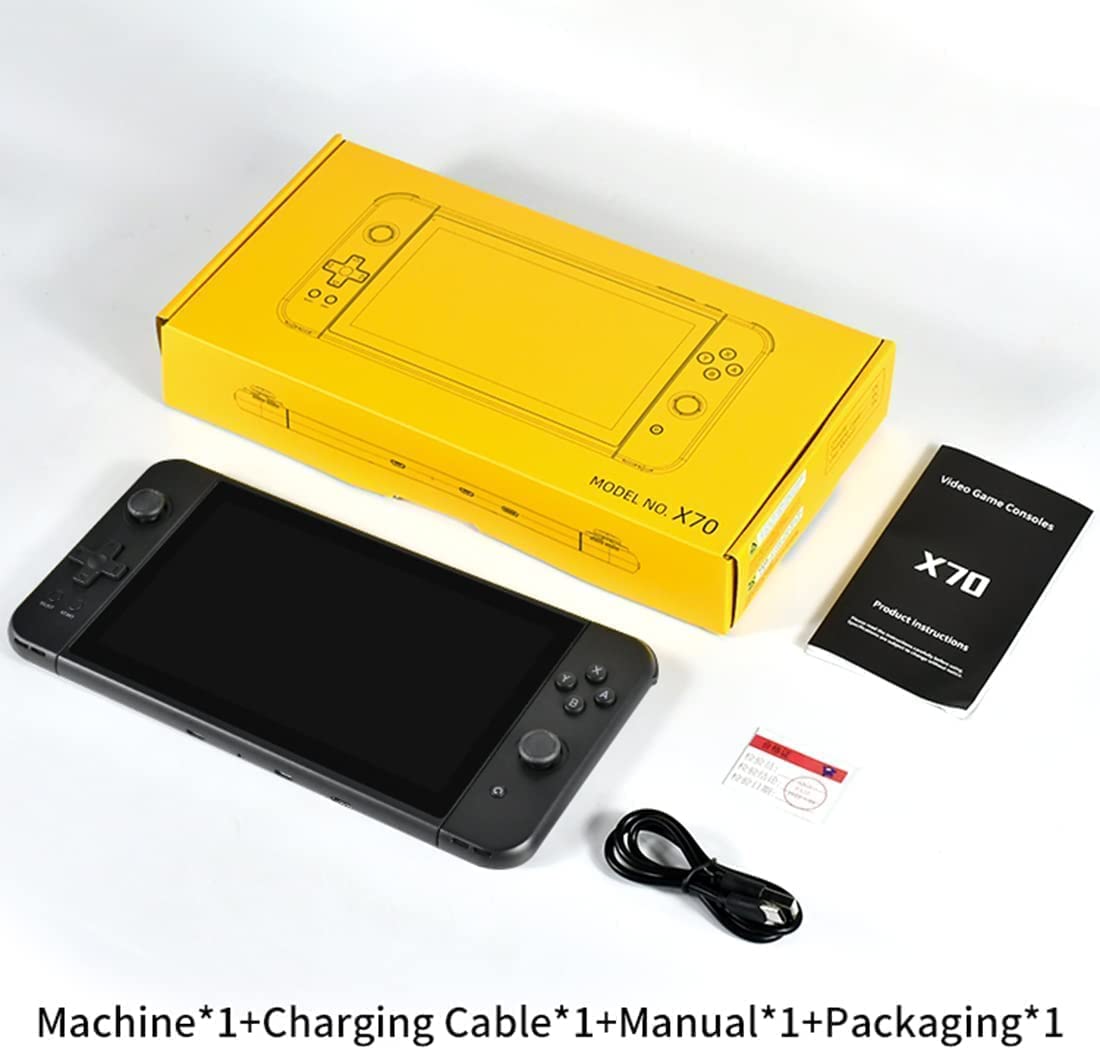
Figure 3.1: The Powkiddy X70 package contents, showing the console, charging cable, and product instructions manual.
4. Setup
4.1 Initial Charging
Before first use, fully charge the console's internal 3500mAh battery. Connect the provided charging cable to the console's charging port and a compatible USB power adapter (not included). The charging indicator will typically show the charging status and turn off or change color when fully charged.
4.2 Inserting a TF Card (Optional)
The console supports TF card expansion up to 64GB for additional game storage.
- Locate the TF card slot on the console.
- Gently insert the TF card into the slot until it clicks into place.
- To remove, push the card inward until it springs out.
5. Operating Instructions
5.1 Power On/Off
- To power on: Press and hold the power button until the screen illuminates.
- To power off: Press and hold the power button, then follow the on-screen prompts to shut down the system. A short press typically puts the device into sleep mode.
5.2 Basic Navigation
Use the D-pad (directional pad) or joystick to navigate through menus and game selections. The 'A', 'B', 'X', 'Y' buttons and 'SELECT', 'START' buttons are used for confirming selections, canceling, and in-game actions.

Figure 5.1: The Powkiddy X70 console in use, displaying a retro fighting game. This image illustrates the console's screen and control layout.
5.3 Game Selection and Play
- From the main menu, navigate to the desired game category or emulator.
- Select a game from the list using the D-pad/joystick and confirm with the appropriate button (usually 'A').
- To exit a game, refer to the in-game menu or the console's system menu options (often accessed by pressing a combination of buttons like SELECT + START).
5.4 Two-Player Mode
The Powkiddy X70 supports connecting two external gamepads for two-player gaming.
- Connect compatible USB gamepads to the console's USB ports.
- Ensure the game selected supports two-player functionality.
- Follow the in-game instructions to configure controllers for multiplayer.
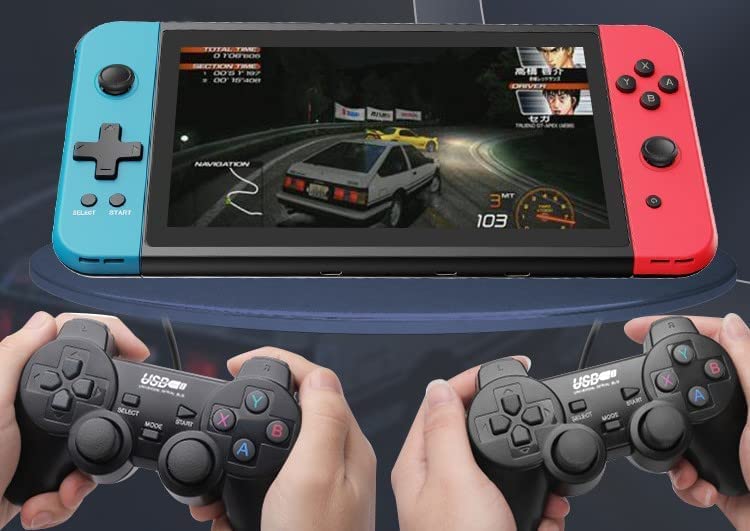
Figure 5.2: The Powkiddy X70 console demonstrating two-player functionality with external USB gamepads, playing a racing game.
5.5 Connecting to a TV
The console can be connected to an HD TV for a larger display.
- Locate the HDMI output port on the console.
- Connect an HDMI cable (not included) from the console to an HDMI input on your TV.
- Switch your TV's input source to the corresponding HDMI port.
- The console's display should automatically mirror or extend to the TV.
5.6 System Settings
Access the system settings menu to adjust various console parameters:
- Display: Adjust brightness, contrast, and other screen settings.
- Sound: Control volume levels.
- Language: Change the system language.
- Energy Saving: Configure sleep mode timers and power-saving options.
- Interface Background: Customize the user interface appearance.
6. Maintenance
6.1 Cleaning
To clean the console, use a soft, dry, lint-free cloth. For stubborn marks, slightly dampen the cloth with water. Avoid using harsh chemicals, solvents, or abrasive materials, as these can damage the console's finish and screen.
6.2 Battery Care
- Avoid fully discharging the battery frequently.
- Do not expose the console to extreme temperatures.
- If storing the console for an extended period, charge it to approximately 50% before storage.
- Use only the provided charging cable or a compatible replacement.
6.3 Screen Protection
To protect the 7-inch IPS screen from scratches and damage, consider applying a screen protector.

Figure 6.1: Illustration of a screen protector being applied to the Powkiddy X70 console, emphasizing screen care.
7. Troubleshooting
- Console does not power on: Ensure the battery is charged. Connect the charging cable and try again.
- Screen is blank or flickering: Check display settings. If connected to a TV, ensure the TV input is correct.
- No sound: Check volume settings in the system menu and in-game. Ensure headphones are properly connected if used.
- Games not loading: Verify the TF card is properly inserted. Ensure game files are not corrupted.
- Controls unresponsive: Restart the console. If using external gamepads, ensure they are properly connected and configured.
8. Specifications
| System | Linux |
| Processor | ATM7051 Quad-core ARM Cortex-A9 900mhz |
| RAM | LPDDR2 128M |
| Internal Memory | 128M |
| Display | 7-inch IPS screen, 1024x600 resolution |
| External Storage | TF card, up to 64GB |
| Battery | 3500mAh lithium battery |
| Audio Output | Dual speakers, 3.5mm stereo earphone jack |
| Video Format Support | FLV, MP4 |
| Image Format Support | JPG, JPEG, JPE, BMP, PNG |
| Product Dimensions | 23.6 x 11.7 x 1.4 cm (9.29 x 4.61 x 0.55 inches) |
| Product Weight | 358g (1.04 Pounds) |
9. Warranty and Support
For any questions or concerns regarding your Cawevon Powkiddy X70 handheld game console, please contact customer support. Refer to your purchase documentation for specific warranty details.