
RIITEK RIITEK-D2S PEN
RIITEK PeriPage D2S Translation Pen User Manual
Model: RIITEK-D2S PEN
Introduction
The RIITEK PeriPage D2S Translation Pen is a versatile and portable device designed to assist with language translation, text scanning, and learning. It integrates advanced OCR technology with real-time translation capabilities, making it an invaluable tool for students, professionals, and anyone needing quick and accurate language support. This manual provides comprehensive instructions for setting up, operating, maintaining, and troubleshooting your device.
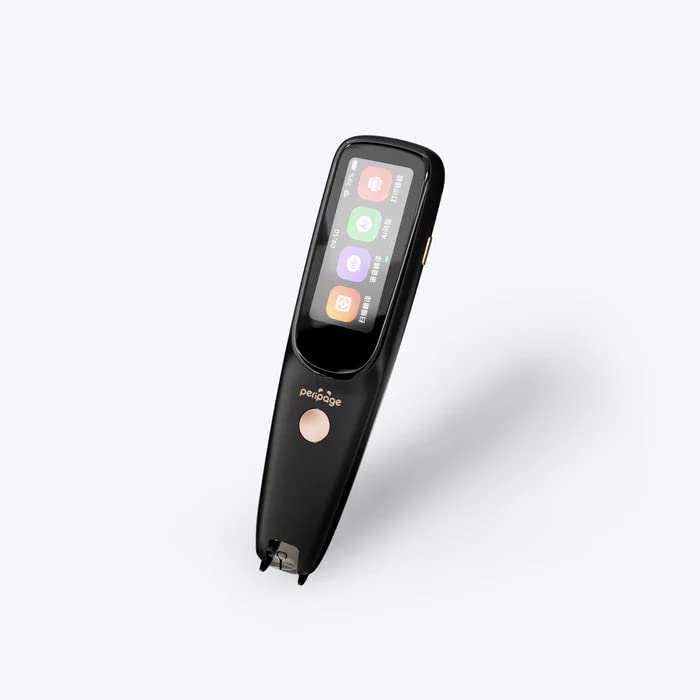
Image: The RIITEK PeriPage D2S Translation Pen, showcasing its sleek design and display.
Product Overview
The PeriPage D2S offers multiple functionalities, including:
- Text to Speech: Scans and reads text aloud in real-time.
- Multi-language Translation: Supports online OCR scanning translation in 55 languages, offline mutual translation in 4 languages (Chinese, English, Japanese, Korean), and online phonetic translation in 112 languages.
- Offline/Online Modes: Flexible operation with or without internet connection.
- Text Excerpt: Captures and saves text from scanned documents.
- Voice Recorder: Records audio for various purposes.
- MP3 Player: Plays audio files.
- Learning Pen: Aids in language study and word learning.

Image: Detailed view of the RIITEK PeriPage D2S Translation Pen, highlighting its dimensions and various ports/buttons.
Setup
1. Charging the Device
Before first use, fully charge the PeriPage D2S Translation Pen. Connect the included Type-C USB cable to the pen's charging port and the other end to a standard USB power adapter (not included) or a computer's USB port.
- A full charge typically takes approximately 2-3 hours.
- The battery indicator on the screen will show charging status.
2. Powering On/Off
- To Power On: Press and hold the Power button (located on the side) for a few seconds until the screen lights up.
- To Power Off: Press and hold the Power button until a power-off prompt appears on the screen. Select "Power Off" to shut down the device.
3. Initial Setup and Wi-Fi Connection
Upon first power-on, you may be guided through an initial setup process. This includes selecting your preferred system language (now supporting 9 languages) and connecting to a Wi-Fi network for online features.
- Navigate to Settings > Wi-Fi.
- Select your desired Wi-Fi network from the list.
- Enter the Wi-Fi password and tap Connect.
- A stable Wi-Fi connection is required for online translation and updates.
4. Inserting a TF Card (Optional)
The device supports an external TF card for expanded storage. Locate the TF card slot (usually under a protective cover) and gently insert the card until it clicks into place.
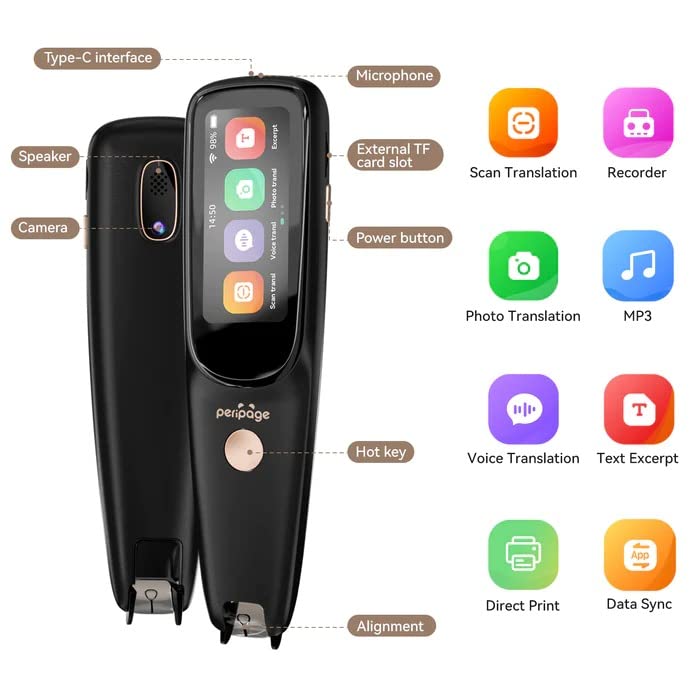
Image: Diagram of the RIITEK PeriPage D2S Translation Pen, indicating the location of the Type-C interface, speaker, camera, microphone, external TF card slot, power button, hot key, and alignment points.
Operating Instructions
1. Scan Translation (Online & Offline)
This feature allows you to scan text and have it translated or read aloud.
- Select the "Scan Translation" icon on the home screen.
- Choose your source and target languages. For offline translation, only Chinese, English, Japanese, and Korean are supported.
- Hold the pen firmly and place the scanning tip flat against the text you wish to scan.
- Slowly and steadily drag the pen across the line of text. Ensure the text is within the scanning window.
- The scanned text will appear on the screen, followed by its translation. The device will also read the text aloud.
- Left-handed Mode: If you are left-handed, enable this mode in the settings for optimal scanning performance.

Image: A hand demonstrating the use of the translation pen for scanning text from a book, illustrating the scan translation feature.
2. Photo Translation
Translate text from images using the built-in camera.
- Tap the "Photo Translation" icon.
- Position the pen's camera over the text you want to translate, ensuring it is well-lit and clear.
- Press the hot key or tap the screen to capture the image.
- The device will process the image and display the translated text.
3. Voice Translation (Online)
Engage in real-time voice conversations with translation.
- Select "Voice Translation."
- Choose the two languages for conversation.
- Press and hold the microphone button (or designated hot key) to speak. Release when finished.
- The device will translate and speak the translation aloud.
- Supports multiple accents and adjustable speech output speed.

Image: Illustrations showing the pen's use as a voice recorder for business or speech, and as an MP3 player for audio playback.
4. Text Excerpt
Save important text snippets from scanned documents.
- After scanning text, you will have the option to save it as a text excerpt.
- Access saved excerpts from the "Text Excerpt" menu on the device.
- These excerpts can be reviewed, edited, or exported.
5. Voice Recorder
Record lectures, meetings, or personal notes.
- Open the "Recorder" application.
- Tap the record button to start and stop recording.
- Recordings are saved internally or to the TF card if inserted.
6. MP3 Player
Play audio files stored on the device or TF card.
- Access the "MP3" application.
- Browse and select audio files for playback.
- Connect Bluetooth earphones for private listening.
7. Data Sync & Direct Print
The device supports data synchronization and direct printing capabilities.
- Data Sync: Connect the pen to a computer via USB to transfer scanned text, recordings, or other files.
- Direct Print: Certain scanned content can be directly printed to compatible devices. Refer to the device's on-screen instructions for specific printer compatibility and setup.

Image: Demonstrations of the scanning pen's features, including multiple line scanning, text excerpt, direct print, and data synchronization with a smartphone.
Maintenance
- Cleaning: Use a soft, dry, lint-free cloth to clean the device's exterior. For the scanning tip and screen, gently wipe with a microfiber cloth. Do not use liquid cleaners or abrasive materials.
- Storage: Store the pen in a cool, dry place away from direct sunlight and extreme temperatures.
- Battery Care: To prolong battery life, avoid fully discharging the device frequently. Charge it regularly, even if not in use for extended periods.
- Software Updates: Periodically check for system updates via Wi-Fi in the device settings to ensure optimal performance and access to new features.
Troubleshooting
| Problem | Possible Cause | Solution |
|---|---|---|
| Device does not power on. | Low battery; device frozen. | Charge the device for at least 30 minutes. If still unresponsive, perform a hard reset by holding the power button for 10-15 seconds. |
| Inaccurate scanning/translation. | Improper scanning technique; poor lighting; unclear text; incorrect language settings. | Ensure the pen is held flat and dragged steadily. Scan in good lighting. Verify source and target language settings. Clean the scanning tip. |
| Cannot connect to Wi-Fi. | Incorrect password; out of range; network issue. | Double-check the Wi-Fi password. Move closer to the router. Restart the pen and the router. |
| Voice translation not working. | No internet connection; microphone blocked; incorrect language settings. | Ensure a stable Wi-Fi connection. Check if the microphone is clear. Verify voice translation language settings. |
| Device is slow or unresponsive. | Too many applications running; low storage; software glitch. | Close unused applications. Clear cache or delete unnecessary files. Restart the device. Consider a factory reset if issues persist (backup data first). |
Specifications
| Feature | Detail |
|---|---|
| Model Number | RIITEK-D2S PEN |
| Brand | RIITEK |
| Text to Speech Speed | Up to 3000 characters per minute |
| Online OCR Scan Translation | 55 languages |
| Offline Mutual Translation | 4 languages (Chinese, English, Japanese, Korean) |
| Online Phonetic Translation | 112 languages |
| Operating System | Android-based |
| System Languages | 9 languages |
| OCR Accuracy | High accuracy for text excerpt and scanning |
| Connectivity | Wi-Fi, Type-C USB, Bluetooth (for earphones) |
| Storage | Internal, expandable via external TF card slot |
| Item Weight | 200 g |
Warranty and Support
For technical support, warranty inquiries, or any other assistance, please contact RIITEK customer service:
- Phone Number: +91 8885241706
- Email: care@justshop24x7.com
Please have your product model number (RIITEK-D2S PEN) and purchase details ready when contacting support.
Ask a question about this manual
Ask about setup, troubleshooting, compatibility, parts, safety, or missing instructions. Manuals+ will review the question and use this page’s manual context to help answer it.