
Introduction
This manual provides instructions for the safe and efficient operation of your WUIPET Elevated Automatic Smart Pet Feeder. Please read this manual thoroughly before use and retain it for future reference.
Safety Information
- For indoor use only.
- Do not immerse the main unit in water.
- Use only dry pet food.
- Keep out of reach of children and pets when not in use or during assembly.
- Ensure the power adapter is securely connected.
- Do not use damaged power cords or adapters.
- Dispose of batteries properly according to local regulations.
- Clean the feeder regularly as per maintenance instructions.
Package Contents
- WUIPET Automatic Pet Feeder Main Unit
- Food Storage Container Lid
- Stainless Steel Food Bowl
- Food Bowl Holder
- Feeder Raisers (1-inch and 2-inch)
- USB-C Power Adapter and Cable
- User Manual (this document)
Product Overview
The WUIPET Elevated Automatic Smart Pet Feeder is designed to provide scheduled meals for your cats and dogs, offering convenience and promoting healthy eating habits. It features WiFi connectivity for app control, adjustable height, voice recording, and dual power options.
Key Features
- APP Control: Manage feeding schedules and portions remotely via the "Smart Life" app (2.4GHz WiFi required).
- Adjustable Height: Includes raisers to elevate the food bowl, reducing neck strain and aiding digestion.
- Flexible Scheduling: Program up to 10 meals per day with up to 12 portions per meal (1/12 cup per portion).
- Voice Recorder: Record a 10-second message to call your pet at meal times.
- Dual Power Supply: Operates with USB-C adapter or 3 D-cell batteries (not included) for uninterrupted feeding.
- Large Capacity: 4-liter (17-cup) food storage suitable for extended periods.
Setup
1. Unpacking and Assembly
- Remove all components from the packaging.
- Place the main feeder unit on a flat, stable surface.
- Attach the food bowl holder to the main unit.
- Insert the stainless steel food bowl into the holder.
- If desired, attach the 1-inch or 2-inch feeder raisers to the bottom of the food bowl holder to adjust the height.
- Open the lid of the food storage container and fill it with dry pet food. Ensure the lid is securely closed.
2. Powering the Feeder
The feeder can be powered by two methods:
USB-C Power Adapter (Primary)
- Connect the USB-C cable to the port on the back of the feeder.
- Plug the adapter into a standard wall outlet.
- The feeder will power on.
D-Cell Batteries (Backup)
- Open the battery compartment on the bottom of the feeder.
- Insert 3 D-cell alkaline batteries (not included), ensuring correct polarity.
- Close the battery compartment.
- Note: Batteries provide backup power in case of an outage. A built-in coin battery retains settings.
3. App Installation and WiFi Connection
- Download the "Smart Life" app from the App Store (iOS) or Google Play Store (Android).
- Register or log in to your Smart Life account.
- Ensure your smartphone is connected to a 2.4GHz WiFi network. (Note: 5GHz networks are not supported).
- On the feeder, press and hold the WiFi reset button (usually located near the power port) until the indicator light flashes rapidly.
- In the Smart Life app, tap "+" to add a device. Select "Small Home Appliance" > "Pet Feeder (Wi-Fi)".
- Follow the on-screen instructions to connect the feeder to your WiFi network.
- Once connected, the WiFi indicator light on the feeder will become solid.

Image: The Smart Life app allows convenient remote control and scheduling of your pet's meals.
Operating Instructions
1. Setting Up Feeding Schedule (via App)
- Open the "Smart Life" app and select your WUIPET feeder.
- Navigate to the "Schedule" or "Feeding Plan" section.
- Tap "Add Meal" to set a new feeding time.
- Select the desired time for the meal.
- Choose the number of portions (1/12 cup per portion, up to 12 portions).
- Save the schedule. You can set up to 10 meals per day.

Image: The app enables you to manage your pet's feeding schedule from anywhere, ensuring timely meals.
2. Manual Feeding
To dispense food manually:
- Via App: In the Smart Life app, select your feeder and tap the "Feed Now" or "Manual Feed" button. You can usually select the number of portions to dispense.
- Via Feeder Button: Press the manual feed button on the feeder (often labeled with a food bowl icon) to dispense one portion. Press multiple times for more portions.
3. Recording a Voice Message
- Via App: In the Smart Life app, go to the "Voice" or "Record" section.
- Tap "Record" and speak your message (up to 10 seconds).
- Save the recording. This message will play before each scheduled meal.
- Via Feeder Button: Some models may have a dedicated record button. Press and hold it, speak your message, then release. Refer to the specific button layout on your device.

Image: Record a personalized 10-second message to call your pet for meals.
4. Adjusting Feeder Height
The feeder comes with two sets of raisers (1-inch and 2-inch).
- Detach the food bowl holder from the main unit.
- Attach the desired raisers to the bottom of the food bowl holder.
- Reattach the food bowl holder with raisers to the main unit.
- This elevation helps reduce strain on your pet's neck and joints.

Image: The elevated design helps reduce strain on your pet's neck and promotes healthy digestion.
Maintenance
1. Cleaning the Feeder
Regular cleaning is essential for your pet's health.
- Disconnect the power adapter and remove any backup batteries.
- Remove the food storage container lid, food storage container, food bowl, and food bowl holder.
- The stainless steel food bowl, food bowl holder, and food storage container are washable. Hand wash these components with mild soap and water.
- Rinse thoroughly and dry completely before reassembly.
- Do not wash the main unit with water. Wipe the exterior of the main unit with a damp cloth.
- Ensure all parts are completely dry before reassembling and refilling with food.
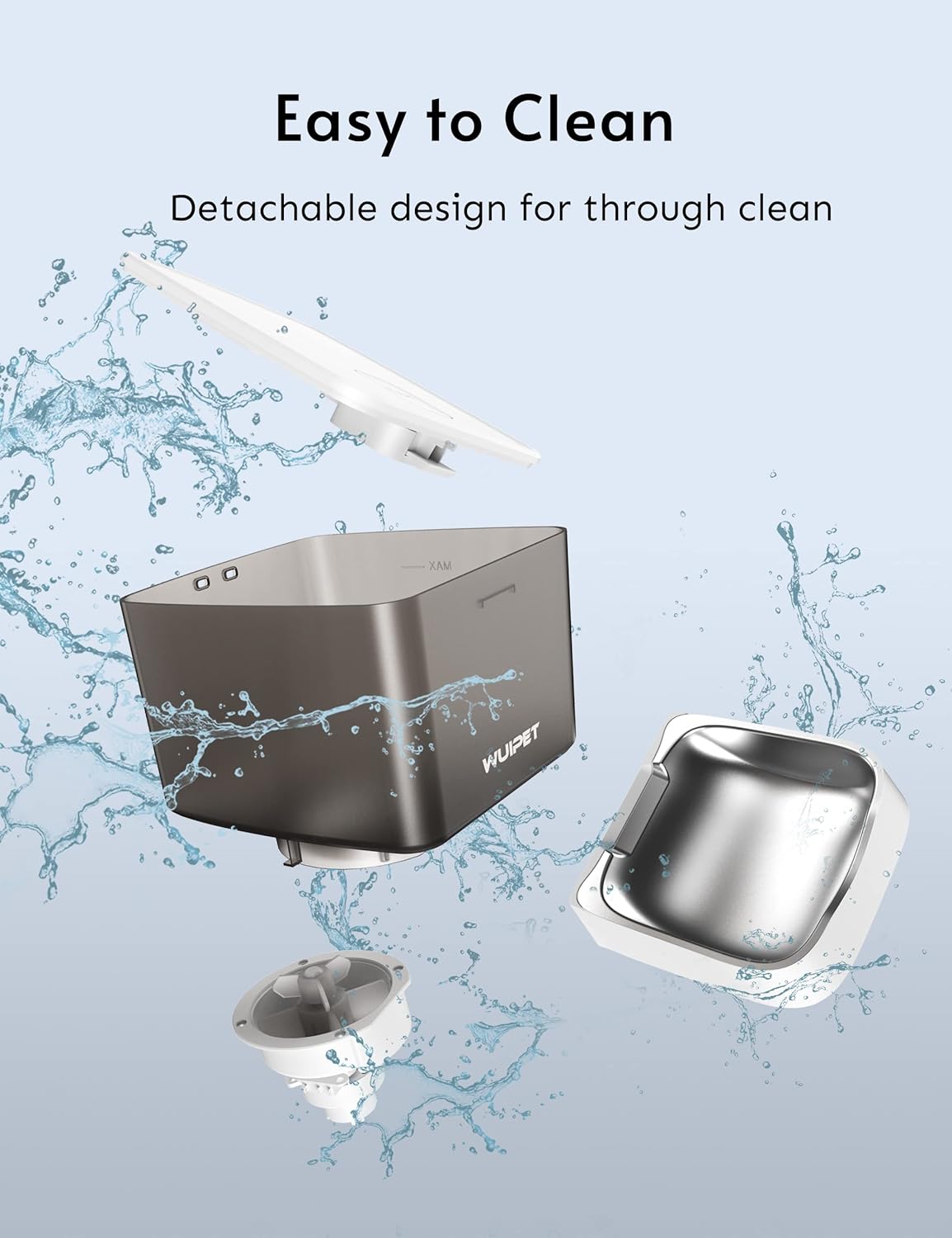
Image: The feeder features a detachable design for easy and thorough cleaning of food-contact parts.
2. Refilling Food
Monitor the food level in the container. When low, open the lid and refill with dry pet food. Ensure the lid is securely closed to maintain food freshness.
3. Battery Replacement
If using D-cell batteries for backup, replace them when the low battery indicator appears (if applicable) or approximately every 6-12 months, depending on usage.

Image: The feeder supports dual power supply with a USB-C adapter and D-cell batteries (not included) for continuous operation.
Troubleshooting
Feeder not dispensing food:
- Check if the feeder is powered on and connected to a power source.
- Ensure the food container is not empty.
- Verify that the food chute is not blocked by kibble.
- Check the app for any error messages or if the schedule is correctly set.
- Ensure the food size is appropriate for the feeder (typically 5-15mm dry kibble).
WiFi connection issues:
- Confirm your router is broadcasting a 2.4GHz WiFi signal.
- Ensure the feeder is within range of your WiFi router.
- Reset the feeder's WiFi by pressing the reset button until the indicator flashes rapidly, then re-pair via the app.
- Restart your router and try connecting again.
Voice recording not playing:
- Ensure the voice message was successfully recorded and saved in the app.
- Check the volume settings in the app.
- Verify that scheduled meals are active.
Feeder is offline in the app:
- Check the feeder's power supply.
- Verify your home WiFi network is active and stable.
- If the feeder was moved, it might be out of WiFi range.
- Try restarting the feeder and your router.
Specifications
| Feature | Specification |
|---|---|
| Model Number | DU4L-WC-01 |
| Capacity | 4 Liters (approx. 17 cups) |
| Dimensions (L x W x H) | 19.05 x 17.53 x 28.7 cm |
| Weight | 2.18 kg |
| Material | ABS Plastic (main unit), Stainless Steel (food bowl) |
| Power Supply | USB-C Adapter (included), 3 x D-cell batteries (not included) |
| Connectivity | 2.4GHz WiFi |
| Max Meals per Day | 10 |
| Portions per Meal | 1-12 (1/12 cup per portion) |
| Voice Recording | Up to 10 seconds |
| Target Species | Cats, Dogs |
Warranty and Support
For warranty information and technical support, please refer to the contact details provided on the WUIPET official website or contact your retailer. Keep your purchase receipt as proof of purchase.
Disposal
This product should not be disposed of with household waste. Please recycle it at an appropriate collection point for electrical and electronic equipment.


