
1. Introduction
The YIZEELFAR Wake Up Light Sunrise Alarm Clock is a multi-functional device designed to enhance your sleep and wake-up experience. It combines a sunrise simulation alarm, sound machine, Bluetooth speaker, and night light, all controllable via a dedicated mobile application or touch buttons. This manual provides detailed instructions for setup, operation, maintenance, and troubleshooting to ensure optimal use of your device.
2. Setup
2.1 Unboxing and Power Connection
Carefully remove all components from the packaging. Ensure all parts are present: the Wake Up Light unit and its power adapter. Connect the provided power adapter to the DC input port on the back of the device and plug it into a standard electrical outlet.

Image: Rear view of the YIZEELFAR Wake Up Light, highlighting the power input and USB port.
2.2 App Download and Bluetooth Connection
For full functionality and advanced control, download the "E-life Explorer" application. The app is available on the Apple App Store. Please note that some users have reported the app primarily supports iOS devices.
To connect the device via Bluetooth:
- Open the E-life APP on your cellphone.
- Click the Bluetooth icon on the top left corner.
- Choose to connect APP Bluetooth "E-life BLE".
- Turn to the Bluetooth Settings Page of your cellphone.
- Choose and tap Bluetooth "E-life" to pair.
- The device will prompt "connected" once successfully paired. The blue indicator light on the device will be steady on.
Video: Instructions on how to connect the E-life app with Bluetooth.
Video: E-Life Alarm Clock Tutorial Video, demonstrating app connection and features.
3. Operating Instructions
3.1 Time Display
The device displays time in a 24-hour format. To adjust the brightness of the time display:
- Click the setting icon in the app.
- Choose L0 to close the time and indicator light.
- Choose L3 for the brightest display.
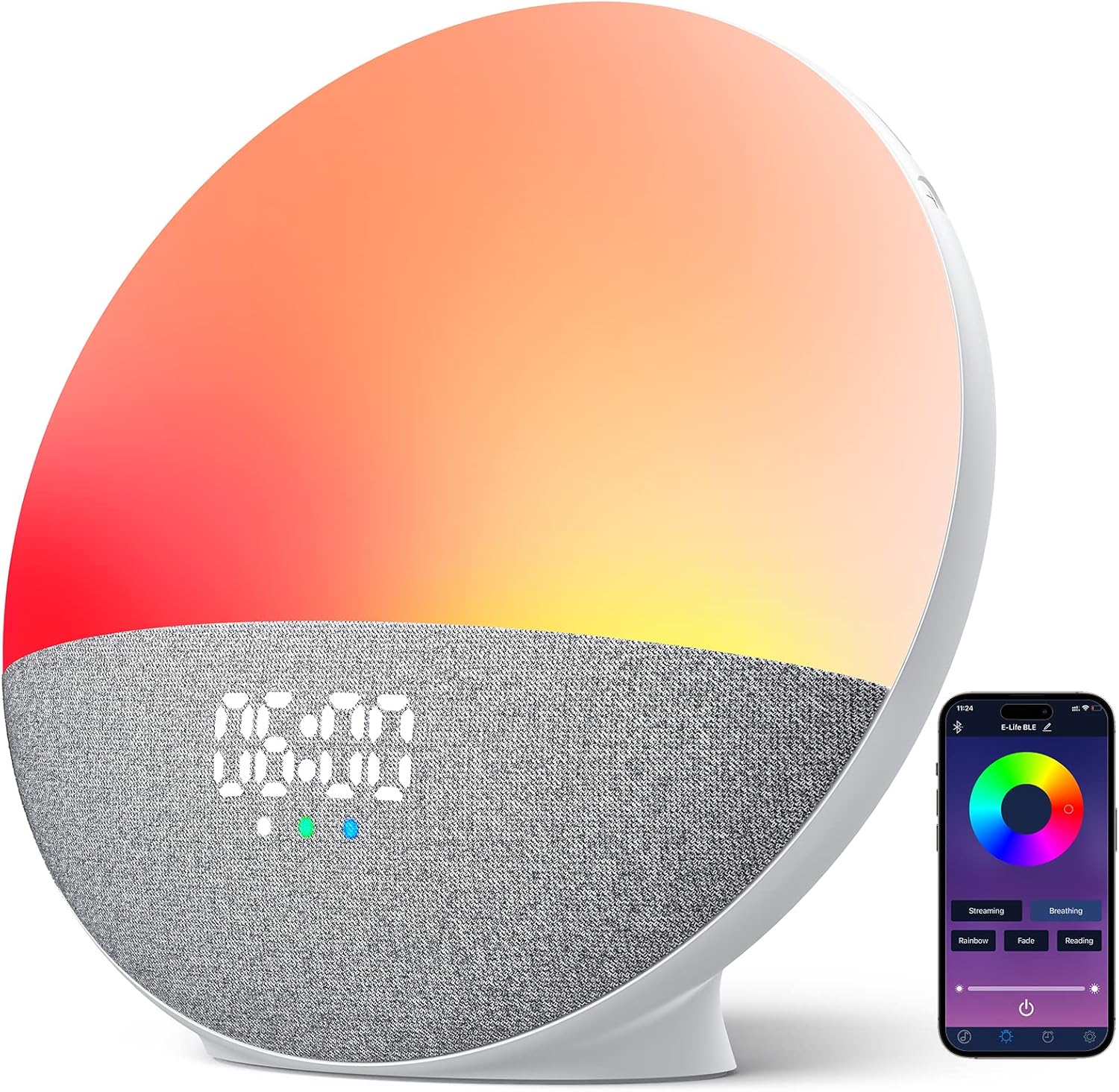
Image: Front view of the YIZEELFAR Wake Up Light, showing the digital time display.
3.2 Light Modes and Brightness
The device offers 5 light modes and rich custom colors. You can control these via touch buttons on the device or through the app.
- Touch Control: Tap the side of the device to cycle through different colors and light modes.
- App Control: Open the Light Setting interface in the app. Click and choose your desired light mode (Streaming, Breathing, Rainbow, Fade, Reading) or select a fixed color from the color disk. Adjust brightness using the slider.

Image: The alarm clock showcasing different light modes and the corresponding app interface for control.
Video: Demonstration of touch button controls for light modes.
3.3 Sound Machine Features
The device includes 15 soothing sounds for better sleep, categorized into Natural Sounds, White Noises, and Piano Music.
- Sound Selection: Use the app or the touch buttons on the device to cycle through available sounds.
- Volume Adjustment: Adjust the sound volume by swiping up/down on the designated touch area on the device or using the volume slider in the app.

Image: Visual representation of the 15 soothing sounds available on the alarm clock.
3.4 Alarm Settings (Sunrise Simulation)
Set up to 3 alarms with sunrise simulation and 5 wake-up sounds. Snooze function is supported.
- Add or Revise Alarm: Use the app to add or modify alarm settings.
- Choose Time: Select your desired alarm time.
- Choose Sound: Select a wake-up sound from the available options.
- Playback Duration: Choose the duration for the alarm sound.
- Sunset/Sunrise Setting: Choose to turn on or off the sunset/sunrise simulation.
- Adjust Volume: Adjust the alarm volume as needed.
- Save: Save your alarm settings in the app.

Image: The alarm clock simulating a sunrise for a gentle wake-up experience.
3.5 Bluetooth Speaker Function
The device features a premium loud Bluetooth speaker. After connecting your phone via Bluetooth (as described in Section 2.2), you can stream music from your device.
- Music Playback: Play your favorite music through the alarm clock's speaker.
- Track Control: Use the touch buttons on the device to skip tracks (last/next) or control playback from your phone.

Image: A user enjoying music played through the alarm clock's Bluetooth speaker.
4. Maintenance
To ensure the longevity and optimal performance of your YIZEELFAR Wake Up Light, follow these simple maintenance guidelines:
- Cleaning: Gently wipe the device with a soft, dry cloth. Do not use abrasive cleaners or solvents, as they may damage the surface.
- Placement: Place the device on a stable, flat surface away from direct sunlight, excessive heat, or moisture.
- Storage: If storing the device for an extended period, unplug it and keep it in a cool, dry place.
5. Troubleshooting
If you encounter issues with your Wake Up Light, please refer to the following common problems and solutions:
| Problem | Possible Cause / Solution |
|---|---|
| App connectivity issues (Bluetooth disconnects, app doesn't work) |
|
| Time display is in 24-hour format and cannot be changed to 12-hour. | The device's time display is fixed to a 24-hour format. This is a design feature and cannot be adjusted to 12-hour format. |
| Touch buttons are unresponsive or have a significant lag. | Ensure your fingers are clean and dry. Apply a firm but gentle touch. If issues persist, try restarting the device by unplugging and re-plugging it. |
| Alarm light works but sound doesn't, or vice-versa. |
|
6. Specifications
- Brand: YIZEELFAR
- Model Number: S202
- ASIN: B0BPMFP7L2
- Color: Multicolored
- Display Type: Digital
- Power Source: Corded Electric
- Room Type: Bedroom
- Shape: Rectangular
- Indoor/Outdoor Usage: Indoor
- Frame Material: Plastic
- Item Weight: 1.81 pounds
- Product Dimensions: 3.7 x 7.4 x 7.9 inches
- Mounting Type: Tabletop
- Alarm Clock: Yes
- Watch Movement: Automatic
7. Warranty & Support
This product comes with a manufacturer's warranty. For detailed warranty information and support, please refer to the official User Manual (PDF) available for download or contact YIZEELFAR customer service.
Official User Manual (PDF): Download Here

