Introduction
This manual provides detailed instructions for the setup, operation, maintenance, and troubleshooting of your AWOW 10-inch Android Tablet. Please read this manual thoroughly before using the device to ensure proper functionality and to maximize your user experience.
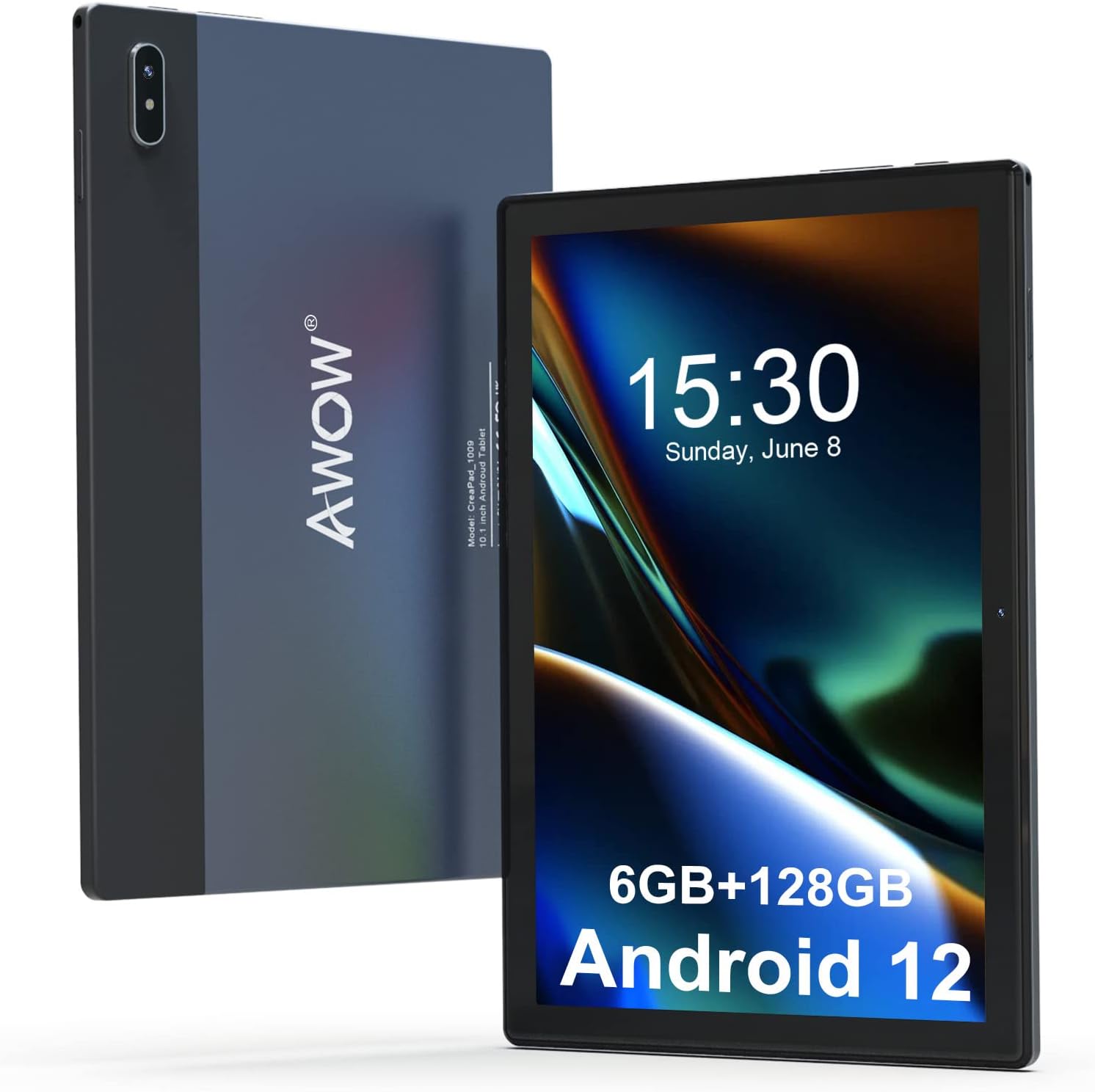
Image: Front and back view of the AWOW 10-inch Android Tablet, showcasing its sleek design and the AWOW logo on the rear.
Setup
1. Unboxing and Initial Inspection
Carefully remove all components from the packaging. Verify that the following items are present:
- AWOW 10-inch Android Tablet
- USB Charging Cable
- User Manual (this document)
- (Note: Power adapter may not be included. Use a compatible 5V/2A or higher USB power adapter.)
Inspect the tablet for any physical damage before proceeding.
2. Initial Charging
Before first use, fully charge the tablet. Connect the USB charging cable to the tablet's charging port and the other end to a compatible USB power adapter or a computer's USB port. The charging indicator will typically illuminate while charging and turn off or change color when fully charged.
3. Powering On/Off
- To Power On: Press and hold the Power button located on the side of the tablet until the AWOW logo appears on the screen.
- To Power Off: Press and hold the Power button until a power menu appears. Select "Power off" from the options.
- To Restart: Press and hold the Power button until a power menu appears. Select "Restart" from the options.
4. Initial Setup Wizard
Upon first power-on, the tablet will guide you through an initial setup wizard. Follow the on-screen prompts to configure:
- Language Selection: Choose your preferred language.
- Wi-Fi Connection: Connect to an available Wi-Fi network to enable internet access. This is crucial for downloading apps and system updates.
- Google Account Setup: Sign in with your existing Google account or create a new one. This is required to access the Google Play Store and other Google services.
- Date & Time: Set the correct date and time, or allow the network to set it automatically.
- Screen Lock: Set up a PIN, pattern, or password for screen security.
Operating Instructions
1. Basic Navigation
The AWOW tablet features a responsive 10.1-inch IPS touchscreen. Common gestures include:
- Tap: To select an item or open an application.
- Tap and Hold: To access contextual menus or move icons.
- Swipe: To scroll through pages, lists, or switch between home screens.
- Pinch-to-Zoom: To zoom in or out on images, maps, or web pages.

Image: The tablet displaying multiple applications open simultaneously and a user engaging in mobile gaming, demonstrating its multitasking capabilities and performance.
2. Connecting to Wi-Fi
To connect to a Wi-Fi network:
- Go to Settings > Network & internet > Wi-Fi.
- Toggle Wi-Fi On.
- Select your desired network from the list of available networks.
- Enter the password if prompted and tap Connect.
The tablet supports both 2.4G and 5G Wi-Fi bands for faster and more stable connections.
3. Bluetooth Pairing
To pair with a Bluetooth device (e.g., headphones, keyboard):
- Ensure the Bluetooth device is in pairing mode.
- Go to Settings > Connected devices > Connection preferences > Bluetooth.
- Toggle Bluetooth On.
- Tap Pair new device and select your device from the list.
- Confirm the pairing code if prompted.

Image: The tablet displaying its camera interface and highlighting its 2.4G & 5G WiFi and Bluetooth capabilities, indicating its communication features.
4. Camera Usage
The tablet is equipped with a 5MP front camera and a 13MP rear camera.
- Open the Camera application from the home screen or app drawer.
- Tap the camera icon to switch between front and rear cameras.
- Tap the shutter button to take a photo or the video icon to record a video.
5. Storage Management
The tablet comes with 128GB of internal storage and supports Micro-SD cards up to 512GB for expanded storage.
- Inserting a Micro-SD Card: Locate the Micro-SD card slot on the side of the tablet. Gently insert the card until it clicks into place.
- Managing Storage: Go to Settings > Storage to view storage usage and manage files.

Image: The tablet highlighting its 10.1-inch HD display, Micro-SD card slot for expandable storage up to 512GB, and its 5000mAh battery capacity.
6. Audio and Multimedia
The tablet features dual stereo speakers for an enhanced audio experience.
- Adjust volume using the volume buttons on the side of the tablet.
- Connect headphones via the 3.5mm audio jack or Bluetooth.

Image: A user relaxing with the tablet, demonstrating the immersive audio experience provided by its dual stereo speakers, with sound waves emanating from the device.
7. GPS Functionality
The tablet includes GPS for navigation and location-based services.
- Ensure Location Services are enabled in Settings > Location.
- Use pre-installed map applications or download others from the Google Play Store.
8. App Management
- Installing Apps: Open the Google Play Store app, search for desired applications, and tap Install.
- Uninstalling Apps: Tap and hold an app icon on the home screen or app drawer, then drag it to the Uninstall option, or go to Settings > Apps, select the app, and tap Uninstall.
Maintenance
1. Cleaning the Tablet
To clean the screen and body of the tablet:
- Use a soft, lint-free cloth.
- For stubborn smudges, slightly dampen the cloth with water or a screen-specific cleaning solution.
- Avoid using harsh chemicals, abrasive materials, or excessive moisture.
2. Battery Care
To prolong battery life:
- Avoid extreme temperatures.
- Do not let the battery completely drain frequently.
- Use the provided or a compatible charger.
- Unplug the charger once the battery is full.
3. Software Updates
Regularly check for and install system updates to ensure optimal performance, security, and access to new features.
- Go to Settings > System > System update.
- Follow the on-screen instructions to download and install any available updates.
4. Storage Optimization
To maintain smooth operation, periodically manage your tablet's storage:
- Delete unnecessary apps and files.
- Clear cache data for apps in Settings > Apps.
- Move large files (photos, videos) to a Micro-SD card or cloud storage.
Troubleshooting
This section addresses common issues you might encounter with your AWOW tablet.
| Problem | Possible Solution |
|---|---|
| Tablet does not turn on. | Ensure the tablet is fully charged. Press and hold the Power button for at least 10-15 seconds to force a restart. |
| Wi-Fi connection issues. | Restart your Wi-Fi router. Forget the network in tablet settings and reconnect. Ensure you are within range of the Wi-Fi signal. |
| Slow performance or freezing. | Close unused applications. Clear app caches. Restart the tablet. Check for system updates. Consider freeing up storage space. |
| Apps crashing or not responding. | Clear the app's cache and data in Settings > Apps. Uninstall and reinstall the app. Ensure the app is updated. |
| Battery drains quickly. | Reduce screen brightness. Disable Wi-Fi/Bluetooth/GPS when not in use. Close background apps. Check battery usage in Settings > Battery to identify power-hungry apps. |
Factory Reset
If persistent issues occur, a factory reset can resolve them by restoring the tablet to its original state. Warning: This will erase all data on the tablet. Back up important data before proceeding.
- Go to Settings > System > Reset options.
- Select Erase all data (factory reset).
- Confirm your decision and enter your PIN/pattern/password if prompted.
- The tablet will restart and begin the reset process.
Specifications
Key technical specifications for the AWOW 10-inch Android Tablet (Model: B0BPJTG2JM):
- Display: 10.1 Inches IPS Touchscreen, 1280 x 800 Resolution
- Operating System: Android 12
- Processor: Octa-Core 2.0GHz
- RAM: 6GB
- Internal Storage: 128GB
- Expandable Storage: Micro-SD card slot, up to 512GB
- Rear Camera: 13 MP
- Front Camera: 5 MP
- Connectivity: 2.4G & 5G WiFi, Bluetooth
- Audio: Dual Stereo Speakers
- Navigation: GPS
- Battery: 5000mAh (3.8V)
- Dimensions (LxWxH): 9.5 x 6.1 x 0.3 inches
- Item Weight: 1.76 pounds
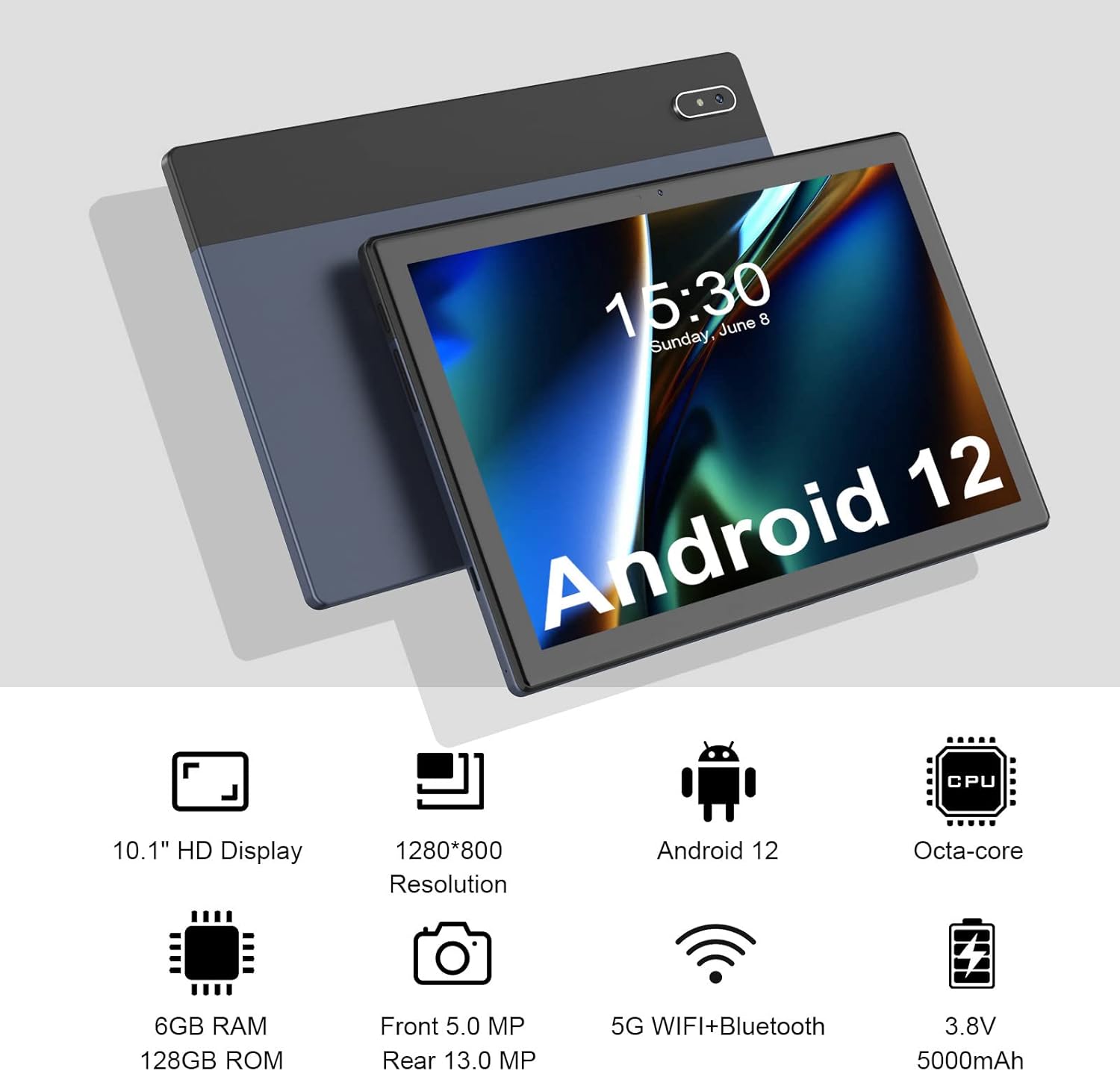
Image: An infographic summarizing the tablet's key features including 10.1" HD Display, 1280*800 Resolution, Android 12, Octa-core CPU, 6GB RAM, 128GB ROM, Front 5.0 MP, Rear 13.0 MP cameras, 5G WiFi + Bluetooth, and 3.8V 5000mAh battery.
Warranty and Support
Your AWOW tablet is covered by a limited warranty. Please refer to the warranty card included in your product packaging for specific terms and conditions.
For technical support, warranty claims, or further assistance, please contact AWOW customer service through the following channels:
- AWOW Official Website: www.awow.com (Please check the website for the most current contact information.)
- Amazon Seller Page: You can also reach out to the seller "AWOW Shop" via your Amazon order history for support related to your purchase.
When contacting support, please have your product model (B0BPJTG2JM) and purchase information ready.


