
Introduction
Thank you for choosing the Ankrs Smart WiFi Essential Oil Diffuser and Humidifier. This device combines the benefits of aromatherapy with air humidification, all controllable via smart home systems like Alexa, Google Home, and the Smart Life app. Its unique mountain-inspired design and multi-color LED lighting create a serene and pleasant atmosphere in any room. This manual provides detailed instructions for safe and effective use of your new diffuser.
Please read this manual thoroughly before operating the device and keep it for future reference.
Package Contents
- Ankrs Smart WiFi Diffuser Unit
- Power Adapter
- User Manual (this document)
Setup
- Unpack the Diffuser: Carefully remove all components from the packaging. Ensure all listed package contents are present.
- Place the Diffuser: Place the diffuser on a flat, stable surface away from direct sunlight, heat sources, and electronic devices.
- Connect Power: Locate the power adapter (typically found inside the diffuser unit). Connect the adapter to the diffuser's power input port and then plug it into a standard electrical outlet.
- Fill with Water: Remove the top cover. Fill the water tank with clean tap water up to the MAX water level line. Do not overfill.
- Add Essential Oils (Optional): Add 3-5 drops of your preferred essential oil directly into the water tank. Adjust the amount based on your preference and the size of the room.
- Replace Cover: Securely place the top cover back onto the diffuser unit.

Operating Instructions
Manual Control Buttons
- LIGHT Button: Press to cycle through LED light colors (7 colors available). Press and hold to turn off the light.
- MIST Button: Press to cycle through mist modes (Large Mist, Small Mist, Interval Spray). Press and hold to turn off the mist.
Smart Control (App & Voice)
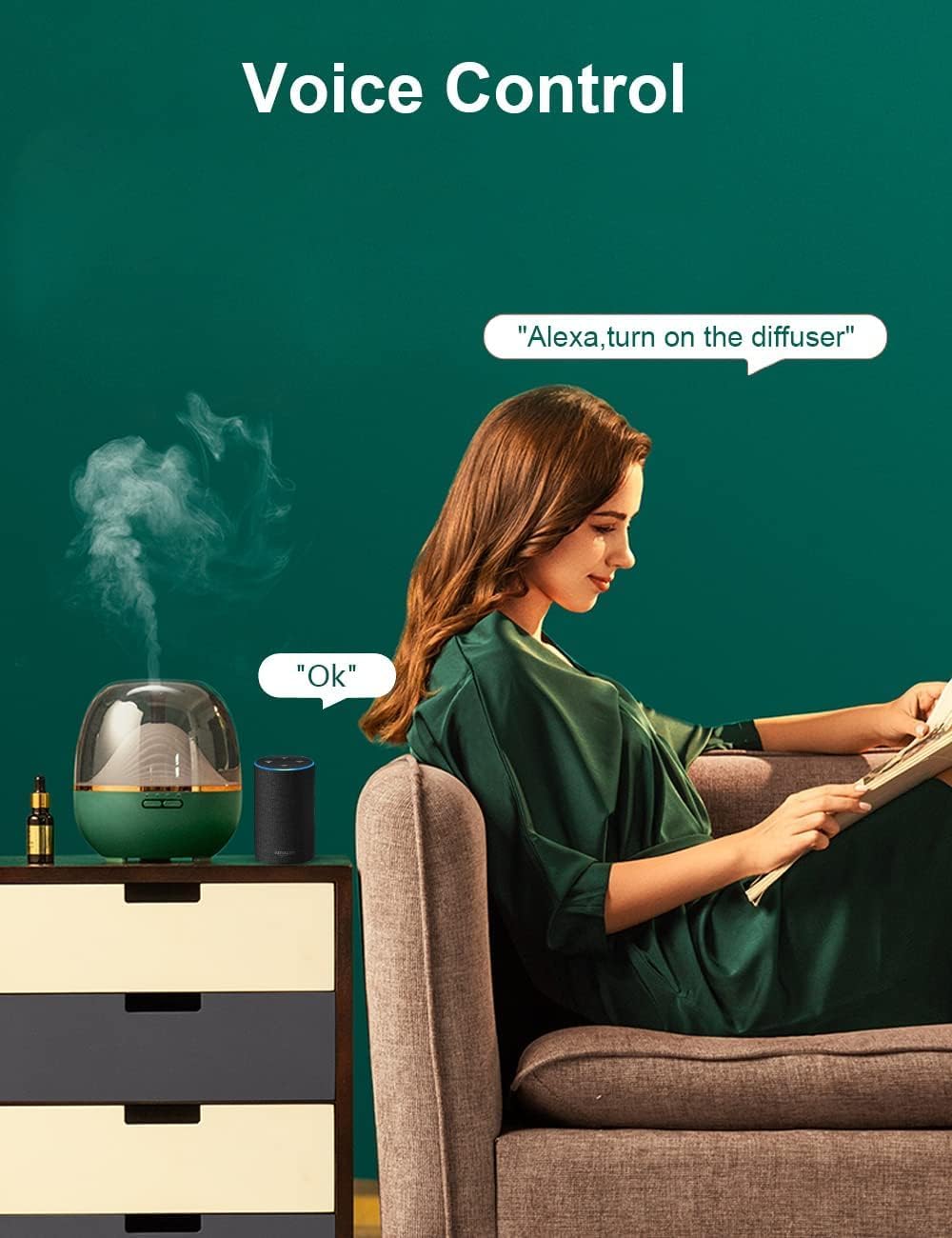
The Ankrs diffuser is compatible with the Smart Life app, Alexa, and Google Home for convenient control.
- Download Smart Life App: Search for "Smart Life" in your smartphone's app store (iOS or Android) and download it.
- Register/Login: Create an account or log in to your existing Smart Life account.
- Add Device: Follow the in-app instructions to add your Ankrs diffuser. Ensure your phone is connected to a 2.4GHz Wi-Fi network during setup.
- App Features: Once connected, you can control light colors, mist output, set timers, and create schedules directly from the app.
- Voice Control Integration: Link your Smart Life account with Alexa or Google Home through their respective apps. You can then use voice commands like "Alexa, turn on the diffuser" or "Hey Google, set diffuser light to blue."




Maintenance
Regular cleaning helps maintain the diffuser's performance and extends its lifespan. Always unplug the diffuser before cleaning.
- Empty Water: Pour out any remaining water from the tank, ensuring to pour from the side opposite the air outlet to avoid water entering internal components.
- Wipe Tank: Use a soft cloth or sponge to wipe the inside of the water tank. For stubborn residue, use a small amount of mild dish soap and rinse thoroughly.
- Clean Ultrasonic Plate: Gently wipe the ultrasonic vibration plate (the small disc at the bottom of the tank) with a cotton swab dipped in white vinegar. Do not scratch or apply excessive pressure.
- Clean Exterior: Wipe the exterior of the diffuser with a soft, damp cloth.
- Dry Thoroughly: Allow all parts to air dry completely before reassembling or storing the diffuser.
Note: The Ankrs diffuser is made with BPA-free materials and operates at an ultra-quiet level (<29 dB), making it safe and suitable for use in bedrooms and nurseries.

Troubleshooting
| Problem | Possible Cause | Solution |
|---|---|---|
| No mist or weak mist | Low water level; Water overfill; Ultrasonic plate dirty; Air outlet blocked. | Add water to MAX line; Do not overfill; Clean ultrasonic plate; Ensure air outlet is clear. |
| No power | Power adapter not connected; Outlet not working; Diffuser not turned on. | Check power connection; Try a different outlet; Press the MIST button to turn on. |
| App connection issues | Incorrect Wi-Fi (not 2.4GHz); Incorrect password; Device not in pairing mode. | Ensure 2.4GHz Wi-Fi; Re-enter password; Follow app instructions for pairing mode (often involves holding a button). |
| Light not working | Light function turned off. | Press the LIGHT button to cycle through colors or turn on. |
Specifications
| Feature | Detail |
|---|---|
| Brand | Ankrs |
| Model Number | GXZ-X909 |
| Color | Snow White |
| Dimensions (L x W x H) | 15.24 x 17.78 x 15.24 cm (approx. 6 x 7 x 6 inches) |
| Weight | 789.25 grams (approx. 1.74 lbs) |
| Capacity | 600 Milliliters |
| Power | 12 Watts |
| Material | Acrylonitrile Butadiene Styrene (ABS), Polypropylene (PP) |
| Auto-off Function | Yes (when water runs out) |
| Special Features | 3 Mist Modes, App & Voice Control, Compatible with Google Home & Alexa, Essential Oil Diffusion, Air Humidification, Mountain Design, 7 LED Colors, Ultra-quiet operation (<29 dB), BPA-free |
| Power Source | Electric Cable |
| Recommended Uses | Home, Office, Yoga |
Safety Precautions
- Always place the diffuser on a stable, flat surface.
- Do not place the diffuser near heat sources, direct sunlight, or on carpets.
- Do not move the diffuser while it is operating or contains water.
- Do not touch the ultrasonic vibration plate with bare hands when the unit is plugged in.
- Keep out of reach of children and pets.
- Only use the provided power adapter.
- Do not immerse the diffuser unit in water or any other liquid.
- Unplug the diffuser from the power outlet when not in use or before cleaning.
- The diffuser will automatically shut off when the water level is too low.
Warranty and Support
Ankrs products are manufactured with high-quality standards. For specific warranty information, please refer to the warranty card included with your purchase or visit the official Ankrs website. If you encounter any issues or require technical assistance, please contact Ankrs customer support through the contact information provided on our website or through your retailer.
Please have your model number (GXZ-X909) and purchase date ready when contacting support.