
Hikity A3061
Hikity 7-inch Single Din Car Stereo Receiver User Manual
Model: A3061 | Brand: Hikity
Introduction
This manual provides detailed instructions for the installation, operation, and maintenance of your Hikity 7-inch Single Din Car Stereo Receiver. This versatile car audio system features a 7-inch touchscreen, Apple CarPlay, Android Auto, Mirror Link, Bluetooth connectivity, FM radio, USB and SD card support, and a reverse camera input. Please read this manual thoroughly before using the product to ensure proper functionality and safety.
Package Contents
Verify that all items are present in the package:
- Hikity 7-inch Single Din Car Stereo Unit
- Remote Control
- External Microphone
- Rear Camera
- Power Cable
- Horn Cable
- User Manual (this document)

Image: Overview of the Hikity car stereo unit and its included accessories, such as the remote control, external microphone, rear camera, power cable, horn cable, and user manual.
Setup and Installation
Wiring Diagram
Proper wiring is crucial for the safe and correct operation of your car stereo. Refer to the diagram below for connections. If you are unsure, consult a professional installer.

Image: Comprehensive wiring diagram illustrating connections for power, ground, speakers (front and rear), steering wheel control, reverse camera, and other auxiliary inputs/outputs.

Image: Rear view of the car stereo unit, showing the various input and output ports, including RCA, USB, and antenna connections, along with overall dimensions.
Physical Installation
- Ensure the vehicle's battery is disconnected before starting installation.
- Remove the existing car stereo from the dashboard.
- Connect the wiring harness from the new stereo to the vehicle's wiring, following the diagram.
- Connect the antenna cable.
- If installing the rear camera, route the camera cable to the back of the vehicle and connect it to the designated input on the stereo.
- Secure the new stereo into the single din slot.
- Reconnect the vehicle's battery and test the stereo's functions.
Operating Instructions
Apple CarPlay & Android Auto
Connect your smartphone via a USB data cable to access Apple CarPlay or Android Auto. This allows you to use phone features like navigation, calls, messages, and music directly on the stereo's screen. Voice assistants (Siri/Google Assistant) are supported for hands-free operation.

Image: The Hikity car stereo's 7-inch screen showing the Apple CarPlay interface with various app icons like Phone, Music, Maps, and Messages.

Image: Visual representation of the car stereo supporting CarPlay, Android Auto, and Mirror Link functionalities, with phone screens mirrored on the stereo display.
Video: Demonstration of Apple CarPlay and Android Auto connectivity, showing how to connect a smartphone and navigate through the interface for calls, maps, and music playback.
Mirror Link (for Android/iOS)
The Mirror Link function allows you to display your smartphone's screen directly onto the car stereo. Connect your phone via USB and select the "Mirror" option. This is ideal for viewing navigation, videos, or photos from your phone on the larger stereo display.
Image: Visual representation of the car stereo supporting CarPlay, Android Auto, and Mirror Link functionalities, with phone screens mirrored on the stereo display.
Video: Demonstration of the Mirror Link feature, showing how to connect a smartphone via USB and mirror its screen content, including photos and videos, onto the car stereo display.
Bluetooth Connectivity
Pair your Bluetooth-enabled device with the stereo for hands-free calling and wireless audio streaming. Access your phonebook, dial numbers, and play music directly from your device.
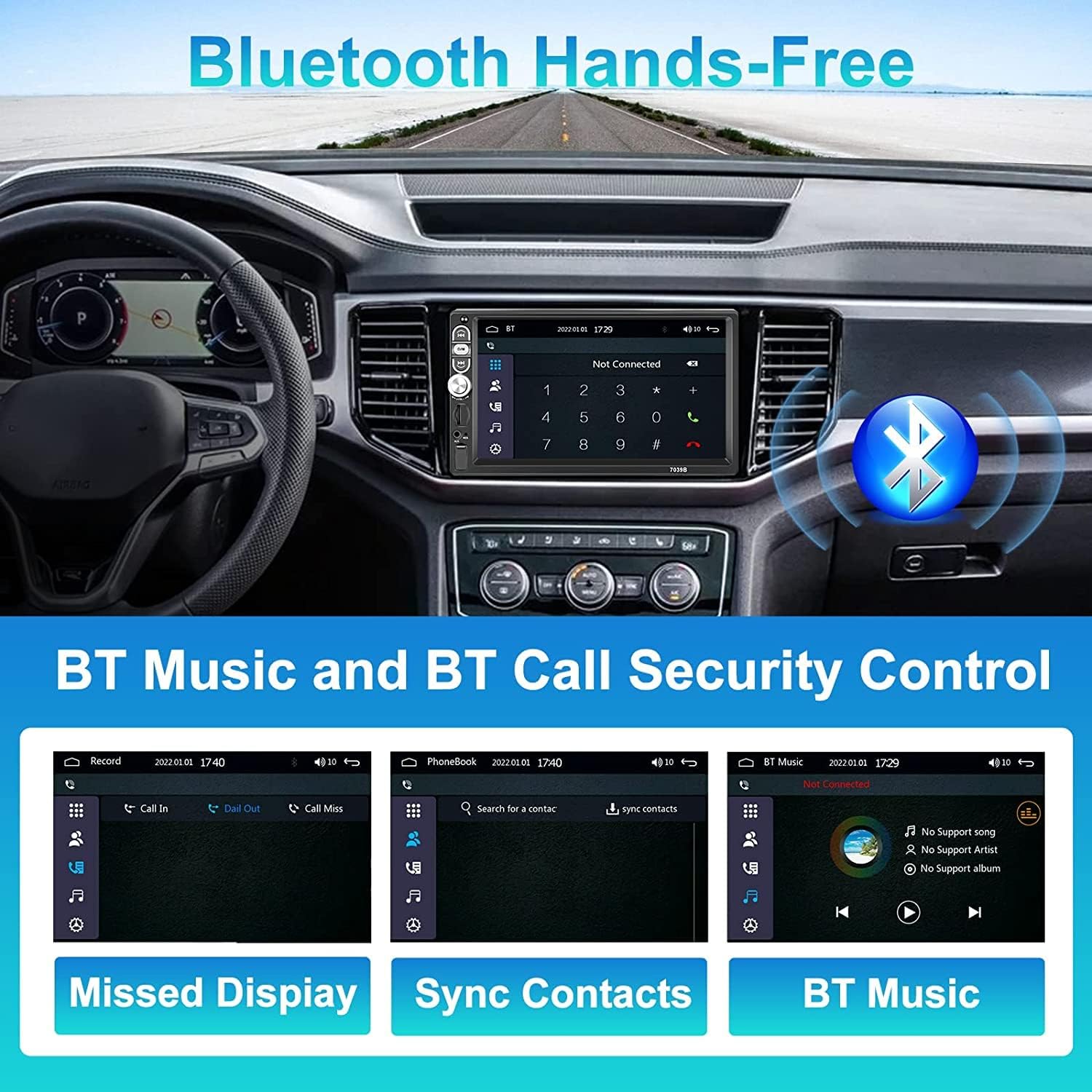
Image: The car stereo displaying Bluetooth hands-free calling features, including missed calls, synced contacts, and Bluetooth music playback options.

Image: A graphic highlighting the Bluetooth feature, showing a smartphone connected to the car stereo for wireless communication and audio.
Video: Demonstration of Bluetooth pairing and functionality, including making calls and playing music wirelessly through the car stereo.
FM Radio
Tune into your favorite FM radio stations. The stereo supports 18 preset radio stations for quick access. Use the scan function to find available stations or manually tune to a specific frequency.

Image: The car stereo screen showing the FM radio interface with frequency display and options for band, scan, stereo, local, and EQ settings.

Image: A graphic highlighting the FM Radio feature, showing the radio interface with frequency tuning and sound waves.
Video: Demonstration of FM radio tuning, showing how to scan for stations and manually select frequencies on the car stereo.
Multi-band EQ Mode
Customize your audio experience with the built-in 10-band EQ. Adjust frequency levels to match your preferred music style (Jazz, Classic, Rock, Pop, Flat) or create a custom user profile. The stereo also features subwoofer output for enhanced bass.
Image: The car stereo screen showing the FM radio interface with frequency display and options for band, scan, stereo, local, and EQ settings.

Image: A graphic illustrating the multi-band EQ mode with adjustable frequency sliders and the presence of subwoofer output for enhanced audio customization.
Video: Demonstration of the EQ settings, showing how to adjust frequency bands for different music genres and control speaker balance and fader settings.
Steering Wheel Control (SWC)
The stereo supports your vehicle's steering wheel control functions, allowing you to manage audio playback, volume, and calls without taking your hands off the wheel. Refer to the wiring diagram for SWC connections and the stereo's settings menu for programming.
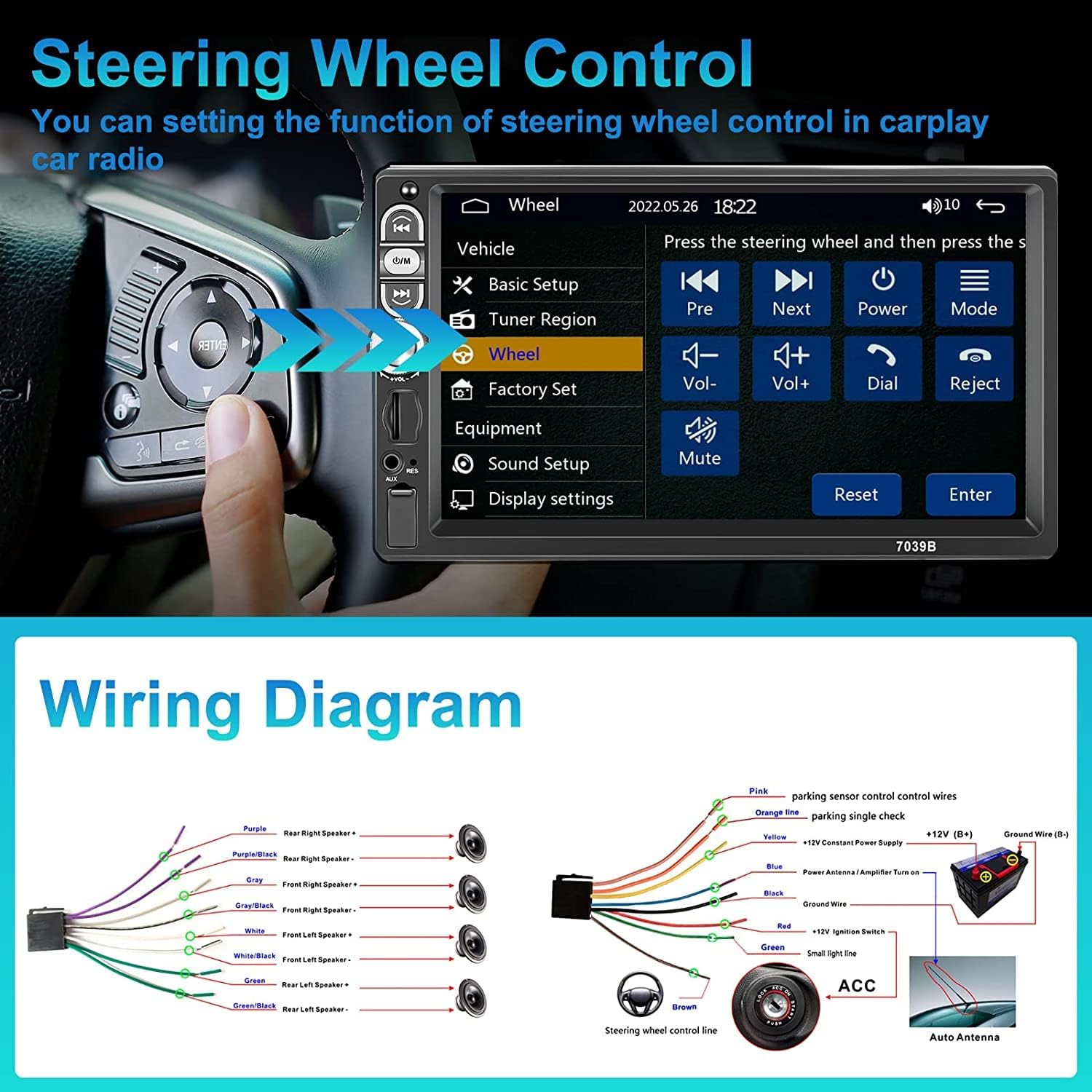
Image: The car stereo screen displaying the steering wheel control setup menu, where users can program buttons for various functions like volume, track skipping, and mode selection.
Image: A graphic highlighting the Steering Wheel Control feature, showing a hand interacting with steering wheel buttons to control the car stereo.
Reverse Camera Function
The car stereo comes with a backup camera for safe and convenient parking. When you engage reverse gear, the reversing video will automatically display on the car radio screen. The camera provides HD image quality and includes a rear guide for assistance.
Image: The car stereo screen showing the reverse camera view with dynamic parking guidelines, assisting with safe maneuvering.

Image: A graphic highlighting the Reverse Camera Input feature, showing the car stereo displaying the rear view with parking guidelines.
Video: Demonstration of the reverse camera functionality, showing the camera's view on the car stereo screen, including parking guidelines and its waterproof capability.
Other Features
- USB/SD Card Input: Play multimedia files (MP3/WMA/APE/FLAC/WAV/OGG audio, 1080P video) directly from USB drives or SD cards.
- AUX Input: Connect external audio devices via the auxiliary input.
- 7 Color LED Buttons: Customize the button illumination to match your vehicle's interior lighting.

Image: A graphic illustrating the USB, AUX, and TF Card input options available on the car stereo for multimedia playback.

Image: A graphic showcasing the customizable 7-color LED button illumination feature of the car stereo.
Maintenance
- Cleaning: Use a soft, dry cloth to clean the screen and unit. Avoid abrasive cleaners or solvents.
- Software Updates: Check the manufacturer's website periodically for any available firmware updates to ensure optimal performance and compatibility.
- Environmental Conditions: Avoid exposing the unit to extreme temperatures, direct sunlight for prolonged periods, or excessive moisture.
Troubleshooting
| Problem | Possible Cause | Solution |
|---|---|---|
| No Power | Incorrect wiring; Blown fuse; Vehicle battery issue. | Check power and ground connections. Inspect vehicle's fuse box and stereo's fuse. Ensure battery is charged. |
| No Sound | Speaker wires disconnected; Volume too low; Mute function active; Incorrect audio source. | Verify speaker connections. Increase volume. Check if mute is on. Select correct audio source (FM, USB, Bluetooth, AUX). |
| CarPlay/Android Auto not connecting | Faulty USB cable; Phone not compatible; Software glitch. | Use a high-quality, original USB data cable. Ensure your phone's OS is updated. Restart both phone and stereo. |
| Rear Camera not displaying | Incorrect camera wiring; Camera malfunction; Reverse signal not detected. | Check camera power and video signal connections. Ensure reverse trigger wire is correctly connected. Test camera with another display if possible. |
| Bluetooth pairing issues | Device not in pairing mode; Stereo not discoverable; Interference. | Ensure Bluetooth is enabled on both devices and in pairing mode. Delete previous pairings and try again. Move closer to the stereo. |
Specifications
| Feature | Detail |
|---|---|
| Display Size | 7 Inches |
| Display Resolution | 1024x600 |
| Product Dimensions | 7.01"W x 1.89"D x 4.41"H (Unit) |
| Item Weight | 1.87 pounds (0.85 Kilograms) |
| Connectivity Technology | USB, Bluetooth |
| Controller Type | Android, iOS |
| Special Features | Built-In Bluetooth, Touchscreen, Apple CarPlay, Android Auto, Mirror Link, FM Radio, Rear Camera Input, Steering Wheel Control |
| Audio Output Mode | Stereo |
| Supported Audio Formats | MP3/WMA/APE/FLAC/WAV/OGG |
| Supported Video Formats | 1080P playback |
Warranty and Support
Hikity products are designed for reliability and performance. For warranty information, technical support, or service inquiries, please refer to the contact details provided with your purchase or visit the official Hikity website. Keep your purchase receipt as proof of purchase for warranty claims.
For further assistance, you may contact Hikity customer support through their official channels.
Related Documents - A3061
 |
CarPlay & Android Auto Player Manual This manual provides instructions for the installation and operation of the CarPlay & Android Auto Player, covering features like radio function, music playback, photo display, Bluetooth connectivity, and system settings. |
 |
Hikity 1GB+32GB Android Car Stereo User Manual: Operating Instructions Comprehensive operating instructions for the Hikity 1GB+32GB Android Double Din Car Stereo, covering main interface, radio, music, video, Bluetooth, navigation, and car settings. |
 |
Hikity 9.3 Inch Portable Car Stereo T86DVR 9.3 Instruction Manual This manual provides instructions for the Hikity 9.3 Inch Portable Car Stereo, model T86DVR 9.3. It covers product overview, installation, operation, troubleshooting, and specifications for features like Apple CarPlay, Android Auto, Bluetooth music, DVR, and FM transmit. |
 |
Hikity 7 Inch Single Din Car Stereo Receiver Manual: CarPlay, Android Auto, Bluetooth User manual for Hikity 7 Inch Single Din Car Stereo Receiver. Covers installation, reversing camera setup, video playback, Bluetooth connectivity, and smartphone integration with Apple CarPlay and Android Auto. |
 |
Hikity 10-Inch Android Car Stereo with GPS, Bluetooth, and Mirror Link - User Manual Comprehensive user manual for the Hikity 10-inch Android car stereo. Learn about installation, features like Bluetooth, GPS navigation, Mirror Link, audio settings, troubleshooting, and technical specifications. |
 |
Hikity 7-Inch Double Din Car Stereo User Manual | Bluetooth, MirrorLink, DVR Comprehensive user manual for the Hikity 7-Inch Double Din Car Stereo. Learn about installation, features, operation, troubleshooting, and more. Includes Bluetooth, MirrorLink, DVR, and backup camera support. |
Ask a question about this manual
Ask about setup, troubleshooting, compatibility, parts, safety, or missing instructions. Manuals+ will review the question and use this page’s manual context to help answer it.