
1. Introduction
This manual provides detailed instructions for the operation and maintenance of your WEIIBDIE i5 1080P Police Body Camera. Please read this manual thoroughly before using the device to ensure proper functionality and to maximize its lifespan. This body camera is designed for recording audio and video in various scenarios, including law enforcement, security, and personal use.
2. Package Contents
Verify that all items listed below are included in your package:
- WEIIBDIE i5 Body Camera
- USB Cable
- 64GB Micro SD Card
- Back Clip
- User Manual
3. Product Overview
Familiarize yourself with the components and controls of your WEIIBDIE i5 Body Camera.
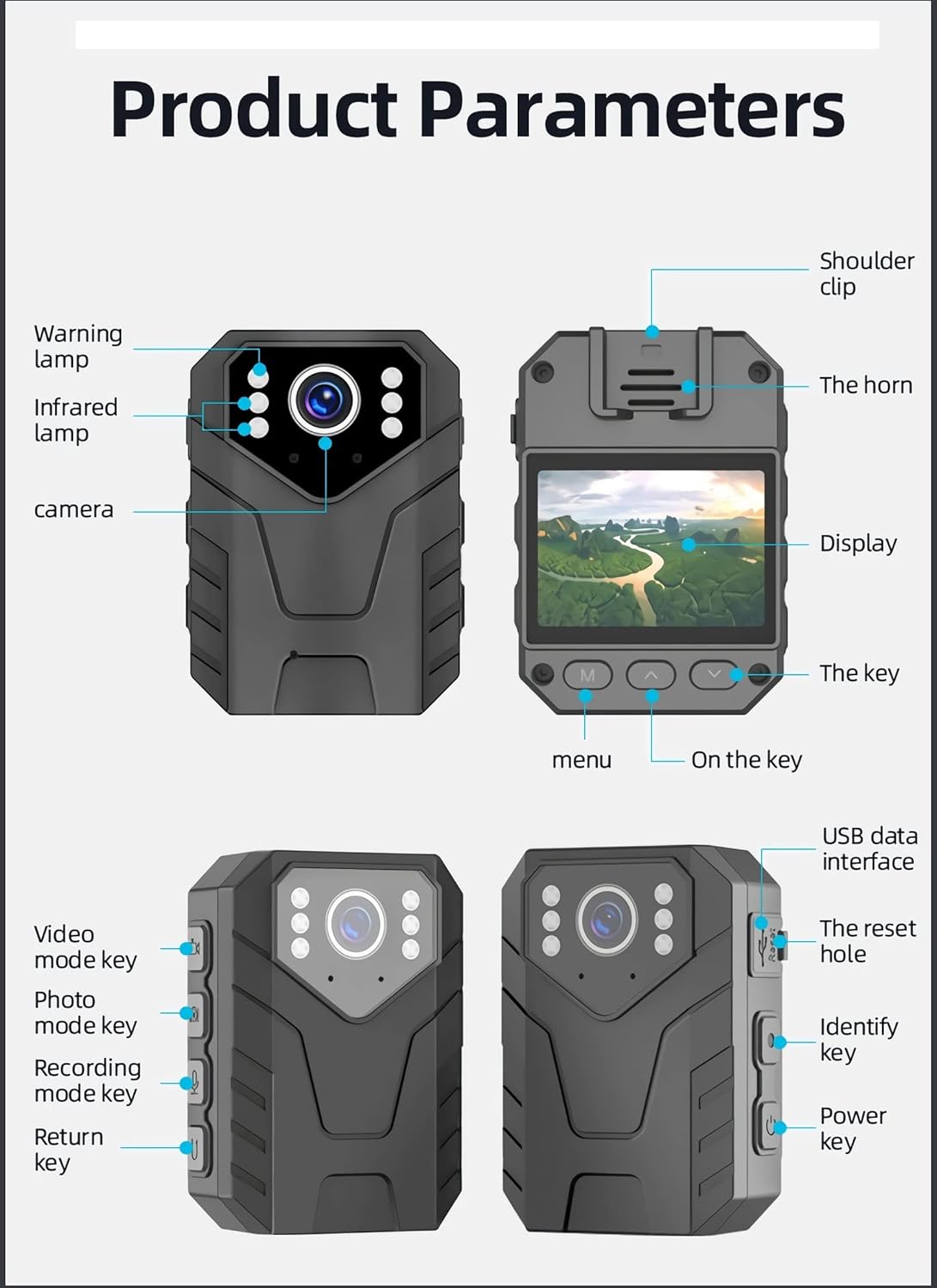
Figure 3.1: WEIIBDIE i5 Body Camera Components
Key Components:
- Camera Lens: Captures video and images.
- Infrared Lamps: Provide illumination for night vision.
- Warning Lamp: Indicates device status.
- Display: 2.0-inch LCD screen for live preview, playback, and menu navigation.
- Menu Button (M): Accesses device settings.
- Up/Down Keys (▲ / ▼): Navigate through menu options.
- Video Mode Key: Initiates and stops video recording.
- Photo Mode Key: Captures still images.
- Recording Mode Key: Initiates and stops audio-only recording.
- Return Key: Navigates back in menus or exits current mode.
- Power Key: Turns the device on/off.
- USB Data Interface: For charging and data transfer.
- Reset Hole: For factory reset (use a thin pin).
- TF Card Slot: For Micro SD card insertion.
- Shoulder Clip Slot: For attaching the back clip.
4. Setup
Follow these steps to prepare your body camera for first use.
4.1. Charging the Device
Before initial use, fully charge the body camera. Connect the provided USB cable to the camera's USB data interface and plug the other end into a power adapter or computer USB port. The charging indicator will show the charging status.
4.2. Inserting the Micro SD Card
The device supports Micro SD cards up to 128GB. A 64GB card is included. Ensure the device is powered off before inserting or removing the card.
- Locate the TF Card slot on the side of the camera.
- Gently insert the Micro SD card into the slot until it clicks into place.
- To remove, press the card inward until it springs out.
4.3. Attaching the Back Clip
The back clip allows for secure attachment to clothing or gear.
- Align the back clip with the shoulder clip slot on the rear of the camera.
- Slide the clip into the slot until it is firmly attached.
Video 4.1: Operation Guide for WEIIBDIE Police Body Camera. This video demonstrates initial setup, basic recording functions, and menu navigation.
5. Operating Instructions
5.1. Power On/Off
- To Power On: Long press the Power Key until the screen illuminates.
- To Power Off: Long press the Power Key until the device shuts down.
5.2. Video Recording
The camera records in 1080P Full HD resolution.
- Ensure the camera is powered on.
- Press the Video Mode Key to start recording. A red indicator will typically appear on the screen.
- Press the Video Mode Key again to stop recording and save the file.

Figure 5.1: 1080P Full HD Filming
5.3. Photo Capture
- Ensure the camera is powered on.
- Press the Photo Mode Key to take a still image.
5.4. Audio Recording
The device can record audio separately without video.
- Ensure the camera is powered on.
- Press the Recording Mode Key to start audio-only recording.
- Press the Recording Mode Key again to stop recording and save the audio file.
5.5. File Playback and Management
You can view recorded files directly on the device or by connecting it to a computer.
- On Device: Use the Menu, Up/Down, and Return keys to navigate to the file browser and select files for playback.
- On Computer: Connect the camera to a computer using the USB cable. The camera will appear as a removable disk, allowing you to access and manage files.
5.6. Menu Settings
Access the menu to configure various camera settings.
- Press the Menu Button (M) to enter the settings menu.
- Use the Up/Down Keys to navigate through options.
- Press the Video Mode Key (often acts as 'Confirm' in menus) to select an option or enter a sub-menu.
- Press the Return Key to exit a menu or go back.
5.7. Specific Features
- Motion Detection: Activate this feature in the settings to automatically start recording when motion is detected, saving battery and storage space.
- Night Vision: The camera is equipped with 6 high-intensity infrared LEDs for clear footage up to 10 meters (32 feet) in low-light conditions. This feature can be set to automatic.
- Loop Recording: When enabled, the camera will continuously record, overwriting the oldest files when the memory card is full. Video clip durations can be set (e.g., 5, 10, 15 minutes).
- Time Watermark: The date and time can be embedded onto recorded videos and photos for evidentiary purposes. This setting is configurable in the menu.
- Password Protection: Secure your device and recorded files with a password, preventing unauthorized access.
- Pre-record & Post-record: These features allow the camera to capture footage before and after the main recording event, ensuring no critical moments are missed.

Figure 5.2: 2.0-inch LCD Screen Functions

Figure 5.3: Infrared Night Vision

Figure 5.4: Motion Detection
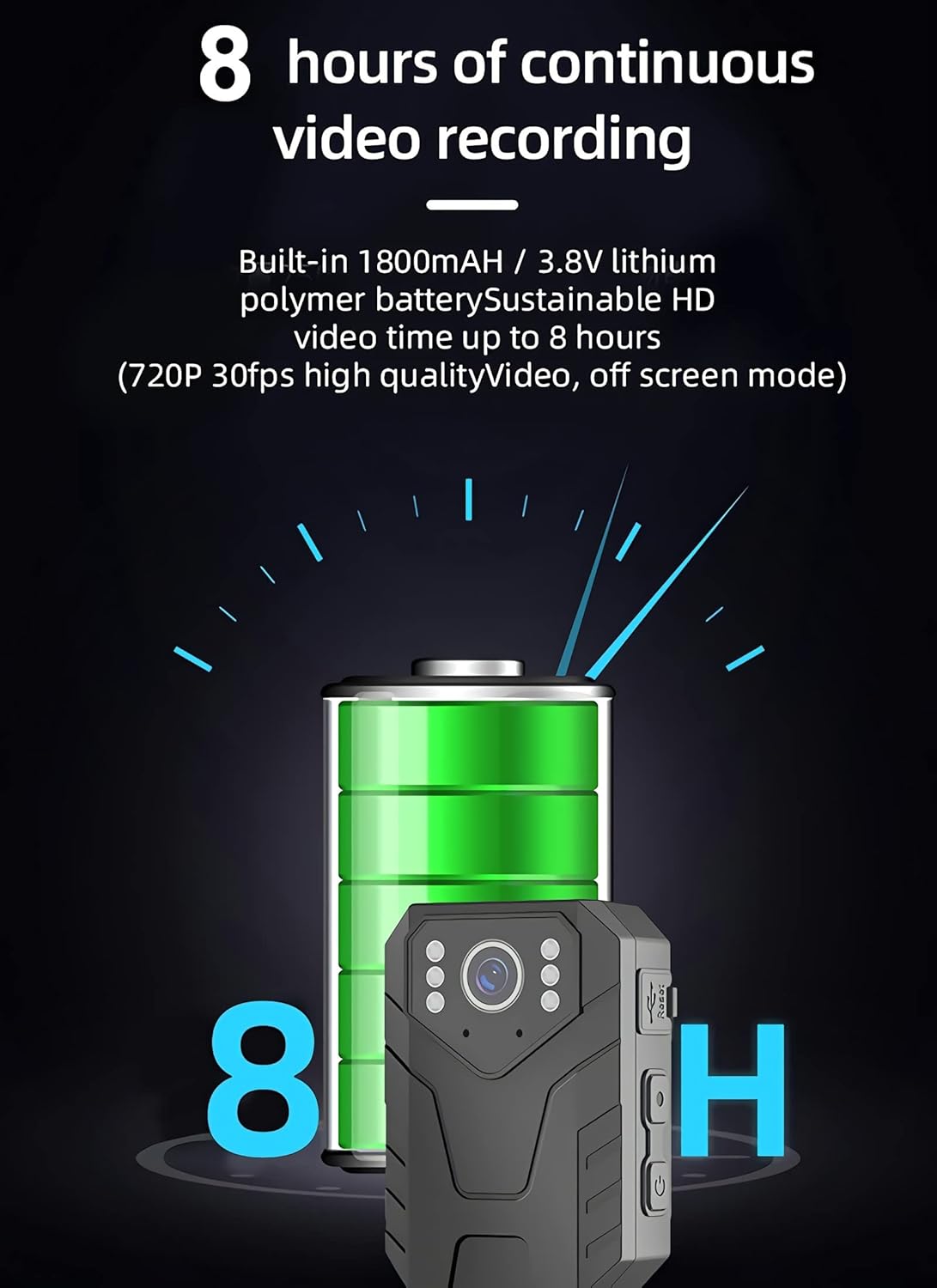
Figure 5.5: 8 Hours Continuous Recording
6. Maintenance
Proper care ensures the longevity and optimal performance of your body camera.
- Cleaning: Use a soft, dry cloth to clean the camera body. For the lens, use a specialized lens cleaning cloth and solution. Avoid abrasive materials or harsh chemicals.
- Storage: Store the camera in a cool, dry place away from direct sunlight and extreme temperatures.
- Battery Care: For long-term storage, charge the battery to approximately 50-70% every few months to prevent deep discharge.
- Firmware Updates: Check the manufacturer's website periodically for any available firmware updates to improve performance or add features.
7. Troubleshooting
If you encounter issues with your WEIIBDIE i5 Body Camera, refer to the following common problems and solutions:
| Problem | Possible Cause | Solution |
|---|---|---|
| Camera does not power on. | Low battery; device frozen. | Charge the battery. If frozen, use a thin pin to press the Reset Hole. |
| Cannot record video/take photos. | Memory card full or not inserted correctly; incorrect mode. | Check memory card insertion and free space. Ensure correct mode is selected. |
| Poor video/image quality. | Dirty lens; low light conditions (without night vision). | Clean the camera lens. Ensure night vision is active in low light. |
| Device not recognized by computer. | Faulty USB cable; driver issue. | Try a different USB cable or USB port. Ensure camera is powered on when connected. |
8. Specifications
| Feature | Detail |
|---|---|
| Model Number | i5 |
| Video Resolution | 1080P Full HD (1920x1080) |
| Photo Resolution | Up to 5 MP |
| Viewing Angle | 140 Degrees |
| Night Vision Range | Up to 10 meters (32 feet) with 6 IR LEDs |
| Battery Capacity | 1800 mAh Lithium Ion |
| Recording Time | 7-8 hours (1080P, screen & IR off) |
| Storage | Supports Micro SD card up to 128GB (64GB included) |
| Display | 2.0-inch LCD |
| Connectivity | Wired (USB), without Wi-Fi |
| Water Resistance | Water Resistant (IP54) |
| Dimensions (L x W x H) | 1.1 x 2.28 x 2.87 inches |
| Weight | 2.24 ounces |
| Material | Acrylonitrile Butadiene Styrene (ABS) |
| Video Format | MOV |
9. Warranty and Support
Specific warranty information is not provided in this manual. For details regarding warranty coverage, technical support, or service inquiries, please contact WEIIBDIE customer service or refer to the product's official website.