
1. Product Overview
The lo.baby.ve 1080P HD Body Cam Pen is a discreet and portable recording device designed for capturing high-quality video and photos. It functions as a standard writing pen while housing a hidden camera, making it suitable for various recording needs in classroom, meeting, or outdoor environments. The device features 1080P HD resolution, loop recording, and simple one-button operation.

Image: The lo.baby.ve 1080P HD Body Cam Pen, showcasing its sleek design and integrated camera lens.
2. Package Contents
- 1 x lo.baby.ve 1080P HD Body Cam Pen
- 3 x Ink Refills
- 1 x USB Cable (for charging and data transfer)
- 1 x User Manual
3. Product Diagram
Familiarize yourself with the key components of your lo.baby.ve Body Cam Pen:
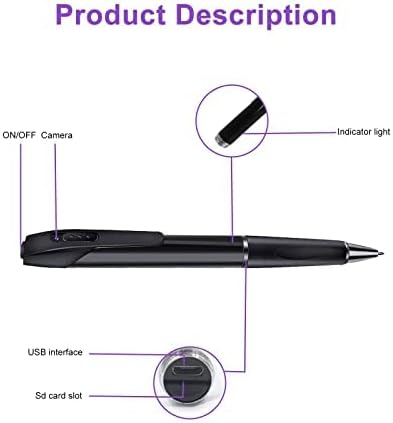
Image: Diagram of the lo.baby.ve 1080P HD Body Cam Pen showing components like ON/OFF button, camera lens, indicator light, USB interface, and SD card slot.
- ON/OFF Button: Controls power and recording modes.
- Camera Lens: Captures video and images.
- Indicator Light: Displays device status (e.g., charging, recording, standby).
- USB Interface: For charging and connecting to a computer.
- SD Card Slot: Insert a microSD card for storage (card not included).
4. Setup
4.1. Charging the Device
Before first use, fully charge the pen camera. Connect the pen to a USB power source (e.g., computer USB port, wall adapter) using the provided USB cable. The indicator light will show charging status and turn off or change color when fully charged.
4.2. Inserting a MicroSD Card
The pen camera requires a microSD card (not included) for storing recordings. Locate the SD card slot (refer to Product Diagram). Gently insert the microSD card with the gold contacts facing down until it clicks into place. To remove, push the card in again until it springs out.
4.3. Initial Power On
Press and hold the ON/OFF button for a few seconds until the indicator light illuminates, indicating the device is powered on and in standby mode.
5. Operation
5.1. Power On/Off
- Power On: Press and hold the ON/OFF button for approximately 2-3 seconds. The indicator light will turn on.
- Power Off: Press and hold the ON/OFF button for approximately 5 seconds. The indicator light will flash and then turn off.
5.2. Video Recording
From standby mode, press the ON/OFF button once briefly to start video recording. The indicator light will flash to indicate recording is in progress. Press the ON/OFF button again briefly to stop recording and save the file. The device supports 1080P HD video resolution and loop recording, which overwrites the oldest files when the memory card is full.

Image: An example of high-definition video quality captured by the pen camera, showing a family gathering.

Image: A side-by-side comparison demonstrating the clarity of 1080P video versus 720P, showing a child playing.
5.3. Photo Taking
From standby mode, a specific button press sequence (refer to the detailed manual for exact steps, as this device typically uses a single button for multiple functions) will switch to photo mode. Once in photo mode, a brief press of the ON/OFF button will capture a still image. The indicator light will flash once to confirm a photo has been taken.

Image: An image showing the pen camera's ability to capture still photographs, with a man presenting in a meeting.
5.4. Concealing the Camera
The pen features a sliding mechanism to cover the camera lens when not in use, maintaining its discreet appearance.

Image: A hand demonstrating how to slide the pen's cover to reveal or conceal the camera lens.
5.5. Connecting to a Computer
To access recorded files, connect the pen camera to your computer using the provided USB cable. The device will appear as a removable disk. You can then copy or move files from the pen's memory card to your computer.

Image: A collage of images showing the pen camera being used in various settings, such as clipped to a pocket, during a meeting, or while writing.
6. Maintenance
- Cleaning: Use a soft, dry cloth to clean the pen's exterior. Do not use liquid cleaners or solvents.
- Storage: Store the pen in a cool, dry place away from direct sunlight and extreme temperatures.
- Battery Care: To prolong battery life, avoid fully discharging the battery frequently. Charge the device regularly, even if not in use.
- Ink Refills: Replace ink refills as needed. Ensure the correct size and type of refill is used to avoid damaging internal components.
7. Troubleshooting
| Problem | Possible Cause | Solution |
|---|---|---|
| Device does not power on. | Low battery; faulty ON/OFF button. | Charge the device fully. If the issue persists, contact customer support. |
| Cannot record video/take photos. | No microSD card; microSD card full or corrupted; incorrect mode. | Insert a formatted microSD card. Check card capacity or format it. Ensure the device is in the correct recording mode. |
| Poor video/photo quality. | Insufficient lighting; dirty camera lens. | Ensure adequate lighting. Clean the camera lens gently with a soft cloth. |
| Computer does not recognize the device. | Faulty USB cable; incorrect connection; driver issue. | Try a different USB cable or USB port. Ensure the pen is powered on when connected. |
| No audio in recordings. | Microphone obstruction; device limitation. | Ensure the microphone is not obstructed. Note that some discreet recording devices may have limited audio capabilities. |
8. Specifications
| Feature | Detail |
|---|---|
| Video Capture Resolution | 1080p |
| Effective Video Resolution | 1080 Pixels |
| Power Source | Battery Powered (1 Lithium Ion battery included) |
| Indoor/Outdoor Usage | Indoor, Outdoor |
| Item Dimensions (L x W x H) | 6.57 x 2.2 x 1.06 inches |
| Item Weight | 2.64 ounces |
| Special Feature | Motion Sensor, Portable |
| Connectivity Technology | Wired (USB for data transfer/charging) |
| International Protection Rating | IP54 |
9. Warranty and Support
The lo.baby.ve 1080P HD Body Cam Pen comes with a 2-year refund/replacement policy and lifetime technical support. For any questions, issues, or technical assistance, please contact lo.baby.ve customer service through your purchase platform or the contact information provided with your product packaging.