
Introduction
Thank you for choosing the Foxgard Biometric Door Lock FDA01. This smart door lock provides advanced security and convenience with multiple unlocking methods, including fingerprint, smartphone app, and mechanical key. This manual will guide you through the installation, setup, and operation of your new smart lock.
Safety Information
- Read all instructions carefully before installation and use.
- Keep at least one mechanical key in a safe, accessible location outside the locked area for emergency access.
- Do not expose the lock to direct water spray or corrosive liquids.
- Ensure correct battery polarity when installing batteries.
- Replace all four AAA batteries simultaneously when the low battery indicator appears.
Package Contents
Verify that all components are present before beginning installation:
- Front Handle Assembly
- Back Handle Assembly
- Single Latch
- Strike Plate
- 2 Mechanical Keys
- Square Cotter
- 2 Spiral Tubes
- Screws (various sizes)
- Screwdriver
Specifications
| Brand | Foxgard |
| Model Name | FDA01 |
| Lock Type | Biometric |
| Special Feature | Fingerprint, App Control |
| Material | Zinc Alloy |
| Color | Black |
| Item Dimensions (L x W x H) | 6.49 x 2.6 x 1.95 inches |
| Item Weight | 1.9 Pounds |
| Power Source | 4 AAA Batteries (not included) |
| Door Thickness Compatibility | 1-3/8" (35mm) to 2-3/16" (55mm) |
| Adjustable Latch | 2-3/8" (60mm) or 2-3/4" (70mm) |
Setup and Installation
The Foxgard FDA01 lock is designed for DIY installation and fits most standard single-cylinder US doors. A screwdriver is included for convenience.
Door Compatibility Check
Before installation, ensure your door meets the following criteria:
- Door thickness: between 1-3/8" (35mm) to 2-3/16" (55mm).
- Adjustable latch: 2-3/8" (60mm) or 2-3/4" (70mm).

Installation Steps
Follow these steps for physical installation:
- Install the Strike Plate: Secure the strike plate to the door frame using the provided screws. Your original strike plate may be kept if compatible with the new latch.
- Install the Latch: Adjust the latch to the correct backset (60mm or 70mm) if necessary. Insert the latch into the door edge, ensuring the spindle hole is straight to the ground. Secure it with screws.
- Install the Front Handle: Fix and tighten the spiral tubes onto the front handle. Route the connecting wire through the square cotter. Insert the wire into the latch hole and then fix the front handle onto the door.
- Install the Back Handle: Unscrew the screw on the back handle to open its cover. Route the connecting wire through the back handle. Connect the wire to the wire connector port on the back handle's circuit board, ensuring it's properly connected. Fix the back handle to the door using the long screws (Screw B).
- Install Batteries: Insert 4 AAA batteries (not included) into the battery compartment of the back handle. Ensure correct polarity.
- Secure Back Cover: Close the back cover and secure it with the screw.

Installation Video Guide
Video 1: Official Foxgard FDA01 APP Fingerprint Door Lock Installation Guide. This video provides a detailed visual walkthrough of the installation process.
Operating Instructions
Unlocking Methods
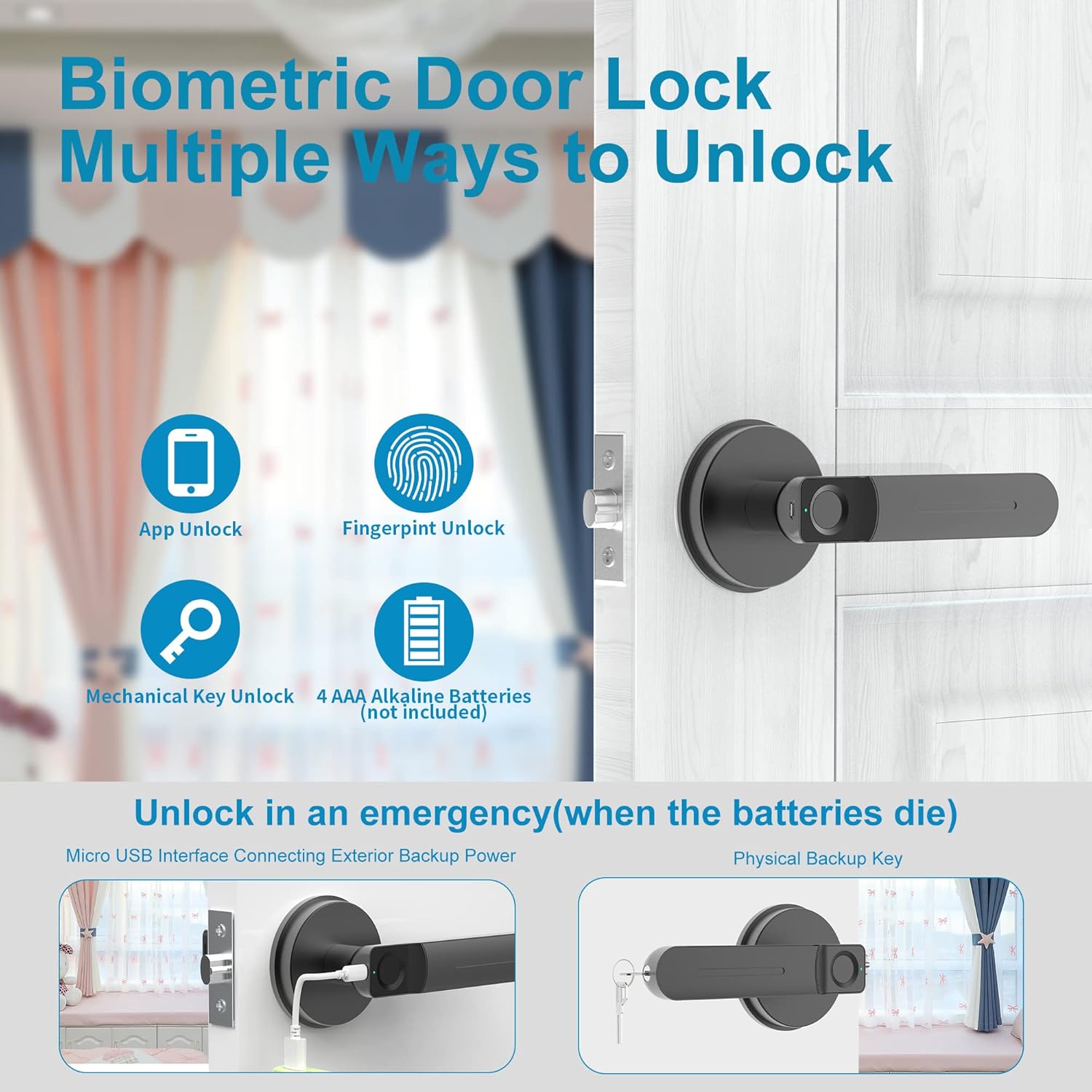
The Foxgard FDA01 offers multiple ways to unlock your door:
- Fingerprint Unlock: Place your registered finger on the sensor for quick access.
- App Unlock: Use the Tuya Smart app on your smartphone to unlock remotely (requires Tuya Gateway for remote access).
- Mechanical Key Unlock: Use the provided physical keys as a backup in case of emergencies or battery depletion.
Smart App Control
Manage your lock conveniently using the Tuya Smart app.

App Registration and Pairing
To use the app features, you must first register and pair your lock:
- Download the Tuya Smart app from Google Play or App Store.
- Tap on Sign Up to get started.
- Fill in your mobile number or Email.
- Agree to the terms and tap Get verification code. Enter the code to verify your account.
- Set your password.
- Turn on your mobile's Bluetooth.
- In the Tuya Smart app, tap on Add Device or the '+' icon.
- The app will automatically search for devices. Tap on Add when your lock is found.
- Once added successfully, tap to name the lock and then tap Done.
App Setup Video Guide
Video 2: Official Foxgard FDA01 Fingerprint Door Lock APP Setup Guide. This video demonstrates the app registration and pairing process.
Adding Fingerprints via App
To add a fingerprint for unlocking:
- Tap on Member Management in the app.
- Tap on Me Admin.
- Tap on Add below Fingerprint.
- Tap on Add.
- Place your finger on the sensor 4 times as required. The fingerprint will be added successfully.
- Enter the added fingerprint name and tap OK.

Passage Mode
Passage Mode keeps the door unlocked, allowing free entry and exit without verification.
- To Turn On: Tap on Settings in the app. Turn Auto Lock off. Place a registered finger on the fingerprint reader to activate Passage Mode.
- To Turn Off: Tap on Settings in the app. Open Auto Lock. Place a registered finger on the fingerprint reader to deactivate Passage Mode.
Remote Unlock/Lock (with Tuya Gateway)
For remote control functionality, a Foxgard FG2 Tuya Gateway (sold separately) is required.

- Add Tuya Gateway: Ensure your mobile Bluetooth is on. In the Tuya Smart app, tap '+' and Add Device. Discover devices and tap Add. Enter your Wi-Fi information. Gateway added successfully. Tap Done.
- Pair Lock with Gateway: In the app, tap on Add Device. Tap on Add existing. Select your lock and tap Confirm. Tap on Connect Now. Tap on Finish. The lock is now added to the gateway.
Maintenance
- Battery Replacement: The lock requires 4 AAA batteries. When the battery is low, the lock will indicate with a warning. Replace all four batteries simultaneously to ensure optimal performance.
- Cleaning: Wipe the lock surface with a soft, dry cloth. Avoid using abrasive cleaners or solvents that could damage the finish or electronic components.
- Fingerprint Sensor Care: Keep the fingerprint sensor clean and dry for accurate recognition.
Troubleshooting
If you encounter issues, refer to the following common problems and solutions:
- Lock not responding: Check battery levels and replace if necessary. Ensure the wire connection between the front and back handles is secure.
- Fingerprint not recognized: Ensure your finger is clean and dry. Try re-registering your fingerprint, ensuring you capture it from multiple angles.
- App connection issues: Ensure Bluetooth is enabled on your phone. If using remote access, verify your Tuya Gateway is properly connected to Wi-Fi and paired with the lock.
- Mechanical key not working: Ensure the key is fully inserted and turned correctly. If the lock is jammed, do not force it.
- Lock makes a whining noise: This could indicate low batteries or a mechanical issue. Replace batteries first. If the issue persists, contact customer support.
- Door handle stuck: If the handle does not operate the latch, check for any obstructions or if the internal mechanism is misaligned. Use the mechanical key for emergency access.
Warranty and Support
Foxgard provides a one-year warranty and free lifetime technical support for this product. For any questions regarding installation, operation, or troubleshooting, please contact Foxgard customer service. We aim to reply within 24 hours.
For further assistance, please visit the Foxgard Store on Amazon.