1. Introduction
This manual provides detailed instructions for the setup, operation, and programming of your Tangxi 12-Key Programmable Mechanical Keyboard with Knob. This versatile device is designed to enhance productivity and gaming experiences by allowing users to customize key functions and macro commands.

Image 1: The Tangxi 12-Key Programmable Mechanical Keyboard with Knob, featuring twelve white keys and two silver rotary knobs on a clear acrylic base.
2. Package Contents
Please verify that all items are present in the package:
- 1 x Tangxi 12-Key Programmable Mechanical Keyboard
- 1 x USB Cable
3. Specifications
| Feature | Detail |
|---|---|
| Item Type | Macro Mechanical Keyboard |
| Material | Acrylic, PCB |
| System Support | Windows, VISTA, Linux, OS X |
| Button Life | Up to 50 Million Times |
| Switch Type | Green Shaft |
| Quantity of Keys | 12 Keys |
| Dimensions (L x W x H) | Approx. 132 x 77 x 38mm (5.2 x 3 x 1.5 inches) |
| Current and Voltage | DC 5V/1A |
| Working Temperature | -10°C to 50°C |
| Connectivity Technology | USB |
| Item Weight | 8.4 ounces |
4. Setup
- Connect the Keyboard: Use the provided USB cable to connect the programmable keyboard to an available USB port on your computer. The device is plug-and-play, requiring no driver installation for basic functionality.
- Software Download: To customize the key functions and macros, you will need to download the dedicated programming software. This software is typically provided via a QR code or a link to a cloud storage service. Note: The software can only be run on a Windows operating system for configuration.
- Software Execution: The setting software does not require installation. After downloading, it can be run directly. If prompted by antivirus software, ensure to allow it as a trusted file.

Image 2: The programmable mini keyboard connected via its Type-C to USB interface, highlighting its plug-and-play capability for basic use.
5. Operating Instructions: Programming Keys and Knobs
The keyboard features a memory function, allowing programmed settings to be stored directly on the device. Once configured on a Windows system, the keyboard can be used on other systems that support the USB protocol, such as Linux or OS X, without needing to re-program.

Image 3: A visual representation emphasizing the keyboard's memory function, allowing settings to persist across different operating systems after initial configuration on Windows.
5.1. Programming Keys (KEY1-KEY12)
- Open Custom Software: Launch the custom programming software on your Windows computer.
- Select Key for Programming: In the software interface, locate and click on the 'Key Setting Area'. Then, select the specific key (e.g., KEY1, KEY2, up to KEY12) you wish to program. The selected key will typically be highlighted (e.g., appear red).
- Assign Function: Click on the desired function key or combination of keys on the software's simulated keyboard. For example, to set KEY1 as the shortcut for Copy (Ctrl+C), click 'KEY1', then click 'Ctrl' and 'C' on the software's virtual keyboard.
- Download Settings: Click the 'Download' button within the software. A 'Download successful' message will confirm that the settings have been saved to the keyboard.
5.2. Programming Knobs (Knob 1, Knob 2)
The rotary knobs can also be customized to perform various media and control functions.
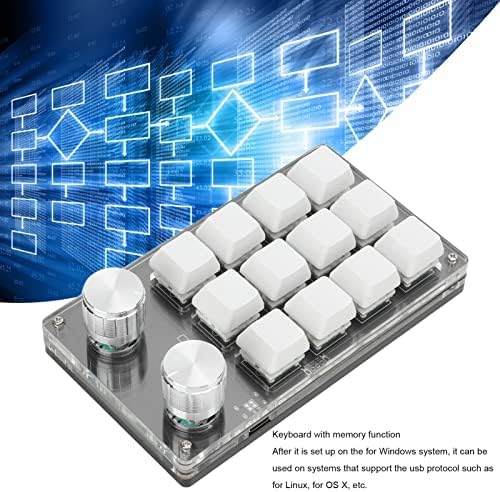
Image 4: The programmable keyboard viewed from an angle, highlighting the two rotary knobs and their customizable functions such as volume control and media playback.
- Select Knob for Programming: In the custom software, click on the 'Knob Setting Area'. Then, select either Knob 1 or Knob 2.
- Assign Function: Choose from available functions such as:
- Play previous song
- Play next song
- Volume up
- Volume down
- Pause
- Play
- And other functions as available in the software.
- Download Settings: Click the 'Download' button to save the knob settings to the keyboard.
6. Maintenance
To ensure the longevity and optimal performance of your programmable keyboard, follow these maintenance guidelines:
- Cleaning: Use a soft, dry cloth to wipe the surface of the keyboard. For stubborn dirt, a slightly damp cloth with mild soap can be used, ensuring no liquid enters the key switches or electronic components.
- Avoid Liquids: Keep the keyboard away from liquids to prevent damage to internal circuitry.
- Storage: When not in use, store the keyboard in a clean, dry environment, away from direct sunlight or extreme temperatures.
- USB Cable Care: Handle the USB cable gently. Avoid sharp bends or excessive pulling to prevent damage to the cable or connectors.
7. Troubleshooting
Common Troubleshooting Methods:
- Problem 1: Keyboard is not recognized or unresponsive when connected to the computer.
Solution:
- Ensure the USB cable is securely connected to both the keyboard and the computer's USB port.
- Try connecting the keyboard to a different USB port on your computer.
- Test the keyboard on another computer to determine if the issue is with the keyboard or the original computer's USB port/drivers.
- Restart your computer.
- Problem 2: Programming software does not run or is blocked.
Solution:
- Ensure you are running the software on a Windows operating system.
- Temporarily disable your antivirus software or add the programming software as an exception/trusted file.
- Download the software again from the official source to ensure the file is not corrupted.
- Problem 3: Programmed functions do not work on non-Windows systems (e.g., Linux, OS X).
Solution:
- Confirm that the programming was successfully downloaded to the keyboard on a Windows system. The keyboard has onboard memory for settings.
- Ensure the non-Windows system supports standard USB HID (Human Interface Device) protocols.
8. Warranty and Support
Tangxi products are manufactured to high-quality standards. For warranty information, technical support, or further assistance, please refer to the contact information provided with your purchase or visit the official Tangxi website.
Please retain your proof of purchase for any warranty claims.


