
Introduction
The FILCO Majestouch Convertible3 FKBC91M/JB3-RKL is a high-performance mechanical keyboard designed for versatility and durability. It features CHERRY MX Brown switches, a 91-key Japanese layout, and supports both Bluetooth 5.1 and USB connections. This keyboard allows you to register up to 4 Bluetooth devices and one USB device, enabling seamless switching between up to 5 different systems. The Convertible3 incorporates a dedicated Bluetooth button for simplified device management and a user-friendly frame design to prevent accidental key presses.
Package Contents
Please check that all the following items are included in your package:
- FILCO Majestouch Convertible3 Keyboard
- USB Cable (Type-A to Type-C, 1.8m)
- Keycap Puller
- Replacement Keycaps (e.g., Ctrl, Alt, Fn, CapsLock)
- 3 Red Key Locks
- User Manual (this document)
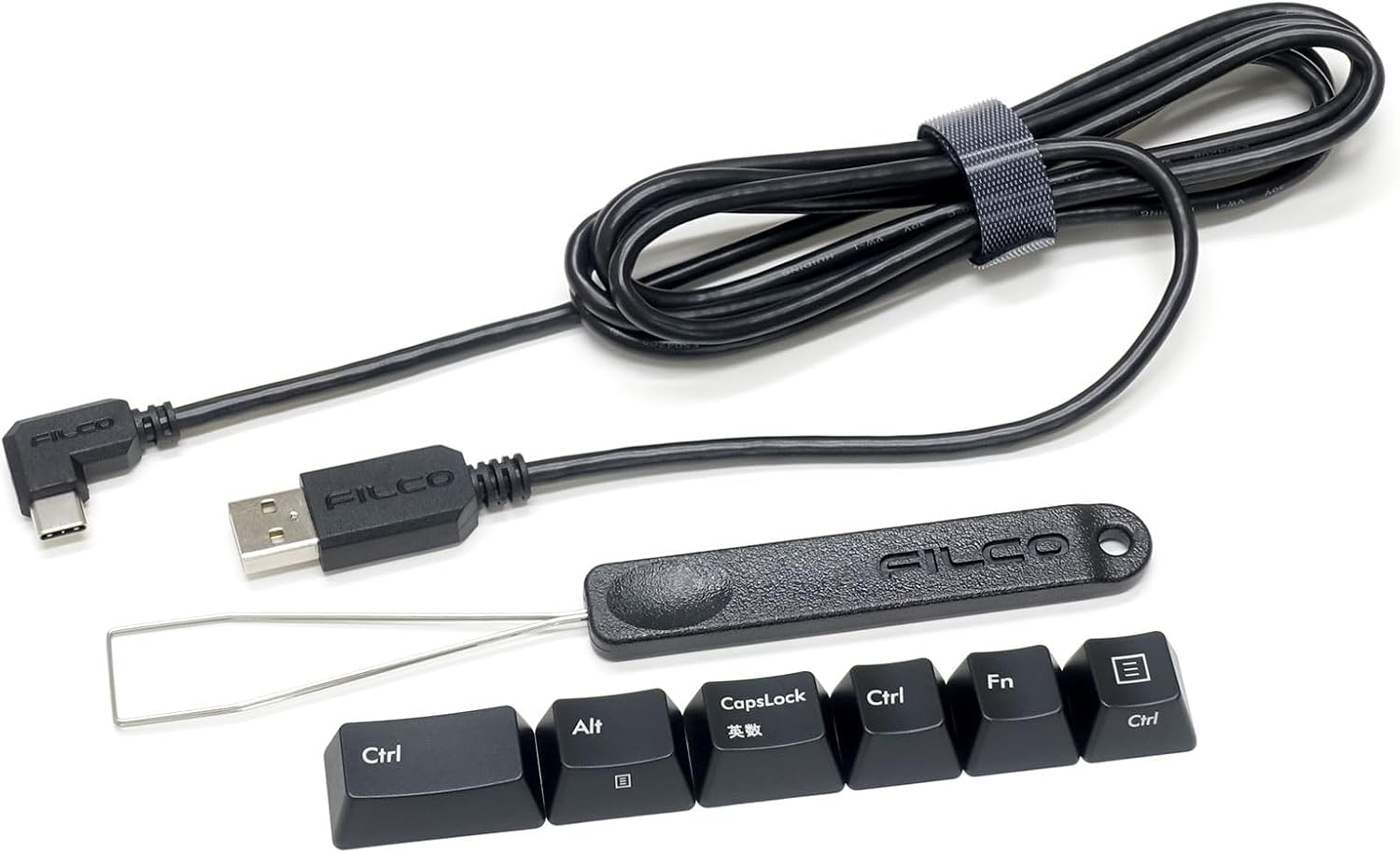
Image: USB cable, keycap puller, and various replacement keycaps.
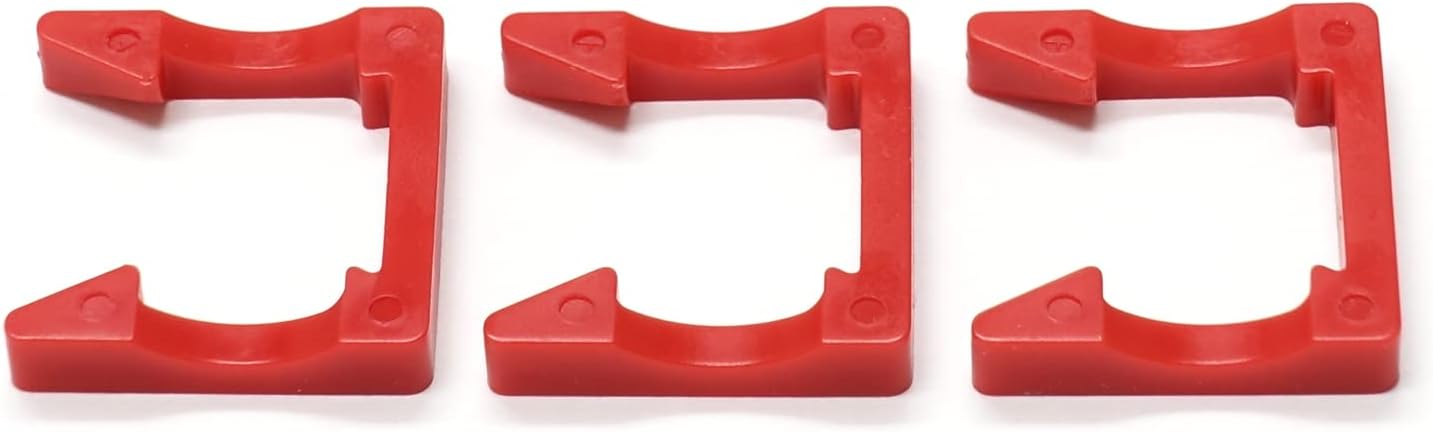
Image: Three red key locks, used for securing specific keys.
Product Features
- CHERRY MX Brown Switches: Provides a tactile typing experience with a soft, light key touch and a noticeable actuation point without an audible click.
- Dual Connectivity: Supports both Bluetooth 5.1 for wireless use and USB for wired connection.
- Multi-Device Support: Register up to 4 Bluetooth devices and use 1 USB device, allowing quick switching between a total of 5 devices.
- Japanese Layout (91 Keys): Standard Japanese key layout with Kana notation.
- USB Passthrough Port: Equipped with a USB Type-A passthrough port for convenience when connected via USB.
- Dedicated Bluetooth Button: Simplifies pairing and device switching with a single touch.
- Durable Construction: Made with a robust plastic material for long-lasting performance.

Image: Close-up view of the CHERRY MX Brown switches, highlighting their tactile design.
Setup
1. Power Source
The keyboard can be powered via USB or by installing two AA batteries for Bluetooth operation.

Image: The battery compartment located on the underside of the keyboard, designed for two AA batteries.
2. USB Wired Connection
- Connect the supplied USB Type-C cable to the port on the keyboard.
- Connect the USB Type-A end of the cable to an available USB port on your computer.
- The keyboard will be automatically recognized by your operating system.
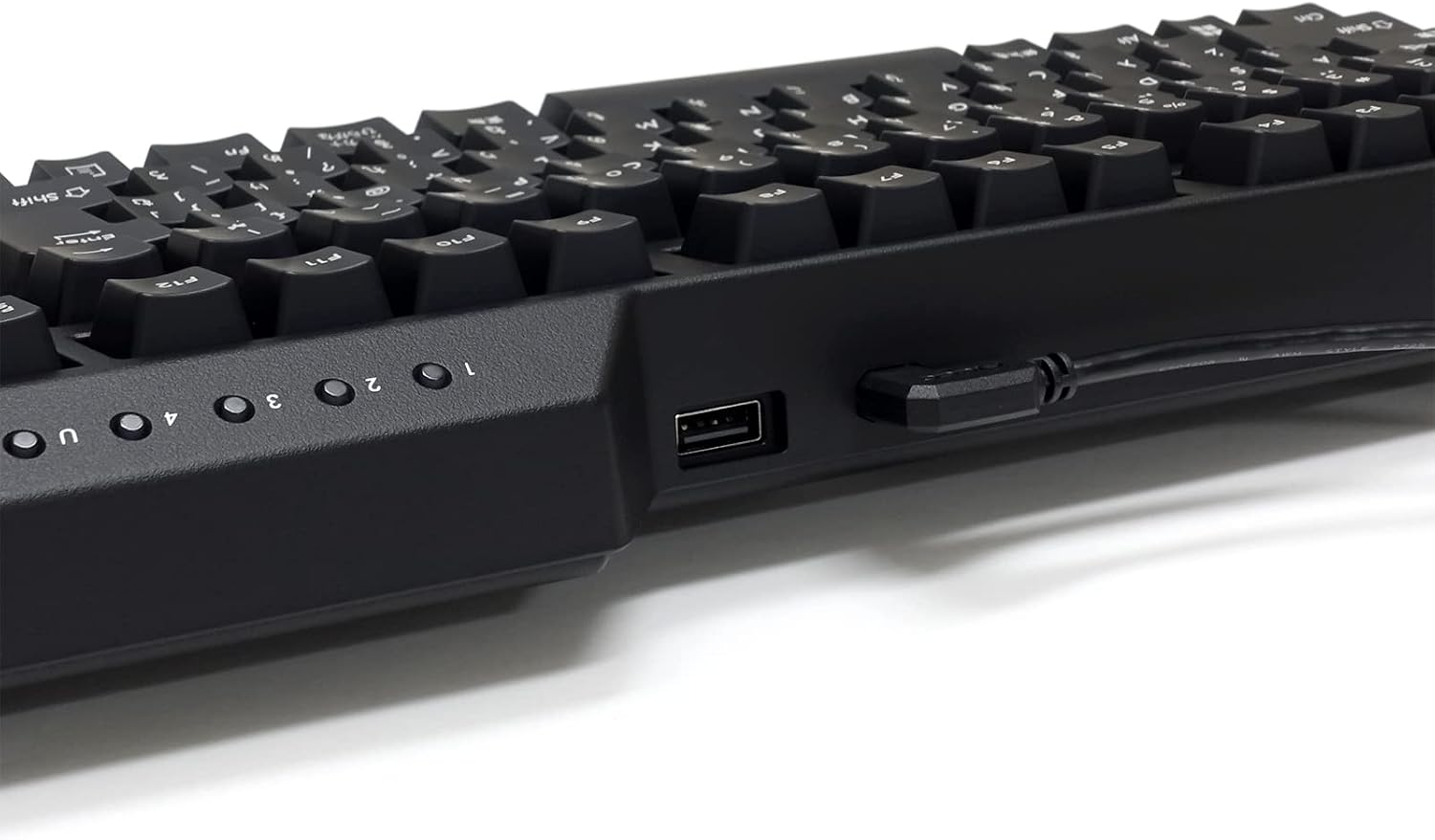
Image: Side view of the keyboard, illustrating the USB-C input port and the convenient USB-A passthrough port.
3. Bluetooth Wireless Connection
The keyboard can store up to 4 Bluetooth device pairings.
- Ensure the keyboard has batteries installed or is connected via USB for power.
- Turn on the keyboard's power switch located on the underside.
- Press and hold one of the Bluetooth device buttons (1, 2, 3, or 4) located above the function keys for approximately 3 seconds until its indicator light flashes rapidly. This indicates pairing mode.
- On your device (smartphone, tablet, or computer), enable Bluetooth and search for available devices.
- Select "FILCO Convertible3" from the list of found devices.
- If prompted, enter the pairing code displayed on your device using the keyboard and press Enter.
- Once paired, the indicator light for the selected Bluetooth channel will glow steadily.
- Repeat for up to 3 additional devices using different Bluetooth device buttons.

Image: Top right section of the keyboard, showing the indicator lights for Num Lock, Caps Lock, Scroll Lock, and Win Lock, along with the Bluetooth device selection buttons (1, 2, 3, 4).
4. DIP Switch Settings
DIP switches on the underside of the keyboard allow for advanced configuration of key functions. Refer to the table below for available settings. Use a small tool to adjust the switches.

Image: The underside of the keyboard, featuring DIP switches for custom settings and adjustable feet for ergonomic positioning.
| Switch No. | ON Position | OFF Position (Default) |
|---|---|---|
| 1 | Swap Win Key and App Key | Standard Win Key and App Key function |
| 2 | Swap CapsLock Key and Left Ctrl Key | Standard CapsLock Key and Left Ctrl Key function |
| 3 | Swap Esc Key and Half/Full-width Key | Standard Esc Key and Half/Full-width Key function |
| 4 | (Function not specified in image) | (Function not specified in image) |
Operating Instructions
Switching Between Devices
- For Bluetooth Devices: Briefly press the corresponding Bluetooth device button (1, 2, 3, or 4) to switch to a previously paired device. The connection will be re-established within approximately 2 seconds.
- For USB Wired Connection: Connect the USB cable to your computer. The keyboard will automatically switch to USB mode. If already connected via Bluetooth, connecting the USB cable will prioritize the USB connection.
Indicator Lights
The keyboard features several indicator lights to show its status:
- Num Lock: Indicates Numeric Keypad status.
- Caps Lock: Indicates Caps Lock status.
- Scroll Lock: Indicates Scroll Lock status.
- Win Lock: Indicates if the Windows key is locked (preventing accidental presses during gaming).
- Bluetooth Device Indicators (1, 2, 3, 4): Show which Bluetooth device is currently selected or in pairing mode.

Image: Detailed view of the keyboard's top right, showing the illuminated indicator lights for Num Lock, Caps Lock, Scroll Lock, Win Lock, and the active Bluetooth device (e.g., 'U' for USB, '1' for Bluetooth device 1).
Maintenance
To ensure the longevity and optimal performance of your FILCO Majestouch Convertible3 keyboard, regular cleaning is recommended.
- General Cleaning: Use a soft, dry cloth to wipe the surface of the keyboard. For stubborn dirt, a slightly damp cloth with mild soap can be used, ensuring no liquid enters the key switches.
- Keycap Cleaning: The included keycap puller can be used to carefully remove keycaps for thorough cleaning underneath. Clean keycaps with mild soap and water, then ensure they are completely dry before reattaching.
- Dust Removal: Use compressed air to blow away dust and debris from between the keycaps and switches.
Troubleshooting
- Keyboard not responding (Wired):
- Ensure the USB cable is securely connected to both the keyboard and the computer.
- Try connecting to a different USB port on your computer.
- Test the keyboard on another computer if possible.
- Keyboard not responding (Bluetooth):
- Ensure the keyboard has sufficient battery power.
- Verify that Bluetooth is enabled on your device.
- Make sure the keyboard is within the effective range of your Bluetooth device.
- Try re-pairing the keyboard with your device.
- Ensure no other devices are interfering with the Bluetooth signal.
- Keys not registering or double-typing:
- Clean under the affected keycap using the keycap puller and compressed air.
- Ensure the keycap is properly seated on the switch.
- Unexpected key behavior:
- Check the DIP switch settings on the underside of the keyboard to ensure they are configured as desired.
- Ensure the correct keyboard layout is selected in your operating system settings.
Specifications
| Feature | Detail |
|---|---|
| Brand | FILCO |
| Model Number | FKBC91M/JB3-RKL |
| Model Name | Majestouch Convertible 3 |
| Keyboard Description | Mechanical |
| Switch Type | CHERRY MX Brown (Tactile) |
| Key Layout | 91 keys, Japanese Layout (Kana Notation: Yes) |
| Connectivity Technology | Bluetooth 5.1, USB |
| Multi-Device Support | Up to 4 Bluetooth devices + 1 USB device |
| Compatible Devices | PC, Smartphone, Tablet (Android compatible) |
| Power Source | USB power, 2x AA Batteries (for Bluetooth) |
| USB Cable Length | 1.8 m (Type-A to Type-C) |
| Material | Plastic |
| Color | Black |
| Included Components | Keycap Puller, USB Cable, 3 Red Key Locks |
Warranty and Support
For warranty information and technical support, please refer to the warranty card included with your product or visit the official FILCO website. Keep your proof of purchase for warranty claims.
Official FILCO Website: www.diatec.co.jp/en/ (This is the official distributor for FILCO, often where support information is found.)


