
iotwe A4300
IOTWE A4300 Projector User Manual
Model: A4300
1. Introduction
Thank you for purchasing the IOTWE A4300 Projector. This device is designed to provide a high-quality home theater experience with its native 1080P resolution, 5G/2.4G WiFi, and Bluetooth connectivity. It features an outstanding brightness and contrast ratio, supporting 4K input for full-color high-definition image quality. This manual will guide you through the setup, operation, and maintenance of your new projector.

Image 1.1: The IOTWE A4300 Projector, showcasing its compact design, included carrying bag, and wireless capabilities (5G WiFi, Bluetooth, 4K support, 1080P HD).
2. Package Contents
Please check the package carefully to ensure all items are present and in good condition. If any items are missing or damaged, please contact customer support.
- IOTWE A4300 Projector
- Remote Control (batteries not included)
- Power Cable
- HDMI Cable
- AV Cable
- Cleaning Cloth
- Projector Case
- User Manual
- Packing Box

Image 2.1: All items included in the IOTWE A4300 Projector package.
3. Product Overview
3.1. Projector Components
Familiarize yourself with the various parts of your projector:
- Lens: Projects the image onto the screen.
- Focus Ring: Adjusts image clarity.
- Keystone Correction Dial: Corrects trapezoidal image distortion.
- Control Panel: Buttons for basic navigation and settings.
- Input Ports: HDMI, USB, VGA, AV, Audio Jack for connecting external devices.
- Power Port: For connecting the power cable.
- Ventilation Grilles: Ensure proper airflow to prevent overheating.
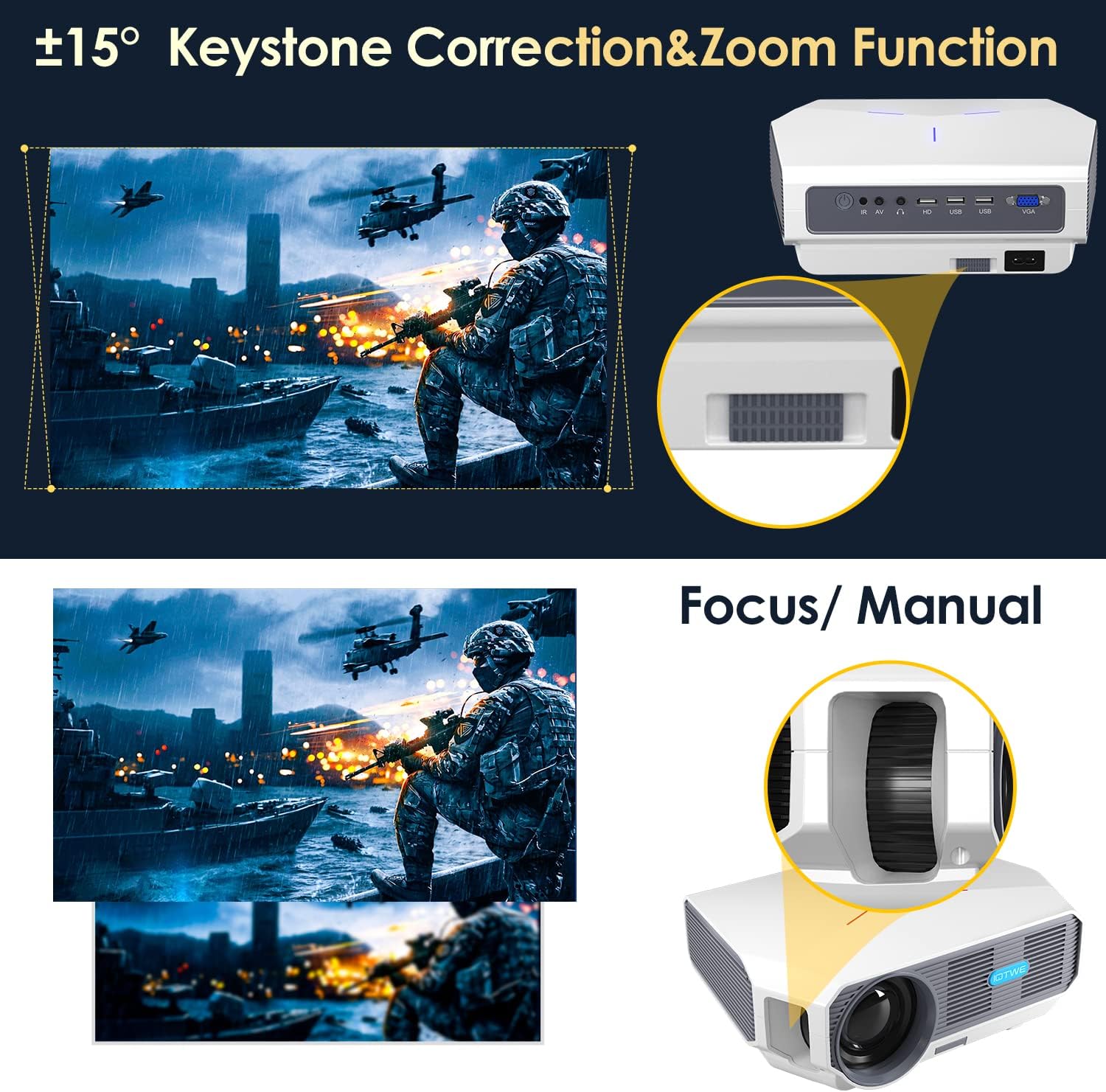
Image 3.1: Detail of the ±15° Keystone Correction and Manual Focus features.

Image 3.2: Multiple device connection ports on the IOTWE A4300 Projector.
4. Setup Guide
4.1. Placement
Choose a flat, stable surface for the projector. Ensure there is adequate ventilation around the unit. The projection distance affects the screen size. Refer to the table below for recommended distances:
| Projection Size | Projection Distance |
|---|---|
| 45 inches | 1.38 meters (4.5 feet) |
| 60 inches | 1.8 meters (5.9 feet) |
| 100 inches | 2.9 meters (9.5 feet) |
| 200 inches | 5.7 meters (18.7 feet) |
Recommended projection size is 60-100 inches for optimal viewing.

Image 4.1: Projection distance and screen size guide.
4.2. Power Connection
- Connect the power cable to the projector's power port.
- Plug the other end of the power cable into a power outlet.
- Press the power button on the projector or remote control to turn on the device.
4.3. Focus and Keystone Adjustment
After powering on, adjust the image for clarity and shape:
- Focus: Rotate the focus ring near the lens until the projected image appears sharp and clear.
- Keystone Correction: If the image appears trapezoidal (wider at the top or bottom), use the keystone correction dial or the remote control (±15° digital keystone) to adjust it until the image is rectangular.
5. Operating Instructions
5.1. Connecting Devices (Wired)
The IOTWE A4300 Projector supports multiple wired input sources:
- HDMI: Connect laptops, PCs, gaming consoles (PS4, Xbox), or streaming devices (Fire TV Stick, Roku) using an HDMI cable. Select HDMI as the input source from the projector's menu.
- USB: Insert a USB flash drive to play media files (videos, photos, music). Select USB as the input source.
- VGA: Connect older PCs or laptops using a VGA cable. Select VGA as the input source.
- AV: Use the provided AV cable to connect devices with AV output (e.g., DVD players). Select AV as the input source.
- Audio Jack: Connect external speakers or headphones for enhanced audio.
5.2. Wireless Connections
The projector offers advanced wireless connectivity for convenience:
5.2.1. WiFi Connection (5G/2.4G)
Connect the projector to your home WiFi network for online content and screen mirroring:
- Go to the projector's main menu and select "WiFi Settings".
- Turn on WiFi and select your desired network (supports both 5G and 2.4G).
- Enter the WiFi password using the on-screen keyboard and confirm.
- Once connected, you can proceed with screen mirroring or access online features if available.

Image 5.1: Seamless 5G WiFi wireless connection for smoother streaming.
5.2.2. Bluetooth Connection
Connect Bluetooth speakers or headphones for an immersive audio experience, or use the projector as a standalone Bluetooth speaker:
- Go to the projector's main menu and select "Bluetooth Settings".
- Turn on Bluetooth. The projector will search for nearby Bluetooth devices.
- Select your desired Bluetooth speaker or headphone from the list to pair.
- To use the projector as a Bluetooth speaker, switch to Bluetooth speaker mode (refer to the on-screen instructions or remote control button).

Image 5.2: Bluetooth connectivity for headphones and speakers.
5.2.3. Screen Mirroring (Miracast/Airplay)
Mirror your smartphone, tablet, or laptop screen wirelessly to the projector:
- For iOS Devices (Airplay):
- Ensure your iOS device and the projector are connected to the same WiFi network.
- On the projector, select the "Airplay" or "iOS Cast" option.
- On your iOS device, open Control Center and tap "Screen Mirroring" or "AirPlay Mirroring".
- Select the projector from the list of devices.
- For Android Devices (Miracast):
- On the projector, select the "Miracast" or "Android Cast" option.
- On your Android device, enable "Wireless Display", "Screen Cast", "Smart View", or similar function (names vary by device).
- Select the projector from the list of available devices.

Image 5.3: Smart Phone screen mirroring capability.
5.3. Menu Navigation
Use the remote control or the buttons on the projector to navigate the on-screen menu. Common settings include:
- Input Source: Select HDMI, USB, VGA, AV, or Wireless.
- Picture Settings: Adjust brightness, contrast, color, aspect ratio, and picture mode.
- Sound Settings: Adjust volume, sound mode.
- System Settings: Language, time, software update, factory reset.
6. Maintenance
Proper maintenance ensures the longevity and optimal performance of your projector:
- Lens Cleaning: Use the provided cleaning cloth or a professional lens cleaning kit. Do not use abrasive cleaners.
- Dust Removal: Regularly clean the ventilation grilles to prevent dust buildup, which can affect performance and lifespan. Use a soft brush or compressed air.
- Storage: When not in use, store the projector in its carrying case in a cool, dry, dust-free environment.
- Avoid Obstruction: Ensure the ventilation ports are not blocked during operation.
7. Troubleshooting
If you encounter issues, refer to the following common problems and solutions:
| Problem | Possible Solution |
|---|---|
| No Power | Check power cable connection. Ensure outlet is working. Press power button on projector or remote. |
| No Image / "No Signal" | Ensure input source is correctly selected (HDMI, USB, etc.). Check cable connections. Try a different cable or device. |
| Blurry Image | Adjust the focus ring. Ensure projection distance is within recommended range. Clean the lens. |
| Trapezoidal Image | Adjust the keystone correction dial or digital keystone setting. |
| No Sound | Check volume settings on projector and connected device. Ensure external speakers/headphones are connected correctly if used. Check if Bluetooth audio is connected. |
| WiFi/Screen Mirroring Issues | Ensure projector and device are on the same WiFi network. Check network stability. Restart both devices. Ensure your device supports Miracast/Airplay. |
If the problem persists, please contact IOTWE customer support.
8. Specifications
| Feature | Detail |
|---|---|
| Brand | iotwe |
| Model | A4300 |
| Native Resolution | 1920 x 1080 (Native 1080P) |
| Brightness | 9200 Lumens (as per product description) |
| Contrast Ratio | 10000:1 |
| Connectivity Technology | Wi-Fi (5G/2.4G), Bluetooth |
| Hardware Interface | HDMI, VGA, USB (x2), AV, Audio Jack |
| Maximum Image Size | 200 Inches |
| Minimum Image Size | 45 Inches |
| Keystone Correction | ±15° Digital Keystone |
| Zoom Function | 100% to 75% |
| Product Dimensions | 33 x 22 x 13 cm |
| Weight | 2.28 kg (approx. 4 lbs) |
| Color | White |

Image 8.1: Comparison of picture quality, highlighting IOTWE's superior specifications.
9. Warranty and Support
For warranty information and technical support, please refer to the warranty card included in your package or visit the official IOTWE website. Please retain your proof of purchase for warranty claims.
Customer Support: For any questions or issues not covered in this manual, please contact IOTWE customer service through their official channels.