
Samsers Samsers-001
Samsers Foldable Bluetooth Keyboard User Manual
Model: Samsers-001
Brand: Samsers
Introduction
This user manual provides comprehensive instructions for the Samsers Foldable Bluetooth Keyboard, Model Samsers-001. It covers setup, operation, maintenance, and troubleshooting to ensure optimal performance and longevity of your device. This ultra-slim, full-size keyboard is designed for portability and multi-device connectivity, supporting up to three devices simultaneously with Bluetooth 5.1 technology.
What's in the Box
- 1 x Foldable Bluetooth Keyboard
- 1 x Adjustable Stand Holder
- USB Cable (for charging)
- 1 x Anti-slip Silicone (set)
- User Manual

Image: Contents of the product packaging, showing the folded keyboard, adjustable stand, USB cable, anti-slip silicone pads, and the user manual.
Product Overview

Image: The Samsers Foldable Bluetooth Keyboard, presented in its compact folded state and fully unfolded, alongside a smartphone positioned on the included adjustable stand. This illustrates the keyboard's portability and readiness for use with mobile devices.
Design and Portability
The Samsers Foldable Bluetooth Keyboard features an ultra-slim design, measuring only 0.51 inches thick when folded, making it highly portable. Its lightweight aluminum housing ensures durability while maintaining a sleek, modern aesthetic. The standard-size key layout provides a comfortable and familiar typing experience, similar to a full-sized desktop keyboard.

Image: A hand demonstrating the compact size of the folded keyboard by placing it into a back pocket, highlighting its portability.

Image: The keyboard connected to a smartphone and a tablet, illustrating its multi-device connectivity feature, allowing seamless switching between up to three Bluetooth 5.1 devices.
Multi-Device Connectivity
Equipped with the latest Bluetooth 5.1 technology, this keyboard supports simultaneous connection to up to three devices. Users can seamlessly switch between connected devices without delay, enabling efficient workflow across different platforms such as smartphones, tablets, and laptops.

Image: A close-up view highlighting the included foldable stand, which offers 6 adjustable screen views, and the optional anti-slip silicone feet for enhanced stability.
Adjustable Stand and Stability
The keyboard comes with an adjustable stand holder, providing six different viewing angles for your smartphone or tablet. Additionally, a set of anti-slip silicone feet is included, which can be optionally installed to enhance the keyboard's stability on various surfaces.
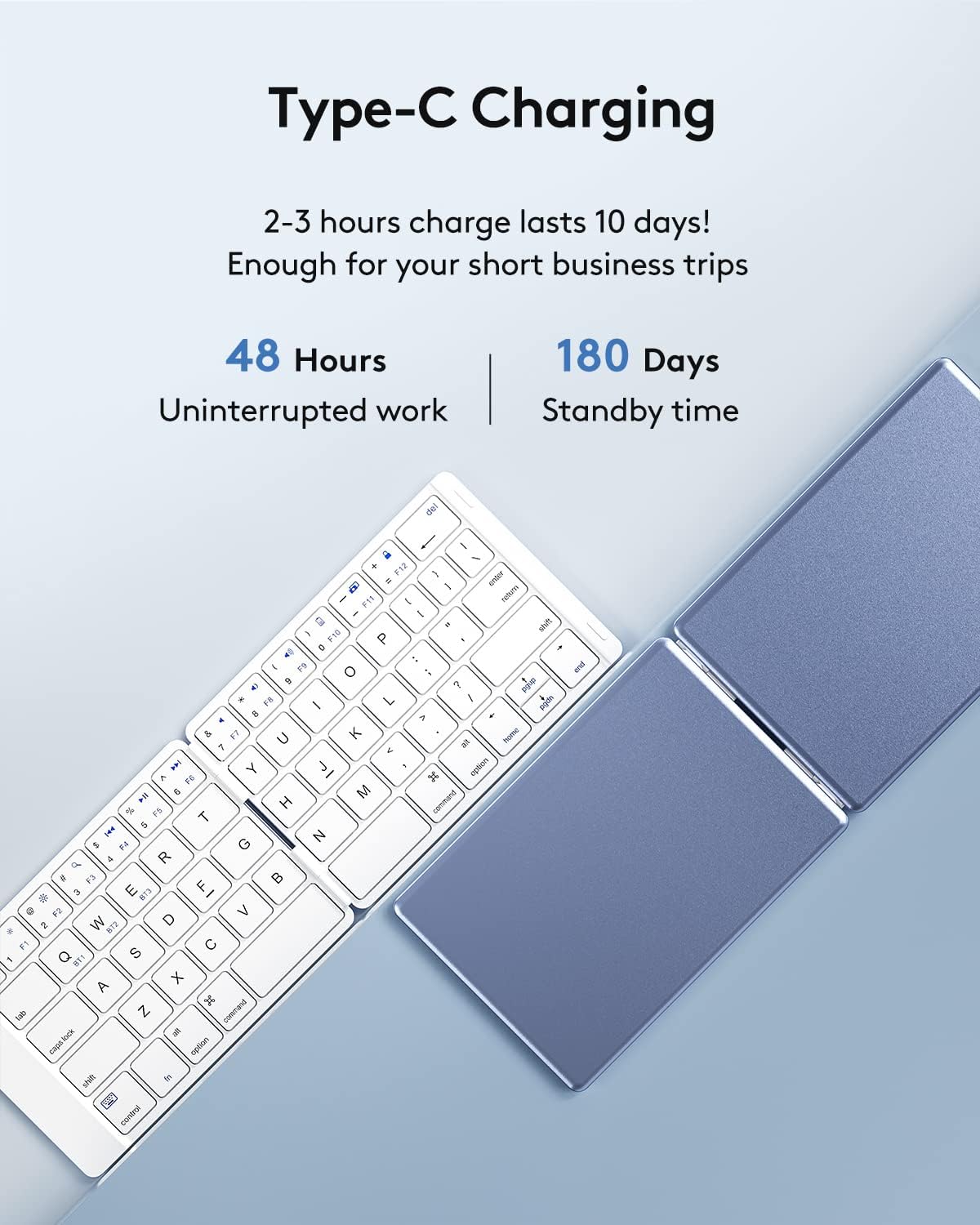
Image: The keyboard connected to a USB-C charging cable, with details on its battery life: 48 hours of continuous use and 180 days of standby time on a single charge.
Power and Charging
The keyboard is powered by a built-in lithium battery, rechargeable via a USB-C cable. A full charge, typically taking 2-3 hours, provides approximately 48 hours of continuous operation or up to 180 days of standby time, suitable for extended use during travel or business trips.
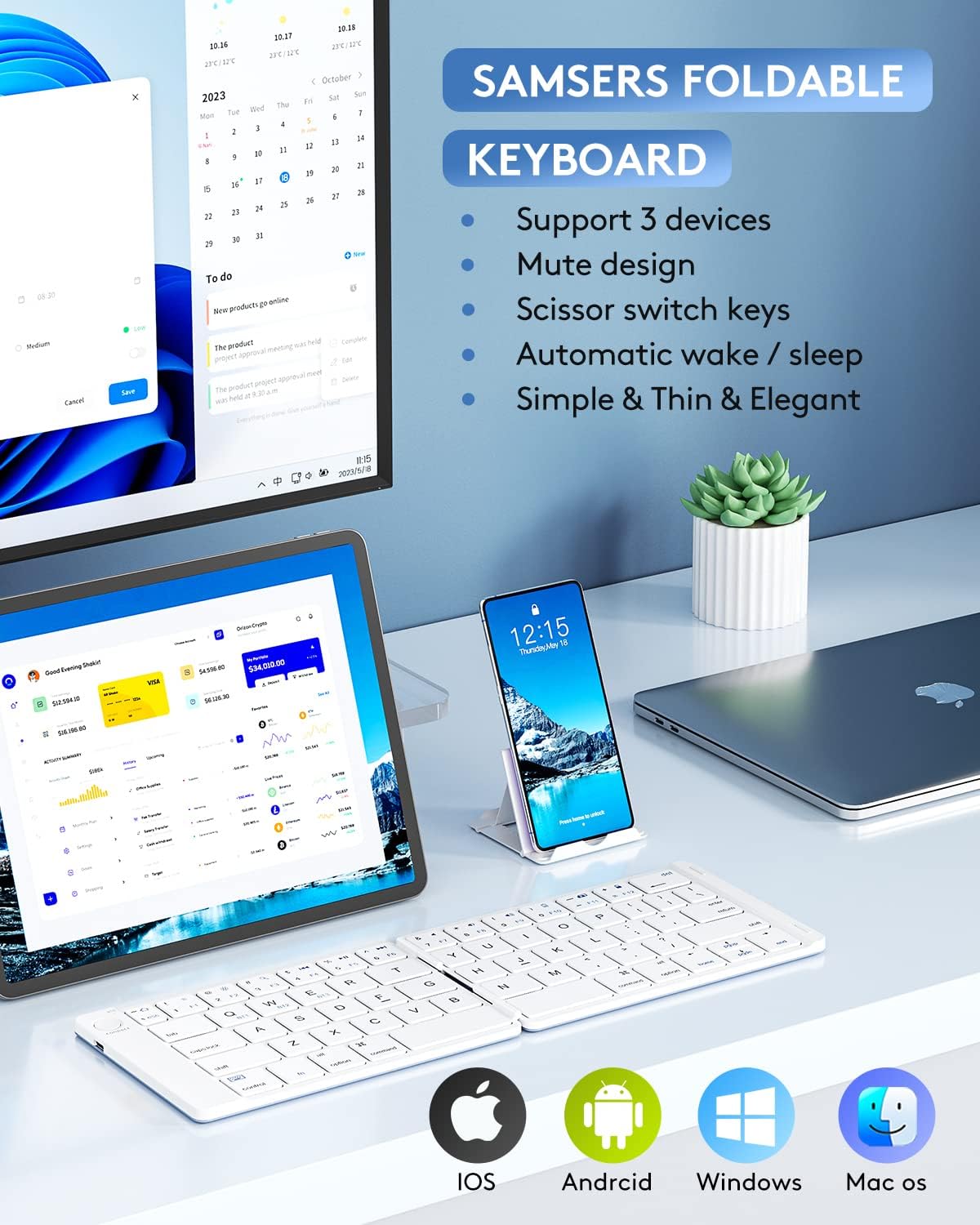
Image: The keyboard set up with various devices, displaying compatibility icons for iOS, Android, Windows, and Mac OS, indicating broad system support.
System Compatibility
The Samsers keyboard offers broad compatibility, working seamlessly with a variety of operating systems including iOS, Android, Windows, and Mac OS. It maintains a stable connection and provides fast response within a 10-meter operating range.
Setup Guide
1. Charging the Keyboard
Before first use, fully charge the keyboard. Connect the provided USB-C cable to the charging port on the keyboard and the other end to a USB power source (e.g., computer USB port, wall adapter). The charging indicator light will illuminate during charging and turn off when fully charged.
2. Powering On/Off
The keyboard features an automatic on/off function. Simply unfold the keyboard to power it on, and fold it to power it off. The keyboard will automatically reconnect to the last paired device when unfolded.
3. Bluetooth Pairing
- Unfold the keyboard to power it on.
- Press the "Connect" button located on the keyboard. The Bluetooth indicator light will start blinking, indicating it's in pairing mode.
- On your device (smartphone, tablet, laptop), go to Bluetooth settings and turn Bluetooth on.
- Search for available devices. The keyboard will appear as "Samsers Keyboard" or similar.
- Select the keyboard from the list to pair. Once paired, the Bluetooth indicator light will stop blinking.
4. Pairing Multiple Devices (BT1, BT2, BT3)
This keyboard supports connecting to up to three devices. To pair additional devices:
- After pairing the first device (e.g., to BT1), press Fn + Q (for BT1), Fn + W (for BT2), or Fn + E (for BT3) to select the desired channel.
- Press the "Connect" button again to put the keyboard into pairing mode for that specific channel.
- Repeat steps 3-5 from the "Bluetooth Pairing" section for your second or third device.
Image: Visual representation of the keyboard's ability to switch between three paired devices using dedicated Bluetooth channels.
Operating Instructions
Switching Between Devices
To switch between your paired devices, simply press the corresponding function key combination:
- Fn + Q: Switch to Device 1 (BT1)
- Fn + W: Switch to Device 2 (BT2)
- Fn + E: Switch to Device 3 (BT3)
Function Keys
The keyboard includes various function keys (F1-F12) that can be accessed by pressing the Fn key in combination with the desired function key. These keys provide shortcuts for media control, volume adjustment, and other system functions, depending on your operating system.
| Key Combination | Function |
|---|---|
| Fn + F1 | Home Screen (iOS/Android) / Esc (Windows) |
| Fn + F2 | Search |
| Fn + F3 | Select All |
| Fn + F4 | Previous Track |
| Fn + F5 | Play/Pause |
| Fn + F6 | Next Track |
| Fn + F7 | Mute Volume |
| Fn + F8 | Volume Down |
| Fn + F9 | Volume Up |
| Fn + F10 | Lock Screen |
| Fn + F11 | Brightness Down |
| Fn + F12 | Brightness Up |
Note: Some function key behaviors may vary slightly depending on the operating system of your connected device.
Maintenance
- Cleaning: Use a soft, dry cloth to wipe the keyboard surface. For stubborn dirt, slightly dampen the cloth with water or a mild, non-abrasive cleaner. Avoid excessive moisture.
- Storage: When not in use, fold the keyboard to protect the keys and conserve battery life. Store in a cool, dry place away from direct sunlight and extreme temperatures.
- Battery Care: To prolong battery life, avoid fully discharging the keyboard frequently. Charge it regularly, even if not in constant use.
- Handling: Avoid dropping the keyboard or subjecting it to strong impacts, as this can damage internal components or the aluminum casing.
Troubleshooting
Keyboard Not Connecting/Pairing
- Check Battery: Ensure the keyboard is sufficiently charged. Connect it to a power source and try again.
- Re-enable Bluetooth: Turn off and then turn on Bluetooth on your device.
- Forget Device: If previously paired, remove or "forget" the keyboard from your device's Bluetooth settings and attempt to pair again.
- Restart Devices: Restart both the keyboard (by folding and unfolding) and your device.
- Proximity: Ensure the keyboard is within the 10-meter operating range of your device.
- Interference: Move away from other wireless devices that might cause interference.
Keys Not Responding or Mislabeled
- Re-pair Keyboard: Sometimes re-pairing the keyboard can resolve key mapping issues.
- Check OS Settings: Verify your device's keyboard language and layout settings match a standard QWERTY layout.
- Firmware Update: Check the Samsers official website for any available firmware updates for your keyboard model.
- Contact Support: If specific keys remain unresponsive after troubleshooting, contact customer support for further assistance.
Short Battery Life
- Full Charge: Ensure the keyboard is fully charged before use.
- Usage Patterns: Heavy, continuous use will deplete the battery faster than intermittent use.
- Charging Cable/Adapter: Try a different USB-C cable and power adapter to rule out faulty charging accessories.
Specifications
| Feature | Detail |
|---|---|
| Model Number | Samsers-001 |
| Product Dimensions (Folded) | 3.89"L x 5.78"W x 0.51"H |
| Item Weight | 6.8 ounces |
| Connectivity Technology | Bluetooth 5.1 (supports 3 devices) |
| Keyboard Description | Wireless, Foldable |
| Number of Keys | 64 |
| Battery Type | 1 Lithium Ion battery (included) |
| Charging Port | USB-C |
| Continuous Operation Time | Up to 48 hours |
| Standby Time | Up to 180 days |
| Compatible Devices | Laptop, PC, Smartphone, Tablet (OS, iOS, Android, Windows) |
| Special Features | Aluminum Housing, Foldable, Lightweight, USB-C Charging, Scissor Switch Keys, Silent Key Design |
Warranty and Support
Samsers provides the following support for your product:
- 30-Day Free Return Policy: For initial satisfaction.
- 1-Year Warranty: Covers manufacturing defects and malfunctions under normal use.
- Lifetime Customer Support: Dedicated assistance for any product-related inquiries or issues.
For support, please refer to the contact information provided in the physical user manual or visit the official Samsers website.
Official Product Video
Video: An official product video from Samsers showcasing the features and portability of the Foldable Bluetooth Keyboard, including its scissor switch keys, silent design, ultra-slim profile, and multi-device switching capabilities. The video demonstrates how the keyboard can be used for working anywhere and recording inspiration.
Ask a question about this manual
Ask about setup, troubleshooting, compatibility, parts, safety, or missing instructions. Manuals+ will review the question and use this page’s manual context to help answer it.