
1. Introduction
This manual provides essential instructions for setting up, operating, and maintaining your KAVVO Oyster Urban Smart Watch. Please read this guide thoroughly to ensure proper use and to maximize the features of your device.

Image 1.1: Front view of the KAVVO Oyster Urban Smart Watch.
2. Package Contents
Verify that all items are present in your product packaging:
- KAVVO Oyster Urban Smart Watch (Model O1EL)
- Charging Cable
- User Manual (this document)
3. Getting Started
3.1 Charging the Device
Before first use, fully charge your smart watch. Connect the provided magnetic charging cable to the charging contacts on the back of the watch and a USB power source. The watch display will indicate charging status.
3.2 App Installation and Pairing
To utilize all features, download and install the companion application on your smartphone.
- Scan the QR code provided in the quick start guide or search for "Kavvo Connect" in your smartphone's app store (compatible with Android and iOS).
- Install and open the "Kavvo Connect" application.
- Ensure Bluetooth is enabled on your smartphone.
- Within the app, navigate to the device pairing section and select "Add Device."
- Select "Oyster U Call" from the list of available devices to initiate pairing.
- Confirm the pairing request on both your watch and smartphone.

Image 3.2: Visual guide for smartphone connection and call function activation.
4. Operating Your Smart Watch
4.1 Basic Navigation
- Touchscreen: Swipe left, right, up, or down to navigate through menus and features. Tap to select.
- Side Button/Crown: Press the side button to return to the home screen or access the app list. Rotate the crown for scrolling through lists or changing watch faces.
4.2 Bluetooth Calling
Once paired, your watch supports Bluetooth calling, allowing you to answer or make calls directly from your wrist.
- Ensure your watch is connected to your phone via Bluetooth.
- To answer an incoming call, tap the green phone icon on the watch screen.
- To make a call, slide right on the homepage and tap the phone icon to access the dialer or contacts.
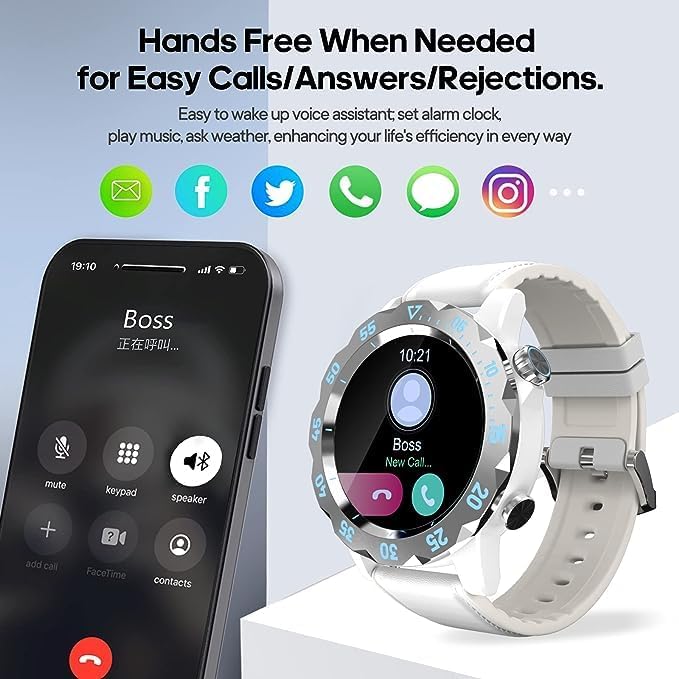
Image 4.2: Hands-free calling functionality.
4.3 Notifications
Receive notifications for messages, calls, and app alerts directly on your watch. Configure notification settings within the "Kavvo Connect" app.
4.4 Voice Assistant
The watch features a voice assistant for quick access to information, setting alarms, playing music, and checking weather. Ensure your watch is connected to your phone for this feature to function.

Image 4.4: Voice assistant feature.
4.5 Watch Faces Customization
Personalize your watch with various watch faces available through the "Kavvo Connect" app. You can download new faces and store up to 5 on the watch for quick switching.

Image 4.5: Selection of available watch faces.
5. Health Monitoring
The KAVVO Oyster Urban Smart Watch provides various health monitoring functions. Note: This device is not a medical device. Health data is for reference only and should not be used for medical diagnosis or treatment.
5.1 Heart Rate Monitoring
The watch continuously monitors your heart rate. View real-time data on the watch or detailed trends in the companion app.
5.2 Blood Oxygen (SpO2) Monitoring
Measure your blood oxygen saturation levels directly from your wrist. Ensure the watch is worn snugly for accurate readings.
5.3 Sleep Tracking
The watch tracks your sleep patterns, including deep sleep, light sleep, and awake times. Review your sleep quality analysis in the app.
5.4 Activity Tracking
Monitor your daily steps, distance, and calories burned. Set activity goals within the app to stay motivated.

Image 5.1: Health monitoring features including heart rate, sleep, and SpO2.
6. Sports Modes
The KAVVO Oyster Urban Smart Watch supports multiple sports modes to track your workouts effectively. Select the appropriate mode before starting an activity for accurate data recording.

Image 6.1: Overview of available sports modes.

Image 6.2: Detailed icons for different sports modes.
7. Advanced Features
7.1 Mechanical Rotating Bezel
The watch features a mechanical rotating bezel, which can be used as a timer. To use, set the watch face to a classic hand dial, rotate the bezel to align the triangle symbol with the minute hand, and read the timing result by the scale on the timing ring.

Image 7.1: Mechanical rotating bezel functionality.
7.2 Passive Luminous Display
The watch incorporates passive luminous technology on its scales, enhancing visibility in low-light conditions.

Image 7.2: Passive luminous display in low light.
7.3 Impact-Resistant Tempered Glass
The watch features 2.5mm impact-resistant tempered glass for enhanced durability and shock resistance.

Image 7.3: Impact-resistant tempered glass.
7.4 Lightweight Design
Constructed with Osicle Hyper GX composite material, the watch body weighs approximately 36 grams, providing a comfortable and lightweight wearing experience.

Image 7.4: Lightweight design for comfortable wear.
8. Battery Information
The KAVVO Oyster Urban Smart Watch is equipped with a 270 mAh Lithium Ion battery.
- Typical Use Mode: Up to 10 days of battery life.
- Light Use Mode: Up to 15 days of battery life.

Image 8.1: Battery life overview.
9. Maintenance
9.1 Cleaning
Regularly clean your watch and strap with a soft, dry cloth. For stubborn dirt, a slightly damp cloth can be used. Avoid harsh chemicals or abrasive materials.
9.2 Water Resistance
The watch has an IP68 rating, indicating resistance to dust and water. It is suitable for everyday use and can withstand splashes, rain, and brief immersion in shallow water. Avoid hot water, steam, or prolonged submersion.
9.3 Charging Guidelines
Use only the provided charging cable. Avoid exposing the charging contacts to moisture or corrosive substances. Do not attempt to charge the watch if it is wet.
10. Troubleshooting
- Watch not turning on: Ensure the watch is fully charged. Connect it to the charger for at least 30 minutes.
- Cannot pair with smartphone:
- Ensure Bluetooth is enabled on your phone and the watch.
- Make sure the watch is within range of your phone.
- Restart both your phone and the watch.
- Clear the Bluetooth cache on your phone (if applicable) and try pairing again.
- Notifications not appearing:
- Check notification settings in the "Kavvo Connect" app.
- Ensure your phone's notification permissions are granted to the app.
- Verify that the watch is connected to your phone.
- Inaccurate health data: Ensure the watch is worn snugly on your wrist, not too tight or too loose. Avoid excessive movement during measurements. Remember, data is for reference only.
- Screen unresponsive: Try restarting the watch by pressing and holding the side button. If the issue persists, ensure the battery is not depleted.
11. Specifications
| Feature | Detail |
|---|---|
| Model Number | O1EL |
| Screen Size | 1.32 Inches |
| Screen Resolution | 360 x 360 |
| Operating System | Wear OS |
| Connectivity | Bluetooth |
| Battery Capacity | 270 Milliamp Hours (Lithium Polymer) |
| Item Weight | 4.2 ounces (approx. 0.12 Kilograms) |
| Special Features | Activity Tracker, Heart Rate Monitor, Blood Oxygen Monitor, Sleep Monitor, Bluetooth Calling, Voice Assistant, Time Display, Stainless Steel Chronograph, Luminous Technology, 2.5mm Impact Resistant Tempered Glass, Mechanical Rotating Bezel |
| Human Interface Input | Buttons |
| Water Resistance | IP68 |

Image 11.1: Product dimensions.

Image 11.2: Exploded view of watch components.
12. Support
For further assistance, technical support, or warranty inquiries, please refer to the contact information provided with your purchase documentation or visit the official KAVVO website.