Introduction
This manual provides instructions for the Ducky One 2 Pro 60% Mechanical Keyboard. It covers setup, operation, maintenance, and troubleshooting to ensure optimal performance and longevity of your device. The Ducky One 2 Pro features Quack Mechanics dampening, Gateron Yellow switches, high-density PBT doubleshot keycaps, and customizable RGB lighting.
Setup
1. Connecting the Keyboard
Connect the provided USB-C cable to the USB-C port on the back of the keyboard and the other end to an available USB port on your computer. The keyboard is plug-and-play and should be recognized automatically by most operating systems.

Image: The Ducky One 2 Pro keyboard with its detachable white USB-C cable. The cable is coiled and secured with a white tie, next to the keyboard's USB-C port.
2. Adjusting Keyboard Height
The keyboard features 3-level adjustable feet located on the underside. Flip out the desired set of feet to adjust the typing angle for ergonomic comfort.

Image: A side profile view of the Ducky One 2 Pro keyboard, highlighting its adjustable feet extended to raise the keyboard's angle.
Operating Instructions
Keyboard Layout and Switches
The Ducky One 2 Pro is a 60% mechanical keyboard, offering a compact layout. It is equipped with Gateron Yellow switches, known for their smooth linear feel. The keycaps are made from high-density PBT plastic with doubleshot legends for durability and resistance to wear.
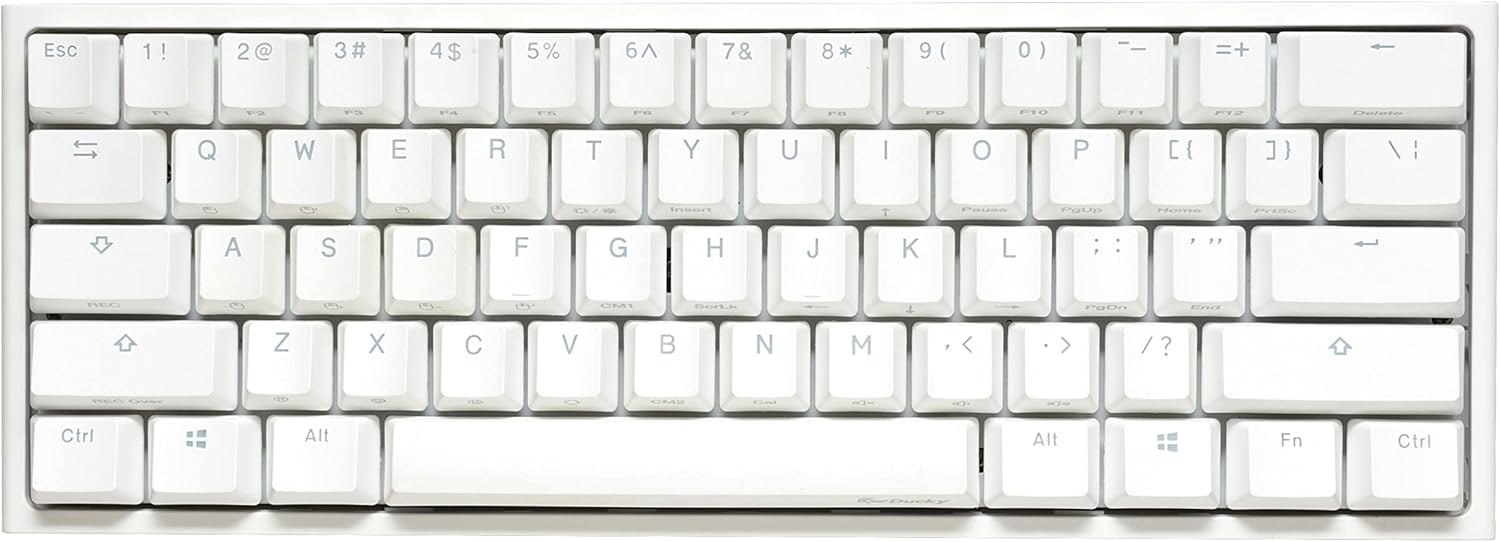
Image: A top-down view of the Ducky One 2 Pro 60% mechanical keyboard, showcasing its compact layout and white PBT doubleshot keycaps.
RGB Lighting
The keyboard features customizable RGB backlighting. Various lighting modes and colors can be adjusted directly on the keyboard using key combinations. Refer to the Ducky official website or included quick guide for specific key combinations to change lighting effects.

Image: An angled view of the Ducky One 2 Pro keyboard with its keys illuminated by blue RGB backlighting, highlighting the translucent legends.
Ducky Macro 2.0
The Ducky One 2 Pro supports Ducky Macro 2.0, allowing users to program custom macros directly on the keyboard without software. This feature enables advanced customization of key functions and sequences. Detailed instructions for macro programming are available on the official Ducky support page.
Polling Rate
The keyboard operates at a 1000 Hz polling rate, ensuring rapid response times for keystrokes, which is beneficial for gaming and fast typing.
Maintenance
Cleaning
To clean your keyboard, disconnect it from your computer. Use a soft brush or compressed air to remove dust and debris from between the keycaps. For surface cleaning, gently wipe the keycaps and casing with a slightly damp, lint-free cloth. Avoid using harsh chemicals or abrasive materials.
Keycap Replacement
The Ducky One 2 Pro comes with 10 additional PBT doubleshot colorful keycaps. To replace a keycap, gently pull the existing keycap straight up using a keycap puller (not included) or your fingers. Align the new keycap with the switch stem and press down firmly until it clicks into place.

Image: An angled view of the Ducky One 2 Pro keyboard with one keycap removed, showing the mechanical switch underneath and a loose keycap next to the keyboard.
Troubleshooting
Keyboard Not Recognized
If your computer does not recognize the keyboard upon connection:
- Ensure the USB-C cable is securely connected to both the keyboard and the computer.
- Try connecting the keyboard to a different USB port on your computer. Some USB ports may have different power delivery or compatibility.
- Restart your computer.
- Test the keyboard on another computer if possible to rule out a computer-specific issue.
RGB Lighting Issues
If RGB lighting is not functioning correctly, ensure you have not accidentally disabled it via a key combination. Refer to the Ducky official website for a list of lighting control shortcuts.
Specifications
| Feature | Detail |
|---|---|
| Model Number | DKON2061ST-GUSPDWWTY2 |
| Brand | Ducky |
| Product Dimensions | 12.99 x 6.14 x 2.17 inches |
| Item Weight | 2.22 pounds |
| Connectivity Technology | USB-C |
| Keyboard Description | Mechanical |
| Switch Type | Gateron Yellow |
| Keycap Material | PBT Double Shot |
| Backlighting | RGB |
| Polling Rate | 1000 Hz |
| Special Features | Quack Mechanics Dampening, Ducky Macro 2.0, Adjustable Feet |
| Compatible Devices | PC |
Warranty and Support
For warranty information and technical support, please refer to the official Ducky website or contact your local retailer. Keep your proof of purchase for warranty claims.
Official Ducky Website: duckychannel.com.tw


