
1. Introduction
This manual provides detailed instructions for the installation, operation, and maintenance of your FusyTuly NFC Bluetooth Tuya Access Control Keypad. This device offers multiple unlocking methods including NFC, Bluetooth Tuya App, fingerprint, RFID card, and password, ensuring secure and convenient access control.
Key Features:
- Multiple Unlocking Methods: Supports Tuya APP, NFC, fingerprint, RFID card, and password.
- IP68 Waterproof: Designed for outdoor installation, resistant to rain and storms.
- Touch Screen Keypad: Features a sleek design with white backlight for visibility in low light.
- Tuya App Integration: Manage users, view unlock records, and control access remotely.
- Wiegand 26 Interface: Allows connection to an additional card reader.
- Doorbell Button: Can be connected to an external doorbell.
- Adjustable Opening Delay: Set door opening delay from 1 second to 30 minutes.
2. Package Contents
Carefully unpack the box and ensure all items are present. The package typically includes:
- Access Control Keypad Unit
- RFID Key Fobs (10 pieces, assorted colors)
- Mounting Screws and Wall Plugs
- User Manual
Video: Package Contents and Keypad Overview
This video demonstrates the items included in the product package and provides a brief overview of the access control keypad, including its internal components and wiring connections.
3. Product Overview
Familiarize yourself with the components and features of your access control keypad.

Image: Front View of the Access Control Keypad
This image displays the front of the access control keypad, highlighting the numeric touch buttons, the 'CARD' indicator, and the central fingerprint sensor. A finger is shown interacting with the fingerprint sensor.

Image: Various Unlocking Methods
A collage of six images demonstrating different ways to unlock the device: fingerprint, RFID card, numeric password, NFC via smartphone, and remote unlock via the Tuya app.

Image: Keypad Dimensions
This image provides the physical dimensions of the access control keypad, showing its length (140mm), width (70mm), and thickness (16mm).
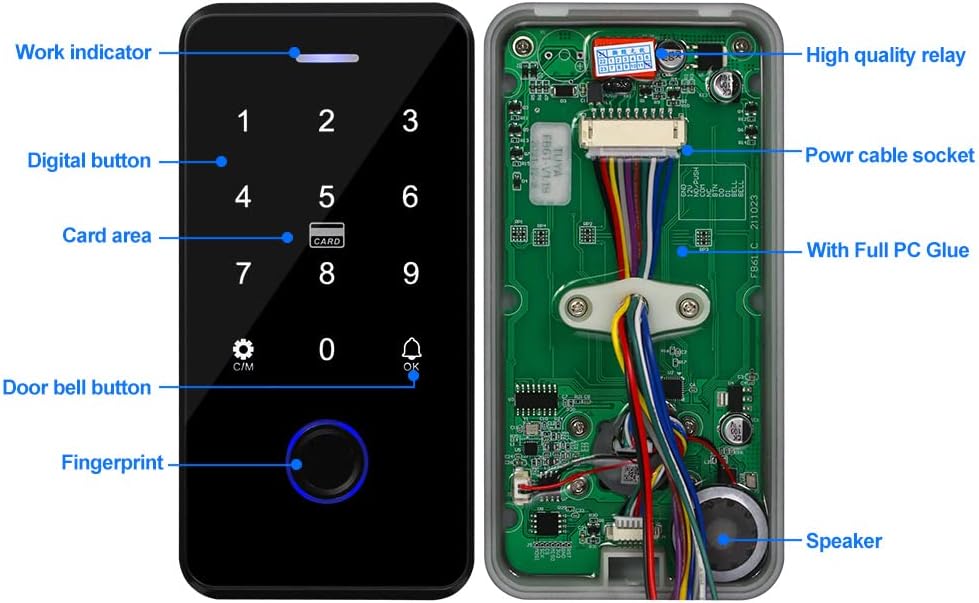
Image: Internal Components and Features
An exploded view of the keypad showing its internal circuit board, wiring, and key components such as the work indicator, digital buttons, card area, doorbell button, fingerprint sensor, high-quality relay, power cable socket, and speaker.
4. Installation
4.1 Physical Installation
The keypad is IP68 waterproof, allowing for outdoor installation. Ensure the mounting surface is flat and secure. Use the provided screws and wall plugs for installation.

Image: IP68 Waterproof Feature
This image demonstrates the keypad's IP68 waterproof rating, showing water being poured over the device, indicating its suitability for outdoor use in various weather conditions.
4.2 Wiring Diagram
Connect the keypad to your power supply, electric lock, and optional doorbell/exit button according to the diagram below. Please note that the power supply, electric lock, doorbell, and exit button are not included and must be purchased separately.

Image: Detailed Wiring Diagram
A comprehensive wiring diagram illustrating how to connect the access controller to a power supply (AC110-260V), electric locks (NO/NC types), an exit button, and a doorbell. Color-coded wires are shown for clarity.
- Black (GND): Connect to GND on power supply.
- Red (12V): Connect to +12V on power supply.
- Yellow (NO/PUSH): Connect to PUSH on power supply for normally open locks.
- Grey (COM): Common wire for lock connection.
- Purple (NC): Connect to NC on power supply for normally closed locks.
- Brown (BET): Data 0 for Wiegand.
- Green (D0): Data 0 for Wiegand.
- Blue (BELL): Doorbell connection.
- White (BELL): Doorbell connection.
5. Tuya App Integration
The FusyTuly keypad integrates with the Tuya Smart app for advanced control and management.
5.1 Download and Install Tuya Smart App
Scan the QR code or search for "TuyaSmart" in your app store to download the application. You can also visit http://smart.tuya.com/download.

Image: Tuya App Download and Main Screen
This image shows how to download the Tuya Smart app by scanning a QR code or searching in app stores, and displays the app's main interface with options for temporary codes, member management, and smart scenes.
5.2 Adding the Access Control Keypad to Tuya App
- Open Bluetooth on your smartphone.
- Open the Tuya Smart APP.
- The app will discover available devices.
- Click on "Add" next to the discovered device (e.g., FB61).
- Click on "Done" to complete the pairing.
5.3 Setting Auto Lock Delay
You can configure the time the door remains unlocked after a successful access.
- In the device interface, click on "More".
- Click on "Auto Lock Delay".
- Adjust the delay time (from 01 seconds to 30 minutes).
- Click on "Confirm".
5.4 Adding Users (Administrators and Regular Members)
Manage access for different users through the app.
- From the main device screen, click on "Family".
- Select the administrator profile or add a new member.
- To add a fingerprint: Click on "Fingerprint Add". Follow the on-screen instructions to place your finger on the keypad's sensor multiple times until added.
- To add a password: Click on "Password Add". Enter a 6-digit code and click "Save".
- To add an RFID card: Click on "Card Add". Present the RFID card to the keypad's card recognition area. Click "OK" when added.
5.5 Generating Temporary and Periodic Passwords
The app allows you to generate temporary or time-limited passwords for guests or specific access periods.
- Temporary Password: Valid for 5 minutes, can be used multiple times before expiry.
- Periodic Password: Can be set for a specific duration (e.g., one-time use, or for a defined time window).

Image: Tuya App User and Password Management
Screenshots of the Tuya app showing options for sharing temporary passwords via WeChat, Email, or Message, managing user settings, adding effective users (fingerprint, password, card), and viewing query records.
6. Operating Instructions
Once set up, the keypad offers various methods for unlocking.
6.1 Unlocking via Tuya App (Remote)
To unlock the door remotely, open the Tuya Smart app, navigate to the device, and press and hold the unlock icon.
6.2 Unlocking with Fingerprint
Place your registered finger on the fingerprint sensor. The keypad will unlock if the fingerprint is recognized.
6.3 Unlocking with Password
Enter your registered 6-digit password on the touch keypad. The keypad will unlock if the password is correct.
6.4 Unlocking with RFID Card
Present your registered RFID card or key fob to the 'CARD' area on the keypad. The keypad will unlock if the card is recognized.
7. Logs and Records
The Tuya Smart app keeps a record of all access events and alerts.
To view alerts and unlock records, open the Tuya Smart app, navigate to the device, and click on "Logs". You can switch between "Alerts" and "Unlocking Records" tabs.
8. Specifications
| Feature | Specification |
|---|---|
| Manufacturer | FSTW ELECTRI |
| Product Dimensions (L x W x H) | 8 x 1.4 x 15 cm |
| Weight | 240 grams |
| Color | White |
| Power Type | Electric Cable (DC12V) |
| Installation Method | DIY Wireless, Hybrid |
| Connectivity Technology | Bluetooth |
| Compatible Devices | Smartphone, Tablet |
| Alert Type | Audio only, Movement only |
| Control Method | Application |
| User Capacity | 100 fingerprints, 100 RFID cards, 1 public password |
| Operating Frequency | 13.56 MHz |
9. Troubleshooting
If you encounter issues with your FusyTuly Access Control Keypad, please refer to the following common troubleshooting steps:
- Device Disconnection: Ensure your keypad is within Bluetooth range of your smartphone or gateway. Check power connections. If the device frequently disconnects, try re-pairing it with the Tuya app.
- Unlocking Issues:
- Fingerprint: Ensure your finger is clean and dry, and placed correctly on the sensor. Re-register your fingerprint if issues persist.
- Password: Verify the entered password is correct. Ensure the keypad is responsive.
- RFID Card: Ensure the card is correctly presented to the card area. Check if the card is registered in the app.
- App Unlock: Verify Bluetooth is enabled and the app is connected to the device.
- Language Settings: The Tuya app supports multiple languages. Check the app settings to ensure your preferred language is selected.
- Loss of Data (Codes, Fingerprints): If the device loses stored data, it may indicate a power issue or a fault. Contact customer support for assistance.
For further assistance, please contact FusyTuly customer support.
10. Warranty and Support
FusyTuly is committed to providing high-quality products and excellent customer service.
- 24/7 Professional After-sales Team: Dedicated support available around the clock.
- 30-Day Free Returns Policy: Hassle-free returns within 30 days of purchase.
- 2-Year Quality Guarantee: Your product is covered by a 2-year warranty against manufacturing defects.
For any inquiries or support, please contact us at: service@acyitoo.com