1. Introduction
Thank you for choosing the Xega 3G/4G LTE Cellular Security Camera. This camera provides a reliable and wire-free outdoor surveillance solution for locations without Wi-Fi access or stable power supply. Equipped with a solar panel and a high-capacity battery, it ensures continuous operation. This manual will guide you through the setup, operation, and maintenance of your new security camera.
Key Features:
- 100% Wireless Operation with 3G/4G LTE Connectivity (No Wi-Fi Needed)
- Solar Panel for Non-Stop Power and 10000mAh Rechargeable Battery
- 2K HD Video Resolution with Color Night Vision up to 65ft
- 355° Pan and 120° Tilt for Wide Area Coverage
- PIR Motion Detection with Real-time App Notifications
- Two-Way Audio Communication
- Local SD Card Storage (up to 128GB) and Optional Cloud Storage
- IP66 Weatherproof Design for Outdoor Use
2. Product Overview
What's Included:
- 1x Xega 4G Cellular Security Camera
- 1x 6W Solar Panel
- 1x 300MB Nano SIM Card (Pre-inserted for trial)
- 1x Bracket for Solar Panel
- 1x 3m Connection Cable
- 1x 1m USB Charging Cable
- 1x Instructions Manual
- 1x Position Paper (Mounting Template)
Camera Components:
Familiarize yourself with the main components of your Xega security camera.
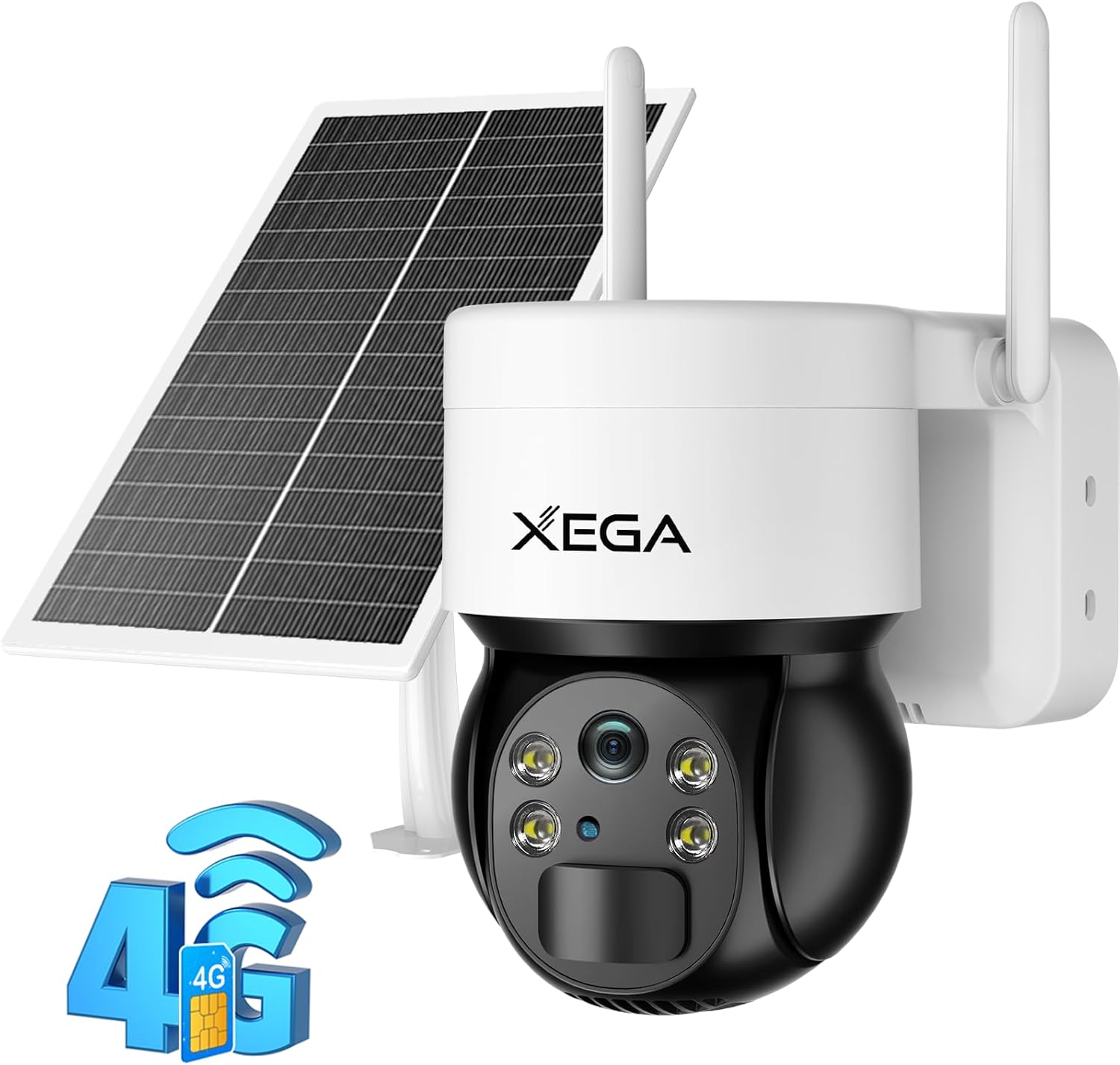
Figure 2.1: Xega Cellular Security Camera with Solar Panel. This image shows the main camera unit, the solar panel, and the 4G LTE connectivity icon.

Figure 2.2: The camera and solar panel mounted, illustrating its wireless capability and suitability for various outdoor environments like farms, gardens, and construction sites.
3. Setup Guide
3.1 Initial Charging
Before first use, fully charge the camera's built-in 10000mAh battery using the provided 1m USB charging cable and a 5V/2A power adapter (not included). The charging indicator light will turn solid blue when fully charged.
3.2 SIM Card Installation
Your camera comes with a pre-inserted 300MB Nano SIM card for trial. If you need to replace it or insert your own, follow these steps:
- Locate the SIM card slot on the camera (usually under a rubber seal).
- Carefully open the protective cover.
- Insert the Nano SIM card into the slot with the gold contacts facing down, ensuring it clicks into place.
- Close the protective cover firmly to maintain IP66 waterproof rating.

Figure 3.1: Visual representation of 4G LTE connectivity and SIM card for the camera.
3.3 App Download and Account Creation
- Download the Ubox app from your smartphone's app store (iOS App Store or Google Play Store).
- Open the app and follow the on-screen instructions to create a new account or log in if you already have one.
3.4 Camera Pairing
- In the Ubox app, tap the "Add Device" or "+" icon.
- Follow the app's instructions to scan the QR code on the camera or manually enter its device ID.
- Ensure your camera is powered on and within range of a strong 4G LTE signal during the pairing process.
3.5 Mounting the Camera and Solar Panel
Choose a suitable outdoor location for mounting, ensuring the solar panel receives direct sunlight for most of the day. Use the provided bracket and screws for secure installation.
- Use the position paper to mark drilling points on the wall or mounting surface.
- Secure the camera bracket and solar panel bracket.
- Attach the camera to its bracket and the solar panel to its bracket.
- Connect the 3m connection cable from the solar panel to the camera's charging port.

Figure 3.2: The camera's IP66 waterproof rating ensures durability in various weather conditions, including sun, rain, snow, and wind.
4. Operating Instructions
4.1 Live View and Playback
Once the camera is paired, you can access the live feed and recorded footage through the Ubox app.
- Open the Ubox app and select your camera from the device list.
- Tap on the live view to see real-time footage.
- Use the playback option to review recorded events from your SD card or cloud storage.
4.2 Pan and Tilt Control
The camera offers a wide field of view with its Pan and Tilt capabilities.
- In the live view interface of the Ubox app, use the directional controls to remotely pan the camera 355° horizontally and tilt it 120° vertically.
- Utilize the 4X digital zoom feature to get a closer look at specific areas.

Figure 4.1: The camera's 355° pan and 120° tilt functionality provides a comprehensive wide-angle view, covering every corner of your property.
4.3 PIR Motion Detection
The camera's advanced PIR motion sensor detects human and animal movement, triggering recordings and alerts.
- When motion is detected, the camera will automatically record the event.
- You will receive real-time push notifications on your Ubox app.
- From the app, you can activate the spotlight or sound an alarm to deter intruders.
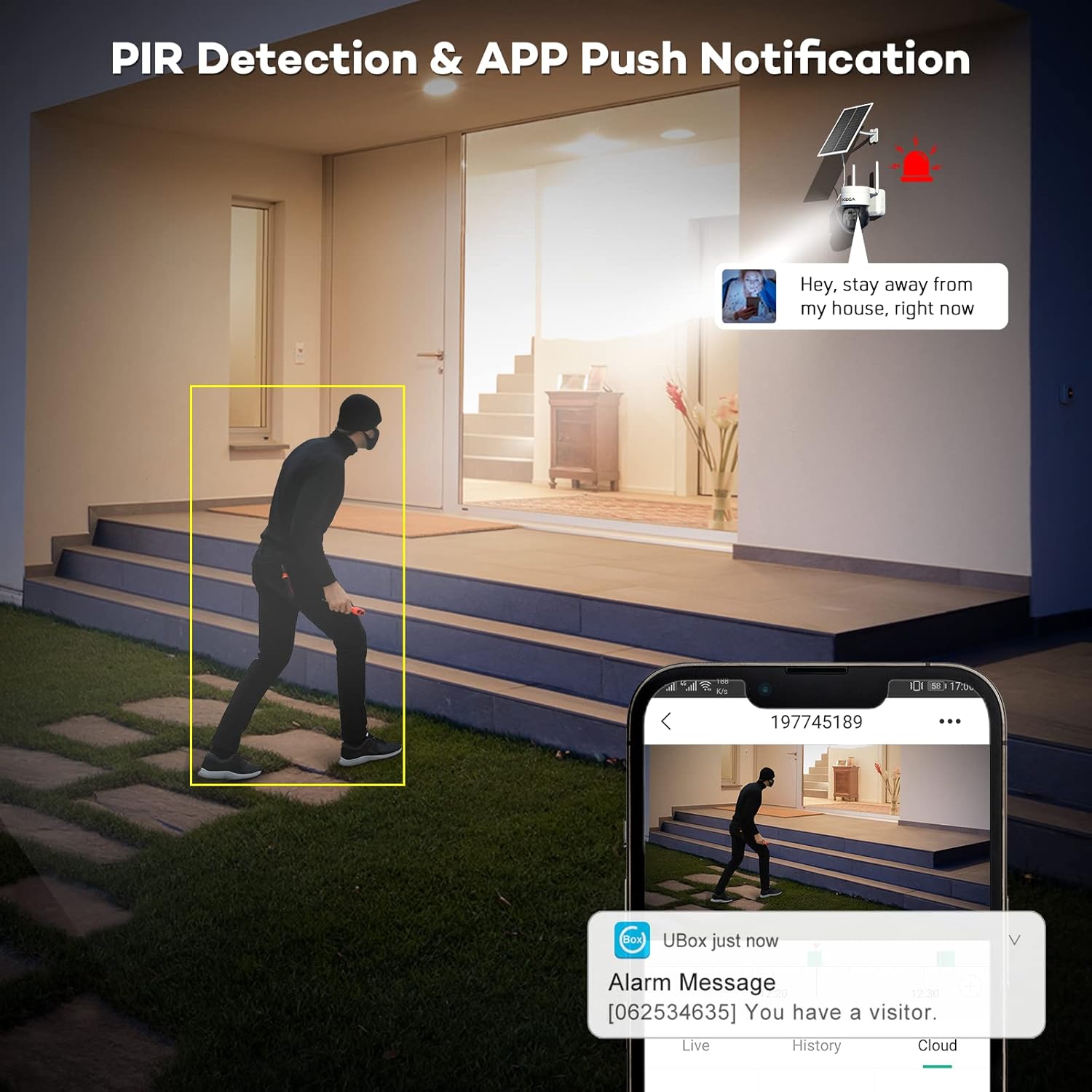
Figure 4.2: The camera's PIR detection system sends instant app notifications upon detecting motion, allowing for immediate action.
4.4 Two-Way Audio
Communicate with visitors or deter unwanted guests using the built-in microphone and speaker.
- Tap the microphone icon in the Ubox app's live view to speak through the camera.
- Listen to audio from the camera's surroundings through the app.

Figure 4.3: The two-way audio feature allows for direct communication through the camera's built-in speaker and microphone.
4.5 Night Vision Modes
The camera supports both infrared (IR) and color night vision for clear monitoring in low-light conditions.
- IR Night Vision: Provides clear black and white video in complete darkness.
- Color Night Vision: Utilizes built-in spotlights to capture full-color video even at night, up to 65ft.
- Switch between modes in the Ubox app settings.

Figure 4.4: The camera offers two night vision modes: traditional IR night vision for clear black and white images, and 2K Quad HD color night vision for detailed, illuminated footage.
4.6 Data Storage
Your camera supports both local and cloud storage options for recorded events.
- Micro SD Card: Insert a Micro SD card (up to 128GB, not included) into the designated slot for local storage.
- Cloud Service: A 30-day free trial of cloud storage is available. After the trial, a subscription is required for continued cloud storage.

Figure 4.5: The camera supports both local storage via an SD card and secure cloud storage options.
4.7 Official Product Video
Watch this official video for a visual guide on the Xega 3G/4G LTE Cellular Security Camera's features and capabilities.
Video 4.1: Xega 3G/4G LTE Cellular Security Camera Outdoor. This video demonstrates the camera's key features, including its wireless operation, solar charging, motion detection, and two-way audio, in various outdoor settings.
5. Maintenance
5.1 Cleaning
- Regularly wipe the camera lens and solar panel with a soft, damp cloth to ensure optimal performance and clear image quality.
- Avoid using harsh chemicals or abrasive materials that could damage the surfaces.
5.2 Battery Care
- Ensure the solar panel is positioned to receive maximum direct sunlight to keep the battery charged.
- In prolonged periods of low sunlight or extreme cold, the battery performance may be affected. Consider bringing the camera indoors for a full charge via USB if necessary.
5.3 Weather Resistance
The Xega camera is IP66 waterproof, designed to withstand tough weather conditions. However, extreme conditions like prolonged heavy storms or blizzards may still impact performance. Ensure all protective covers are securely closed after accessing ports.
6. Troubleshooting
Common Issues and Solutions:
| Issue | Possible Cause | Solution |
|---|---|---|
| Camera not connecting to 4G network | Weak signal, incorrect SIM card, SIM card not activated, data plan expired. | Check 4G signal strength at location. Ensure SIM card is correctly inserted and activated. Verify data plan status with your carrier. Try restarting the camera. |
| Battery not charging via solar panel | Insufficient sunlight, dirty solar panel, faulty connection cable. | Relocate solar panel to receive more direct sunlight. Clean the solar panel surface. Check the connection cable for damage and ensure it's securely plugged in. Charge via USB if needed. |
| Motion detection not working or too sensitive | Incorrect sensitivity settings, obstructions, environmental factors. | Adjust PIR sensitivity settings in the Ubox app. Ensure no objects are constantly moving in the detection zone (e.g., tree branches). |
| No audio or poor audio quality | Microphone/speaker blocked, app volume low, network issues. | Ensure microphone and speaker are not obstructed. Check app volume settings. Verify stable 4G connection. |
| Cannot access recorded footage | SD card full/corrupted, no SD card inserted, cloud trial expired, network issues. | Check SD card status in app; format or replace if necessary. Ensure cloud subscription is active. Verify network connection for cloud access. |
7. Specifications
| Feature | Detail |
|---|---|
| Model Name | XG-03 4G 1Pack |
| Connectivity Technology | Wireless (4G LTE) |
| Power Source | Solar and Battery Powered |
| Battery Capacity | 10000 mAh Lithium Ion |
| Video Capture Resolution | 2K HD (3 MP Effective Still Resolution) |
| Viewing Angle | 355° Pan, 120° Tilt |
| Night Vision Range | Up to 65 Feet (Color Night Vision available) |
| Storage Options | Micro SD Card (up to 128GB), Cloud Storage |
| Waterproof Rating | IP66 |
| Operating Temperature | Outdoor usage (withstands various weather conditions) |
| Dimensions (L x W x H) | 5.98 x 5.98 x 5.98 inches |
| Item Weight | 3.3 pounds |
8. Warranty and Support
Warranty Information:
The Xega 3G/4G LTE Cellular Security Camera comes with a standard 2-Year Warranty. You can extend this warranty up to 3 Years by contacting Xega customer service via your Amazon order details.
Customer Support:
For any questions, technical assistance, or warranty claims, please contact Xega customer support directly through your Amazon order page. Our professional service team is dedicated to providing prompt and helpful assistance.