
VINABTY BT800
VINABTY BT800 Smart Voice Assistance Remote Control User Manual
Model: BT800
1. Introduction
This manual provides comprehensive instructions for the VINABTY BT800 Smart Voice Assistance Remote Control. This remote is designed as a replacement for various Philips Android TV models, offering voice control functionality and direct access buttons for popular streaming services.
Compatible Philips Android TV Models:
- 43PFL5604/F7C
- 43PFL5704/F7
- 50PFL5604/F7
- 50PFL5704/F7
- 55PFL5604/F7
- 65PFL5504/F7
- 65PFL5604/F7
- 65PFL5704/F7
- 55PFL5704/F7

Image 1.1: The VINABTY BT800 remote control alongside a list of compatible Philips Android TV models.
2. Package Contents
The package should contain the following items:
- 1 x VINABTY BT800 Smart Voice Assistance Remote Control
- 1 x User Manual (this document)
Note: AAA batteries are not included and must be purchased separately.
3. Setup
3.1. Battery Installation
To install batteries in your VINABTY BT800 remote control, follow these steps:
- Locate the battery compartment cover on the back of the remote control.
- Slide the cover downwards to open the compartment.
- Insert two (2) AAA batteries, ensuring the positive (+) and negative (-) terminals align correctly with the indicators inside the compartment.
- Slide the battery compartment cover back into place until it clicks securely.
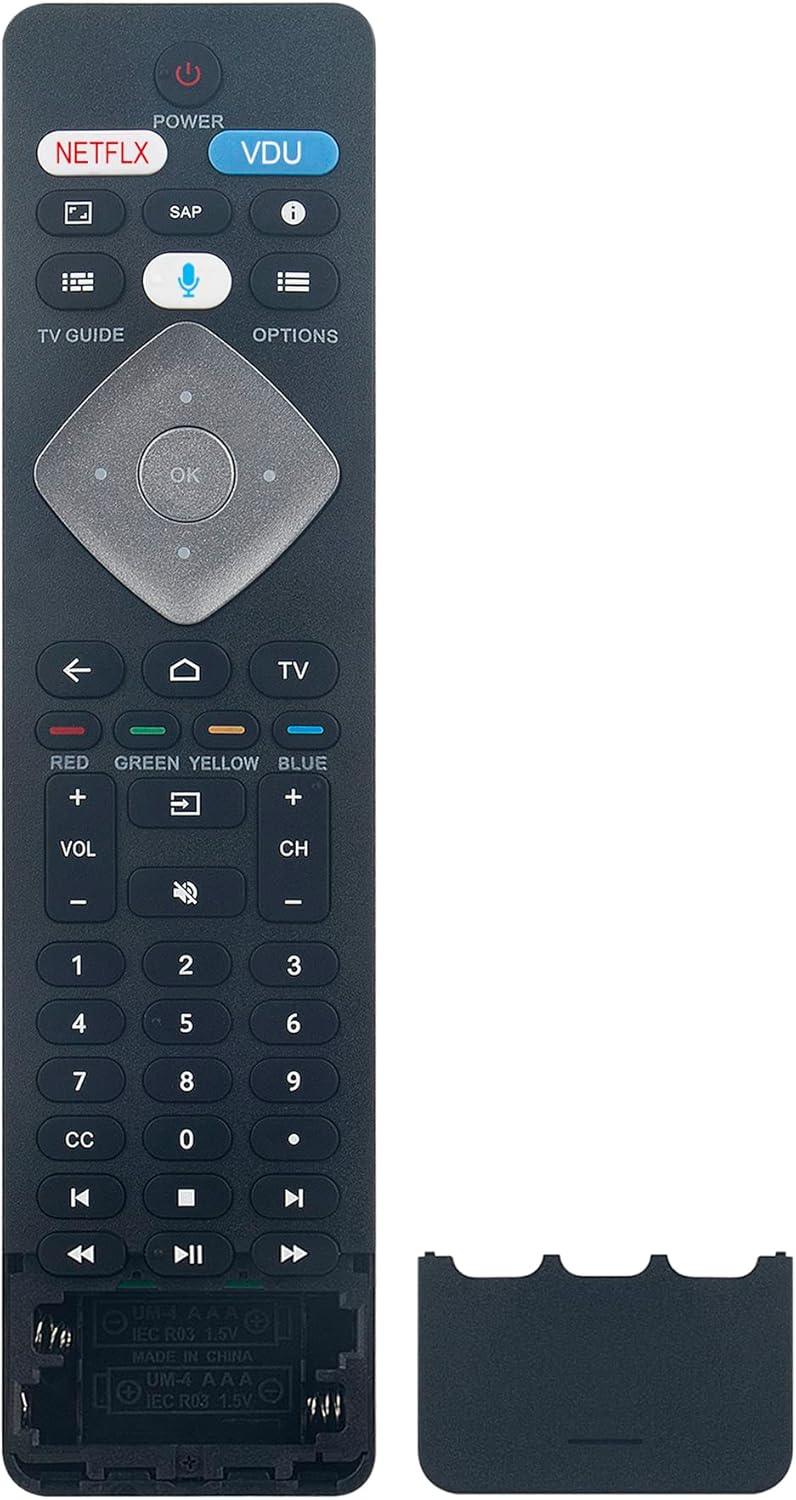
Image 3.1: Proper battery installation in the remote control.
3.2. Pairing the Remote Control
The VINABTY BT800 remote control is designed for easy pairing with compatible Philips Android TVs. Typically, no programming is required; simply insert the batteries, and the remote should function immediately. If voice assistance or certain smart features do not work, follow these steps to pair the remote via Bluetooth:
- Ensure your Philips Android TV is powered on.
- On your TV, navigate to Settings > Remotes & Accessories.
- Select Add accessory or Pair new device.
- On the BT800 remote, press and hold the Voice Assistant button (microphone icon) and the OK button simultaneously for a few seconds until the LED indicator on the remote begins to flash.
- Your TV should detect the "BT800 Remote" or a similar device name. Select it to complete the pairing process.
- Once paired, the LED indicator on the remote will stop flashing, and a confirmation message may appear on your TV screen.
If you experience issues, ensure the remote is within range of the TV and that there are no obstructions. You may also try restarting your TV and repeating the pairing process.
4. Operating the Remote Control
The BT800 remote control features a standard layout with dedicated buttons for various functions, including voice assistance and quick access to streaming services.

Image 4.1: Overview of the BT800 remote control buttons.
4.1. Button Functions
| Button | Function |
|---|---|
| Power | Turns the TV on or off. |
| Netflix | Direct access to the Netflix application. |
| VUDU | Direct access to the VUDU application. |
| Voice Assistant (Microphone icon) | Activates the voice assistant for commands and search. |
| Navigation Pad (Up, Down, Left, Right, OK) | Navigates menus and confirms selections. |
| Back (Left arrow) | Returns to the previous screen or menu. |
| Home (House icon) | Returns to the TV's home screen. |
| TV | Switches to live TV input. |
| Volume Up/Down (VOL +/-) | Adjusts the audio volume. |
| Channel Up/Down (CH +/-) | Changes TV channels. |
| Mute (Speaker with cross icon) | Mutes or unmutes the TV audio. |
| Number Pad (0-9) | Direct channel input or text entry. |
| CC | Activates or deactivates Closed Captions. |
| Media Controls (Rewind, Play/Pause, Fast Forward) | Controls media playback. |
4.2. Using Voice Assistance
To use the voice assistance feature:
- Press and hold the Voice Assistant button (microphone icon) on the remote control.
- Speak your command clearly into the microphone located on the remote.
- Release the button when you have finished speaking.
Examples of commands include: "Open Netflix," "Search for action movies," "What's the weather?" or "Switch to HDMI 1."
5. Maintenance
5.1. Cleaning the Remote Control
To maintain the remote control's functionality and appearance:
- Wipe the surface with a soft, dry cloth.
- For stubborn dirt, slightly dampen the cloth with water or a mild, non-abrasive cleaner.
- Avoid using harsh chemicals, solvents, or abrasive materials, as these can damage the remote's finish or internal components.
5.2. Battery Care
- Replace batteries when the remote's performance degrades or if the LED indicator flashes to signal low power.
- Always replace both batteries at the same time with new AAA batteries. Do not mix old and new batteries, or different types of batteries.
- Remove batteries if the remote control will not be used for an extended period to prevent leakage and potential damage.
- Dispose of used batteries according to local regulations.
6. Troubleshooting
If you encounter issues with your VINABTY BT800 remote control, refer to the following common problems and solutions:
| Problem | Solution |
|---|---|
| Remote is not responding. |
|
| Voice assistance is not working. |
|
| Buttons are sticky or unresponsive. |
|
| Remote drains batteries quickly. |
|
7. Specifications
| Feature | Detail |
|---|---|
| Model Number | BT800 |
| Brand | VINABTY |
| Compatible Devices | Philips Android TVs (specific models listed in Introduction) |
| Special Feature | Voice Search |
| Power Source | 2 x AAA Batteries (not included) |
| Product Dimensions | 5 x 1.9 x 0.5 inches (approximately 12.7 x 4.8 x 1.3 cm) |
| Item Weight | 3.34 ounces (approximately 94.7 grams) |
| Color | Black |

Image 7.1: Physical dimensions of the BT800 remote control.
8. Warranty and Support
For warranty information or technical support regarding your VINABTY BT800 remote control, please refer to the contact information provided by your retailer or the VINABTY official website. Keep your purchase receipt as proof of purchase.
Ask a question about this manual
Ask about setup, troubleshooting, compatibility, parts, safety, or missing instructions. Manuals+ will review the question and use this page’s manual context to help answer it.