
1. Introduction
Thank you for choosing the Acodot 9-in-1 USB-C Multiport Adapter. This device expands a single USB-C port on your compatible device into nine versatile ports, enhancing connectivity and productivity. It is designed for seamless integration and ease of use, requiring no complex software or driver installations.
2. Product Overview
The Acodot 9-in-1 USB-C Multiport Adapter is a compact and durable solution for expanding your device's connectivity. Its aluminum alloy casing and reinforced TPE cable ensure longevity and reliability. The adapter features multiple protection systems against over-current, over-voltage, short circuits, and high temperatures.
2.1. Port Layout
The adapter includes the following ports:
- 1 x HDMI Output: Supports 4K@60Hz (3840x2160@60Hz) for high-resolution video output.
- 3 x USB 3.0 Ports: Offers data transfer speeds up to 5Gbps and charging up to 5V at 0.9A.
- 2 x USB 2.0 Ports: Provides data transfer speeds up to 480Mbps.
- 1 x USB-C Power Delivery (PD) Port: Supports power delivery up to 100W for charging your host device.
- 1 x SD Card Slot: Supports speeds up to 5Gbps and capacities up to 2TB.
- 1 x TF (Micro SD) Card Slot: Supports speeds up to 5Gbps and capacities up to 2TB.

Figure 1: Overview of the Acodot 9-in-1 USB-C Multiport Adapter with all ports labeled.
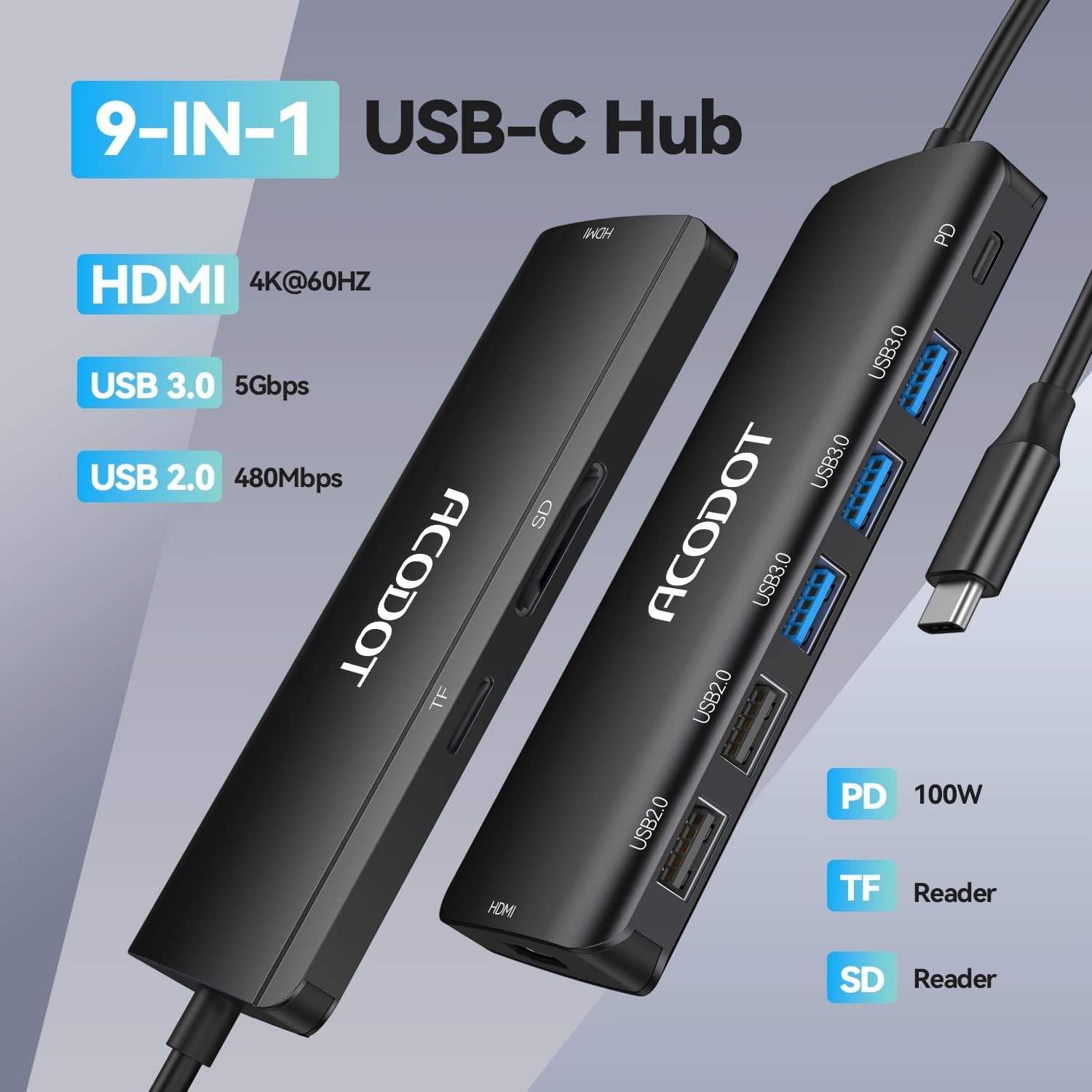
Figure 2: Detailed view of the adapter's ports, including USB 3.0, USB 2.0, PD, SD, TF, and HDMI.
3. Setup Instructions
The Acodot 9-in-1 USB-C Multiport Adapter is designed for plug-and-play functionality, requiring no software, drivers, or complicated installation. Follow these simple steps to set up your adapter:
- Connect the USB-C connector cable from the adapter to an available USB-C (Type-C) or Thunderbolt 3 port on your host device (e.g., laptop, tablet).
- Ensure your host device's USB-C (Type-C) interface supports charging, video, and data transfer functions for full adapter functionality.
- Once connected, the adapter is ready for use. You can now connect your peripherals to the available ports.
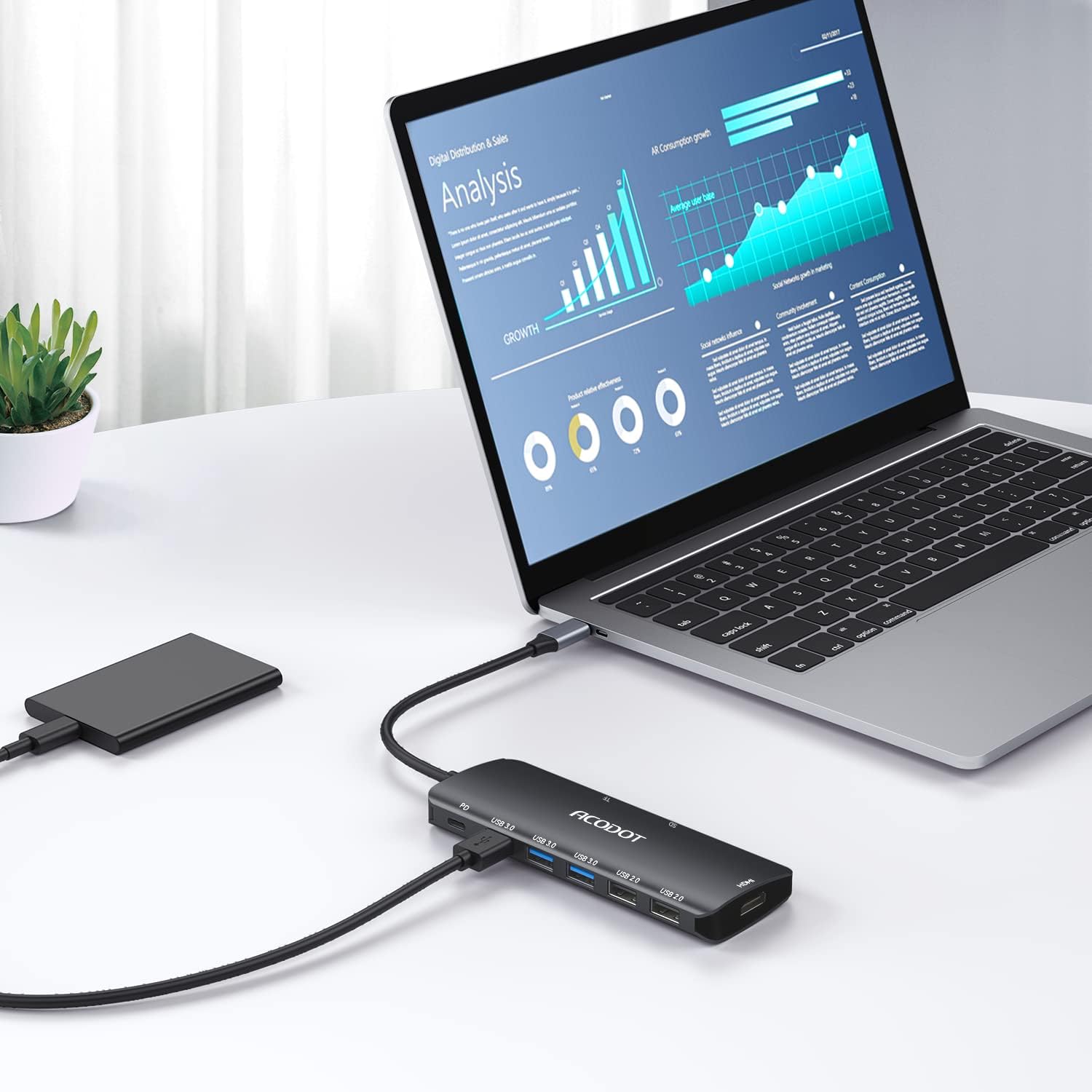
Figure 3: The adapter connected to a laptop, ready for peripheral connections.
4. Operating Instructions
4.1. HDMI Video Output
Connect an HDMI cable from the adapter's HDMI port to an HD TV, monitor, or projector. Your device's screen can be mirrored or extended to the external display. The HDMI port supports resolutions up to 4K@60Hz. For 4K resolution output, ensure your connected device also supports 4K.

Figure 4: Demonstrating 4K@60Hz HDMI output for extended or mirrored displays.
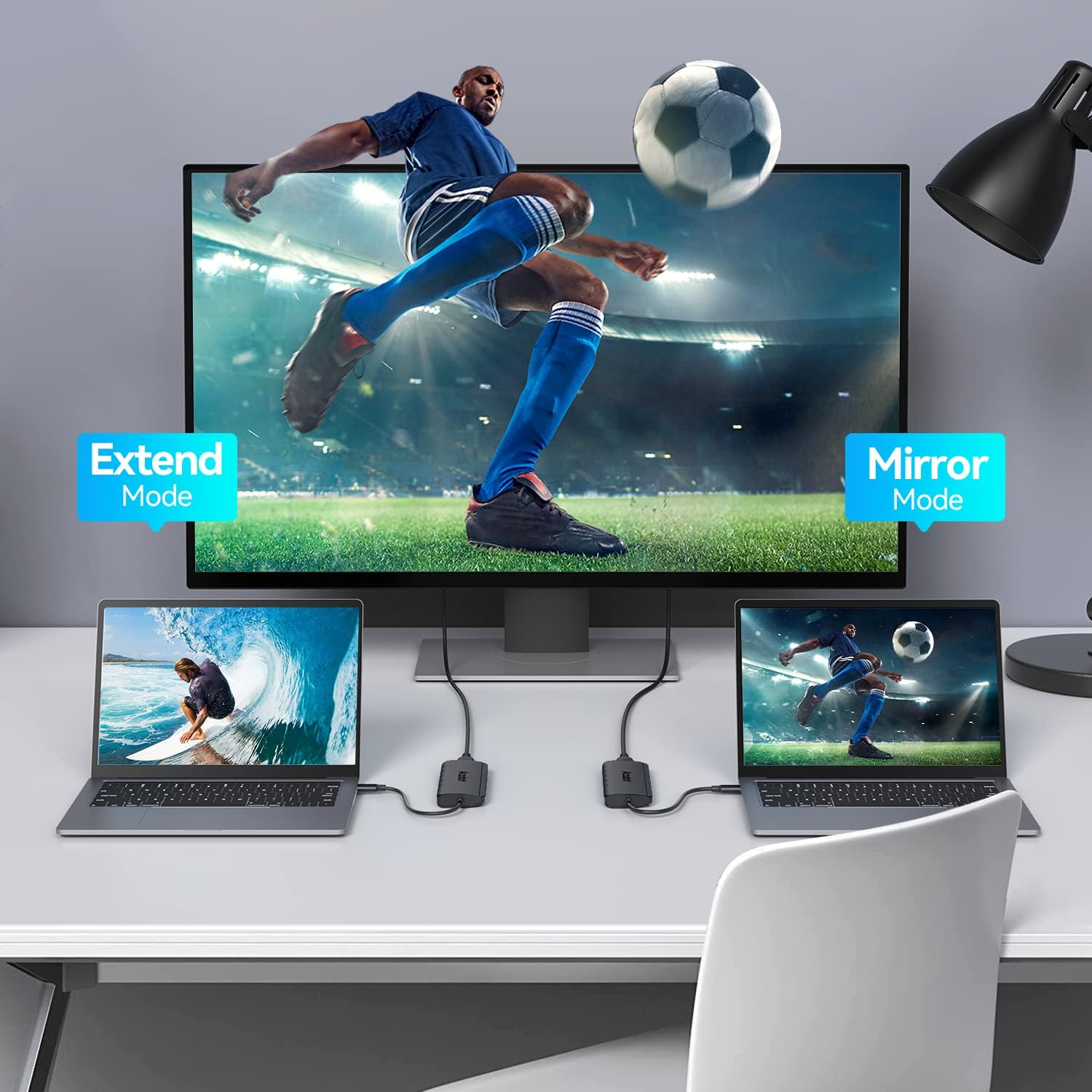
Figure 5: Illustrating Extend Mode and Mirror Mode functionality with the HDMI port.
4.2. USB Data Transfer
Plug your USB devices (e.g., USB flash drives, external hard drives, keyboards, mice, printers) into the USB 3.0 or USB 2.0 ports. The USB 3.0 ports offer high-speed data transfer up to 5Gbps, allowing for quick transfer of large files like photos and videos.

Figure 6: High-speed data transfer via USB 3.0 ports.
4.3. SD/TF Card Reading
Insert your SD or TF (Micro SD) cards into the corresponding slots for fast data access. The card readers support speeds up to 5Gbps and capacities up to 2TB.
Important Note:
- SD card and TF/Micro SD card slots cannot read data simultaneously.
4.4. Power Delivery (PD) Charging
Connect your compatible laptop's USB-C power adapter to the adapter's USB-C PD port. This port supports up to 100W power delivery to charge your host device while using other hub functions.

Figure 7: Power Delivery port charging a laptop and a smartphone.
5. Maintenance and Care
To ensure the longevity and optimal performance of your Acodot 9-in-1 USB-C Multiport Adapter, please follow these maintenance guidelines:
- Cleaning: Use a soft, dry cloth to clean the adapter. Avoid liquid cleaners or aerosols.
- Storage: Store the adapter in a cool, dry place away from direct sunlight and extreme temperatures.
- Handling: Avoid dropping the adapter or subjecting it to strong impacts. The aluminum alloy casing provides durability, but excessive force can cause damage.
- Cable Care: The reinforced TPE cable is designed to withstand over 10,000+ bends. However, avoid sharp bends or excessive pulling on the cable to prevent internal damage.
- Heat Management: The adapter features heat-resistant design. Ensure proper ventilation around the device during prolonged use.
6. Troubleshooting
If you encounter any issues with your Acodot 9-in-1 USB-C Multiport Adapter, please refer to the following common solutions:
- No Display Output via HDMI:
- Ensure your host device's USB-C (Type-C) interface supports video output.
- Verify the HDMI cable is securely connected to both the adapter and the display.
- Check the input source on your TV/monitor is set to the correct HDMI port.
- If using 4K resolution, confirm both your host device and external display support 4K.
- USB Devices Not Recognized:
- Ensure the adapter is securely connected to your host device.
- Try connecting the USB device to a different port on the adapter.
- If connecting a high-power device, ensure the PD port is connected to a power source.
- SD/TF Cards Not Reading:
- Ensure the card is fully inserted into the correct slot.
- Remember that SD and TF/Micro SD cards cannot be read simultaneously. Remove one card if both are inserted.
- Check if the card is damaged or corrupted.
- Host Device Not Charging via PD Port:
- Ensure your USB-C power adapter is connected to the PD port.
- Confirm your host device's USB-C (Type-C) interface supports power delivery.
- The PD port is for charging only and does not support data transfer.
- Not suitable for pass-through charging tablets (such as iPad Pro) or phones when using the original wall charger. To support full-speed charging for iPad Pro, please check if the adapter supports 15V (45W).
7. Specifications
| Brand | Acodot |
| Model Number | 9 in 1 USB C Hub Laptop Adapter |
| Color | Black |
| Hardware Interface | HDMI, Thunderbolt, USB, USB Type C |
| Special Features | Fast Data Transfer, Heat Resistant, Plug and Play |
| Compatible Devices | Laptops, Monitors, Projectors, Tablets, Televisions (Windows 10, 8, 7, Vista, XP, Mac OS X 10.6+, Linux 2.6.14+, iPad OS) |
| Incompatible Devices | Nintendo Switch, USB SuperDrive, Original XPS 13 stock adapter |
| Package Dimensions | 6.3 x 2.91 x 0.87 inches |
| Item Weight | 2.08 ounces |
8. Warranty and Support
Acodot provides a worry-free 12-month warranty for this product. If you encounter any problems or require assistance, please contact us through the Amazon Message Center. You will receive support within 6 hours.
9. Official Product Videos
9.1. Multifunctional USB Type-C Adapter Overview
Video 1: A comprehensive overview of the Acodot Multifunctional USB Type-C Adapter, demonstrating its various ports and functionalities. This video highlights the versatility and ease of use for different devices and scenarios.
9.2. Acodot USB C Hub 9 in 1 C to 4K@60HZ Review
Video 2: A detailed review of the Acodot 9-in-1 USB-C Hub, focusing on its 4K@60Hz HDMI output and overall performance. The video showcases the adapter's capabilities in a practical setting.