
XISEDO CS-K028
XISEDO Car Radio Stereo User Manual
Model: CS-K028 for Dodge Ram 1500 2500 3500 2013-2018
1. Product Overview
This manual provides detailed instructions for the installation, operation, and maintenance of your XISEDO Android Car Stereo. Designed for Dodge Ram 1500, 2500, and 3500 models from 2013-2018, this in-dash head unit offers Carplay, IPS Android, GPS Navigation, and Android Auto functionalities.

Figure 1.1: XISEDO Android Car Stereo Head Unit
2. What's in the Box
Please verify that all components are present before proceeding with installation:
- Main Head Unit (9-inch IPS Touch Screen)
- Power Harness
- RCA Cable Set
- CAM Cable (for camera connection)
- USB Cables (2x)
- GPS Antenna
- Rear Camera
- External Microphone
- Installation Tools

Figure 2.1: Included components for the XISEDO Car Stereo.
3. Compatibility and Pre-installation Notes
This head unit is specifically designed for Dodge Ram 1500, 2500, and 3500 models from 2013-2018. It supports your factory backup camera, but you may need to set the backup camera format to CVBS-NTSC as the included camera is AHD format.
It is highly recommended to have a specialized person install the car stereo. If you have any questions during installation, please contact customer support for technical guidance.

Figure 3.1: Verify your car's console matches the compatible models before installation.
4. Installation Guide
The following video demonstrates the installation process and connections for the XISEDO Android Car Stereo. Please follow the steps carefully.
Video 4.1: Installation and connection guide for the XISEDO Android radio.
4.1. Key Installation Steps (Refer to Video 4.1)
- Unboxing and Component Overview (0:00 - 0:14): Familiarize yourself with all included parts and the main unit.
- CAN Box and Main Harness Connection (0:20 - 0:36): Connect the main wiring harness to the CAN box and then to the head unit.
- Antenna and GPS Connections (0:49 - 1:12): Connect the GPS antenna and radio antenna to their respective ports on the head unit.
- USB and RCA Cable Connections (1:13 - 1:39): Attach the USB cables and the RCA cable set for audio/video inputs and outputs.
- Rear Camera Connection (1:40 - 2:18): Connect the rear camera cable to the head unit.
- External Microphone Connection (2:19 - 2:40): Plug in the external microphone for improved call quality.
- Final Connections and Power-On Test (2:41 - 3:55): Ensure all connections are secure. Power on the unit to verify basic functionality, including the Android 10 boot sequence.
- Initial Functionality Test (3:56 - 5:29): Test radio, music playback, video playback, Bluetooth, and the rear camera.
- System Settings and Adjustments (5:30 - 8:00): Navigate through the system settings to configure drive safety features, factory settings, and other preferences.
- Touch Calibration (8:01 - 8:40): Perform touch screen calibration if needed for accurate response.
- Rear Camera Format Adjustment (8:41 - 9:42): If using a factory backup camera, adjust the video format (CVBS-NTSC) in the factory settings for proper display.
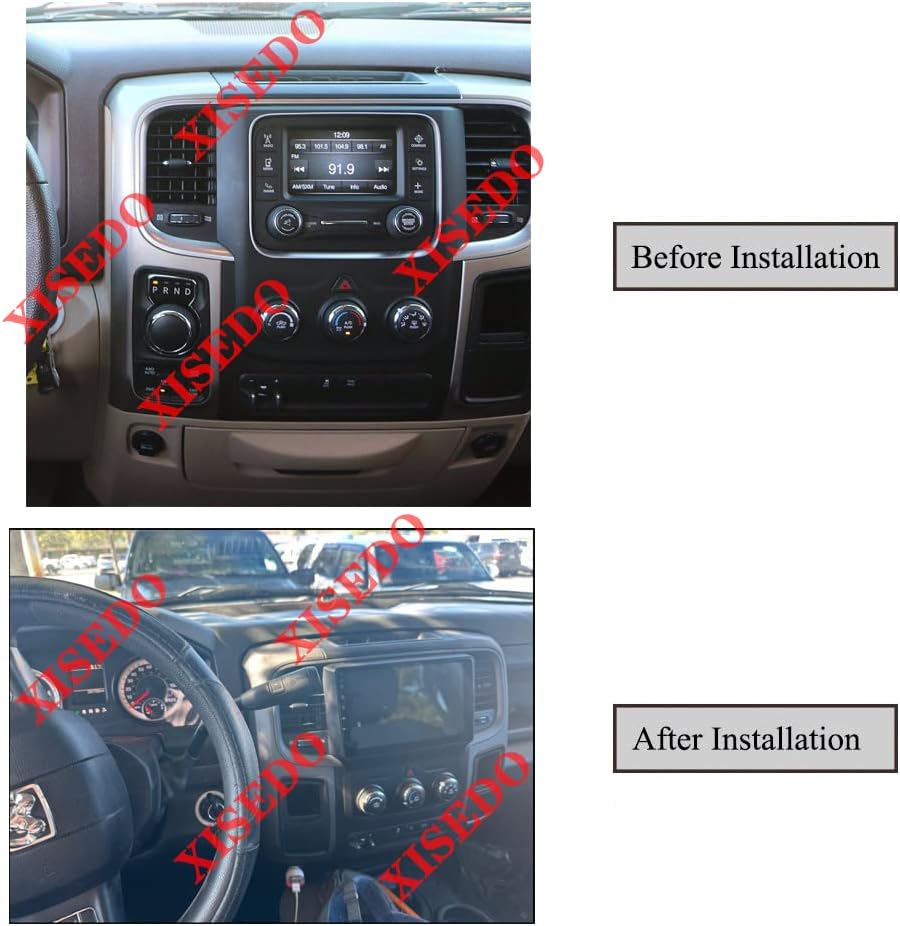
Figure 4.2: Visual comparison of the dashboard before and after installation.
5. Operating Instructions
5.1. User Interface (UI) Overview
The unit runs on Android 10.0, providing a user-friendly interface with various applications and settings. The main screen provides quick access to frequently used functions.

Figure 5.1: Main User Interface of the Android Car Stereo.
5.2. Key Features and Functions
- CarPlay & Android Auto: Supports both Apple Carplay and Android Auto via the Zlink application for seamless smartphone integration.
- GPS Navigation: Pre-installed with support for online GPS apps like Waze and Google Maps. Offline map sources can also be used. Navigation functions can run concurrently with music or radio.
- Bluetooth: Built-in Bluetooth for hands-free calling and audio streaming. Supports phonebook download and search.
- Radio: FM and AM radio tuner with a frequency range of 87.5-108MHz (FM) and 522-1620KHz (AM).
- Multimedia Playback: Supports various music (MP3/WMA/AAC/RM/FLAC etc.) and video (MPEG-1/2/4/H264/H263/VC1/RV/RMVB/DivX/ Sorenson SparK/Spark/VP8/AVS Stream) formats.
- Connectivity: Built-in WiFi module, USB support.
- Rear Camera Support: Compatible with AHD and CCD (CVBS-PAL/CVBS-NTSC) rear cameras.
- OBD2 Support: Compatible with Torque Pro (OBD2) for vehicle diagnostics (ELM327 required, sold separately).
- DVR Support: Supports USB Camera (PC Standard, front camera sold separately).
- Audio/Video Output: AV-out, AUX IN/AV IN.
6. Specifications
| Feature | Specification |
|---|---|
| Operating System | Android 10.0 |
| CPU | 8 CORE |
| RAM | 2GB |
| ROM | 32GB |
| Screen Size | 9 Inches |
| Resolution | 1024*600 |
| Display Type | IPS Touch Screen (2.5D) |
| Radio Tuner | FM, AM |
| GPS | Supports Google Maps/Waze and other Android Navigation apps |
| WiFi | Built-in |
| Bluetooth | Hands-free calling, music streaming, phonebook |
| Video Decoder | 1080P |
| Item Weight | 3.83 pounds |
| Model Name | CS-K028 |
7. Troubleshooting
If you encounter issues with your XISEDO Car Stereo, consider the following common solutions:
- Unit Not Powering On: Check all power connections and ensure the vehicle's ignition is on. Verify fuses.
- No Sound: Check speaker connections, volume levels, and audio output settings. Ensure the correct audio source is selected (e.g., AUX, Bluetooth).
- GPS Not Working: Ensure the GPS antenna is properly connected and placed in an area with clear sky view. Verify GPS settings within the unit's software.
- Bluetooth Connectivity Issues: Ensure Bluetooth is enabled on both the head unit and your mobile device. Try unpairing and re-pairing the devices.
- Rear Camera Display Issues: Verify the camera connection. In the factory settings (password 16176699), ensure the correct camera format (CVBS-NTSC or AHD) is selected.
- Unit Reboots Frequently: This can sometimes be caused by low memory. Try clearing cache or uninstalling unused applications. Ensure proper power supply.
- Touch Screen Unresponsive: Perform a touch calibration from the factory settings menu. If the issue persists, a factory reset might be necessary.
For persistent issues, please refer to the detailed troubleshooting section in the full user manual or contact XISEDO customer support.
8. Warranty and Support
Your XISEDO Car Stereo comes with a standard manufacturer's warranty. Please retain your proof of purchase for warranty claims.
For technical support, troubleshooting assistance, or warranty inquiries, please contact XISEDO customer service through the platform where you purchased the product. Provide your model number (CS-K028) and a detailed description of the issue for faster service.