
CONTROL INN Universal Remote Control for Kaiser Ksr Speakers
CONTROL INN Universal Remote Control for Kaiser Ksr Speakers
Model: Universal Remote Control
Brand: CONTROL INN
Introduction
Welcome to your new CONTROL INN Universal Remote Control. This remote is designed to provide convenient control over your Kaiser Ksr speakers. Its intuitive design ensures ease of use and quick setup, allowing you to manage your audio experience effortlessly.
Safety Information
- Keep the remote control out of reach of children.
- Do not expose the remote control to water, moisture, or extreme temperatures.
- Avoid dropping or subjecting the remote control to strong impacts.
- Battery Safety:
- Use only the specified battery type (CR2025).
- Do not mix old and new batteries, or different types of batteries.
- Ensure batteries are inserted with correct polarity (+/-).
- Remove batteries if the remote control will not be used for an extended period.
- Dispose of used batteries properly according to local regulations.
Package Contents
Please check that all items are present:
- 1x CONTROL INN Universal Remote Control
- 1x CR2025 Battery (pre-installed or included separately)
Product Overview
Familiarize yourself with the buttons and features of your remote control.

Image 1: Front view of the remote control, showing all buttons and their layout.
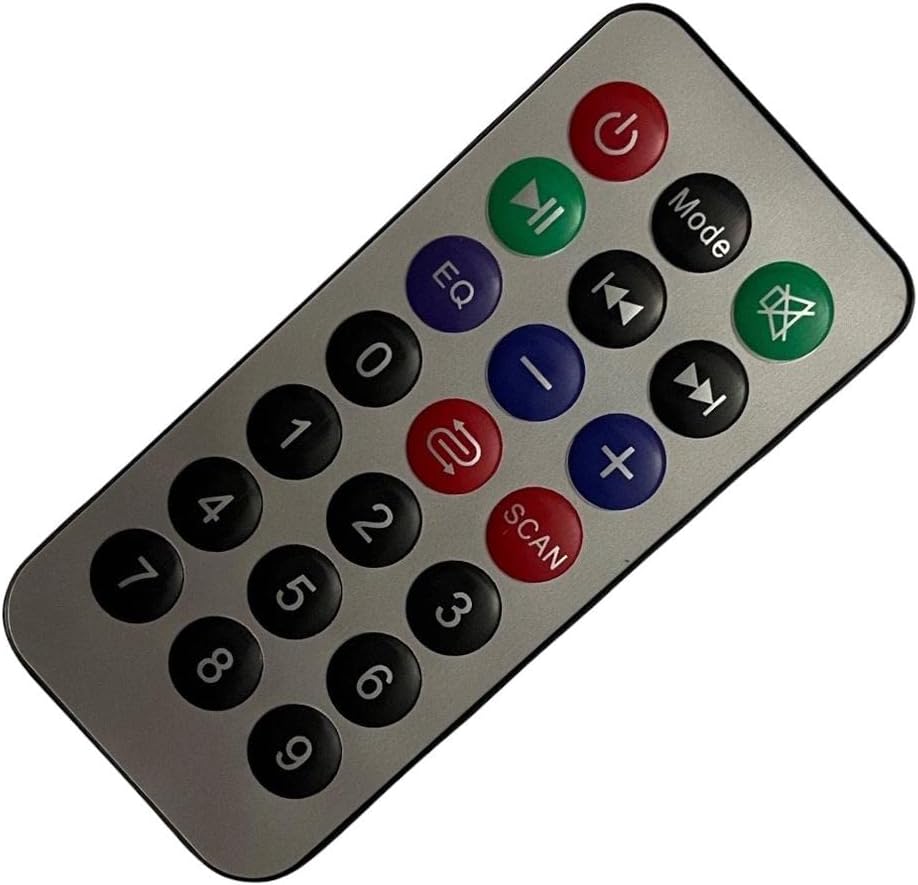
Image 2: Angled view of the remote control, providing a perspective of its ergonomic design.
Button Functions:
- Power (Red button with circle and line): Turns the speaker on or off.
- Mode (Black button): Cycles through input modes (e.g., Bluetooth, USB, AUX, FM).
- Mute (Green button with speaker and cross): Mutes or unmutes the audio.
- Play/Pause (Green button with two vertical lines and triangle): Plays or pauses audio playback.
- Previous Track (Black button with two triangles pointing left): Skips to the previous track or station.
- Next Track (Black button with two triangles pointing right): Skips to the next track or station.
- EQ (Purple button): Cycles through equalizer presets.
- Volume Down (Blue button with minus sign): Decreases the volume.
- Volume Up (Blue button with plus sign): Increases the volume.
- Repeat (Red button with two arrows forming a loop): Repeats the current track or playlist.
- SCAN (Red button): Initiates a scan for radio stations in FM mode.
- Number Buttons (0-9): Used for direct track selection, radio station input, or other numerical inputs depending on the speaker's functionality.
Setup
1. Battery Installation
Your remote control uses one CR2025 coin cell battery. A battery is included with your purchase.
- Locate the battery compartment on the back of the remote control.
- Gently push the tab or slide the cover to open the battery compartment. Refer to Image 3 for guidance.
- If replacing, remove the old battery. Insert the new CR2025 battery with the positive (+) side facing up.
- Close the battery compartment securely until it clicks into place.

Image 3: Back view of the remote control, highlighting the battery compartment.
2. Initial Configuration (Pairing with Kaiser Ksr Speakers)
This universal remote control is designed for quick and uncomplicated synchronization with Kaiser Ksr speakers. In most cases, it should work directly without complex programming.
- Ensure your Kaiser Ksr speaker is powered on and within line of sight of the remote control.
- Point the remote control directly at the speaker's infrared (IR) receiver.
- Press the Power button on the remote. If the speaker turns on or off, the remote is already configured and ready for use.
- If the speaker does not respond, try pressing the SCAN button for a few seconds. This may initiate an auto-scan or pairing sequence with compatible devices. Follow any on-screen prompts on your speaker, if available.
- If issues persist, refer to the troubleshooting section or your Kaiser Ksr speaker's manual for specific remote control pairing instructions.
Operating Instructions
Once configured, operating your Kaiser Ksr speaker with the CONTROL INN remote is straightforward.
- Power On/Off: Press the Power button.
- Change Mode: Press the Mode button repeatedly to cycle through available input sources (e.g., Bluetooth, USB, AUX, FM Radio).
- Adjust Volume: Use the Volume Up (+) and Volume Down (-) buttons.
- Mute Audio: Press the Mute button to silence the audio. Press again to unmute.
- Playback Control: Use Play/Pause, Previous Track, and Next Track buttons for media playback.
- Equalizer Settings: Press the EQ button to change sound equalization presets.
- FM Radio Scan: In FM mode, press the SCAN button to automatically search and save available radio stations.
- Direct Input: Use the Number Buttons (0-9) for direct track selection or radio station frequency input, if supported by your speaker.
Maintenance
Cleaning the Remote Control
To maintain the appearance and functionality of your remote control:
- Wipe the surface with a soft, dry cloth.
- For stubborn dirt, slightly dampen the cloth with water. Do not use harsh chemicals or abrasive cleaners.
- Ensure no liquid enters the remote control's interior.
Battery Replacement
Replace the battery when the remote control's response becomes sluggish or stops working. Refer to the "Battery Installation" section under Setup for detailed instructions.
Troubleshooting
| Problem | Possible Cause | Solution |
|---|---|---|
| Remote control not responding. |
|
|
| Specific buttons not working. |
|
|
| Short battery life. |
|
|
Specifications
- Brand: CONTROL INN
- Model: Universal Remote Control
- Compatible Devices: Kaiser Ksr Speakers (also compatible with various televisions and air conditioners as a universal remote)
- Power Source: 1x CR2025 Coin Cell Battery (Included)
- Connectivity: Infrared (IR)
- Design: Compact and ergonomic
Warranty and Support
For warranty information or technical support, please contact CONTROL INN customer service through the retailer where you purchased this product. Please have your purchase details ready when contacting support.
You can also visit the CONTROL INN store on Amazon for more information: CONTROL INN Amazon Store
Related documentsUniversal Remote Control for Kaiser Ksr Speakers

Ask a question about this manual
Ask about setup, troubleshooting, compatibility, parts, safety, or missing instructions. Manuals+ will review the question and use this page’s manual context to help answer it.