
1. Product Overview
The ACEMAGICIAN GK3PRO Mini PC is a compact and powerful computing solution designed for various applications, from everyday use to business and education. Featuring an Intel Celeron N5105 processor, 8GB DDR4 RAM, and a 512GB SSD, it offers efficient performance in a small form factor.

Image: The ACEMAGICIAN GK3PRO Mini PC, showcasing its compact design and various ports from front and side perspectives.
Key Features
- Processor: Intel Celeron N5105 (2.00-2.90 GHz)
- Memory: 8GB DDR4 RAM
- Storage: 512GB M.2 2280 SSD
- Operating System: Windows 11 Pro
- Display Output: Supports 4K resolution (3840x2160) via HDMI, and 1920x1080 via VGA.
- Connectivity: 2.4G/5G WiFi, Bluetooth 4.2, Gigabit Ethernet.
- Ports: Multiple USB 2.0, USB 3.0, HDMI, VGA, LAN, MIC-IN, DC.
- Mounting: VESA mount compatible for discreet installation.

Image: An illustrative diagram highlighting the core features of the GK3PRO Mini PC, including its processor, memory, storage, operating system, resolution, wireless capabilities, and VESA mount compatibility.

Image: A close-up view of the Intel Celeron N5105 processor, emphasizing its 11th generation architecture and performance specifications.
2. Setup Guide
2.1 What's in the Box
Before you begin, ensure all components are present in the package:
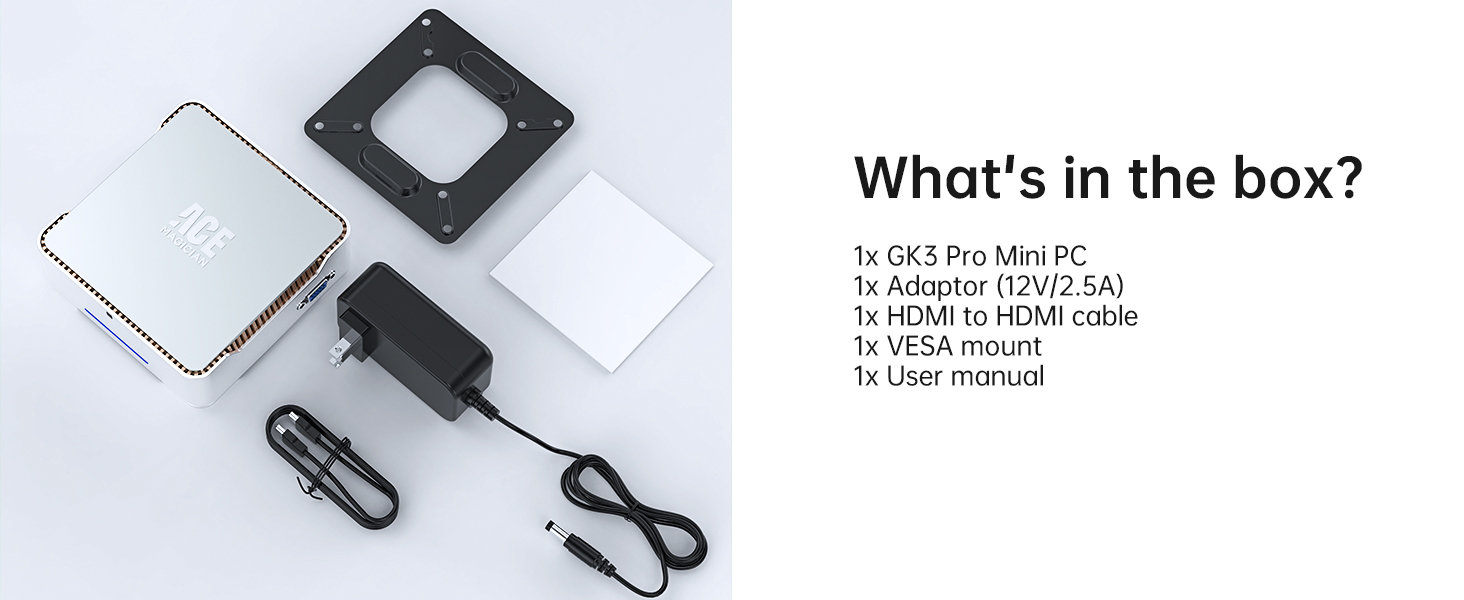
Image: A visual representation of the items included in the GK3PRO Mini PC package, such as the mini PC unit, power adapter, HDMI cable, VESA mount, and user manual.
- 1 x N5105 Mini PC (8GB+512GB) with Windows 11 Pro pre-installed
- 1 x HDMI Cable
- 1 x Power Adapter
- 1 x VESA Mount with Screws
- 1 x User Manual
2.2 Connecting Your Mini PC
Follow these steps to set up your ACEMAGICIAN GK3PRO Mini PC:

Image: A detailed diagram illustrating all available ports on the GK3PRO Mini PC, including USB, HDMI, VGA, LAN, MIC-IN, and the power button.
- Connect to Display: Use the provided HDMI cable to connect the Mini PC to your monitor or TV. If your display uses VGA, connect a VGA cable to the VGA port.
- Connect Peripherals: Plug in your USB keyboard and mouse into the available USB 2.0 or USB 3.0 ports.
- Network Connection: For a wired connection, connect an Ethernet cable to the LAN port. For wireless, ensure your WiFi network is available.
- Power Connection: Connect the power adapter to the DC port on the Mini PC, then plug the adapter into a power outlet.
3. Operating Instructions
3.1 Powering On/Off
- Power On: Press the power button located on the front of the Mini PC. The indicator light will illuminate.
- Power Off: To shut down, go to the Windows Start Menu, select 'Power', and then 'Shut down'. Do not unplug the power adapter directly without proper shutdown to prevent data loss.
3.2 Display Configuration
The GK3PRO Mini PC supports multiple display outputs, allowing for extended desktop or mirrored displays.

Image: The GK3PRO Mini PC connected to three monitors, demonstrating its capability for simultaneous multi-screen display, enhancing productivity.
- Connect up to two HDMI displays for 4K resolution (3840x2160).
- Connect one VGA display for 1920x1080 resolution.
- You can use a combination of HDMI and VGA for a triple display setup.
- Adjust display settings in Windows (Right-click on desktop > Display settings) to extend or duplicate screens.
3.3 VESA Mount Installation
The included VESA mount allows you to attach the Mini PC to the back of a compatible monitor, saving desk space.

Image: A user working at a desk with the GK3PRO Mini PC discreetly mounted on the back of their monitor using the VESA bracket, illustrating space-saving benefits.
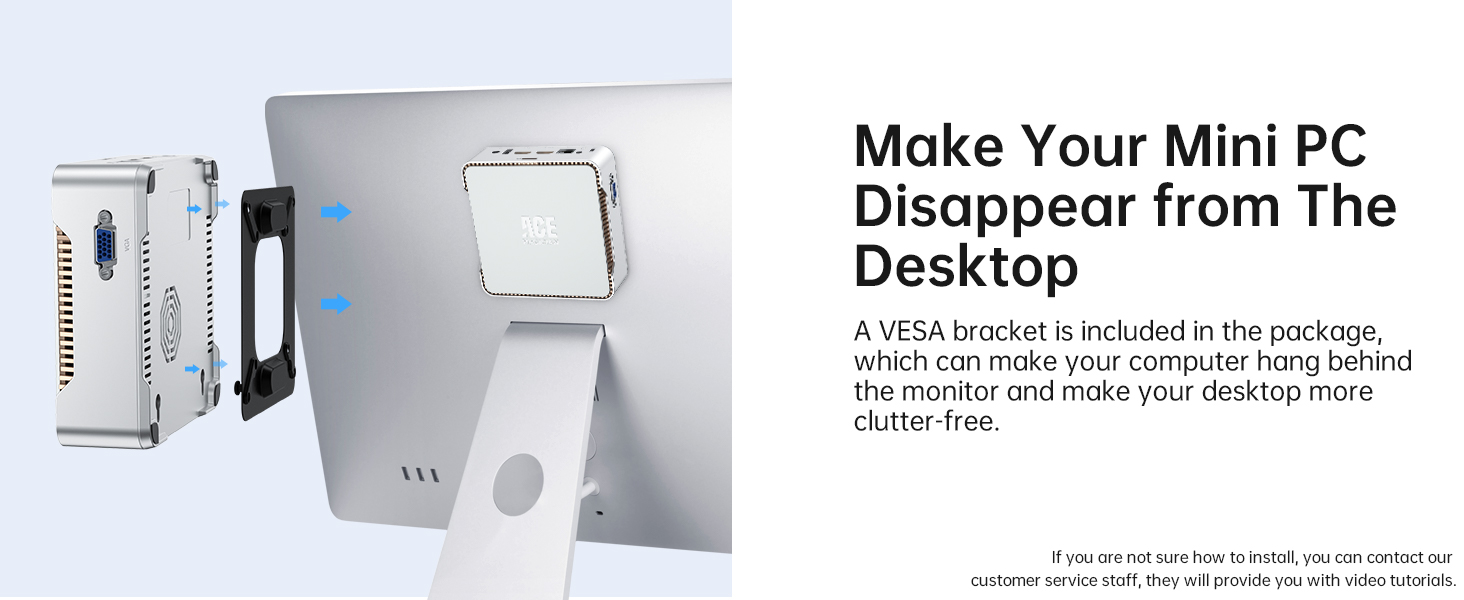
Image: A step-by-step visual guide demonstrating how to attach the GK3PRO Mini PC to a monitor using the VESA mount, making it disappear from the desktop.
- Attach the VESA bracket to the back of your monitor using the provided screws. Ensure your monitor has VESA mounting holes.
- Slide the Mini PC onto the VESA bracket until it clicks securely into place.
4. Maintenance and Upgrades
4.1 Storage Expansion
The GK3PRO Mini PC offers options for expanding its storage capacity:

Image: An exploded view of the GK3PRO Mini PC, detailing its internal components such as the 8GB DDR4 RAM, 2280 M.2 SSD, and space for a 2.5-inch SATA SSD.
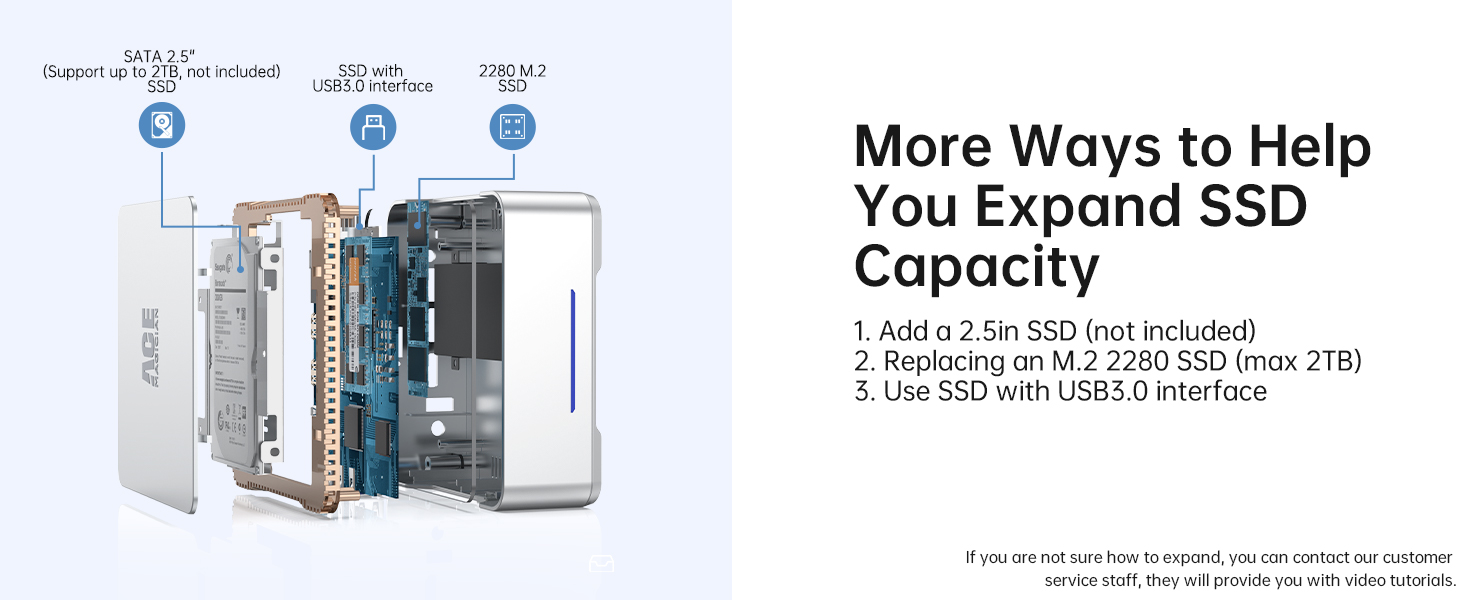
Image: A visual guide illustrating three methods to expand the storage capacity of the GK3PRO Mini PC: adding a 2.5-inch SSD, replacing the M.2 2280 SSD, or using a USB3.0 interface SSD.
- Add a 2.5-inch SATA SSD: The Mini PC supports adding a 2.5-inch SATA SSD (up to 2TB, not included).
- Replace M.2 2280 SSD: You can replace the existing M.2 2280 SSD with a larger capacity one (max 2TB).
- External Storage: Utilize external SSDs or HDDs via the USB 3.0 ports.
Note: For detailed instructions on hardware upgrades, please refer to the official ACEMAGICIAN support resources or contact customer service.
4.2 Efficient Heat Dissipation
The GK3PRO Mini PC is designed with an efficient cooling system to maintain optimal performance.
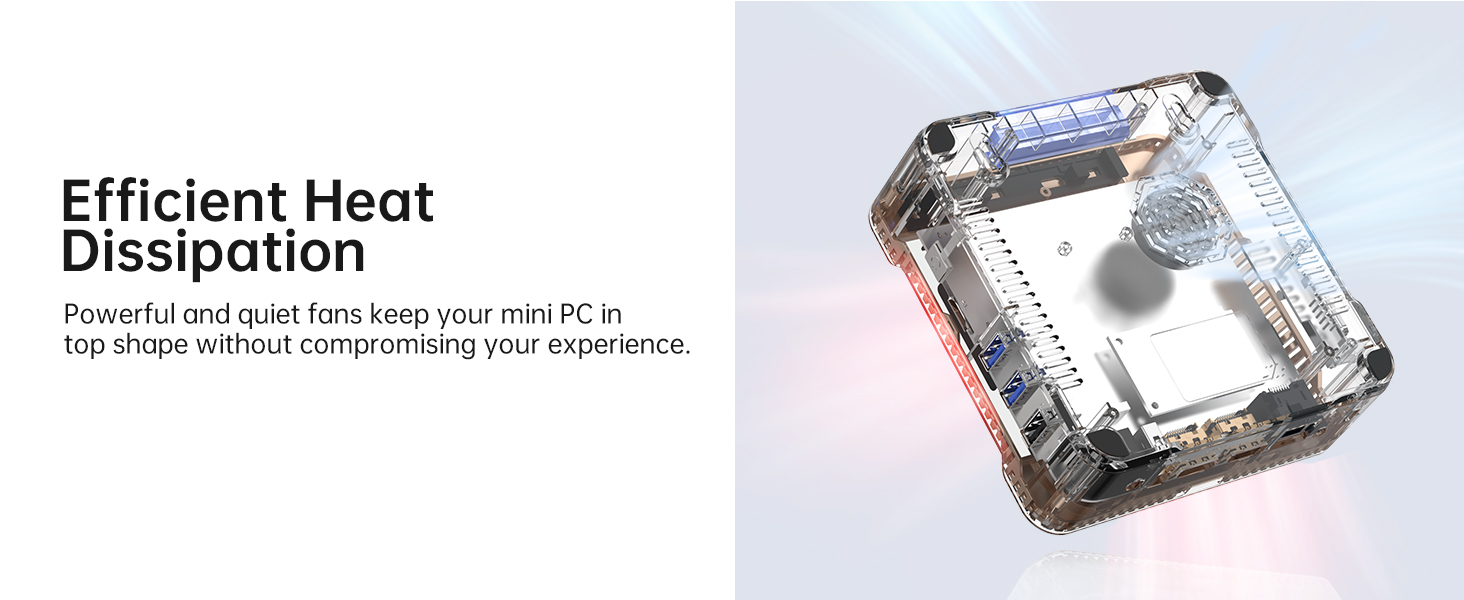
Image: An X-ray view of the GK3PRO Mini PC, highlighting the internal cooling fan and airflow path for efficient heat dissipation.
- Ensure proper ventilation around the Mini PC. Do not block the air vents.
- Regularly clean dust from the vents using compressed air to maintain airflow.
5. Troubleshooting
This section addresses common issues you might encounter with your ACEMAGICIAN GK3PRO Mini PC.
5.1 No Power / System Not Starting
- Check Power Connection: Ensure the power adapter is securely connected to the Mini PC's DC port and the wall outlet.
- Test Outlet: Try plugging another device into the wall outlet to confirm it has power.
- Power Button: Ensure the power button is pressed firmly. The indicator light should turn on.
5.2 No Display Output
- Cable Connection: Verify that the HDMI or VGA cable is securely connected to both the Mini PC and the monitor.
- Monitor Input: Ensure your monitor is set to the correct input source (e.g., HDMI 1, VGA).
- Test with Another Display/Cable: If possible, try connecting the Mini PC to a different monitor or using a different display cable.
5.3 Slow Performance
- Close Unused Applications: Too many open programs can consume system resources.
- Check Storage Space: Ensure there is sufficient free space on the SSD.
- Update Drivers: Ensure all drivers (especially graphics and chipset) are up to date.
- Scan for Malware: Run a full system scan using antivirus software.
- Check for Overheating: Ensure the Mini PC has adequate ventilation and is not obstructed.
5.4 Wi-Fi / Bluetooth Connectivity Issues
- Enable Wi-Fi/Bluetooth: Ensure Wi-Fi and Bluetooth are enabled in Windows settings.
- Driver Check: Verify that the wireless and Bluetooth drivers are installed and up to date in Device Manager.
- Router/Device Proximity: Move closer to your Wi-Fi router or Bluetooth device.
- Restart: Restart both the Mini PC and your router/Bluetooth device.
6. Technical Specifications
Detailed specifications for the ACEMAGICIAN GK3PRO Mini PC:
| Feature | Specification |
|---|---|
| Model Name | GK3PRO |
| Processor | Intel Celeron N5105 (2.9 GHz max turbo) |
| RAM | 8 GB DDR4 |
| Memory Speed | 2.9 GHz |
| Hard Drive | 512 GB SSD (M.2 2280) |
| Graphics Card | Integrated Intel Graphics |
| Max Screen Resolution | 4096x2160@60Hz (HDMI), 1920x1080 (VGA) |
| Operating System | Windows 11 Pro |
| USB 2.0 Ports | 2 |
| USB 3.0 Ports | 2 |
| Item Weight | 13.6 ounces (approx. 385g) |
| Product Dimensions | 5.51 x 5.51 x 1.85 inches (14 x 14 x 4.7 cm) |
| Color | Silver |
| Connectivity | 2.4G/5G WiFi, Bluetooth 4.2, Gigabit Ethernet |
7. Warranty Information
ACEMAGICIAN products typically come with a standard manufacturer's warranty. The specific terms and duration of your warranty may vary based on your region and point of purchase.
For detailed warranty information, including coverage, duration, and how to make a claim, please refer to the warranty card included with your product or visit the official ACEMAGICIAN website.
8. Customer Support
Should you require further assistance, technical support, or have questions regarding your ACEMAGICIAN GK3PRO Mini PC, please contact ACEMAGICIAN customer service through the following channels:
- Official Website: Visit the ACEMAGICIAN official website for FAQs, driver downloads, and support contact forms.
- Email Support: Refer to your product packaging or the official website for the customer support email address.
- Online Resources: Check for updated user guides, video tutorials, and community forums on the ACEMAGICIAN support page.
When contacting support, please have your product model (GK3PRO) and purchase information ready to expedite the process.