
VSYSTO F9D
VSYSTO F9D Motorcycle Dash Cam Instruction Manual
Model: F9D
1. Product Overview
The VSYSTO F9D is a dual-channel motorcycle dash camera system designed to record high-definition video from both front and rear perspectives. It integrates advanced features such as Super Night Vision, a 24-hour parking monitor, and a Smart Gauge Mode that provides real-time data including speed, location, altitude, and battery voltage. The system also supports Tire Pressure Monitoring System (TPMS) sensors and offers convenient control via a multifunction remote and a dedicated WiFi application.
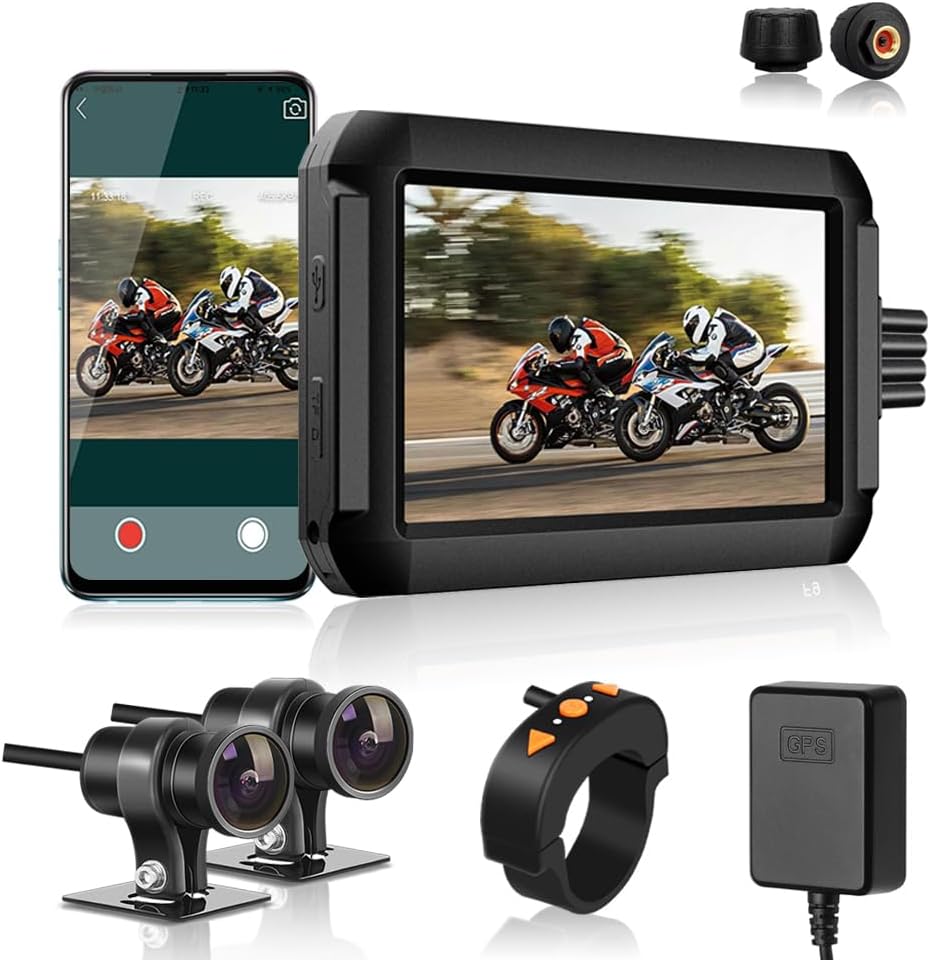
Image: Overview of the VSYSTO F9D Motorcycle Dash Cam system, showing the main display unit, dual cameras, remote control, GPS module, and TPMS sensors.
2. Package Contents
Please verify that all items listed below are included in your package:
- Monitor (Main Unit)
- Cameras (2)
- Power Cable
- Handlebar Mount
- Tire Pressure Sensors (2)
- GPS Tracker

Image: Detailed diagram illustrating all components included in the VSYSTO F9D package, with labels for easy identification.
3. Setup and Installation
The VSYSTO F9D system is designed for direct hard-wiring to your motorcycle's battery for continuous power. Professional installation is recommended if you are unfamiliar with motorcycle electrical systems.
- Mount the Main Unit: Secure the monitor using the provided handlebar mount in a location that offers clear visibility and easy access to the remote control.
- Install Cameras: Mount the front and rear cameras in desired positions, ensuring a clear field of view. Connect the camera cables to the main unit.
- Connect Power Cable: Hard-wire the power cable to your motorcycle's battery. The system is designed to automatically start recording with ignition and stop when the engine is off.
- Install TPMS Sensors: Attach the two tire pressure sensors to your motorcycle's tire valve stems. Ensure they are securely fastened.
- Connect GPS Tracker: Connect the GPS tracker module to the main unit. Position the GPS module in a location with a clear view of the sky for optimal signal reception.
- Insert Micro-SD Card: Insert a high-speed (Class 10 or higher) micro-SD card (not included) into the designated slot on the main unit. The system requires an SD card for recording.
- Mount Remote Control: Secure the multifunction remote control to your handlebar for convenient operation while riding.

Image: Diagram illustrating the connection points for the main unit, cameras, power cable, TPMS sensors, and GPS tracker, providing a visual guide for installation.
4. Operating Instructions
Once installed and powered, the VSYSTO F9D system operates largely automatically. Here are key functions and how to use them:
- Automatic Recording: The dash cam automatically begins recording when the motorcycle ignition is turned on and stops when the ignition is turned off.
- Display Modes: The 4.0-inch HD screen supports various display modes, including front camera view, rear camera view, or a split-screen view showing both simultaneously. Use the remote control to cycle through these modes.
- Smart Gauge Mode: When connected to the GPS tracker, the display can show real-time information such as current speed, location (altitude), single driving time, mileage, and battery voltage.
- TPMS Monitoring: The system continuously monitors tire pressure and temperature via the included TPMS sensors. Alerts will be displayed on the screen if tire pressure or temperature falls outside safe parameters.
- WiFi App Connectivity: Download the dedicated VSYSTO WiFi App on your smartphone. Connect to the dash cam's WiFi network to access live previews, review recorded videos, and track GPS data directly from your phone.
- Multifunction Remote Control:
- Up Button: Switch display modes on the monitor.
- OK Button: Capture photos during recording.
- Down Button: Display ride data (Smart Gauge Mode).
- Indicators on the remote show camera and GPS status.
- G-Sensor: The built-in G-sensor automatically detects sudden impacts or collisions and locks the current video file to prevent it from being overwritten during loop recording.
- Loop Recording: The system continuously records video in segments. When the micro-SD card is full, the oldest unlocked video files are automatically overwritten to make space for new recordings.
- 24-hour Parking Monitor: When Parking Mode is enabled, the dash cam will automatically record video if physical movement or bumps are detected while the motorcycle is parked and the engine is off.

Image: The 4.0-inch LCD display of the VSYSTO F9D showing real-time data such as speed, tire pressure, temperature, date, and time.
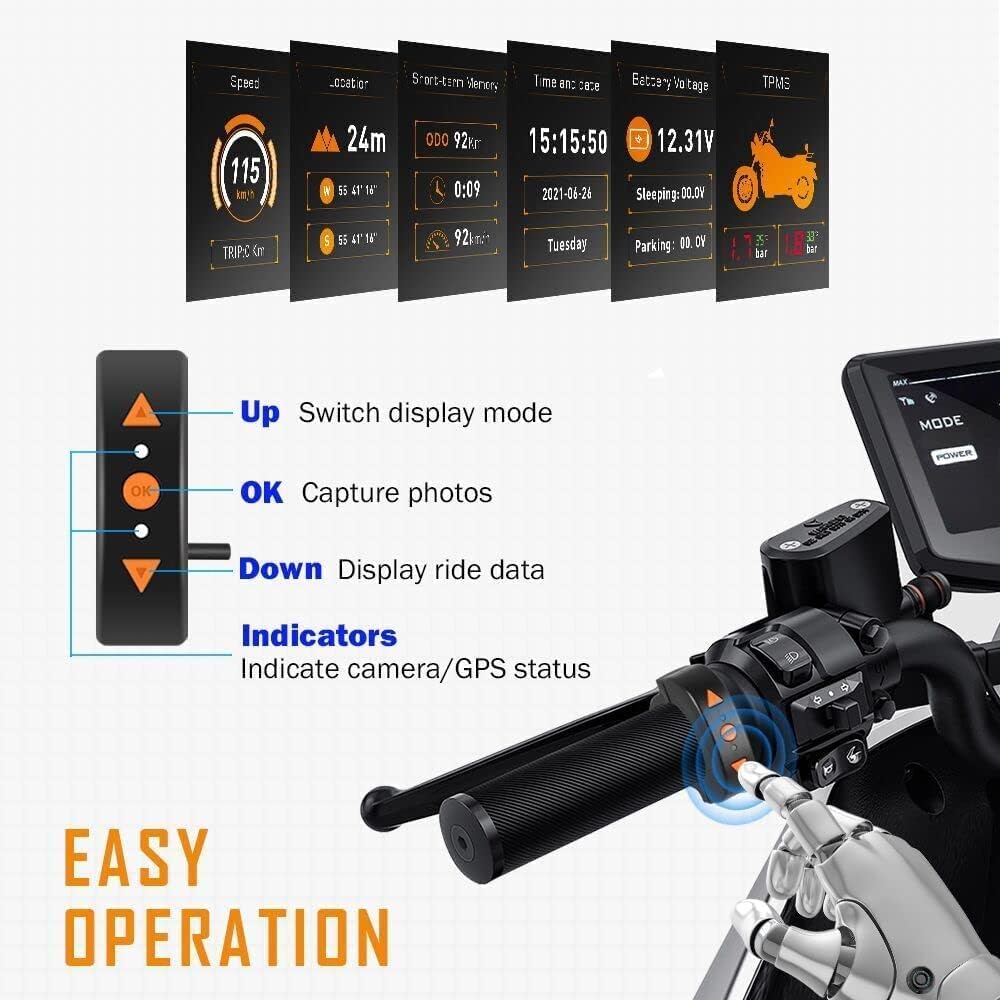
Image: The multifunction remote control mounted on a motorcycle handlebar, highlighting its buttons for easy operation.
5. Maintenance
Proper maintenance ensures the longevity and optimal performance of your VSYSTO F9D dash cam system.
- Cleaning: Use a soft, dry cloth to clean the monitor screen and camera lenses. Avoid abrasive cleaners or solvents.
- Waterproof Design: The system features a water-resistant design, allowing it to perform reliably in various weather conditions. However, avoid submerging the main unit or cameras in water.
- Micro-SD Card Management: Regularly format the micro-SD card (at least once a month) using the dash cam's menu to prevent data corruption and ensure smooth recording. Back up important video files before formatting.
- TPMS Sensor Batteries: The TPMS sensors use CR1632 button batteries. If a sensor stops transmitting data, the battery may need replacement. Refer to the TPMS sensor instructions for battery replacement procedures.
- Cable Inspection: Periodically check all cables and connections for any signs of wear, damage, or loose connections.
6. Troubleshooting
If you encounter issues with your VSYSTO F9D dash cam, refer to the following common troubleshooting steps:
| Problem | Possible Cause | Solution |
|---|---|---|
| Dash cam does not power on. | No power supply; loose connection. | Check power cable connection to battery and main unit. Ensure motorcycle ignition is on if hard-wired. |
| Recording not starting. | No micro-SD card; card full/corrupted; recording disabled. | Insert micro-SD card. Format the card. Check recording settings in the menu. |
| Poor video quality / blurry images. | Dirty lens; protective film on lens; low light conditions. | Clean camera lenses. Remove any protective film. Ensure sufficient lighting for optimal night vision performance. |
| TPMS sensors not displaying data or showing incorrect readings. | Sensor battery low/dead; improper installation; interference. | Replace TPMS sensor batteries. Re-install sensors securely. Check for potential signal interference. |
| Battery drain when parked. | Parking Mode enabled and frequently triggered. | Adjust Parking Mode sensitivity or disable it if not required for extended parking periods. Consult a professional for electrical system diagnosis if issue persists. |
| WiFi connection issues. | Incorrect password; app issues; distance from device. | Ensure correct WiFi password. Restart the app and dash cam. Stay within close proximity to the dash cam for connection. |
7. Specifications
| Feature | Detail |
|---|---|
| Model Number | F9D |
| Product Dimensions | 0.71 x 4.41 x 2.95 inches |
| Item Weight | 3.16 pounds |
| Video Capture Resolution | 1080p (Full HD) |
| Field of View | 150 Degrees |
| Connectivity Technology | Hard-wired, Wi-Fi |
| Special Features | Dual-channel video/audio, SONY COMS, Night Vision, TPMS, Parking mode, Battery voltage monitoring, GPS tracking, Altitude/Atmospheric pressure sensor, WiFi app, Waterproof |
| Power Source | Motorcycle Battery (Hard-wired) |
8. Warranty and Support
For warranty information, technical support, or service inquiries, please refer to the warranty card included with your product or visit the official VSYSTO website. Keep your purchase receipt as proof of purchase for warranty claims.
Ask a question about this manual
Ask about setup, troubleshooting, compatibility, parts, safety, or missing instructions. Manuals+ will review the question and use this page’s manual context to help answer it.