
1. Introduction
This manual provides detailed instructions for setting up, operating, maintaining, and troubleshooting your YUNZII X75 82-Key Hot Swappable Mechanical Keyboard. Designed for both Windows and Mac users, this keyboard features a unique transparent design, gasket-mounted structure, RGB backlighting, and hot-swappable switches for a customizable typing experience.

The YUNZII X75 Mechanical Keyboard, showcasing its transparent design and vibrant RGB backlighting.
2. Package Contents
Upon unboxing your YUNZII X75 keyboard, please ensure all the following items are present:
- YUNZII X75 Transparent Mechanical Keyboard
- USB Type-C Cable
- Keycap and Switch Puller Tool
- Warranty Manual
- 2.4G Wireless Receiver (for wireless models)
- PET Dust Cover

The YUNZII X75 keyboard and its included accessories.
Official unboxing video of the YUNZII X75 Mechanical Keyboard, demonstrating the contents and initial setup.
3. Setup and Connection
3.1 Wired Connection
- Locate the USB Type-C port on the keyboard.
- Connect one end of the provided USB Type-C cable to the keyboard.
- Connect the other end of the USB cable to an available USB port on your computer.
- The keyboard will automatically connect and be ready for use.
3.2 Wireless Connection (2.4G)
- Locate the 2.4G wireless receiver.
- Plug the 2.4G receiver into a USB port on your computer.
- Switch the mode button on the keyboard to the 2.4G wireless mode. The RGB lights will blink blue during pairing and become solid when connected.
3.3 Bluetooth Connection
For Bluetooth connectivity, ensure your device supports Bluetooth and follow its pairing instructions. Switch the mode button on the keyboard to Bluetooth mode to initiate pairing.

The side switch allows for easy toggling between Mac and Windows layouts.
An overview of the YUNZII X75 Mechanical Keyboard's features, including its connectivity options and transparent design.
4. Operating Instructions
4.1 Key Functions and Combinations
The YUNZII X75 keyboard features various function key combinations for enhanced control. Refer to the included quick start guide for a comprehensive list of FN key combinations for media control, lighting adjustments, and more.
4.2 RGB Backlight Customization
The keyboard offers over 15 factory-set RGB lighting modes. You can cycle through these modes using specific FN key combinations. For advanced customization, including building macros and setting up per-key lighting effects, download the official YUNZII software from their website.

The YUNZII X75 features over 15 RGB lighting effects, easily switchable via FN key combinations.
4.3 Hot-Swappable Switches
The X75 is equipped with a hot-swappable PCB, allowing for easy replacement or change of switches without soldering. It is compatible with most 3-pin and 5-pin mechanical switches. Pre-installed switches are pre-lubed for optimal performance.

The hot-swappable design allows for easy customization of switches.
4.4 Keycap Design
The keycaps are made from high-quality transparent PC material with UV printing for durability. They feature an ASA profile, providing an ergonomic and comfortable typing experience with varying heights across rows.
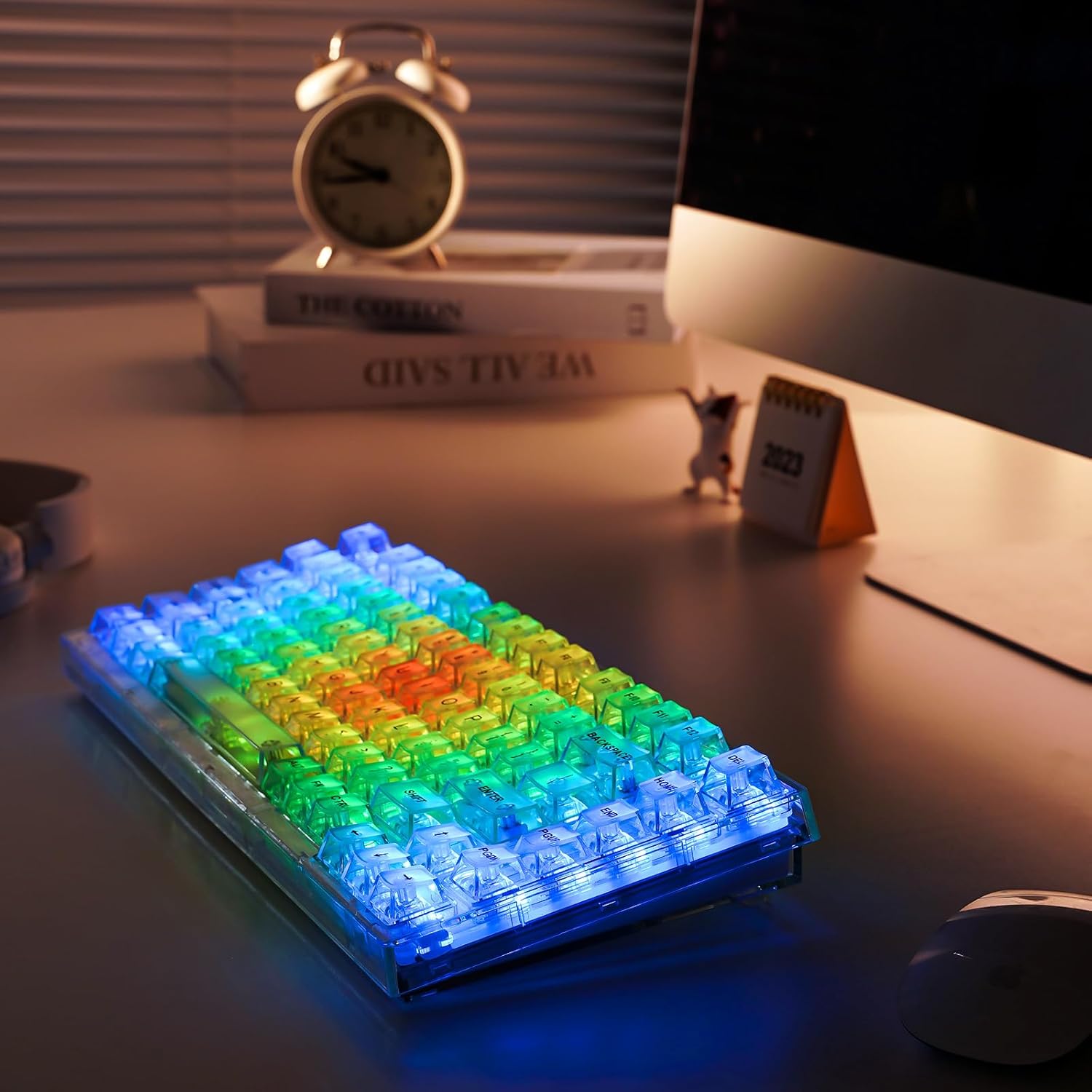
High-quality transparent PC keycaps with an ergonomic ASA profile.
5. Maintenance
5.1 Cleaning the Keyboard
To maintain the keyboard's appearance and functionality, regularly clean the keycaps and chassis. Use a soft, lint-free cloth slightly dampened with water or a mild cleaning solution. Avoid harsh chemicals or abrasive materials. For deeper cleaning, remove keycaps using the provided puller tool.
5.2 Keycap and Switch Removal
Use the included keycap and switch puller tool to safely remove keycaps and switches for cleaning or replacement. Gently pull keycaps straight up to avoid damaging the switch stem. For switches, align the puller with the clips on the switch and apply even pressure to release it from the PCB.

The included keycap and switch puller tool for easy maintenance.
6. Troubleshooting
- Keyboard Not Responding: Ensure the USB cable is securely connected or the wireless receiver is properly plugged in. For wireless modes, check battery level and ensure the mode switch is correctly set. Try restarting your computer.
- RGB Lights Not Working: Verify that the RGB is turned on using the FN + BACKSPACE combination. Cycle through lighting modes with FN + DEL or FN + |. Check the YUNZII software for any custom settings that might override default lighting.
- Keys Not Registering: If specific keys are not working, try removing and re-inserting the switch using the switch puller. Ensure the switch pins are straight and properly aligned with the hot-swap socket.
- Connectivity Issues (Wireless/Bluetooth): For 2.4G wireless, ensure the receiver is close to the keyboard and there's no interference. For Bluetooth, ensure the keyboard is discoverable and your device's Bluetooth is enabled. Try re-pairing the keyboard.
- Software Issues: If experiencing problems with the customization software, ensure you have the latest version downloaded from the official YUNZII website. Restart the software and your computer.
For more detailed troubleshooting or complex issues, please refer to the comprehensive Instructions for Use (IFU) PDF or contact YUNZII customer support.
7. Specifications
| Feature | Detail |
|---|---|
| Product Dimensions | 12.8 x 7.87 x 1.85 inches |
| Item Weight | 2.2 pounds |
| Manufacturer | YUNZII |
| Item Model Number | X75 |
| Connectivity Technology | Wired, 2.4G Wireless, Bluetooth |
| Keyboard Description | Hot Swappable Gasket Mechanical Keyboard |
| Recommended Uses | Gaming |
| Special Feature | Ergonomic, Backlit |
| Color | Wired -White (Kailh Jellyfish Switch variant) |
| Number of Keys | 82 |
| Keyboard Backlighting | RGB |
| Compatible Devices | Laptop, PC, Tablet, Smartphone, Mac |
8. Warranty and Support
For warranty information and customer support, please refer to the warranty manual included in your package. You can also visit the official YUNZII Store on Amazon for additional resources and contact options.
A digital version of the Instructions for Use (IFU) is available for download.


