
1. Introduction
Welcome to the Nuvance Zero Smartwatch user manual. This guide provides essential information for setting up, operating, maintaining, and troubleshooting your new smartwatch. Please read this manual carefully to ensure proper use and to maximize the device's features.
The Nuvance Zero Smartwatch is designed to be ultra-thin (8mm) and lightweight (43 grams), offering a comfortable wearing experience throughout the day. It features hardened glass, a touchscreen display, and is compatible with both Android (4.4 or higher) and iOS (9.0 or higher) smartphones.

Image: Nuvance Zero Smartwatch highlighting its key features: hardened glass, water- and dustproof design, touchscreen display, 8mm thinness, and compatibility with both iOS and Android devices.
2. What's in the Box
Upon unboxing your Nuvance Zero Smartwatch, please verify that all the following items are included:
- Nuvance Zero Smartwatch
- Charging Cable
- User Manual (this document)
3. Setup
3.1 Charging the Smartwatch
- Connect the charging cable to the charging port on your Nuvance Zero Smartwatch.
- Plug the other end of the charging cable into a USB power adapter (not included) or a computer's USB port.
- The watch will display a charging indicator. A full charge typically takes approximately 2 hours.
A fully charged battery provides up to 10 days of active use or up to 19 days in standby mode.
3.2 Pairing with Your Smartphone
To unlock the full potential of your Nuvance Zero Smartwatch, pair it with the companion application on your smartphone.
- Download the App: Search for the official Nuvance Zero app in the Apple App Store (for iOS devices) or Google Play Store (for Android devices).
- Enable Bluetooth: Ensure Bluetooth is enabled on your smartphone.
- Open the App: Launch the Nuvance Zero app on your smartphone and follow the on-screen instructions to create an account or log in.
- Add Device: Within the app, navigate to the "Add Device" or "Pair Smartwatch" section.
- Select Your Watch: The app will scan for nearby devices. Select "Nuvance Zero" from the list.
- Confirm Pairing: A pairing request may appear on both your phone and the smartwatch. Confirm the pairing on both devices.
Once paired, the watch will synchronize data with your phone, and you can customize settings through the app.
4. Operating Your Smartwatch
4.1 Basic Navigation
- Touchscreen: Swipe left, right, up, or down to navigate through menus and features. Tap to select an option.
- Side Button: Typically used to wake the screen, return to the home screen, or access the main menu.
4.2 Health Monitoring
The Nuvance Zero Smartwatch offers comprehensive health tracking features:
- Pedometer: Tracks your daily steps, distance, and calories burned.
- Heart Rate Monitor: Provides accurate real-time heart rate readings.
- Blood Pressure Monitor: Measures blood pressure levels.
- Blood Oxygen (SpO2) Monitor: Measures blood oxygen saturation.
- Sleep Monitor: Records 4 different sleep phases, providing insights into your sleep rhythm and quality through the app.
- Physiological Cycle Reminder: Offers a comprehensive understanding of personal health with a cycle calendar and reminders.
- Breathing Training: Integrated breathing exercises to help you relax.

Image: Smartphone application interface displaying various health metrics such as step count, sleep patterns, heart rate, blood pressure, and blood oxygen saturation.

Image: A person sleeping while wearing the Nuvance Zero Smartwatch, demonstrating its capability to monitor sleep across four distinct phases for improved sleep rhythm.
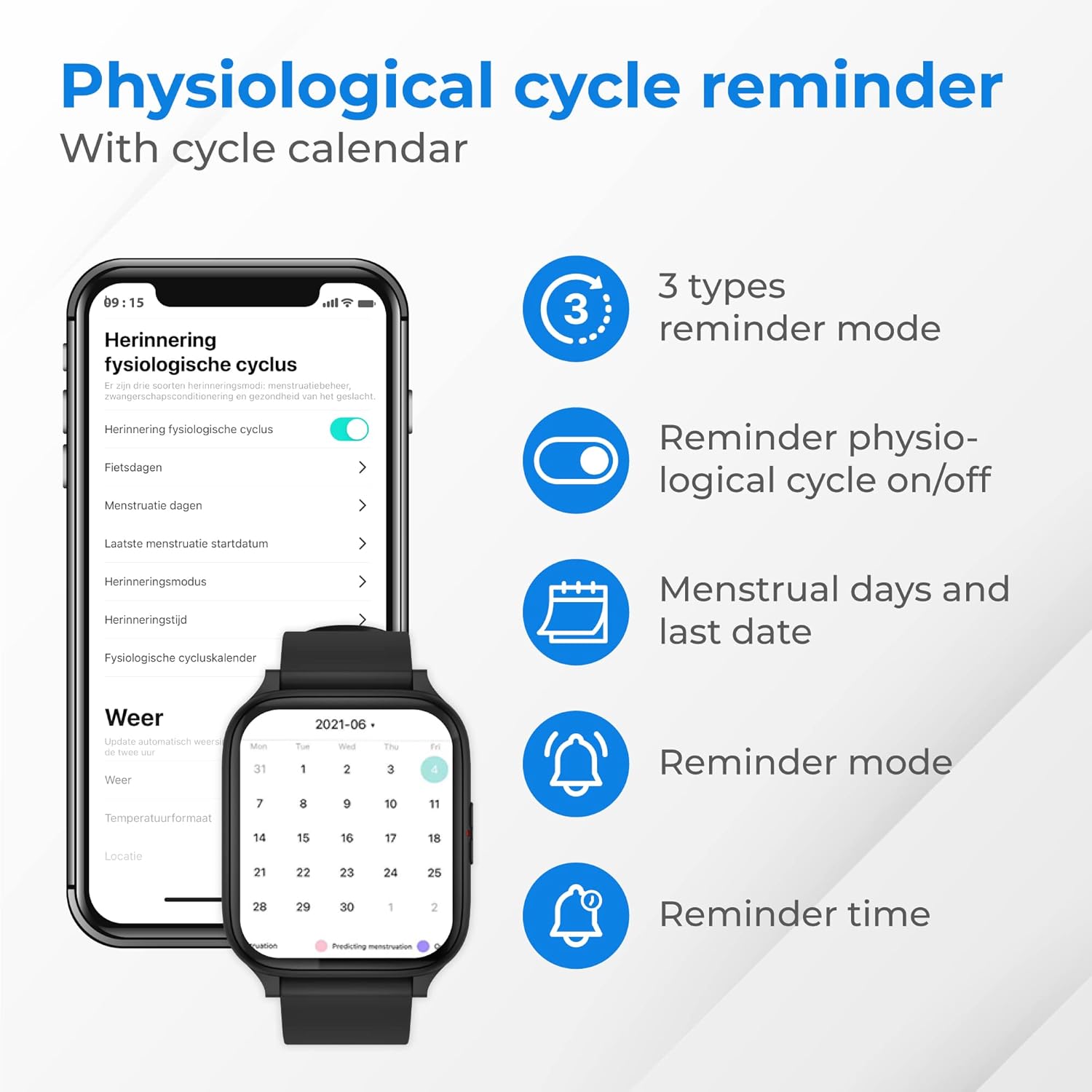
Image: The physiological cycle reminder feature on the companion app, showing options for enabling/disabling reminders, setting menstrual days, and customizing reminder modes and times.
4.3 Sports Modes
The smartwatch supports 8 different sports modes to accurately track your workouts:
- Running
- Walking
- Cycling
- Swimming (Note: The watch is IP67 rated, suitable for daily use but not for swimming or showering.)
- Rope Skipping
- Basketball
- Badminton
- Football

Image: A woman cycling, demonstrating the smartwatch's ability to track various sports activities. The image also shows the watch's interface displaying different sports modes.
4.4 Notifications and Controls
- Notifications: Receive push notifications for calls, messages, and app alerts directly on your wrist.
- Music Control: Control music playback on your smartphone directly from the smartwatch.
- Weather Information: View current weather information at any time.
- Customizable Watch Faces: Choose from numerous backgrounds and watch faces to personalize your device.

Image: The Nuvance Zero Smartwatch screen showing current weather information, a selection of customizable watch faces, and the music control interface.
5. Maintenance
- Cleaning: Wipe the watch screen and strap regularly with a soft, dry cloth. For stubborn dirt, use a slightly damp cloth and dry thoroughly.
- Water Resistance: The watch is IP67 water and dust resistant. This means it is protected against dust ingress and immersion in water up to 1 meter for 30 minutes. However, it is not suitable for swimming, showering, or diving. Avoid exposure to hot water or steam.
- Charging: Use only the provided charging cable. Avoid using damaged cables or chargers.
- Storage: Store the smartwatch in a cool, dry place away from direct sunlight and extreme temperatures.
- Software Updates: Keep the companion app updated to ensure your smartwatch has the latest features and performance improvements.
6. Troubleshooting
| Problem | Possible Solution |
|---|---|
| Watch does not turn on. | Ensure the watch is fully charged. Connect it to the charger for at least 30 minutes. |
| Cannot pair with smartphone. |
|
| Inaccurate health data. |
|
| Notifications not received. |
|
7. Specifications
| Model Name | Zero |
| Brand | NV Nuvance |
| Screen Size | 1.69 Inches |
| Display Type | Digital, Touchscreen |
| Connectivity Technology | Bluetooth |
| Compatible Devices | Smartphones (Android 4.4+ / iOS 9.0+) |
| Operating System | Proprietary (compatible with Android Wear 2.6 features) |
| Special Features | Physiological Cycle Reminder, IP67 Water/Dust Resistant, Current Weather Info, Sleep Monitor, Health Monitoring (Heart Rate, Blood Pressure, SpO2), 8 Sports Modes |
| Water Resistance Level | IP67 (Splash and dust resistant; not for swimming or showering) |
| Band Material | Plastic (Silicone) |
| Band Width | 3 Centimeters |
| Band Length | 20 Centimeters |
| Average Battery Life | Up to 10 days (active use), up to 19 days (standby) |
| Charging Time | Approx. 2 hours |
| Item Weight | 151 Grams |
| Item Dimensions (L x W x H) | 21.7 x 6.9 x 38 Centimeters |
| Color | Black |
| Target Audience | Adult Unisex |
8. Warranty and Support
Nuvance is committed to providing quality products and customer satisfaction. For any questions, technical support, or warranty inquiries regarding your Nuvance Zero Smartwatch, please refer to the contact information provided with your purchase or visit the official Nuvance website.
Please retain your proof of purchase for warranty claims.