
Introduction
The AirLink RX55 is a robust 4G LTE-A (CAT 7) Industrial IoT Router designed for mission-critical applications in demanding environments. It features ultra-low power consumption and a rugged design, ensuring reliable and uninterrupted operation in industrial and mobile installations. This manual provides essential information for the proper installation, configuration, operation, and maintenance of your RX55 router.
Safety Information
- Read all instructions carefully before operating the device.
- Ensure the power source meets the device's specifications.
- Do not expose the device to extreme temperatures, moisture, or direct sunlight beyond its specified operating conditions.
- Only use accessories and components approved by the manufacturer.
- Do not attempt to open or repair the device yourself. Refer all servicing to qualified personnel.
- Properly dispose of electronic waste according to local regulations.
Package Contents
Verify that all items are present in your package:
- AirLink RX55 Router
- DC Power Cable
- Manuals (this document and other guides)
Note: Antennas are not included and must be purchased separately.
Setup
1. Physical Installation
The RX55 router is designed for industrial and mobile installations. Choose a location that is protected from direct weather exposure (unless using an appropriate enclosure) and allows for proper ventilation. Ensure the mounting surface is stable and secure.
Antenna Connection: Connect appropriate 4G LTE-A antennas (not included) to the designated antenna ports on the router. Ensure connections are finger-tight to prevent signal loss.
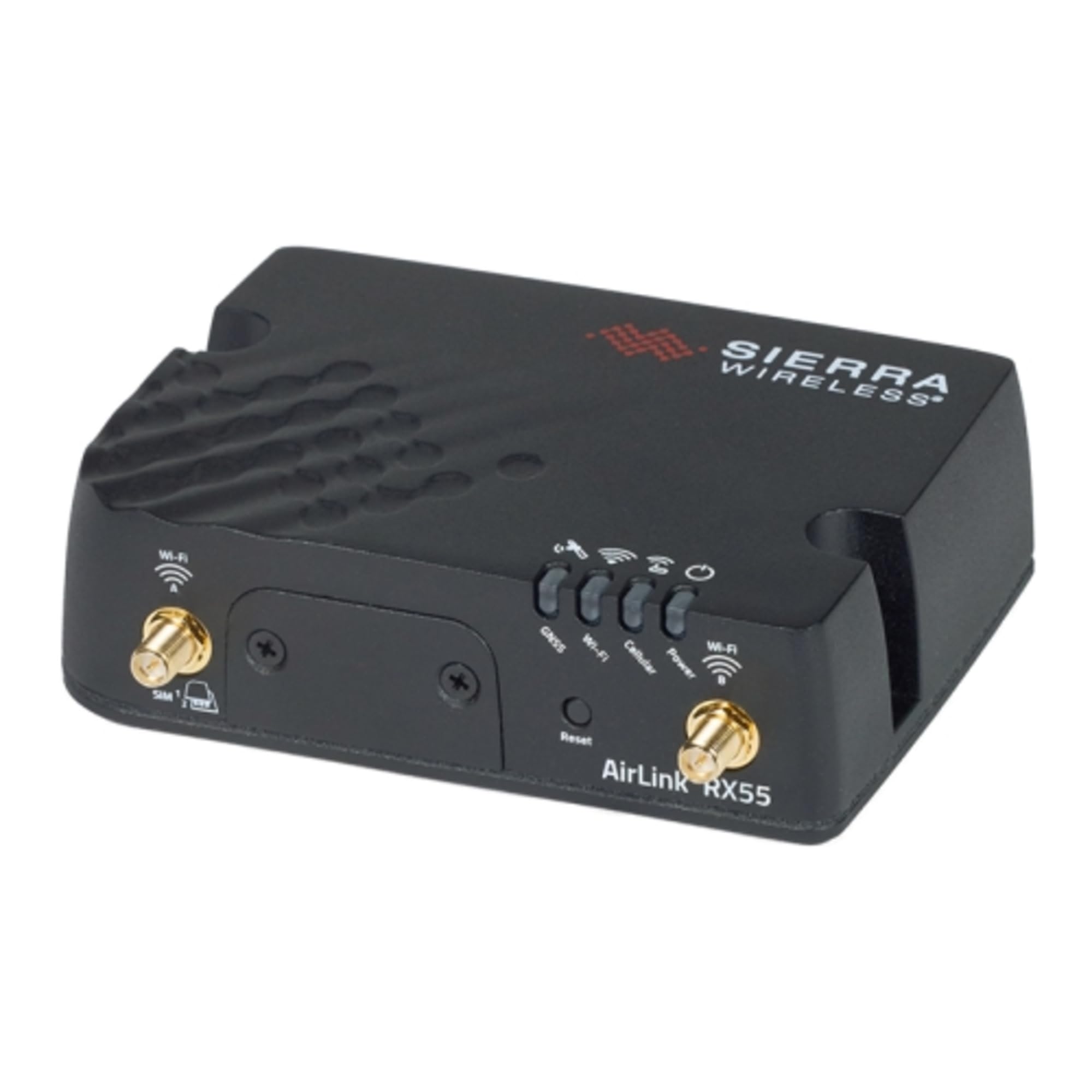
Image: Front view of the AirLink RX55 Industrial IoT Router, showing various ports and indicators. This image illustrates the compact and rugged design of the device, suitable for industrial environments.
2. Power Connection
Connect the supplied DC Power Cable to the power input port on the RX55 router and then to a compatible power source. The router will power on automatically. Observe the LED indicators for power status.
3. Initial Configuration
For initial configuration, connect a computer to the router's Gigabit Ethernet port (RJ45). Access the router's web-based management interface by entering its default IP address into a web browser. Refer to the separate AirLink RX55 Configuration Guide for detailed instructions on network settings, security, and advanced features.
Operating Instructions
Network Connectivity
Once configured, the RX55 router will establish a 4G LTE-A connection. The status LEDs on the device indicate network signal strength and connection status. The router provides network access via its Gigabit Ethernet port and can be integrated into existing network infrastructures.
Advanced Features
- Dual RS-232 Serial Port (DB9): For connecting legacy industrial equipment (requires optional Y-cable).
- VPN Support: Integrated with ACM VPN Server, supporting IPsec protocol with IKEv1/IKEv2, FIPS 140-2 Level 1 compliant for secure data transmission.
- Network Management: Compatible with AirLink Complete for comprehensive network management and support.
Maintenance
Environmental Considerations
The RX55 is designed for harsh environments with an operating temperature range of -40°C to +70°C (-40°F to +158°F) and an IP64 rating. While rugged, ensure the device is not subjected to conditions exceeding these specifications. Regularly inspect the device for any signs of physical damage or environmental stress.
Cleaning
Clean the exterior of the router with a soft, dry cloth. Do not use liquid cleaners or aerosols directly on the device. Ensure all ports are free from dust and debris.
Firmware Updates
Periodically check for firmware updates to ensure optimal performance, security, and access to new features. Firmware updates can typically be managed through the router's web interface or via AirLink Complete. Follow the provided instructions carefully during the update process.
Troubleshooting
This section addresses common issues you might encounter with your AirLink RX55 router.
No Power
- Verify the DC power cable is securely connected to both the router and the power source.
- Ensure the power source is active and providing the correct voltage.
- Check the power LED on the router. If it's off, try a different power outlet or cable if available.
No Network Connection (LTE-A)
- Ensure antennas are properly connected and positioned for optimal signal reception.
- Check the network status LEDs on the router. Refer to the LED indicator guide in the full manual for specific meanings.
- Verify that the SIM card (if applicable and installed) is correctly inserted and active with your carrier.
- Access the web management interface to check cellular connection status and diagnostics.
Ethernet Port Not Working
- Ensure the Ethernet cable is securely connected to both the router and the connected device.
- Check the link/activity LEDs on the Ethernet port.
- Verify network settings on the connected device (e.g., IP address configuration).
Factory Reset
If issues persist, a factory reset may resolve them. Warning: A factory reset will erase all custom configurations and restore the router to its default settings. Consult the full configuration guide for the specific procedure to perform a factory reset.
Specifications
| Feature | Detail |
|---|---|
| Model Name | RX55 |
| Item Model Number | 1104927 |
| Connectivity Technology | Ethernet, 4G LTE-A (CAT 7) |
| LTE-A Performance | 300Mbps Downlink / 150Mbps Uplink |
| Ports | 1x Gigabit Ethernet (RJ45), Dual RS-232 serial port (DB9 - optional Y-cable) |
| 4G LTE-A Bands | B2, B4, B5, B7, B12, B13, B14, B25, B26, B41, B42, B43, B48, B66, B71 |
| 3G Bands | B2, B4, B5 |
| Operating Temperature | -40°C to +70°C (-40°F to +158°F) |
| IP Rating | IP64 |
| Military Specification | MIL-STD-810G (shock, vibration, thermal shock, humidity) |
| Power Consumption (LTE Idle) | 900mW (75 mA @ 12VDC) |
| Power Consumption (Standby) | 53 mW (4.4 mA @ 12 VDC) |
| VPN | IPsec (IKEv1/IKEv2), FIPS 140-2 Level 1 compliant |
| Dimensions | 9.21 x 7.72 x 2.48 inches |
| Item Weight | 1.48 pounds |
| Manufacturer | Sierra Wireless |
Warranty Information
The AirLink RX55 router comes with a 1-year standard warranty. An extended warranty of up to 5 years is available with a current AirLink Complete subscription. For detailed terms and conditions, please refer to the official AirLink warranty documentation or contact customer support.
Support
For technical assistance, product documentation, or to inquire about AirLink Complete services, please visit the official Sierra Wireless / AirLink support website or contact their customer service department. Having your model number (RX55) and item model number (1104927) ready will help expedite your support request.
AirLink Complete: Offers network management, advanced support, and extended warranty options for your AirLink devices.


