
1. Introduction
This manual provides essential instructions for the setup, operation, maintenance, and troubleshooting of your White Shark GK-2102 LEGIONNAIRE-X RGB USB Keyboard. Please read this manual thoroughly before using the product to ensure proper functionality and longevity.

Image 1.1: Top view of the White Shark GK-2102 LEGIONNAIRE-X RGB USB Keyboard, showcasing its full layout and RGB lighting.
2. Setup
Follow these steps to connect your White Shark GK-2102 LEGIONNAIRE-X RGB USB Keyboard to your computer.
- Unpack the Keyboard: Carefully remove the keyboard and its USB cable from the packaging.
- Connect the USB Cable: Insert the USB connector of the keyboard into an available USB port on your computer.

Image 2.1: Close-up of the USB connector, which is used to connect the keyboard to a computer.
- Driver Installation: The keyboard is plug-and-play. Your operating system should automatically detect and install the necessary drivers. No additional software installation is typically required.
- Adjust Keyboard Feet: For ergonomic comfort, you may extend the adjustable feet located on the underside of the keyboard.

Image 2.2: View of the adjustable feet on the keyboard's underside, allowing users to modify the typing angle.
3. Operating Instructions
The White Shark GK-2102 LEGIONNAIRE-X is a standard USB keyboard with RGB lighting features. Below are general operating guidelines.
3.1 Basic Keyboard Functions
The keyboard functions as a standard QWERTY layout device. All keys perform their indicated character or function when pressed. Special function keys (F1-F12) may require the 'Fn' key to be held down simultaneously for their secondary functions, depending on your operating system and specific keyboard model configuration.
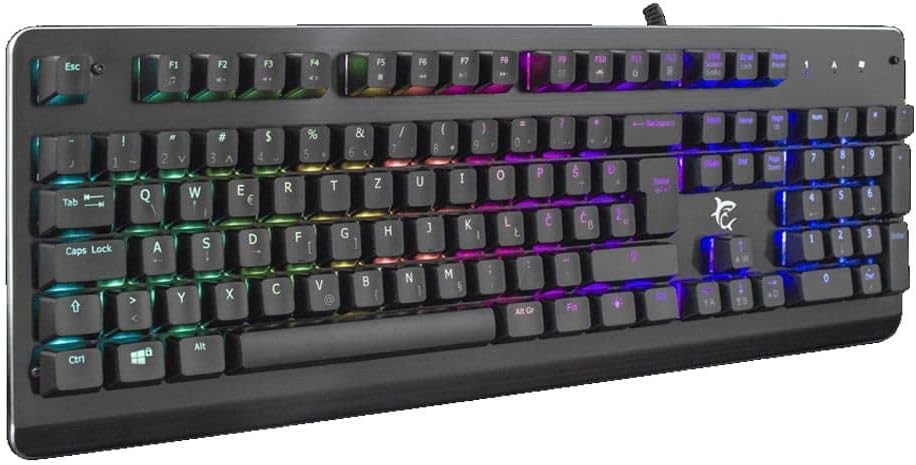
Image 3.1: Angled view of the keyboard, highlighting the key layout and illuminated RGB backlighting.
3.2 RGB Lighting Control
This keyboard features RGB lighting. Specific key combinations, often involving the 'Fn' key and other designated keys (e.g., arrow keys, Ins, Home, PgUp, Del, End, PgDn), are typically used to cycle through lighting modes, adjust brightness, or change colors. Refer to the quick start guide or manufacturer's website for detailed RGB control commands specific to this model.
4. Maintenance
Proper maintenance ensures the longevity and performance of your keyboard.
- Cleaning: Disconnect the keyboard from your computer before cleaning. Use a soft, dry cloth to wipe the surface. For stubborn dirt, a slightly damp cloth with mild soap can be used, ensuring no liquid enters the keyboard. Compressed air can be used to remove dust and debris from between the keys.
- Avoid Liquids: Do not spill liquids on the keyboard. Liquid damage can cause permanent malfunction.
- Storage: Store the keyboard in a cool, dry place away from direct sunlight and extreme temperatures when not in use for extended periods.
5. Troubleshooting
If you encounter issues with your keyboard, try the following solutions:
- Keyboard Not Responding:
- Ensure the USB cable is securely connected to both the keyboard and the computer.
- Try connecting the keyboard to a different USB port on your computer.
- Test the keyboard on another computer to determine if the issue is with the keyboard or the computer's port/drivers.
- Restart your computer.
- Keys Not Working:
- Check for any physical obstructions under the keycaps.
- Clean the keyboard as described in the Maintenance section.
- RGB Lighting Not Working/Incorrect:
- Ensure the keyboard is properly connected and receiving power.
- Refer to the manufacturer's specific instructions for RGB control key combinations.
6. Specifications
Below are the technical specifications for the White Shark GK-2102 LEGIONNAIRE-X RGB USB Keyboard:

Image 6.1: Side profile of the keyboard, illustrating its physical dimensions and keycap height.
| Feature | Detail |
|---|---|
| Brand | White Shark |
| Model | GK-2102 LEGIONNAIRE-X |
| Connectivity | USB |
| Product Dimensions | 50 x 50 x 28 cm |
| Weight | 1.06 kg |
| Material | Plastic |
| Special Features | RGB Lighting |
| Batteries Required | No |
7. Warranty Information
For detailed warranty information regarding your White Shark GK-2102 LEGIONNAIRE-X RGB USB Keyboard, please refer to the warranty card included with your product or visit the official White Shark website. Warranty terms and conditions may vary by region and retailer.
8. Support
If you require further assistance or have questions not covered in this manual, please contact White Shark customer support through their official website or the contact information provided with your purchase. Please have your product model (GK-2102 LEGIONNAIRE-X) and purchase details ready when contacting support.