
1. Introduction
This manual provides detailed instructions for the setup, operation, and maintenance of your MAGIC-REFINER MK31 60% Wired Hot Swappable Mechanical Keyboard. Please read this manual thoroughly before using the product to ensure proper functionality and longevity.
2. Package Contents
Verify that all items are present in the package:
- MAGIC-REFINER MK31 Mechanical Keyboard
- USB-C to USB-A Coiled Cable
- Keycap Puller
- Switch Puller
- Spare Switches (2 units)
3. Product Overview
The MAGIC-REFINER MK31 is a compact 66-key mechanical keyboard featuring transparent keycaps, RGB backlighting, and a rotary knob for media control. Its hot-swappable design allows for easy switch customization. The unique structural design includes double-layer NANO cotton and high-density EVA material for sound dampening.

Figure 3.1: MAGIC-REFINER MK31 Mechanical Keyboard connected via its coiled USB-C cable.
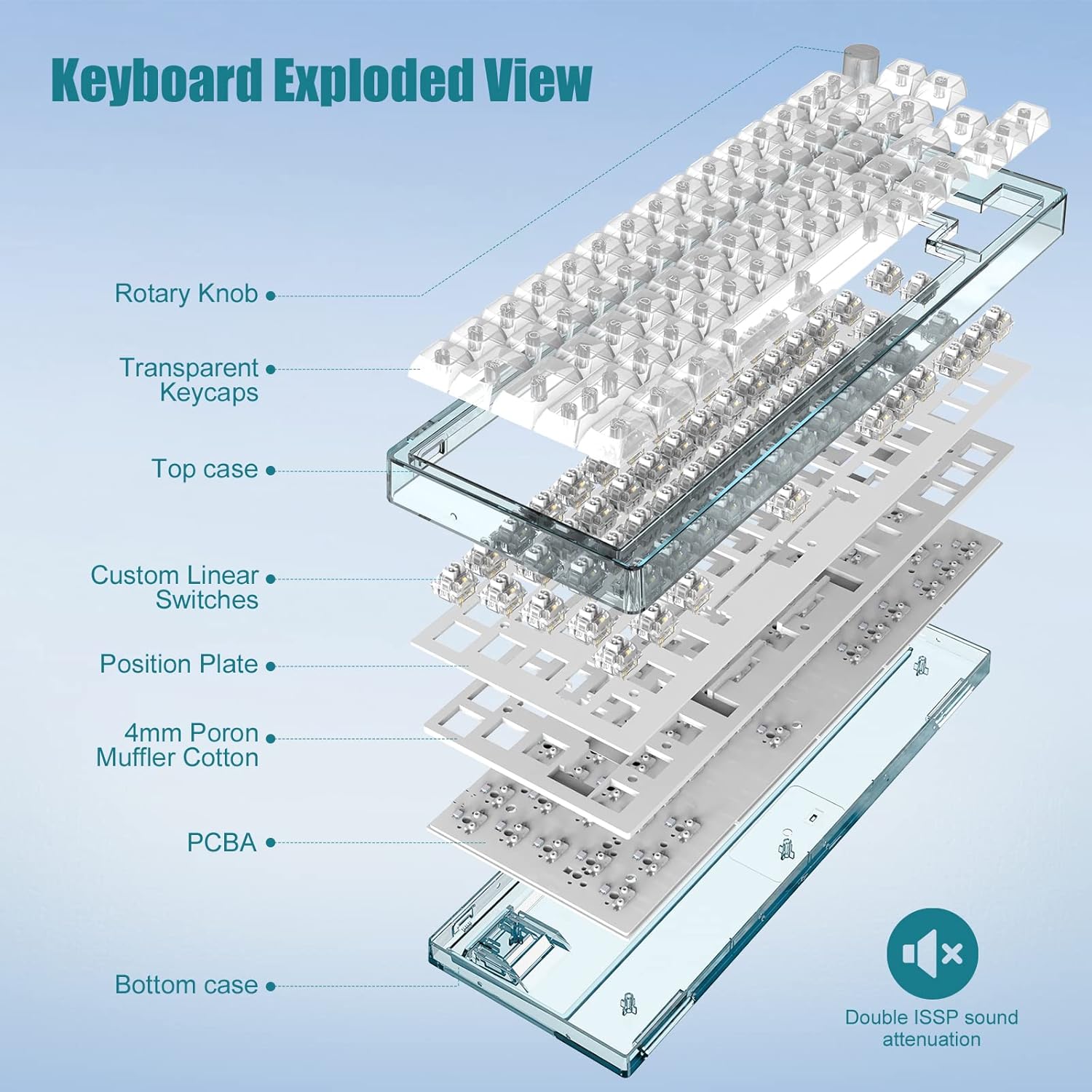
Figure 3.2: Exploded view illustrating the internal components of the MK31 keyboard, including the rotary knob, transparent keycaps, top case, custom linear switches, position plate, muffler cotton, PCBA, and bottom case.
4. Setup
4.1 Connecting the Keyboard
- Locate the USB-C port on the back or side of the keyboard.
- Connect the USB-C end of the provided coiled cable to the keyboard.
- Connect the USB-A end of the coiled cable to an available USB port on your computer (PC or MAC).
- The keyboard will be automatically recognized by your operating system. No additional drivers are typically required for basic functionality. The cable supports fast charging and data synchronization.
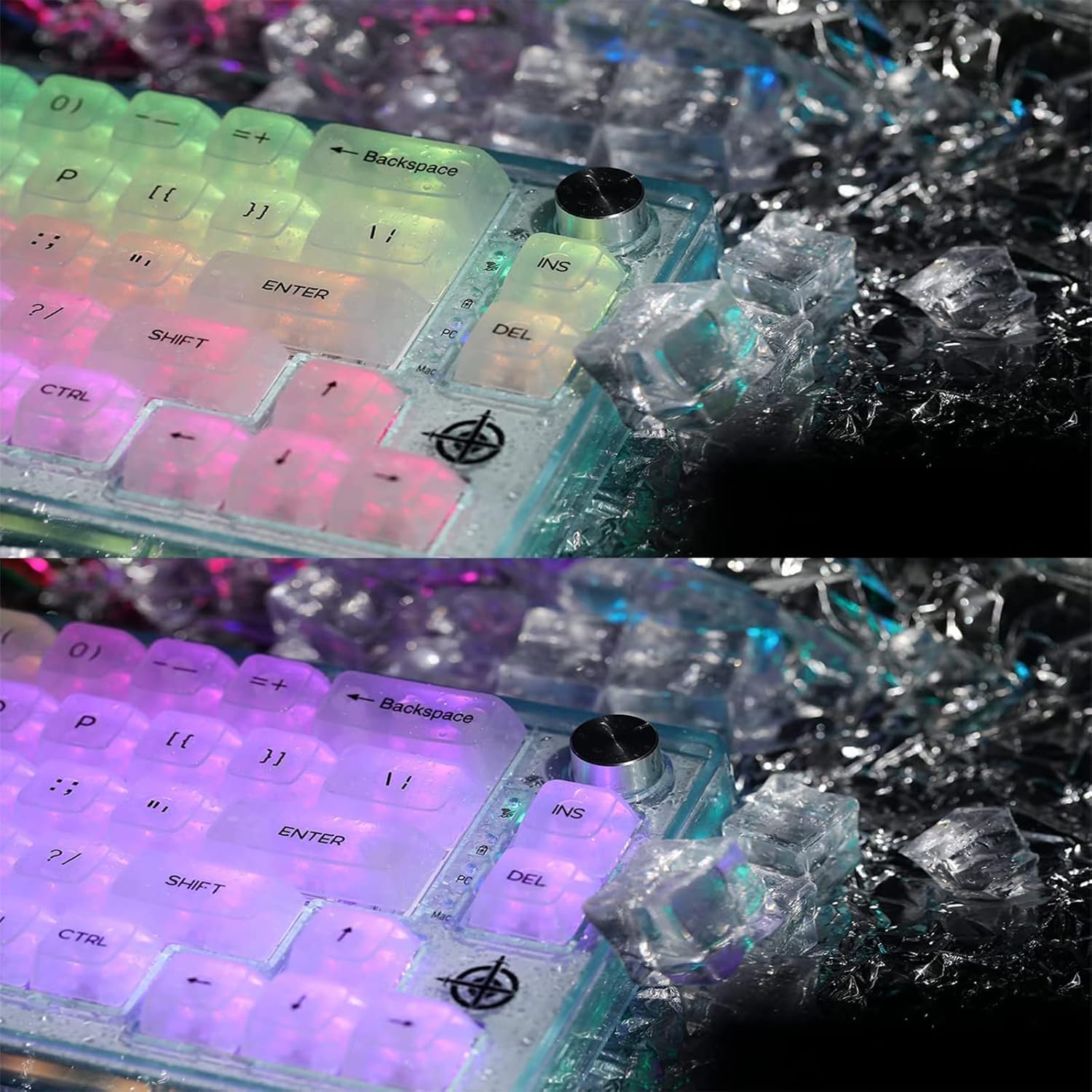
Figure 4.1: Illustration of the USB-C and USB-A connectors of the coiled cable, highlighting the connection points for the keyboard and computer.
5. Operating Instructions
5.1 Key Layout and Function Keys (FN Combinations)
The MK31 features a compact 66-key layout. Many functions are accessed using the FN key in combination with other keys. Refer to the keycap legends for specific secondary functions.
- Arrow Keys: Dedicated arrow keys are present for convenience.
5.2 RGB Lighting Control
The keyboard features double-sided RGB LEDs that emit light from both the front and back, offering 18 default lighting effects. You can adjust brightness and speed.
- Changing Lighting Effects: Use specific FN key combinations (refer to keyboard legends).
- Adjusting Brightness: Use specific FN key combinations.
- Adjusting Speed: Use specific FN key combinations.
- Base and Keyboard Light Control: The base and key lighting can be controlled separately via FN adjustments.

Figure 5.1: The MK31 keyboard displaying its vibrant RGB backlighting, with several keycaps and switches removed to demonstrate the hot-swappable feature.
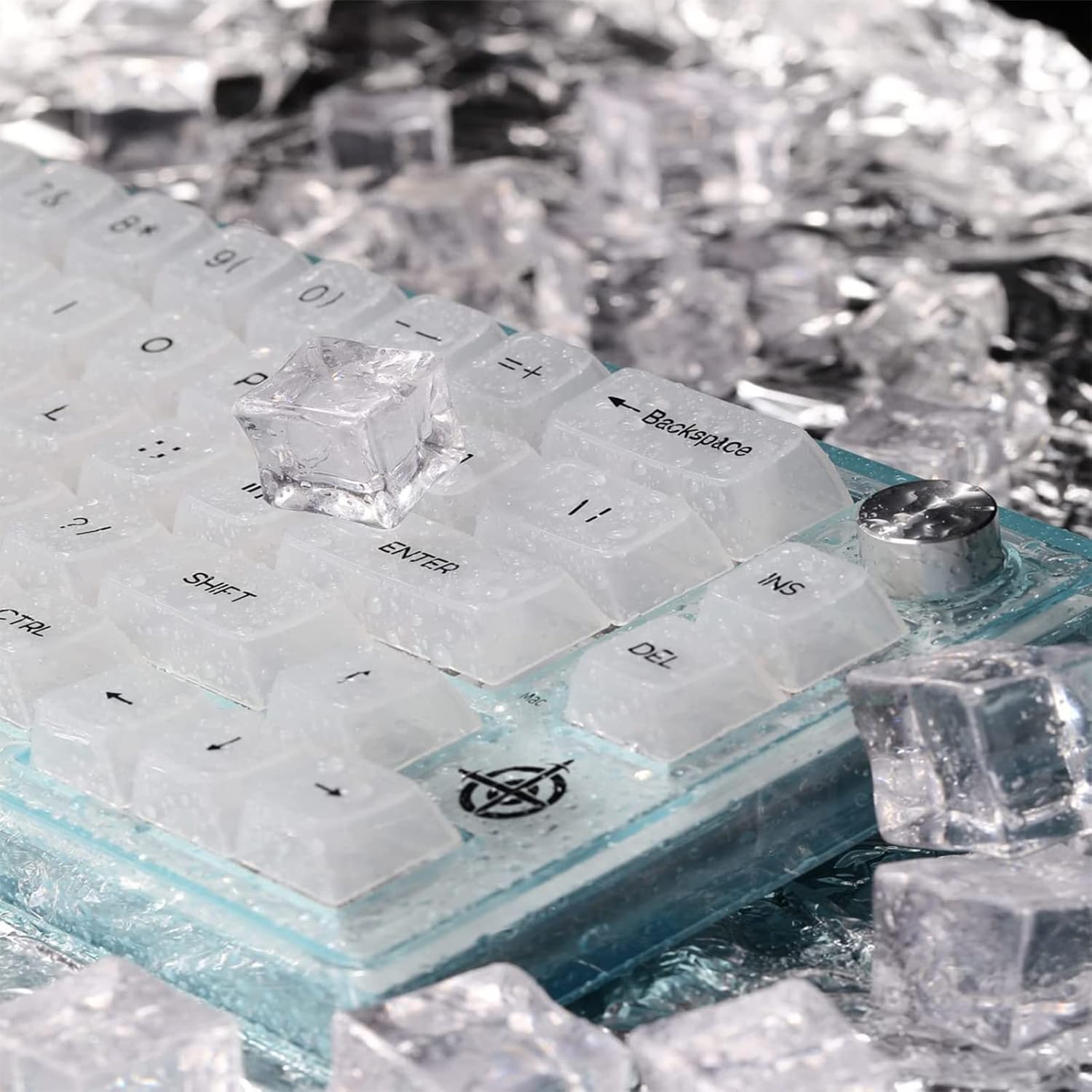
Figure 5.2: A close-up view of the transparent keycaps on the MK31 keyboard, showcasing the effect of the RGB backlighting through the clear material.
5.3 Rotary Knob Control
The rotary knob located on the top right of the keyboard provides convenient media control.
- Rotate: Turn the knob clockwise to increase volume, counter-clockwise to decrease volume.
- Press: Press the knob to mute or unmute audio.
5.4 Hot-Swappable Switches
The MK31 features a hot-swappable PCB, allowing you to change mechanical switches without soldering. It supports 3-pin and 5-pin MX-compatible switches. The keyboard is equipped with custom Ice-rock linear switches (40g force) for smooth and quiet operation.
- Removing Keycaps: Use the provided keycap puller to gently remove the desired keycap.
- Removing Switches: Use the provided switch puller to carefully grip and pull out the switch. Ensure the switch is pulled straight up to avoid bending pins.
- Installing New Switches: Align the pins of the new switch with the holes on the PCB. Gently press the switch into place until it clicks. Ensure pins are not bent.
- Installing Keycaps: Place the keycap over the new switch and press down firmly.
6. Maintenance
6.1 Cleaning the Keyboard
- General Cleaning: Use a soft, dry cloth to wipe the surface of the keyboard.
- Deep Cleaning: For thorough cleaning, remove keycaps using the keycap puller. Use compressed air to remove dust and debris from between switches. Keycaps can be cleaned with mild soap and water, then thoroughly dried before reattaching.
- Removable Upper Cover: The upper cover of the keyboard is detachable, allowing for easier cleaning of internal dirt. Gently detach the cover to access the keyboard plate.
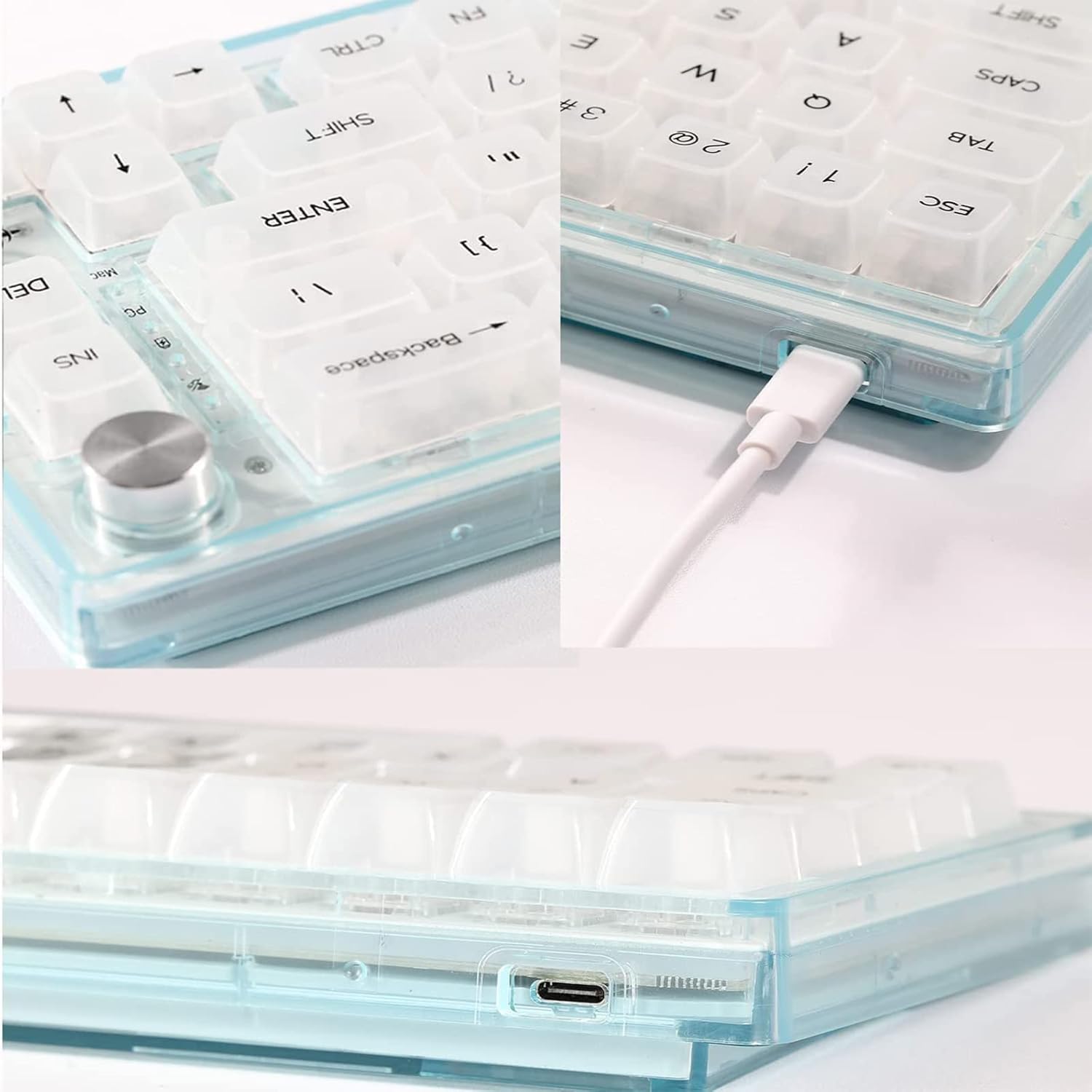
Figure 6.1: Side view of the MK31 keyboard, showing the USB-C port for connection and the overall profile.
6.2 Switch and Keycap Replacement
Refer to section 5.4 for detailed instructions on replacing switches and keycaps.
7. Troubleshooting
- Keyboard Not Responding:
- Ensure the USB cable is securely connected to both the keyboard and the computer.
- Try connecting the keyboard to a different USB port on your computer.
- Test the keyboard on another computer to rule out system-specific issues.
- RGB Lighting Not Working or Incorrect:
- Check FN key combinations for lighting control (brightness, effects).
- Ensure no software is overriding the keyboard's onboard lighting settings.
- Keys Not Registering or Double-Typing:
- This may indicate a faulty switch. Use the switch puller to replace the affected switch with a spare or a new one.
- Ensure the switch is fully seated in the PCB.
- Rotary Knob Not Functioning:
- Ensure the keyboard is properly connected.
- Restart your computer.
8. Specifications
| Model | MK31 |
| Layout | 66-Key, 60% Compact |
| Connectivity | Wired USB-C |
| Switches | Hot-swappable (3/5-pin MX-compatible), Custom Ice-rock Linear Switches |
| Keycaps | Transparent PC Material |
| Backlighting | Chroma RGB (18 effects, double-sided LEDs) |
| Special Features | Rotary Knob Control, Removable Upper Cover, Double-layer NANO cotton and EVA sound dampening |
| Dimensions | 14.6"L x 6.5"W x 2.2"H (37.1cm x 16.5cm x 5.6cm) |
| Weight | 2.5 pounds (1.13 kg) |
9. Compatibility
The MAGIC-REFINER MK31 keyboard is compatible with a wide range of operating systems and devices:
- PC (Windows series)
- Mac (macOS)
- Android
- Linux
- iOS
- Gaming Consoles: PS4, Xbox Series X|S, Xbox One
10. Warranty and Support
For warranty information and technical support, please refer to the official MAGIC-REFINER website or contact your retailer. Keep your proof of purchase for warranty claims.