
1. Introduction
Thank you for purchasing the FLIEEP Wireless Pro Controller. This controller is designed to enhance your gaming experience on Nintendo Switch, Switch OLED, and Switch Lite consoles. It features advanced functionalities such as customizable LED lighting, turbo and macro programming, 6-axis gyroscope, and multi-level vibration feedback. Please read this manual carefully before use to ensure proper operation and to fully utilize all features.
2. Product Overview
2.1 Package Contents
- FLIEEP Wireless Pro Controller x 1
- USB-C Charging Cable x 1
- User Manual x 1
2.2 Controller Layout
The controller features standard Nintendo Switch Pro Controller button mapping, including A/B/X/Y buttons, D-pad, Left/Right joysticks, L/R/ZL/ZR shoulder buttons, HOME button, Screenshot button, and +/- buttons. Additionally, it includes M1 and M2 programmable macro buttons on the back, and a dedicated LED adjustment button.
3. Setup
3.1 Charging the Controller
Connect the supplied USB-C charging cable to the controller's USB-C port and the other end to a USB power source (e.g., Nintendo Switch dock, computer, or USB wall adapter). The LED indicators on the controller will show charging status. A full charge typically takes 2 hours.
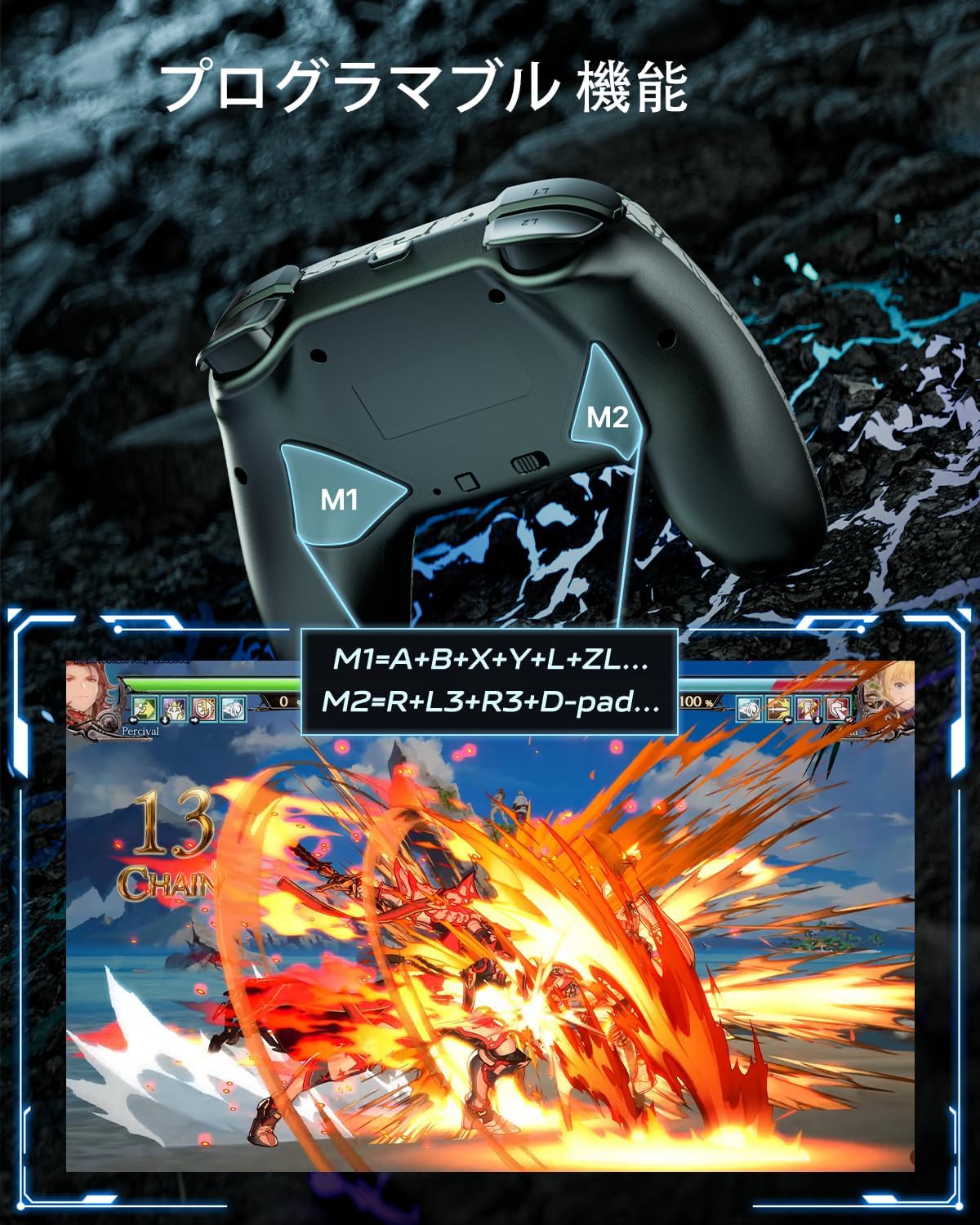
Image: The controller's battery life and charging details. A 1200mAh battery provides 18-25 hours of playtime with a 2-hour charge time.
3.2 Pairing with Nintendo Switch
- From the Nintendo Switch HOME Menu, select 'Controllers'.
- Select 'Change Grip/Order'.
- On the FLIEEP controller, press and hold the HOME button for 3-5 seconds until the LED indicators start flashing rapidly.
- Once paired, the controller's player LED(s) will light up solid.
4. Operating Instructions
4.1 LED Lighting Adjustment
The controller features customizable LED lighting with 9 adjustable colors and multiple modes (solid, breathing, RGB cycle). Use the dedicated LED button on the controller to cycle through modes and colors. Refer to the APP Customization section for more advanced control.

Image: The controller illuminated with different LED colors, showcasing breathing, solid, and RGB light modes.
4.2 Turbo Function
The Turbo function allows for rapid, repeated input of a button press. It supports both manual and automatic turbo modes with adjustable speeds (8, 12, or 20 shots per second).
- To activate Turbo: Press and hold the button you wish to set to Turbo, then press the Turbo button.
- To adjust Turbo speed: While Turbo is active, press the Turbo button and move the Right Joystick Up/Down to cycle through speeds.
- To deactivate Turbo: Repeat the activation step for the specific button, or press the Turbo button twice quickly to clear all Turbo settings.

Image: The controller with an overlay showing Turbo function settings, including manual and auto turbo modes with 8, 12, and 20 shots per second options.
4.3 Programmable Macro Buttons (M1/M2)
The M1 and M2 buttons on the back of the controller can be programmed to perform a sequence of button presses (macro) or remap a single basic key. This feature helps minimize repetitive button mashing.
- To program a macro/remap: Refer to the detailed instructions in the APP Customization section or the quick start guide included with the product.

Image: The back of the controller highlighting the M1 and M2 programmable buttons, with an example of key mapping for complex actions.
4.4 Vibration Adjustment
The controller features dual motors for vibration feedback, offering four adjustable intensity levels: None, Weak, Standard, and Strong. Adjust the vibration intensity to match your preference and the game type for a more immersive experience.
- To adjust vibration: Press and hold the Vibration button (if available, or a combination like Turbo + Left Joystick Up/Down) to cycle through intensity levels. Specific button combinations may vary; refer to the quick start guide.
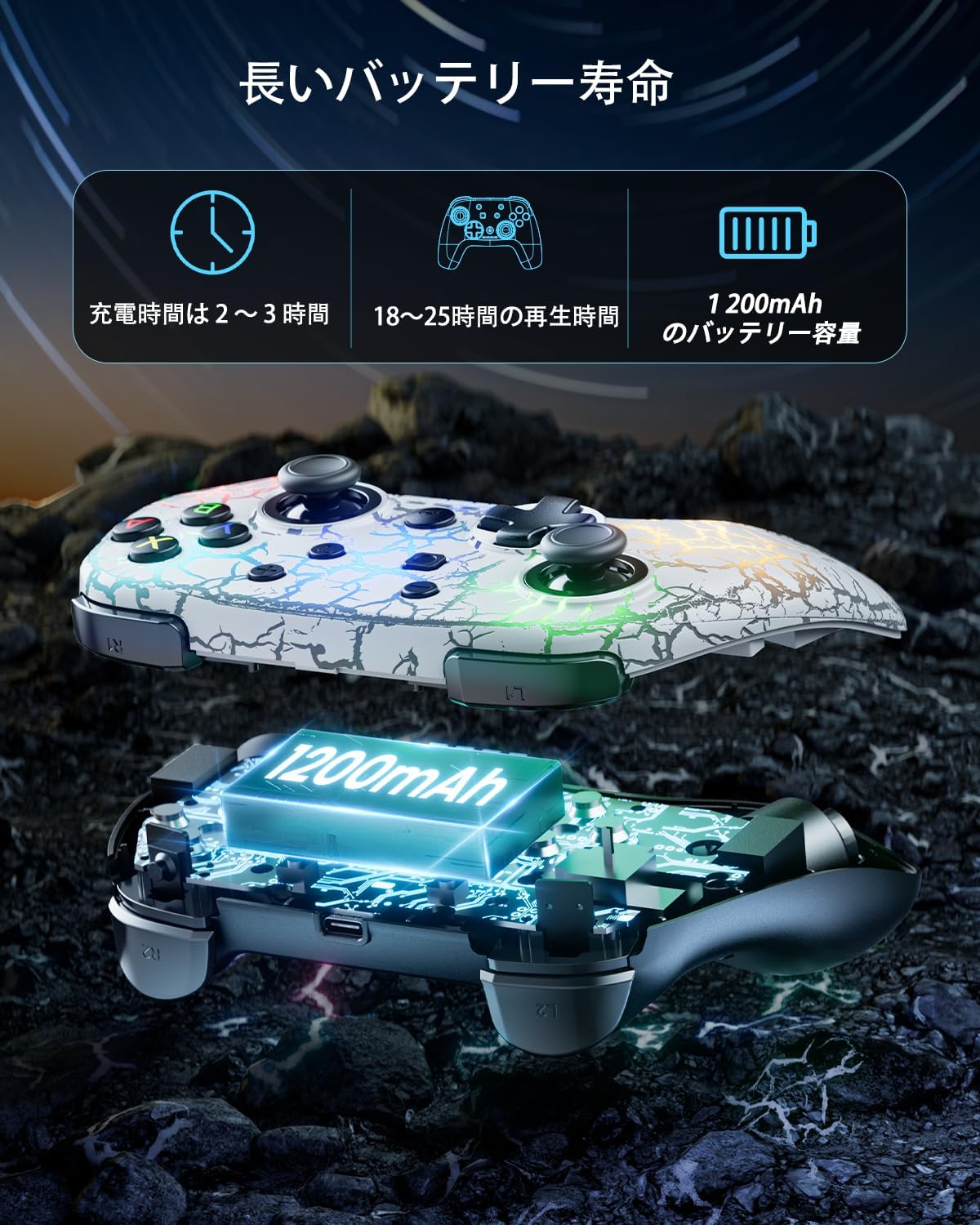
Image: The controller with visual representations of vibration waves, indicating 30%, 70%, and 100% intensity levels for dual motor feedback.
4.5 Motion Control
Equipped with a 6-axis gyro sensor, the controller provides precise motion control for games that support this feature. This enhances accuracy and responsiveness in titles requiring tilt or movement input.

Image: The controller being used in a racing game, with blue arrows indicating motion control input for steering, highlighting the 6-axis gyro feature.
4.6 APP Customization
For advanced customization, download the dedicated mobile application. The app allows for fine-tuning of LED lighting, precise macro definitions, key remapping, and other personalized settings to create your unique control style. Refer to the product packaging or official website for APP download instructions.
5. Maintenance
To ensure the longevity and optimal performance of your FLIEEP Wireless Pro Controller, follow these maintenance guidelines:
- Keep the controller clean by wiping it with a soft, dry cloth. Avoid using harsh chemicals or abrasive materials.
- Store the controller in a cool, dry place away from direct sunlight and extreme temperatures.
- Avoid dropping the controller or subjecting it to strong impacts.
- Do not attempt to disassemble or repair the controller yourself, as this will void the warranty.
6. Troubleshooting
If you encounter any issues with your controller, please refer to the following common solutions:
- Controller not pairing: Ensure the controller is charged. On the Switch, verify you are in the 'Change Grip/Order' menu. Try restarting both the Switch console and the controller.
- Buttons not responding: Check if the controller is properly paired. If specific buttons are not working, try resetting the controller (refer to quick start guide for reset method, usually a small pinhole button).
- Input lag or disconnection: Ensure there are no strong electromagnetic interferences nearby. Move closer to the Switch console.
- LEDs not working: Check the LED adjustment settings via the controller button or the mobile APP.
- Vibration not working: Ensure vibration is enabled in the game settings and on the controller. Adjust vibration intensity.
If the problem persists, please contact FLIEEP customer support for assistance.
7. Specifications
| Brand | FLIEEP |
| Model Number | B0BLH9WB4Q |
| Controller Type | Gamepad |
| Color | White |
| Features | Motion Sensor, Customizable LED, Turbo, Macro, Vibration |
| Number of Buttons | 11 (Standard) + 2 (Macro) |
| Hardware Platform | Nintendo Switch |
| Power Source | Battery (1200mAh Lithium-ion) |
| Charging Time | Approx. 2 hours |
| Playtime | 18-25 hours |
| Compatible Models | Nintendo Switch, Nintendo Switch - OLED Model, Nintendo Switch Lite |
| UPC | 746795986999 |
8. Warranty and Support
FLIEEP products come with a standard manufacturer's warranty. For specific warranty terms and conditions, please refer to the warranty card included with your product or visit the official FLIEEP website. If you require technical support, troubleshooting assistance, or have any questions regarding your controller, please contact our customer service team through the contact information provided on our website or product packaging.