
1. Introduction
The Eyoyo EY-034 is a versatile 1D, 2D, and QR barcode scanner designed for efficiency and ease of use. It offers three connection methods: Bluetooth, 2.4G Wireless, and USB Wired, ensuring broad compatibility with various devices and operating systems. This manual provides detailed instructions for setting up, operating, maintaining, and troubleshooting your scanner to maximize its performance.
2. What's in the Box
Please verify that all items are present in the package:
- Eyoyo EY-034 Barcode Scanner
- Adjustable Stand
- 2.4G USB Dongle
- USB Charging/Data Cable
- User Manual (English and German versions)

Image: All components included with the Eyoyo EY-034 Barcode Scanner.
3. Product Overview
The Eyoyo EY-034 features an ergonomic design for comfortable handheld use and includes an adjustable stand for hands-free operation. Its robust construction ensures durability in various working environments.

Image: The Eyoyo EY-034 Barcode Scanner with its adjustable stand and connection cables.
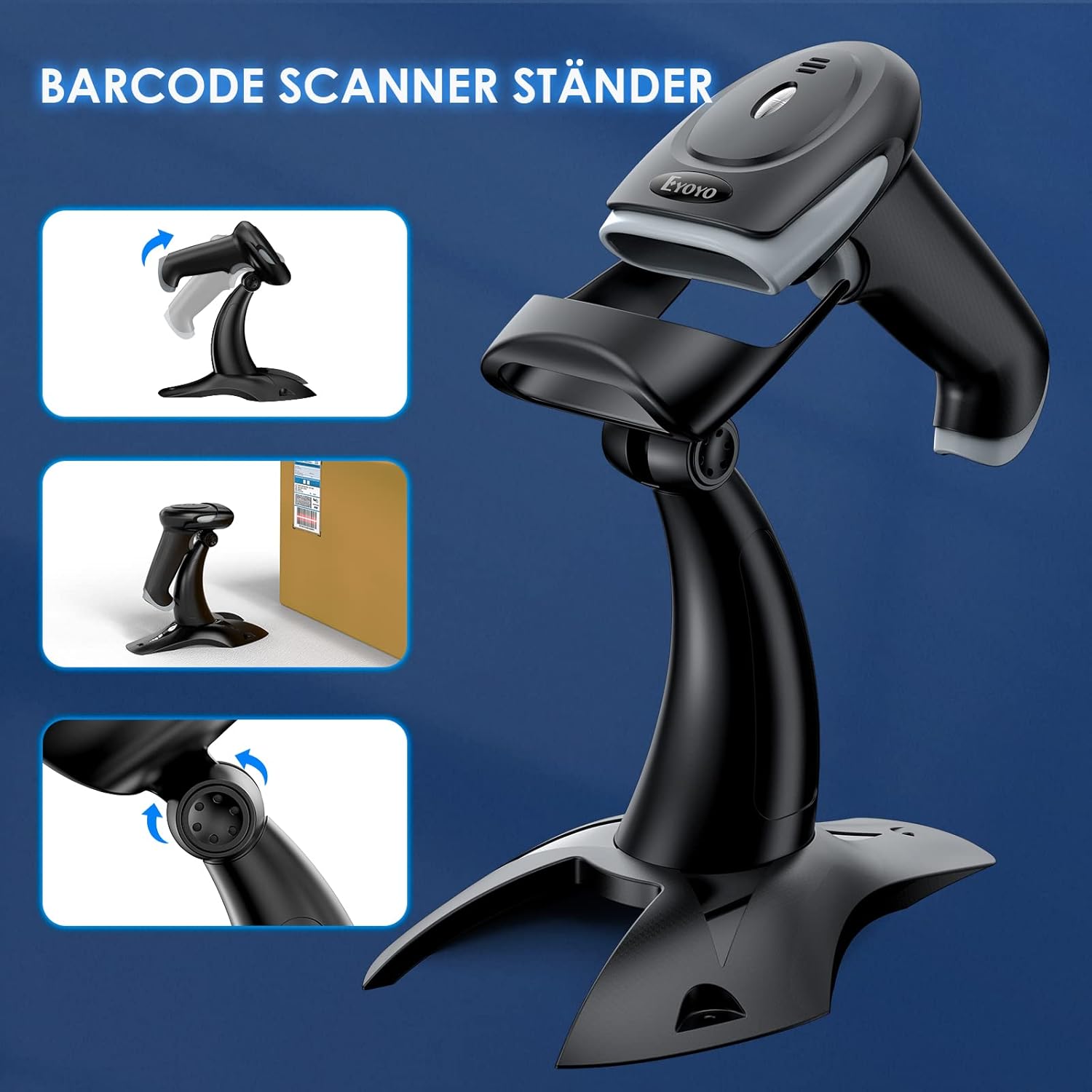
Image: The adjustable stand allows for optimal positioning of the scanner for hands-free operation.
4. Setup and Connection
The Eyoyo EY-034 offers three primary connection methods: Bluetooth, 2.4G Wireless, and USB Wired. Ensure the scanner is sufficiently charged before initial setup.
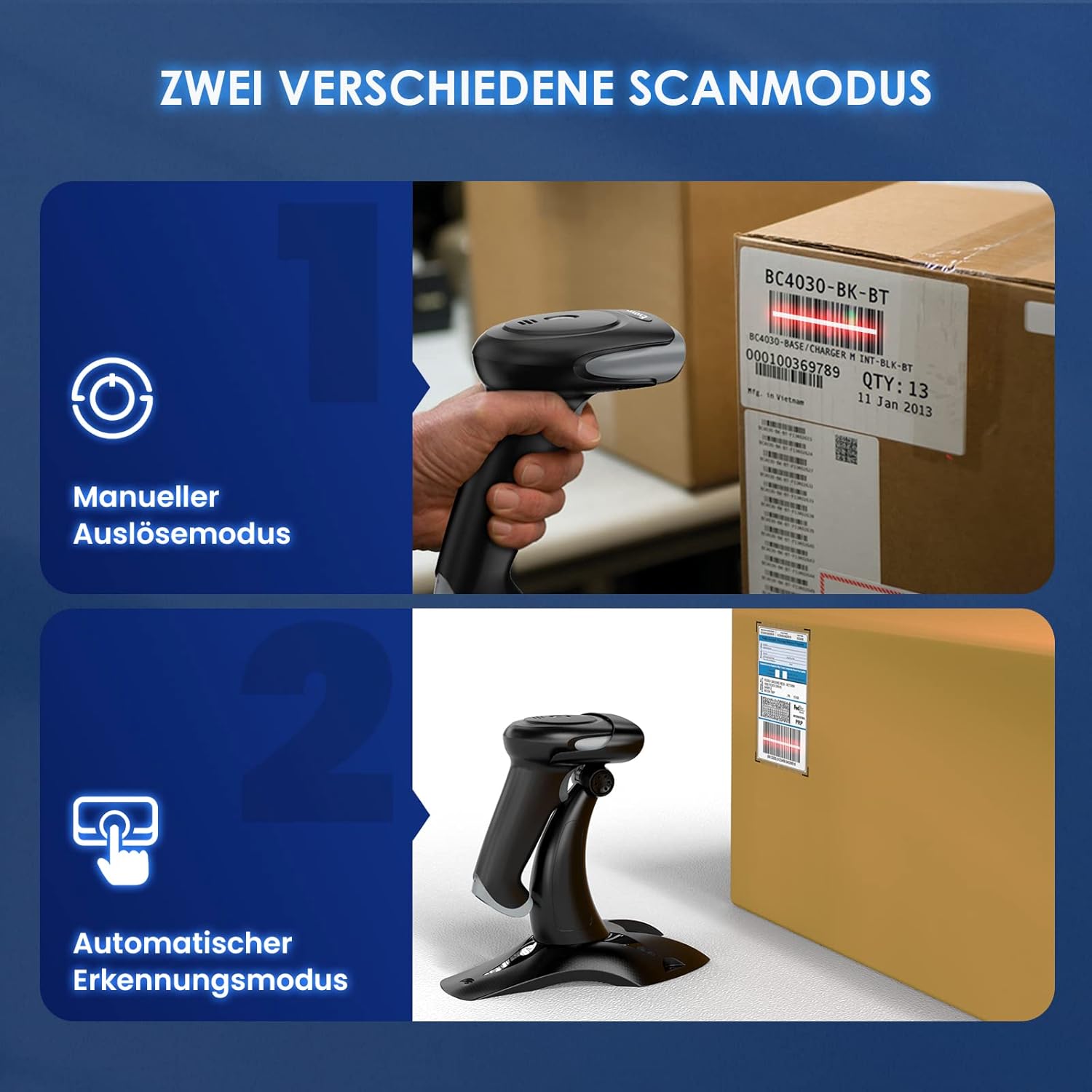
Image: The scanner supports 2.4G Wireless, Bluetooth, and USB Wired connections for versatile use.
4.1. Bluetooth Connection
- Ensure Bluetooth is enabled on your host device (smartphone, tablet, computer).
- Press and hold the scanner's trigger button until the blue indicator light blinks, indicating it's in pairing mode.
- On your device, search for Bluetooth devices and select "EY-034 HID_XXXX" to pair.
- Once connected, the blue light will remain solid.
4.2. 2.4G Wireless Connection
- Insert the 2.4G USB dongle into an available USB port on your computer or device.
- Scan the specific setup barcode in your physical manual to activate 2.4G wireless mode on the scanner.
- The scanner will automatically connect to the dongle. The blue light will remain solid upon successful connection.
4.3. USB Wired Connection
- Connect the USB cable to the scanner and then to a USB port on your computer or device.
- The scanner will be recognized as a keyboard input device and is ready for use.
Video: Official Eyoyo Barcode Scanner Instruction Manual demonstrating connection methods and basic operation.
5. Operating Modes
The Eyoyo EY-034 supports two main operating modes for data transmission:
5.1. Instant Upload Mode
In this mode, scanned barcode data is immediately transmitted to your connected device. This is the default and most commonly used mode, ideal for real-time data entry.
5.2. Storage Mode
When operating in storage mode, the scanner saves scanned barcode data into its internal memory. This is useful when working out of range of your host device or when scanning a large volume of barcodes for later batch upload. The scanner can store up to 40,000 barcodes. To activate and manage storage mode, refer to the specific QR codes in your physical user manual for commands such as 'Activate Storage Mode', 'Upload Data', and 'Clear Memory'.

Image: The scanner supports both manual trigger scanning and automatic detection when placed on its stand.
6. Scanning Capabilities
The Eyoyo EY-034 is capable of decoding a wide range of 1D, 2D, and QR barcodes, making it suitable for diverse applications.
Supported Barcode Types:
- 1D Barcodes: UPC-A, UPC-E, EAN-8, EAN-13, ISBN, ISSN, Code 128, GS1-128 (UCC/EAN 128), Code 39, Code 39 Full ASCII, Code 32, Code 93, Code 11, Codabar (NW-7), Interleaved 2 of 5, Matrix 2 of 5, Industrial 2 of 5, MSI Plessey, GS1 DataBar 14 (RSS-14), GS1 DataBar Limited (RSS-Limited), GS1 DataBar Expanded (RSS-Expanded).
- 2D Barcodes: QR Code, Micro QR Code, Data Matrix, PDF 417, Micro PDF 417, Aztec, MaxiCode.

Image: The scanner's powerful decoding functions support a wide array of barcode symbologies.
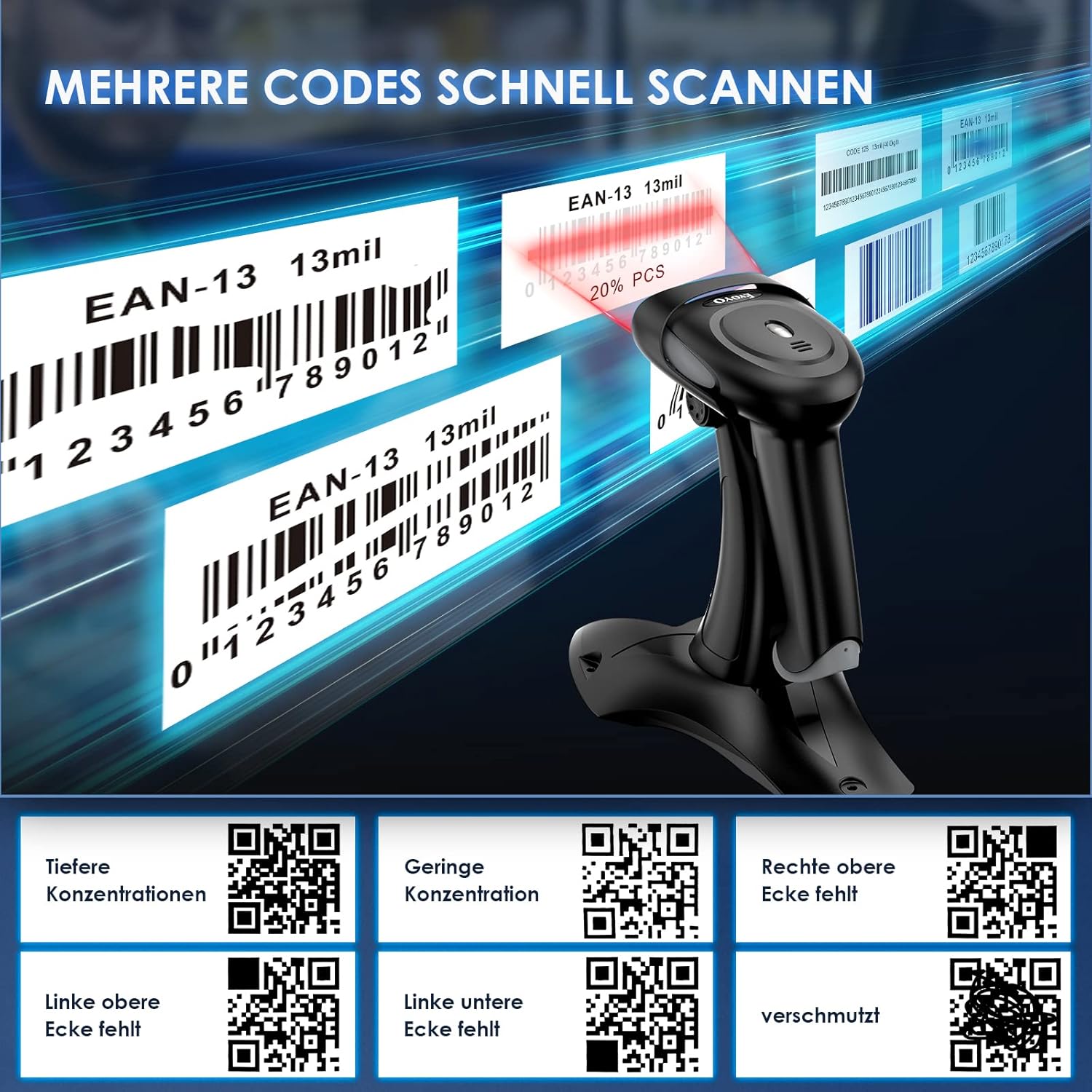
Image: The scanner is designed to quickly scan multiple codes, even those with minor damage or low concentration.
7. Compatibility
The Eyoyo EY-034 barcode scanner offers high compatibility with a variety of devices and operating systems, integrating seamlessly into existing setups.
Compatible Devices:
- Laptops
- Desktop PCs
- POS Systems
- Smartphones (iPhone, Android)
- Tablets (iPad, Android)
Compatible Operating Systems:
- Windows XP/7/8/10
- Mac OS
- Linux
- Android
- iOS
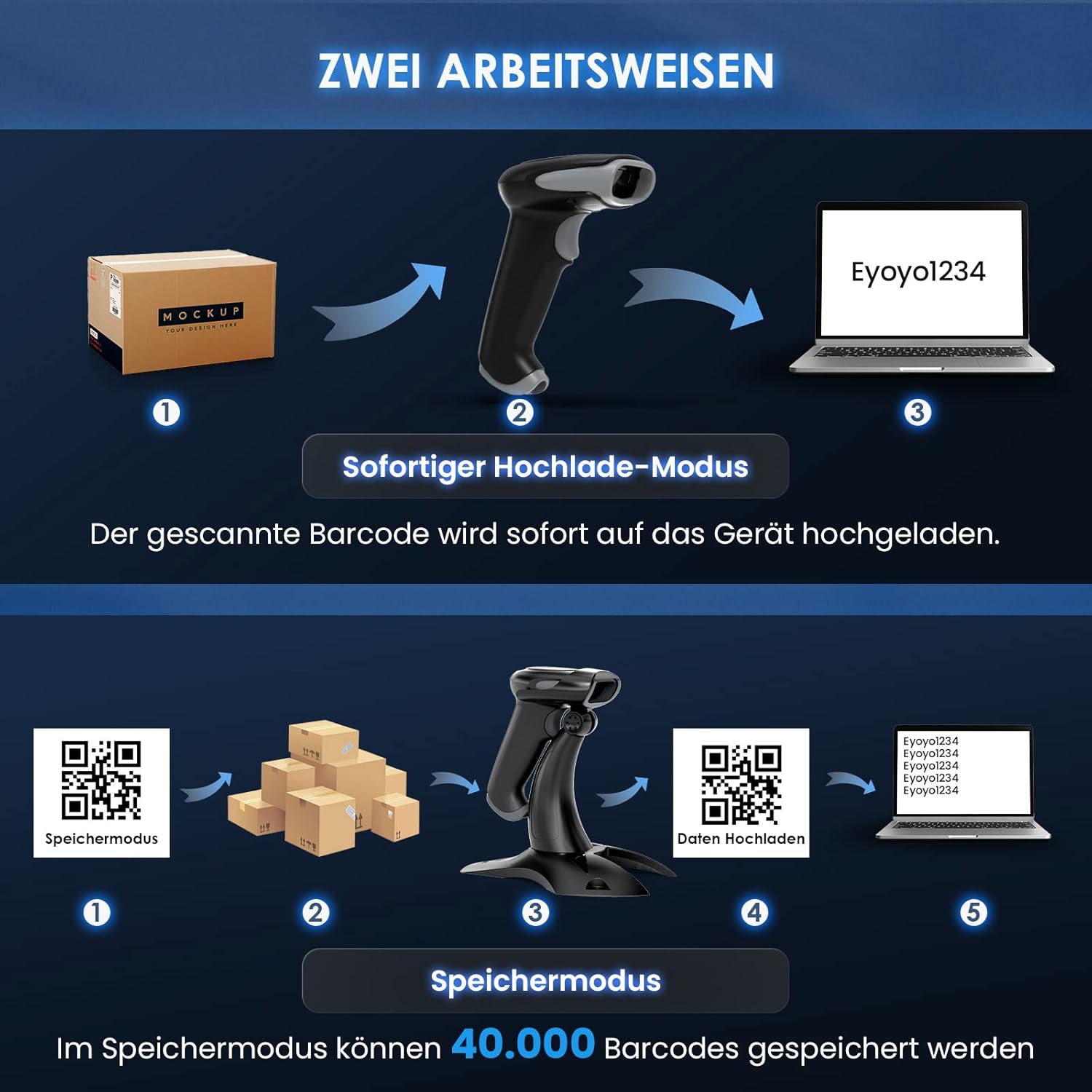
Image: The scanner boasts high compatibility with a wide range of devices and operating systems.
8. Battery and Charging
The Eyoyo EY-034 is equipped with a 2500mAh rechargeable battery, providing extended operational time.
- Working Time: Up to 8 hours of continuous scanning on a full charge.
- Charging Time: Approximately 4 hours for a full charge.
- Standby Time: Up to 720 hours (30 days) in standby mode.
To charge the scanner, connect it to a power source using the provided USB cable. The indicator light will show charging status.
9. Maintenance
To ensure the longevity and optimal performance of your Eyoyo EY-034 barcode scanner, follow these maintenance guidelines:
- Cleaning: Use a soft, dry cloth to clean the scanner's exterior. For the scanning window, use a lens cleaning cloth and a mild, non-abrasive cleaner if necessary. Avoid harsh chemicals or abrasive materials.
- Storage: Store the scanner in a cool, dry place away from direct sunlight, extreme temperatures, and high humidity.
- Handling: Avoid dropping the scanner or subjecting it to strong impacts. Do not attempt to disassemble the device, as this will void the warranty.
- Battery Care: For long-term storage, ensure the battery is partially charged (around 50%) to preserve its lifespan. Recharge the battery periodically if not in use for extended periods.
10. Troubleshooting
If you encounter issues with your Eyoyo EY-034 barcode scanner, refer to the following common problems and solutions:
| Problem | Possible Cause | Solution |
|---|---|---|
| Scanner does not power on. | Low battery. | Charge the scanner for at least 4 hours. |
| Scanner does not connect via Bluetooth/2.4G. | Not in pairing mode; out of range; incorrect mode selected. | Ensure scanner is in pairing mode (blinking blue light). Move closer to the host device. Scan the correct mode-switching QR code from the manual. |
| Scanner does not read barcodes. | Barcode damaged/unreadable; incorrect symbology enabled; scanning distance too far/close. | Ensure barcode is clear. Check manual for enabling/disabling specific barcode types via QR codes. Adjust scanning distance. |
| Scanned data is incorrect or garbled. | Incorrect keyboard layout/language setting. | Scan the appropriate keyboard layout/language QR code from the manual (e.g., German layout). |
| Scanner beeps continuously when disconnected in storage mode. | Alert for lost connection. | Scan the 'Turn Off Sound' QR code from the manual, or switch back to Instant Upload mode if not actively using storage. |
For more complex issues or settings adjustments, please refer to the comprehensive QR code settings provided in your physical user manual.
11. Specifications
| Feature | Specification |
|---|---|
| Model Number | EY-034 with stand |
| Connectivity Technology | Bluetooth, USB, 2.4G Wireless |
| Scan Rate | 2000 frames per second |
| Battery Capacity | 2500mAh (1 AA Battery required, included) |
| Operating Voltage | 5 Volts |
| Product Dimensions | 9.5D x 7W x 15.7H cm (Scanner); 20 x 11 x 8 cm (Package) |
| Weight | 400 Grams |
| Certifications | CE, FCC, RoHS |
| Country of Origin | China |
12. Warranty and Support
The Eyoyo EY-034 Barcode Scanner comes with a 1-year warranty from the date of purchase, covering manufacturing defects. Please retain your proof of purchase for warranty claims.
For technical support, troubleshooting assistance, or warranty inquiries, please contact Eyoyo customer service through the retailer's platform or the official Eyoyo website. Provide your model number (EY-034) and a detailed description of the issue for faster service.
We recommend keeping your physical user manual in a safe place, as it contains important QR codes for advanced configuration and settings adjustments.


