
XTREME XCA2-1031-BLK
Xtreme Gaming LED Wired Headset Instruction Manual
Model: XCA2-1031-BLK
Introduction
The Xtreme Gaming Wired Headset with LED Color Lights is designed to provide a high-quality audio experience for PC gaming. Featuring vibrant LED color flow effects, a built-in microphone, and convenient volume controls, this headset ensures immersive gameplay and clear communication. Its wired design eliminates the need for charging, offering continuous power for extended gaming sessions.

Figure 1: Xtreme Gaming LED Wired Headset in retail packaging.
Key Features
- Multicolor LED Lights: Activate dynamic color flow effects by plugging the USB cable into your computer or controller.
- Excellent Sound Quality: Provides clear and powerful sound playback for an immersive gaming experience.
- Wired Connectivity: Ensures continuous power without the need for recharging or batteries, keeping you ready for online gaming.
- USB Powered: Simple plug-and-play functionality via USB for immediate use.
- Built-in Microphone: Integrated microphone for clear voice communication during gameplay.
- Volume and Mic Controls: Accessible controls for adjusting audio levels and microphone settings.

Figure 2: Side view of the headset highlighting the LED lights and microphone.
Package Contents
Please ensure all items are present before proceeding with setup.
- Xtreme Gaming LED Wired Headset
- Ear Cushions
- 3.5mm Audio Y-Splitter (for PC/Laptop)
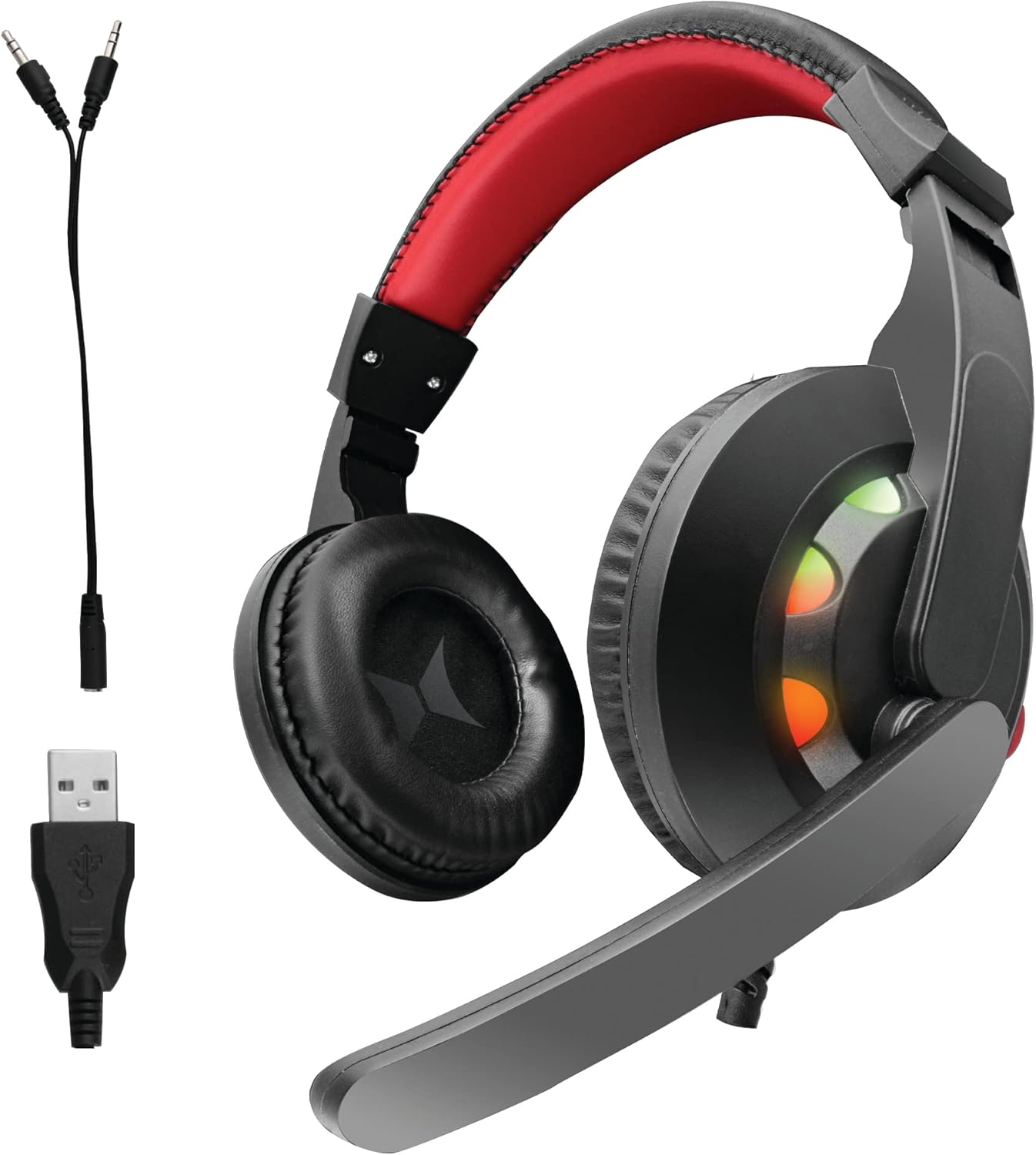
Figure 3: Headset with included USB and 3.5mm Y-splitter cables.
Setup Guide
1. Connecting to a PC/Laptop
- Locate the USB connector on the headset cable.
- Insert the USB connector into an available USB port on your desktop PC or laptop. This connection powers the LED lights and enables plug-and-play functionality.
- For audio and microphone functionality, connect the 3.5mm audio jack(s) to the corresponding audio input/output ports on your computer. If your computer has separate ports for microphone and headphones, use the included 3.5mm Y-splitter cable.
- Ensure the headset is recognized by your operating system. You may need to select it as the default audio input/output device in your sound settings.
2. LED Lights Activation
The multicolor LED lights will automatically activate once the USB cable is successfully connected to a powered USB port. The lights feature a color flow effect, circling around the headset structure.

Figure 4: Headset with active LED lighting.
Operating Instructions
1. Volume Control
Adjust the audio volume using the integrated volume control dial located on the headset cable or earcup (if applicable). Rotate the dial up to increase volume and down to decrease it.
2. Microphone Usage
The headset features a built-in microphone. Position the microphone appropriately for clear voice pickup. Ensure the microphone is not muted in your computer's sound settings or via any physical mute switch on the headset/cable (if present).

Figure 5: Headset with microphone extended.
Maintenance
- Cleaning: Use a soft, dry cloth to clean the headset. Do not use abrasive cleaners or solvents.
- Storage: Store the headset in a cool, dry place away from direct sunlight and extreme temperatures.
- Cable Care: Avoid sharp bends or kinks in the cable to prevent damage.
- Ear Cushions: The ear cushions are designed for comfort and can be gently wiped clean.
Troubleshooting
| Problem | Possible Cause | Solution |
|---|---|---|
| No Sound from Headset | Incorrect audio output device selected; Volume too low; Loose connection. | Check your computer's sound settings and select the headset as the default output. Increase volume. Ensure 3.5mm jack is fully inserted. |
| Microphone Not Working | Microphone muted; Incorrect input device selected; Software issues. | Check for a physical mute switch on the cable. Verify headset is selected as default input in sound settings. Restart application or computer. |
| LED Lights Not On | USB cable not connected or not receiving power. | Ensure the USB cable is securely plugged into a working USB port. Try a different USB port. |
Specifications
- Model Name: XCA2-1031-BLK
- Connectivity Technology: Wired
- Headphones Jack: USB
- Compatible Devices: Desktops, Laptops, Tablets
- Control Type: Volume Control, Touch
- Item Weight: 10.4 ounces (0.65 Pounds)
- Product Dimensions: 7.25 x 3.75 x 8 inches
- Frequency Range: 20 Hz - 20,000 Hz
- Special Feature: Microphone Included
- UPC: 805106228033
Official Product Video
Video: Xtreme Gaming LED Wired Headset overview, showcasing key features and design.
Warranty and Support
For warranty information and technical support, please refer to the product packaging or visit the official XTREME website. You can also contact the seller, AllTech 365, for assistance with your purchase.
Seller: AllTech 365
Related documentsXCA2-1031-BLK

Ask a question about this manual
Ask about setup, troubleshooting, compatibility, parts, safety, or missing instructions. Manuals+ will review the question and use this page’s manual context to help answer it.