
Eyoyo EY-H2 (with adjust)
Eyoyo Handheld 2D Barcode Scanner with Gooseneck Stand
Model: EY-H2 (with adjust)
Brand: Eyoyo
1. Introduction
The Eyoyo EY-H2 Handheld 2D Barcode Scanner is a versatile and efficient device designed for various scanning applications. Equipped with a flexible gooseneck stand, it offers both handheld and hands-free operation, making it ideal for environments requiring continuous and accurate barcode reading. This manual provides detailed instructions for setting up, operating, and maintaining your scanner.

Figure 1.1: Eyoyo EY-H2 Barcode Scanner with Gooseneck Stand
Video 1.1: Overview of the Eyoyo 2D Wired Barcode Scanner, highlighting its design and features.
2. Setup and Installation
2.1 Package Contents
- Eyoyo EY-H2 Barcode Scanner
- Flexible Gooseneck Stand
- USB Cable
- User Manual (this document)
2.2 Assembling the Gooseneck Stand
- Insert the gooseneck into the base of the stand.
- Secure the gooseneck by screwing it into the base until firm.
- Attach the scanner holder to the top of the gooseneck.
- Place the barcode scanner into the holder.

Figure 2.1: Gooseneck Intellistand assembly steps.
2.3 Connecting the Scanner (Plug and Play)
The Eyoyo EY-H2 scanner is designed for plug-and-play simplicity, requiring no driver or software installation.
- Connect the USB cable to the scanner's port.
- Plug the other end of the USB cable into an available USB port on your computer (PC, laptop, or POS system).
- The system will automatically recognize the scanner, and it will be ready for use.
The scanner is compatible with Windows XP/7/8/10, Linux, and Mac OS. It works seamlessly with common software such as QuickBooks, Word, and Excel.

Figure 2.2: Plug and Play setup with a laptop.
Video 2.1: Demonstrates the setup and basic functionality of the Eyoyo 2D Wired Barcode Scanner with Gooseneck Intellistand.
3. Operating the Scanner
3.1 Scanning Modes
The EY-H2 offers three distinct scanning modes to suit various operational needs:
- Key Trigger Mode: Press the trigger button to activate the scan. Ideal for precise, on-demand scanning.
- Auto Sensing Mode: The scanner automatically detects a barcode when presented within its scanning field. Perfect for hands-free operation with the stand.
- Continuous Mode: The scanner continuously emits a scan line, reading any barcode that passes through its field. Suitable for high-volume scanning.

Figure 3.1: Visual representation of the three scanning modes.
Video 3.1: Demonstration of the three scanning modes: Key Trigger, Continuous, and Auto Sensing.
3.2 Switching Between Handheld and Hands-Free
The scanner can be easily removed from the gooseneck stand for handheld use or placed back into the stand for hands-free operation. To enable hands-free scanning, simply scan the appropriate setup barcode (usually found in the full user manual) for "auto-sensing" or "continuous scanning mode" and place the scanner in its stand.

Figure 3.2: Illustrates the flexibility of switching between handheld and hands-free modes.
3.3 Supported Barcode Types and Screen Scanning
The Eyoyo EY-H2 is optimized for scanning both 1D and 2D digital codes from various surfaces, including computer monitors, smartphones, and tablets.
- 1D Barcodes: EAN, UPC, Code 39, Code 93, Code 128, UCC/EAN 128, Codabar, Interleaved 2 of 5, ITF-6, ITF-14, ISBN, ISSN, MSI-Plessey, GS1 Databar, Code 11, Industrial 25, Matrix 2 of 5, etc.
- 2D Barcodes: QR, DataMatrix, PDF417, etc.

Figure 3.3: The scanner's ability to read barcodes directly from screens.
Video 3.2: Demonstrates the superior scanning performance across various barcode types and conditions.
4. Advanced Features
4.1 Custom Configuration
The scanner supports various custom settings to tailor its output to your specific needs:
- Prefixes and Suffixes: Add custom characters before or after scanned data.
- Beep Control: Turn the audible beep on or off.
- Multi-Language Support: Configure the scanner for various language inputs.
Refer to the comprehensive user manual for specific barcodes to scan for these customizations.
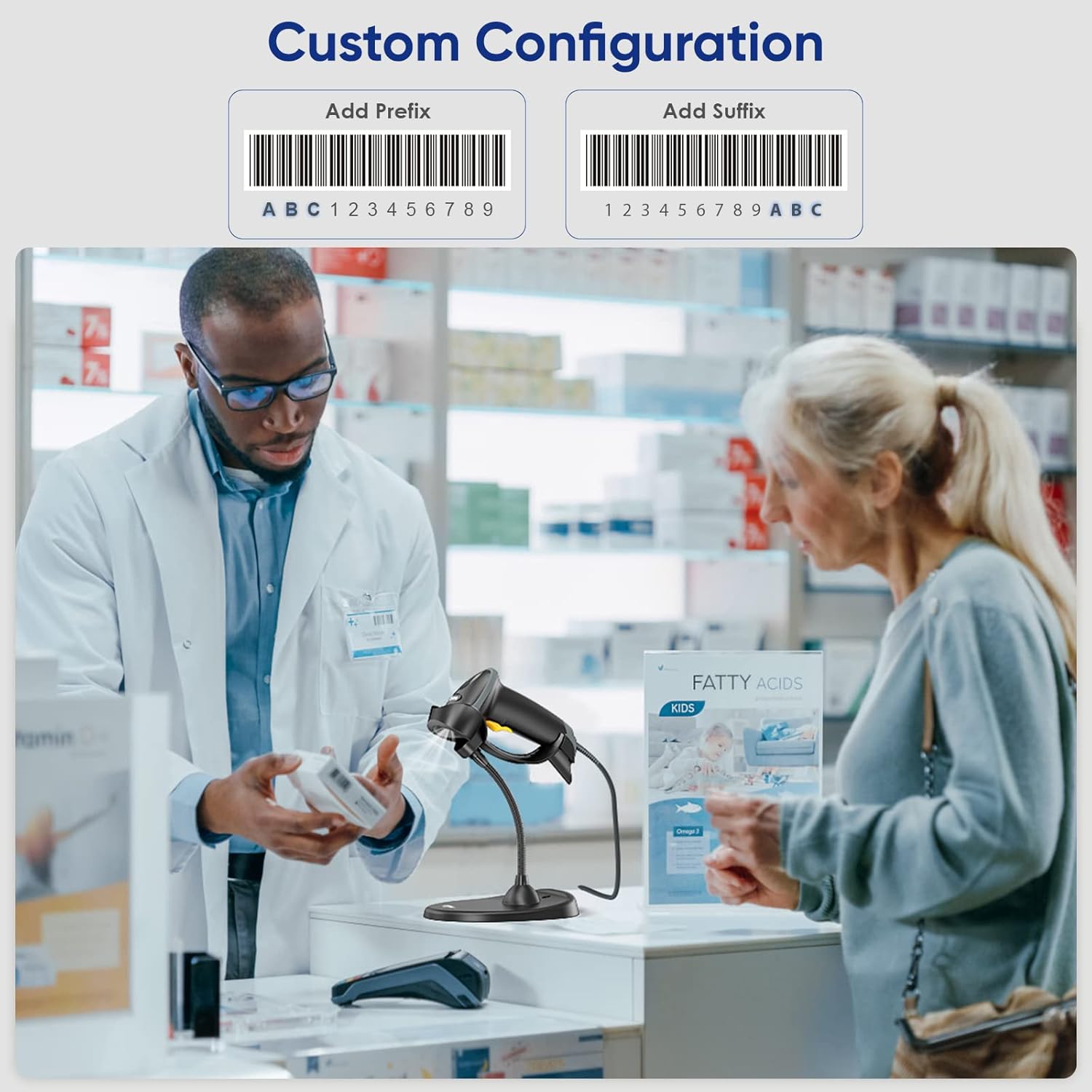
Figure 4.1: Examples of custom prefix and suffix configurations.
4.2 Continuous Usage and Durability
The EY-H2 is designed for continuous usage throughout the day, eliminating the need for charging and significantly reducing downtime. Its robust construction ensures durability and resistance to everyday wear and tear.

Figure 4.2: The scanner is designed for all-day, every-day continuous usage.
Video 4.1: Illustrates the scanner's capability for continuous operation in various settings.
5. Wide Application
This general-purpose barcode scanner is suitable for a broad range of environments and tasks, including:
- Supermarkets and Convenience Stores (POS)
- Libraries and Drugstores
- Retail Shops
- File Management and Inventory Tracking
- Hospital, Education, and Government Settings

Figure 5.1: Common application areas for the Eyoyo barcode scanner.
Video 5.1: Demonstrates the scanner's use in file and Point-of-Sale (POS) management.
6. Maintenance
To ensure the longevity and optimal performance of your Eyoyo barcode scanner, follow these maintenance guidelines:
- Cleaning: Use a soft, dry cloth to clean the scanner's exterior. For the scanning window, use a lint-free cloth lightly dampened with a mild, non-abrasive cleaner. Avoid harsh chemicals or abrasive materials.
- Storage: Store the scanner in a cool, dry place away from direct sunlight and extreme temperatures.
- Cable Care: Avoid bending or twisting the USB cable excessively to prevent internal damage.
7. Troubleshooting
If you encounter issues with your scanner, try the following common troubleshooting steps:
- Scanner Not Responding: Ensure the USB cable is securely connected to both the scanner and the computer. Try plugging it into a different USB port.
- No Scan Output: Verify that the scanner is in the correct scanning mode (e.g., Key Trigger, Auto Sensing). Ensure the barcode is clean, flat, and within the scanner's range.
- Incorrect Data Output: Check if any custom prefixes or suffixes are enabled. Refer to the full user manual for factory reset instructions if needed.
- System Compatibility: Confirm your operating system is supported (Windows, Linux, Mac OS).
For more detailed troubleshooting or persistent issues, please contact customer support.
8. Specifications
| Feature | Specification |
|---|---|
| Model Number | EY-H2 (with adjust) |
| Product Dimensions | 3.7 x 2.7 x 6.2 inches |
| Item Weight | 1.04 pounds |
| Connectivity Technology | USB Cable |
| Power Source | Corded Electric |
| Compatible Devices | Laptop, Desktop, POS |
| Compatible Operating Systems | Windows XP/7/8/10, Linux, Mac OS |
| Supported Barcodes | 1D (EAN, UPC, Code 39, Code 128, etc.), 2D (QR, DataMatrix, PDF417, etc.) |
9. Warranty and Support
Your Eyoyo barcode scanner comes with a standard manufacturer's warranty. Please refer to the product packaging or the official Eyoyo website for specific warranty terms and conditions.
For technical support, troubleshooting assistance, or warranty claims, please contact Eyoyo customer service through their official channels. Contact information can typically be found on the product packaging or the brand's website.
Ask a question about this manual
Ask about setup, troubleshooting, compatibility, parts, safety, or missing instructions. Manuals+ will review the question and use this page’s manual context to help answer it.