
1. Introduction
This manual provides detailed instructions for the setup, operation, maintenance, and troubleshooting of your TaIYanG Bluetooth Keyboard Model 281. Please read this manual thoroughly before using the product to ensure optimal performance and longevity.

Image: Overview of the TaIYanG Bluetooth Keyboard highlighting its key features.
2. Package Contents
Verify that all items are present in your package:
- TaIYanG Bluetooth Keyboard Model 281
- USB Charging Cable
- User Manual (this document)
3. Product Specifications
| Feature | Detail |
|---|---|
| Model Number | 281 |
| Product Dimensions | 11.1 x 4.72 x 0.39 inches (11"L x 4.7"W x 0.2"H) |
| Item Weight | 12.3 ounces |
| Connectivity | Bluetooth |
| Battery Type | 1 Lithium Polymer battery (included) |
| Charging Time | Approximately 2 hours |
| Operating Distance | Up to 10 meters (33 feet) |
| Key Mechanism | Scissor-kick keys |
| Material | Plastic |

Image: Physical dimensions and anti-slip feet of the keyboard.
4. Setup Instructions
4.1 Charging the Keyboard
Before initial use, fully charge the keyboard. Connect the provided USB charging cable to the keyboard's charging port and to a USB power source (e.g., computer, wall adapter). The charging indicator light will illuminate during charging and turn off when fully charged.
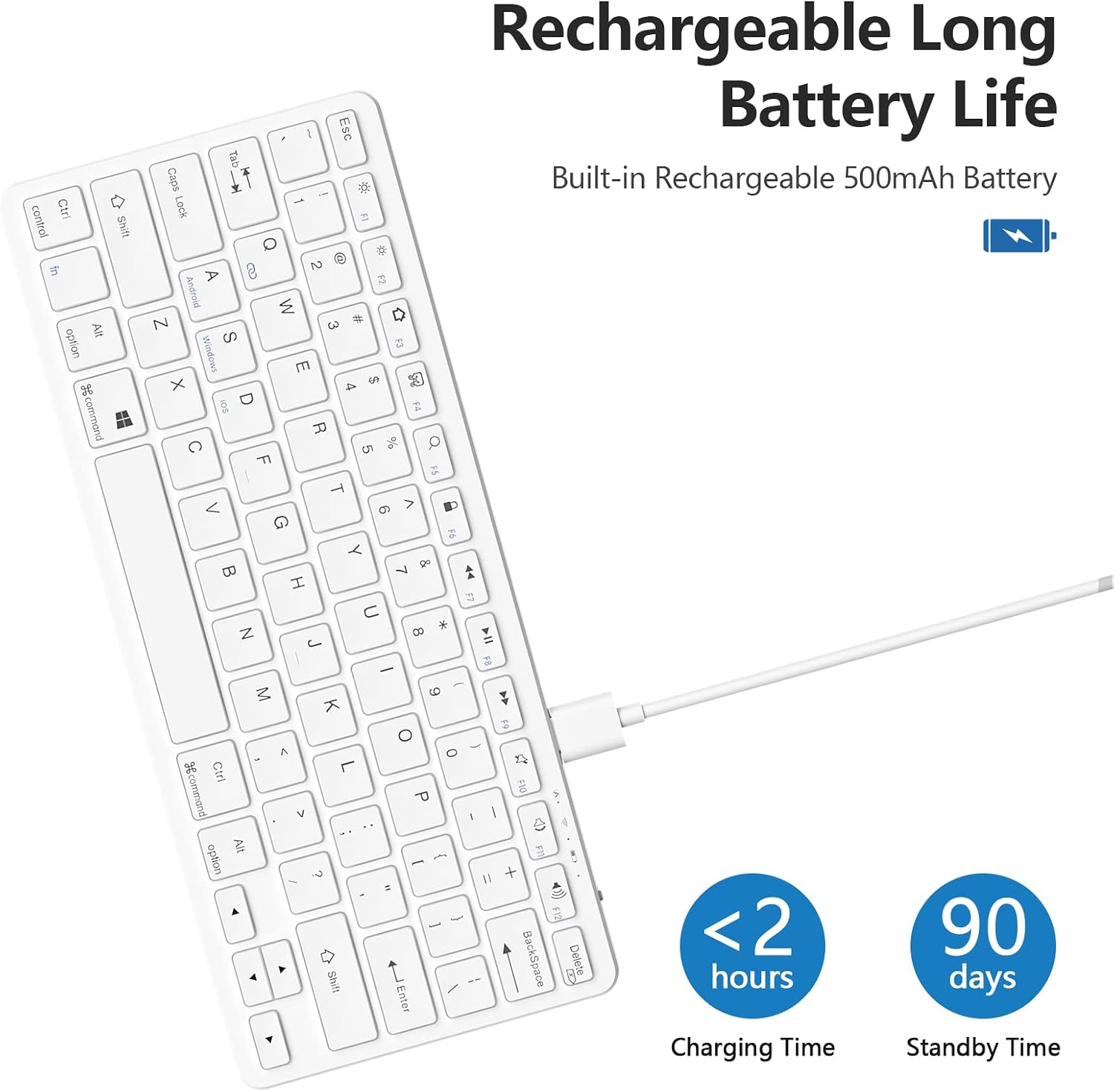
Image: Keyboard connected to a charging cable, illustrating its rechargeable battery feature.
4.2 Powering On/Off
- To power on: Locate the power switch on the keyboard and slide it to the 'ON' position. The indicator light will briefly flash.
- To power off: Slide the power switch to the 'OFF' position.
4.3 Bluetooth Pairing
Follow these steps to connect your keyboard to your device:
- Ensure the keyboard is charged and powered on.
- Press the Fn + C keys simultaneously to enter Bluetooth pairing mode. The Bluetooth indicator light will begin to flash, indicating it is discoverable.
- On your device (iPad, iPhone, Android tablet, etc.), go to Settings > Bluetooth.
- Turn on Bluetooth and search for available devices.
- Select "Bluetooth Keyboard" (or a similar name) from the list of devices.
- If prompted, enter the pairing code displayed on your screen using the keyboard and press Enter.
- Once paired, the Bluetooth indicator light on the keyboard will stop flashing.

Image: Keyboard shown with an iPad and iPhone, demonstrating broad compatibility.
4.4 Switching Operating Systems
The keyboard supports multiple operating systems. Use the following key combinations to optimize function keys for your device:
- For Android: Press Fn + A
- For Windows: Press Fn + S
- For iOS/iPadOS: Press Fn + D
5. Operating Instructions
5.1 Function Keys (Hotkeys)
The keyboard features a QWERTY layout with dedicated hotkeys for various functions. These keys are typically accessed by pressing the Fn key in combination with the desired function key (F1-F12).
| Key Combination | Function |
|---|---|
| Fn + F1 (Esc) | Escape |
| Fn + F2 | Brightness Down |
| Fn + F3 | Brightness Up |
| Fn + F4 | Back to Home Page |
| Fn + F5 | Search |
| Fn + F6 | Lock Screen |
| Fn + F7 | Previous Song |
| Fn + F8 | Play/Pause |
| Fn + F9 | Next Song |
| Fn + F10 | Mute |
| Fn + F11 | Volume Down |
| Fn + F12 | Volume Up |
| Delete | Delete (standalone key) |

Image: Layout of function keys and their corresponding actions.
5.2 Auto-Sleep Feature
To conserve battery life, the keyboard will automatically enter a power-saving sleep mode after 10 minutes of inactivity. To wake the keyboard, press any key and wait 2-3 seconds for it to reconnect to your device.
6. Maintenance
To ensure the longevity and proper functioning of your keyboard, follow these maintenance guidelines:
- Cleaning: Use a soft, dry, lint-free cloth to clean the keyboard. For stubborn dirt, slightly dampen the cloth with water or a mild cleaning solution. Avoid excessive moisture.
- Storage: When not in use for extended periods, store the keyboard in a cool, dry place. Avoid extreme temperatures and direct sunlight.
- Handling: Do not drop the keyboard or expose it to strong impacts. Avoid spilling liquids on the keyboard.
7. Troubleshooting
If you encounter issues with your TaIYanG Bluetooth Keyboard, refer to the following common problems and solutions:
| Problem | Solution |
|---|---|
| Keyboard does not power on. | Ensure the power switch is in the 'ON' position. Charge the keyboard fully using the provided USB cable. |
| Keyboard does not connect via Bluetooth. | 1. Ensure Bluetooth is enabled on your device. 2. Make sure the keyboard is in pairing mode (Fn + C, indicator flashing). 3. Delete any previous keyboard pairings on your device and try pairing again. 4. Ensure the keyboard is within the 10-meter operating range. |
| Keyboard disconnects frequently or lags. | 1. Ensure the keyboard is fully charged. 2. Move the keyboard closer to your device. 3. Avoid interference from other wireless devices. 4. Re-pair the keyboard with your device. |
| Keyboard does not respond after inactivity. | The keyboard has entered auto-sleep mode. Press any key and wait 2-3 seconds for it to wake up and reconnect. |
| Certain function keys do not work correctly. | Ensure you have selected the correct operating system mode (Fn + A for Android, Fn + S for Windows, Fn + D for iOS/iPadOS). |
8. Safety Information
Please observe the following safety precautions:
- Keep the keyboard away from water and other liquids.
- Do not expose the keyboard to extreme temperatures or direct sunlight.
- Do not attempt to disassemble or modify the keyboard. This may void the warranty and cause damage.
- Keep out of reach of children.
9. Warranty and Support
Information regarding product warranty and customer support contact details is not provided within this manual. Please refer to the product packaging or the retailer's website for warranty terms and support options.
