
1. Introduction
Thank you for purchasing the S128 Mini RC Drone. This manual provides essential information for safe operation, setup, and maintenance of your drone. Please read it thoroughly before use to ensure proper functionality and to avoid damage.

Image 1.1: Overview of the S128 Mini RC Drone and its included accessories, showcasing the drone, remote controller, carrying case, spare propellers, propeller guards, and charging cable.
2. Safety Information
Operating the S128 Mini RC Drone requires attention to safety to prevent injury or damage. Adhere to the following guidelines:
- Pre-Flight Check: Always inspect the drone, propellers, and battery before each flight. Ensure all parts are securely attached and undamaged.
- Environmental Conditions: Fly in open areas, away from people, animals, buildings, and obstacles. Avoid flying in strong winds, rain, or snow.
- Battery Safety: Use only the provided charger and battery. Do not overcharge or short-circuit batteries. Discontinue use if batteries are damaged or swollen.
- Propeller Safety: Keep hands, face, and loose clothing away from rotating propellers. Always turn off the drone before handling propellers.
- Line of Sight: Maintain visual line of sight with the drone at all times during flight.
- Age Recommendation: This product is suitable for beginners, but adult supervision is recommended for children.
- Obstacle Avoidance: While the drone features obstacle avoidance, it may not detect transparent objects like glass. Always exercise caution.
3. Package Contents
Verify that all items are present in your package:
- S128 Mini RC Drone (x1)
- Remote Controller (x1)
- Drone Battery (x1 or more, depending on package)
- USB Charging Cable (x1)
- Spare Propellers (x4)
- Propeller Guards (x4)
- Screwdriver (x1)
- User Manual (this document)
4. Product Features
The S128 Mini RC Drone is equipped with advanced features for an enhanced flying experience:
- 4K Ultra HD Dual Camera: Capture high-resolution photos and videos with switchable cameras and a 110° wide-angle lens. The camera supports up to 90 degrees of adjustment.
- Optical Flow Positioning: Provides stable hovering and improved anti-shake for photos and videos, ensuring smoother footage.
- Three-sided Obstacle Avoidance: Enhances safety by detecting obstacles from three directions, making it easier for beginners to operate.
- GPS WIFI Positioning & Signal Enhancement: Ensures stable connection and precise positioning, reducing the risk of losing contact with the drone.
- Automatic Return-to-Home (RTH): The drone can automatically return to its takeoff point, providing peace of mind.
- Trajectory Flight: Customize flight paths by drawing on the mobile app, allowing the drone to follow a pre-set route.
- Foldable Design: Compact and portable, the drone folds to a small size (2.36 x 3.34 inches) for easy storage and transport within the remote control handle.
- Extended Flight Time: Offers up to 20-25 minutes of flight experience per battery.
- EIS Anti-shake: Electronic Image Stabilization for smoother video capture.
- Gravity Sensor Control: Control the drone's flight by tilting your mobile phone.

Image 4.1: Detail of the S128 drone's 4K dual camera, highlighting its high-resolution capture and zoom features.

Image 4.2: The S128 drone in flight, illustrating its three-sided obstacle avoidance technology with a visual indicator.

Image 4.3: The S128 drone demonstrating its smart hover feature, maintaining a stable position over water.

Image 4.4: The S128 Mini RC Drone in its folded state, held in a hand to show its compact and portable design.
5. Components and Controls
Familiarize yourself with the drone and remote controller components:

Image 5.1: Comprehensive diagram detailing the S128 Mini RC Drone's features, physical dimensions, and the layout of the remote control with labeled buttons and joysticks.
5.1 Drone Components
- Propellers: Four rotating blades for lift and thrust.
- Motors: Drive the propellers.
- Cameras: Front 4K camera and bottom optical flow camera.
- Obstacle Avoidance Sensors: Located on three sides of the drone.
- Battery Compartment: Houses the drone's flight battery.
- LED Indicators: Provide status information.
5.2 Remote Controller Components
- Throttle Stick (Left): Controls altitude (up/down) and yaw (rotate left/right).
- Direction Stick (Right): Controls forward/backward and left/right movement.
- Power Switch: Turns the remote controller on/off.
- One-Key Takeoff/Landing Button: Initiates automatic takeoff or landing.
- One-Key Return Button: Activates automatic return to home.
- Photo/Video Button: Captures photos or starts/stops video recording.
- Speed Switch Button: Adjusts flight speed (low/medium/high).
- Fine-tuning Buttons: Adjust drone trim for stable flight.
- Phone Holder: Securely holds your smartphone for FPV viewing and app control.
6. Setup
6.1 Charging the Battery
- Connect the drone battery to the USB charging cable.
- Plug the USB cable into a 5V/1A USB power adapter (not included) or a computer USB port.
- The indicator light on the USB cable will show charging status (e.g., red for charging, off when fully charged).
- Charging typically takes 60-90 minutes. Do not leave charging unattended.
6.2 Installing Drone Battery
- Ensure the drone is powered off.
- Locate the battery compartment on the drone.
- Insert the fully charged battery into the compartment, ensuring it clicks into place securely.
- Close the battery compartment cover.
6.3 Installing Propeller Guards and Propellers
- Attach the propeller guards to the drone's arms by snapping them into place.
- If propellers need replacement, carefully remove the old ones. Note the 'A' and 'B' markings on the propellers and motors.
- Install new propellers, matching 'A' propellers to 'A' motors and 'B' propellers to 'B' motors. Press them down firmly.
6.4 Remote Controller Setup
- Open the remote controller's battery compartment and insert 3x AAA batteries (not included), observing polarity.
- Close the battery compartment.
- Extend the phone holder and securely place your smartphone.
7. Operating Instructions
7.1 Power On and Pairing
- Place the drone on a flat, level surface.
- Press and hold the power button on the drone until the indicator lights flash.
- Turn on the remote controller by pressing its power switch. The remote's indicator light will flash.
- Push the left throttle stick all the way up, then all the way down. The drone and remote lights will become solid, indicating successful pairing.
7.2 Gyro Calibration
After pairing, perform gyro calibration for stable flight:
- With the drone on a flat surface, push both control sticks down and to the right simultaneously (as shown in Image 5.1, step 3).
- The drone's lights will flash rapidly and then become solid, indicating successful calibration.
7.3 Takeoff and Landing
- Manual Takeoff: After pairing and calibration, push both control sticks down and outwards (as shown in Image 5.1, step 4) to start the propellers. Then, slowly push the left throttle stick up to ascend.
- One-Key Takeoff: Press the One-Key Takeoff/Landing button on the remote. The drone will automatically ascend to a certain height and hover.
- Manual Landing: Slowly pull the left throttle stick down until the drone lands.
- One-Key Landing: Press the One-Key Takeoff/Landing button again. The drone will automatically descend and land.
7.4 Flight Modes and Functions
- Smart Hover: The drone maintains its altitude automatically, making it easier for beginners to control.
- Trajectory Flight: Open the mobile app, draw a desired flight path on the screen, and the drone will follow it automatically.

Image 7.1: The S128 drone executing a trajectory flight, following a path drawn on a smartphone app.
- Gravity Sensor Control: Use the mobile app to control the drone's direction by tilting your smartphone.
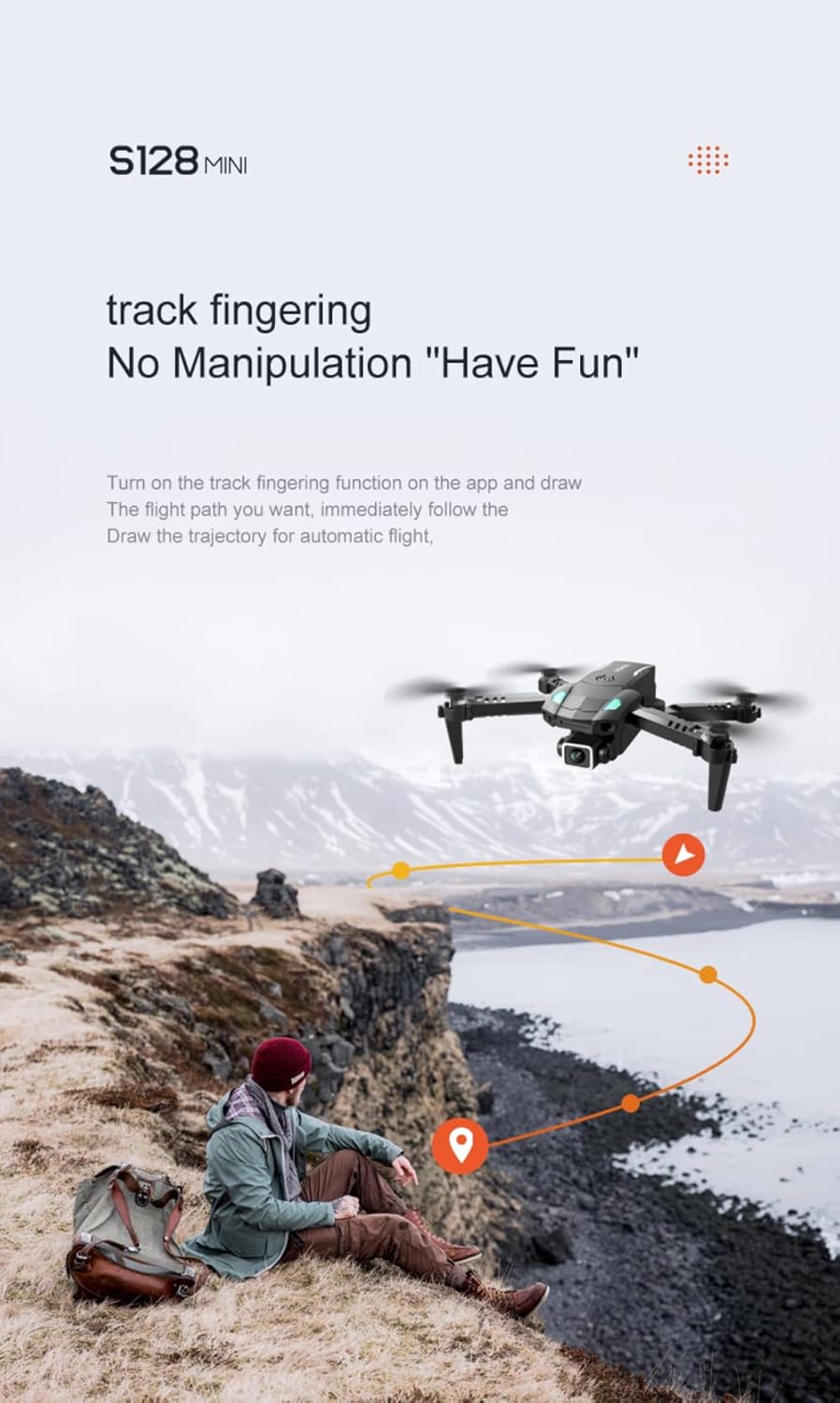
Image 7.2: A user controlling the S128 drone using the gravity sensor feature on a smartphone, tilting the phone to direct the drone.
- Headless Mode: In this mode, the drone's orientation is relative to the pilot, regardless of the drone's front direction. Press the headless mode button on the remote to activate/deactivate.
- Automatic Return Home: Press the One-Key Return button. The drone will fly back towards its takeoff point. Ensure clear path.
- Speed Switch: Press the speed switch button to cycle through low, medium, and high-speed modes.
7.5 Camera Operation
- Connecting to App: Download and install the dedicated drone app (refer to packaging or quick start guide for app name/QR code). Connect your smartphone to the drone's Wi-Fi network.
- Taking Photos: Press the Photo/Video button once on the remote or tap the photo icon in the app.
- Recording Video: Press the Photo/Video button again to start recording. Press it once more to stop. Tap the video icon in the app to start/stop.
- Gesture Control: Certain gestures (refer to app instructions) can trigger photo or video capture.
- FPV (First Person View): View live camera feed on your smartphone screen via the app.

Image 7.3: A user operating the S128 drone with a smartphone attached to the remote, displaying the live first-person view from the drone's camera.
8. Maintenance
- Cleaning: Use a soft, dry cloth to clean the drone and remote controller. Do not use liquids or solvents.
- Propeller Inspection: Regularly check propellers for cracks or damage. Replace damaged propellers immediately.
- Battery Storage: If storing for extended periods, charge batteries to about 50% and store in a cool, dry place. Remove batteries from the drone and remote when not in use.
- Storage: Store the drone and accessories in a cool, dry place, away from direct sunlight and extreme temperatures.
9. Troubleshooting
| Problem | Possible Cause | Solution |
|---|---|---|
| Drone does not respond to remote. | Not paired; low battery; remote off. | Ensure drone and remote are on. Re-pair the drone. Charge/replace batteries. |
| Drone drifts during flight. | Not calibrated; uneven surface at takeoff; wind. | Perform gyro calibration on a flat surface. Use fine-tuning buttons. Avoid strong winds. |
| Propellers do not spin. | Not armed; obstacle; damaged motor/propeller. | Ensure drone is armed (sticks down and out). Check for obstructions. Inspect propellers and motors. |
| Poor camera quality/no image. | App not connected; Wi-Fi interference; dirty lens. | Ensure phone is connected to drone's Wi-Fi. Restart app/drone. Clean camera lens. |
| Short flight time. | Battery not fully charged; old battery. | Ensure battery is fully charged. Consider replacing old batteries. |
10. Specifications
| Feature | Detail |
|---|---|
| Model Name | S128 |
| Brand | Generic |
| Color | Black |
| Video Capture Resolution | 4K UHD 2160p |
| Connectivity Technology | Wi-Fi |
| Skill Level | Beginner |
| Control Type | Remote Control |
| Folded Dimensions (approx.) | 2.36 x 3.34 inches |
| Remote Control Dimensions (approx.) | 6.69 x 4.72 inches |
| Flight Time (approx.) | 20-25 minutes |
| Batteries Included | Yes (for drone) |
| UPC | 719349017241 |
| Manufacturer Part Number | AMZ151 |
11. Warranty and Support
This product is covered by a standard manufacturer's warranty against defects in materials and workmanship. Please retain your proof of purchase for warranty claims.
For technical support, troubleshooting assistance, or warranty inquiries, please contact the retailer or manufacturer directly through their official support channels. Refer to the product packaging or purchase documentation for specific contact information.


