
1. Introduction
This manual provides detailed instructions for the LexonElec T60 60% Mechanical Keyboard and Mouse combo. This compact peripheral set is designed for both office and gaming use, featuring mechanical switches, customizable RGB lighting, and a programmable mouse. Please read this manual thoroughly to ensure proper setup and operation of your new device.
2. Package Contents
Verify that all items are present in your package:
- LexonElec T60 60% Mechanical Keyboard
- Gaming Mouse
- Coiled USB-C Cable
- Keycap Puller
3. Setup Guide
Follow these steps to set up your LexonElec T60 keyboard and mouse:
- Connect the Keyboard: Connect the coiled USB-C cable to the USB-C port on the keyboard. Connect the other end of the cable (USB-A) to an available USB port on your computer.
- Connect the Mouse: Connect the mouse's USB cable to an available USB port on your computer.
- Driver Installation: Your operating system (Windows, macOS) should automatically detect and install the necessary drivers. No additional software installation is typically required for basic functionality.
- Test Functionality: Open a text editor or browser to test key presses and mouse movement.

4. Operating Instructions
4.1 Keyboard Features
The T60 keyboard features a compact 60% layout, mechanical switches, and dynamic RGB backlighting.
- 60% Compact Layout: This design saves desktop space while retaining essential keys.
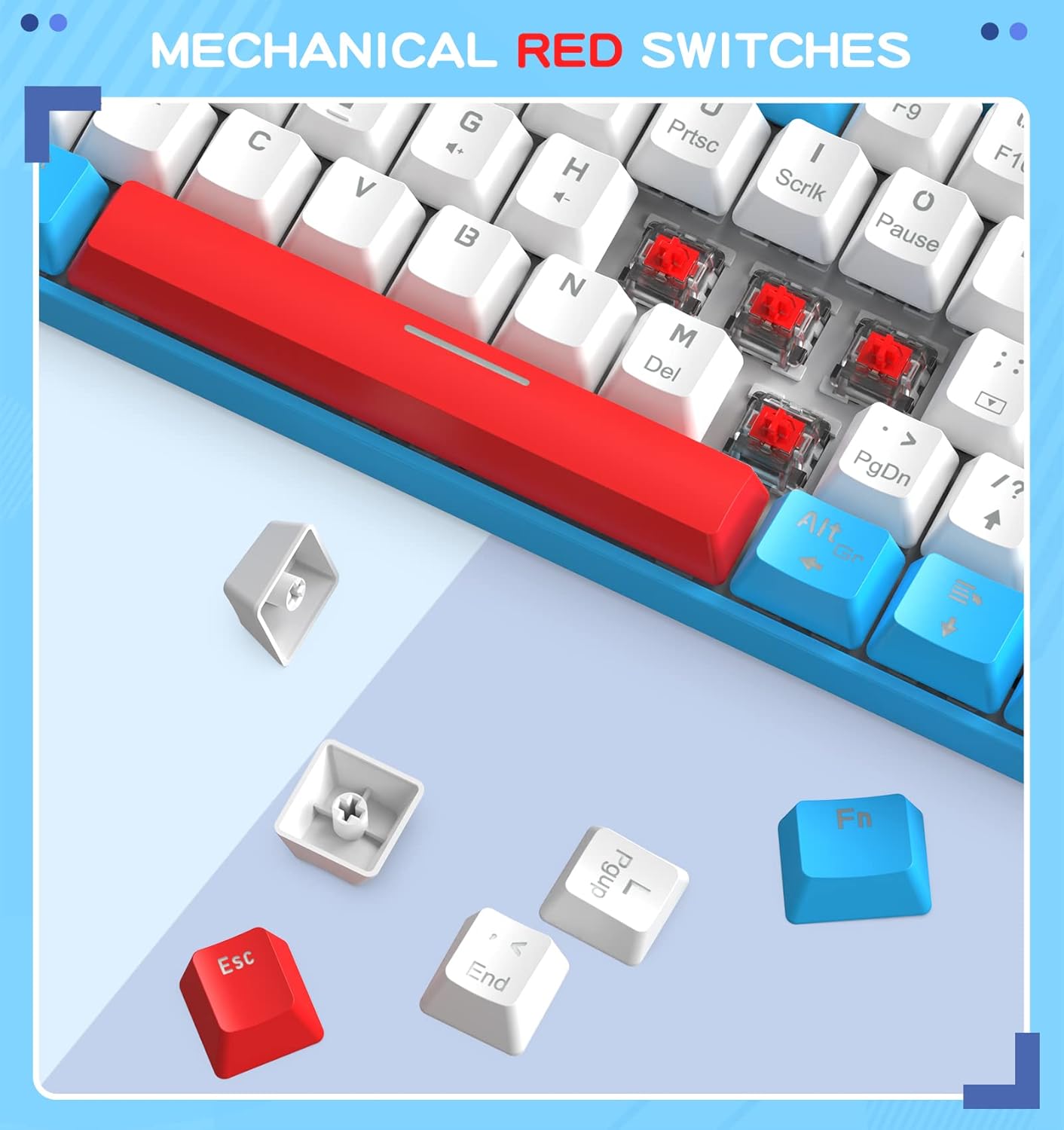
- Linear Red Mechanical Switches: These switches offer a smooth, quiet, and responsive typing experience with a light actuation force, suitable for both gaming and extended typing sessions.
- RGB Backlighting: The keyboard features up to 18 preset backlighting modes.
Backlight Control
Utilize the Function (Fn) key in combination with other keys to adjust the keyboard's RGB backlighting:
- Change Backlight Mode: Press Fn + \| to cycle through the 18 preset backlighting modes.
- Adjust Brightness: Press Fn + [{ to decrease brightness, and Fn + ]} to increase brightness.
- Adjust Speed: Press Fn + :; to slow down the lighting effect, and Fn + '" to speed up the lighting effect.

4.2 Mouse Features
The included gaming mouse complements the keyboard with its responsive sensor and customizable options.
- Adjustable DPI: Features a 6400 DPI gaming-grade sensor for precise tracking. DPI can typically be adjusted via a dedicated button on the mouse or through software (if available).
- Programmable Buttons: The mouse includes 6 programmable buttons. Refer to the manufacturer's website for any available software to customize these buttons.
- RGB Backlighting: The mouse has 6 kinds of RGB backlighting, which can often be adjusted via software or a button on the mouse itself.
4.3 Coiled USB-C Cable
The professional custom coiled USB-C cable is designed for both aesthetics and functionality.
- Durability: Constructed with high-quality copper wires and aluminum shielding.
- Flexibility: The coiled design reduces tangles and provides a neat setup.
- Detachable Aviation Connector: Allows for easy connection and disconnection.


5. Maintenance
To ensure the longevity and optimal performance of your LexonElec T60 keyboard and mouse, follow these maintenance guidelines:
- Cleaning the Keyboard: Use the included keycap puller to carefully remove keycaps for thorough cleaning. Use a can of compressed air to remove dust and debris from between the keys. Wipe the keycaps and keyboard surface with a soft, slightly damp cloth. Ensure the keyboard is completely dry before reattaching keycaps and using.
- Cleaning the Mouse: Use a soft, dry cloth to wipe the mouse surface. For optical sensors, use a cotton swab lightly dampened with isopropyl alcohol to gently clean the sensor area.
- Cable Care: Avoid sharp bends or excessive pulling on the coiled cable to prevent internal damage.
6. Troubleshooting
If you encounter issues with your LexonElec T60 keyboard and mouse, refer to the following common solutions:
| Problem | Possible Solution |
|---|---|
| Keyboard/Mouse not responding |
|
| RGB backlight not working or stuck |
|
| Mouse tracking issues or erratic movement |
|
7. Specifications
| Feature | Detail |
|---|---|
| Brand | LexonElec |
| Model Number | T60 |
| Keyboard Layout | 60% Compact |
| Switch Type | Linear Red Mechanical Switches |
| Keyboard Backlight | RGB (18 preset modes) |
| Mouse DPI | Up to 6400 DPI (Adjustable) |
| Mouse Buttons | 6 Programmable Buttons |
| Connectivity | Wired USB (Coiled USB-C cable for keyboard) |
| Compatible Devices | Personal Computer (PC, Mac) |
| Item Weight | 2.09 pounds |
| Package Dimensions | 15.07 x 5.79 x 1.93 inches |
8. Warranty and Support
For warranty information and technical support, please refer to the documentation included with your purchase or contact LexonElec customer service directly. Keep your proof of purchase for warranty claims.