
XTUGA CT120
XTUGA CT120 12-Channel Audio Mixer User Manual
Model: CT120
Introduction
Thank you for choosing the XTUGA CT120 12-Channel Audio Mixer. This professional audio mixing console is designed for a wide range of applications, from live performances and webcasting to studio recording and home audio setups. It features versatile connectivity options, including Bluetooth and USB, along with precise sound control for optimal audio quality.
Please read this manual thoroughly before operating the device to ensure proper usage, maximize performance, and prevent damage.

Figure 1: Front view of the XTUGA CT120 12-Channel Audio Mixer, showcasing all inputs, controls, and outputs.
Safety Precautions
To ensure safe operation and prolong the life of your XTUGA CT120 mixer, please observe the following:
- Operate the device in a well-ventilated environment, away from heat sources and open flames.
- Avoid contact with water or any liquids. Do not expose the mixer to rain or moisture.
- If the product is wireless, keep it away from other sources of interference during operation.
- Do not attempt to disassemble or repair the device yourself. Refer all servicing to qualified personnel.
- For products requiring power, use only the standard power supply provided or specified. Incorrect voltage can damage the equipment.
- Avoid scratching the casing and surface of the equipment with sharp objects.

Figure 2: Important safety guidelines for handling and operating the mixer.
Setup
Power Connection
Connect the provided power adapter to the mixer's power input and then to a suitable electrical outlet. Ensure the power switch is in the OFF position before connecting.
Input Connections
The CT120 mixer features 12 channels, each with XLR and 1/4-inch line inputs. Connect your microphones, instruments, or other audio sources to the appropriate input jacks.
- XLR Inputs: For microphones and other balanced audio sources.
- 1/4-inch Line Inputs: For instruments, line-level devices, and unbalanced audio sources.

Figure 3: The +48V phantom power feature, essential for condenser microphones. Each channel supports independent phantom power.
+48V Phantom Power: For condenser microphones, activate the +48V phantom power switch. This supplies the necessary voltage to the microphone via the XLR cable. Ensure dynamic microphones are not connected when phantom power is engaged, unless they are designed to handle it.
Output Connections
Connect your main speakers or recording devices to the L MAIN OUT R (XLR or 1/4-inch TRS) outputs. Use the PHONES output for headphone monitoring.
Operating Instructions
Basic Operation
- Power On: After all connections are made, switch on the power.
- Gain Adjustment: Use the GAIN knob for each channel to set the input level. Adjust until the signal is strong but does not clip (indicated by the PEAK LED).
- Channel Volume: Use the channel faders to control the individual volume of each input.
- Main Mix: Adjust the L MAIN R faders to control the overall output volume.
Equalization (EQ)
Each channel features a 3-band equalizer (HI, MF, LF) for tone shaping. Adjust these knobs to enhance or cut specific frequencies:
- HI (High Frequency): Adjusts treble.
- MF (Mid Frequency): Adjusts midrange.
- LF (Low Frequency): Adjusts bass.

Figure 4: Detailed view of the 3-band EQ controls, allowing for precise sound adjustments for each channel.
Bluetooth Connectivity
The CT120 supports wireless Bluetooth streaming. To connect a device:
- Activate Bluetooth on your mobile phone, tablet, or other smart device.
- On the mixer's digital MP3 player section, select the Bluetooth mode.
- Search for "BT-Speaker" in your device's Bluetooth settings and pair.
- Once connected, you can stream audio wirelessly to the mixer.

Figure 5: The mixer's Bluetooth function allows seamless wireless audio streaming from compatible smart devices.
USB/MP3 Player and Recording
The integrated USB interface allows for direct playback from USB drives and connection to a computer for recording and editing.
- USB Playback: Insert a USB flash drive containing MP3/WAV/WMA files into the USB port. Use the digital MP3 player controls to navigate and play tracks.
- Computer Connection: Connect the mixer to your computer via a USB cable. The mixer will be recognized as an audio interface, allowing you to record the mixed audio directly to your computer or play audio from your computer through the mixer.

Figure 6: The USB port enables connection to computers for recording and playback, and direct playback from USB flash drives.
Monitoring
Use the 3.5mm PHONES jack for real-time monitoring of your mix. Adjust the HEADPHONES volume knob to control the monitoring level.

Figure 7: The dedicated headphone output allows for real-time monitoring of the audio mix.
Level Indicators
The PFL/AFL and L MAIN R LED level indicators provide visual feedback on signal levels, helping you prevent clipping and ensure optimal audio output.
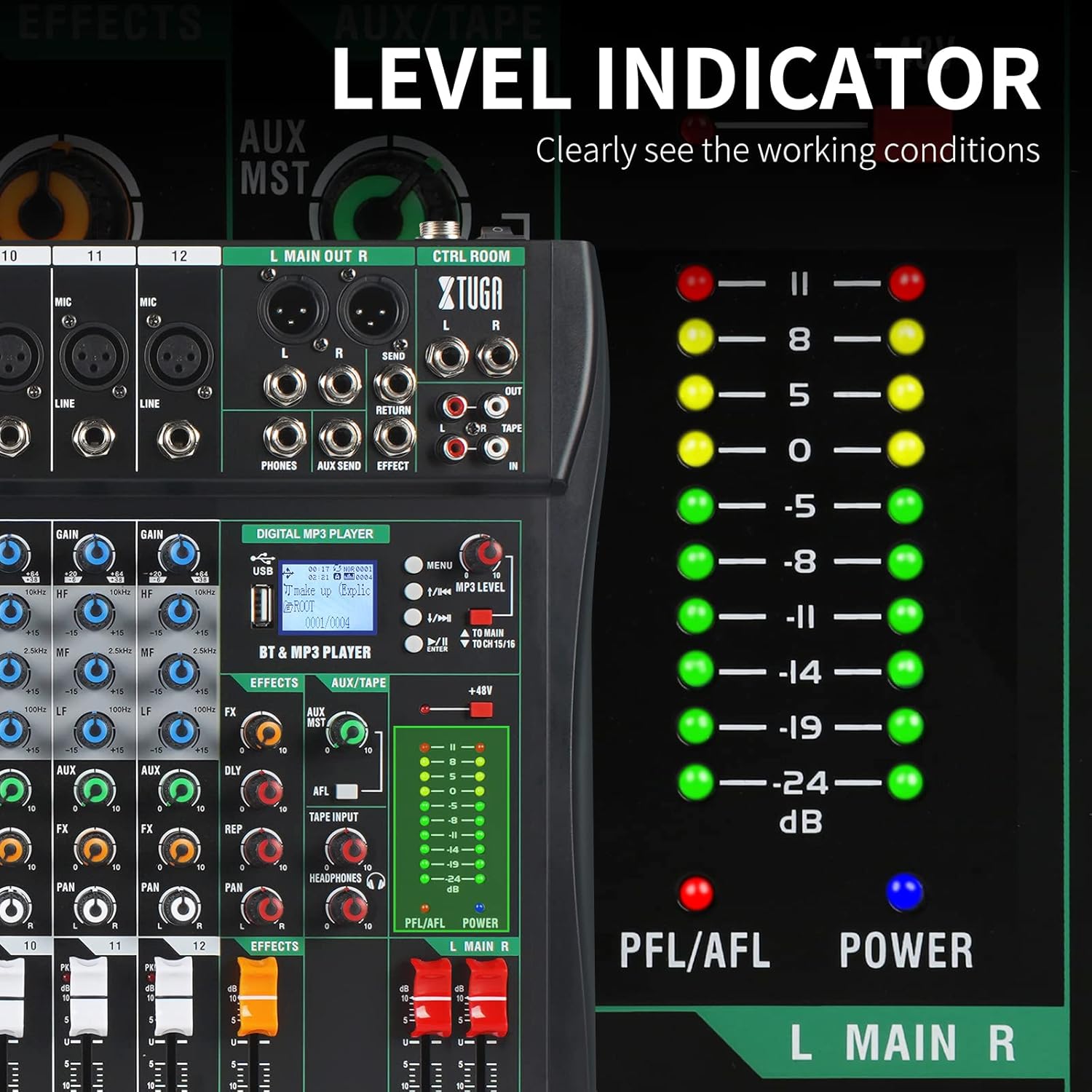
Figure 8: The LED level indicators clearly display the working conditions and signal strength of the audio output.
Maintenance
Regular maintenance helps ensure the longevity and optimal performance of your XTUGA CT120 mixer.
- Cleaning: Use a soft, dry cloth to clean the exterior of the mixer. For stubborn dirt, a slightly damp cloth can be used, followed by a dry cloth. Do not use abrasive cleaners, solvents, or waxes.
- Dust Protection: Keep the mixer covered when not in use to prevent dust accumulation, especially on faders and knobs. The sealed rotary controls are designed to resist dust, but general cleanliness is still important.
- Storage: Store the mixer in a cool, dry place, away from direct sunlight and extreme temperatures.
- Cable Management: Ensure all cables are neatly organized and not under strain to prevent damage to the connectors and ports.
Troubleshooting
| Problem | Possible Cause | Solution |
|---|---|---|
| No power | Power cable not connected; Power switch off; Faulty power adapter/outlet | Check power cable connection; Ensure power switch is ON; Try a different power outlet or adapter. |
| No sound output | Main volume faders down; Channel faders down; Incorrect input/output connections; Mute engaged | Increase main and channel faders; Verify all audio connections; Check for any mute buttons. |
| Distorted sound | Input gain too high; Output level too high; Faulty cable/microphone | Reduce GAIN knob for the affected channel; Lower main output level; Test with different cables/microphones. |
| Bluetooth not connecting | Mixer not in Bluetooth mode; Device not discoverable; Interference | Ensure mixer is in Bluetooth mode; Make sure your device's Bluetooth is on and discoverable; Move closer to the mixer; Restart both devices. |
| Phantom power not working | Phantom power switch off; Faulty XLR cable; Condenser microphone not connected | Ensure +48V switch is ON; Check XLR cable integrity; Confirm a condenser microphone is in use. |
Specifications
| Feature | Detail |
|---|---|
| Model | CT120 |
| Number of Channels | 12 |
| Audio Inputs | XLR, Balanced Line (1/4 inch TRS) |
| Output Connector Type | 1/4 inch TRS jack, XLR |
| Phantom Power | +48V (selectable per channel) |
| Connectivity Technology | USB, Bluetooth |
| Power Source | Electric Cable |
| Dimensions (Package) | 57.29 x 45.6 x 12.2 cm (22.56 x 17.95 x 4.8 inches) |
| Item Weight | 5.57 Kilograms (12.28 lbs) |
| Manufacturer | XTUGA |
| Country of Origin | China |
Warranty and Support
For warranty information and technical support, please contact XTUGA customer service. Details regarding warranty periods and service procedures are typically provided with your purchase documentation or can be found on the official XTUGA website.
When contacting support, please have your product model (CT120) and purchase details ready.
Online Resources: For additional support, FAQs, and driver downloads (if applicable), please visit the official XTUGA website.
Related documentsCT120


Ask a question about this manual
Ask about setup, troubleshooting, compatibility, parts, safety, or missing instructions. Manuals+ will review the question and use this page’s manual context to help answer it.