Compatibility
This keyboard case is designed for the following iPad models:
- iPad Air 13-inch (M2 2024)
- iPad Pro 12.9 inch 6th Generation (2022 Models: A2436, A2437, A2764, A2766)
- iPad Pro 12.9 inch 5th Generation (2021 Models: A2378, A2379, A2461, A2462)
- iPad Pro 12.9 inch 4th Generation (2020 Models: A2229, A2069, A2232, A2233)
- iPad Pro 12.9 inch 3rd Generation (2018 Models: A1876, A2014, A1895, A1983)
It is not compatible with 9.7-inch iPad 5th or 6th generation devices.

Package Contents
Please verify that all items are included in your package:
- 1 x iPad Pro 12.9 inch Keyboard Case with Trackpad
- 1 x USB-C Charging Cable
- 1 x Product Manual
Note: iPad and Apple Pencil are not included.
Setup
1. Inserting Your iPad into the Case
Carefully align your iPad with the case and gently press it into place, ensuring all edges are securely fitted. The case provides a snug fit to protect your device.

2. Charging the Keyboard
Connect the provided USB-C charging cable to the charging port on the keyboard and plug the other end into a suitable USB power adapter. The charging indicator light will illuminate.

3. Bluetooth Pairing
- Turn on the keyboard by sliding the power switch to the 'ON' position. The power indicator light will turn on.
- Press and hold the 'Pair' button (or Fn + C key combination) for 2-3 seconds until the Bluetooth indicator light starts flashing, indicating it's in pairing mode.
- On your iPad, go to Settings > Bluetooth and turn Bluetooth 'ON'.
- Your iPad will search for available devices. Select 'iPad Keyboard' from the list.
- Once connected, the Bluetooth indicator light on the keyboard will stop flashing and remain solid.
The keyboard features a Bluetooth memory function, allowing it to automatically reconnect to your iPad once paired, every time you turn it on.
Operating the Keyboard Case
1. Backlit Keys
The keyboard is equipped with 1 solid cyan backlight and 6 tricolor backlights. You can adjust the backlight color and brightness level to suit your preferences and environment.
- Press the Light Bulb key to cycle through different backlight colors.
- Press Fn + Light Bulb key to activate breathing mode.
- Press Fn + Up Arrow or Fn + Down Arrow to adjust backlight brightness (3 levels).

2. Efficient Trackpad
The high-precision multi-touch trackpad allows for seamless navigation and gesture controls, similar to a laptop. You can swipe, pinch, and scroll to interact with your iPad faster.
- Use multi-finger gestures for enhanced control.
- To turn the trackpad on or off, press the Fn + Spacebar key combination.

3. Typing Experience
The keyboard features a wider key pitch, reducing typing errors and providing a comfortable, laptop-like typing experience. Dedicated shortcut keys allow for quick control of media functions (next, back, pause, volume, mute).
4. 360-Degree Rotation
The case allows for 360-degree rotation of your iPad, enabling multiple viewing angles and modes:
- Laptop Mode: Standard upright position for typing and trackpad use.
- Tablet Mode: Fold the iPad completely back over the keyboard for a handheld tablet experience.
- Presentation Mode: Rotate the iPad to face away from the keyboard for presentations or media viewing.

5. Pencil Holder
The case includes a dedicated pencil holder to securely store your Apple Pencil, ensuring it's always within reach and protected.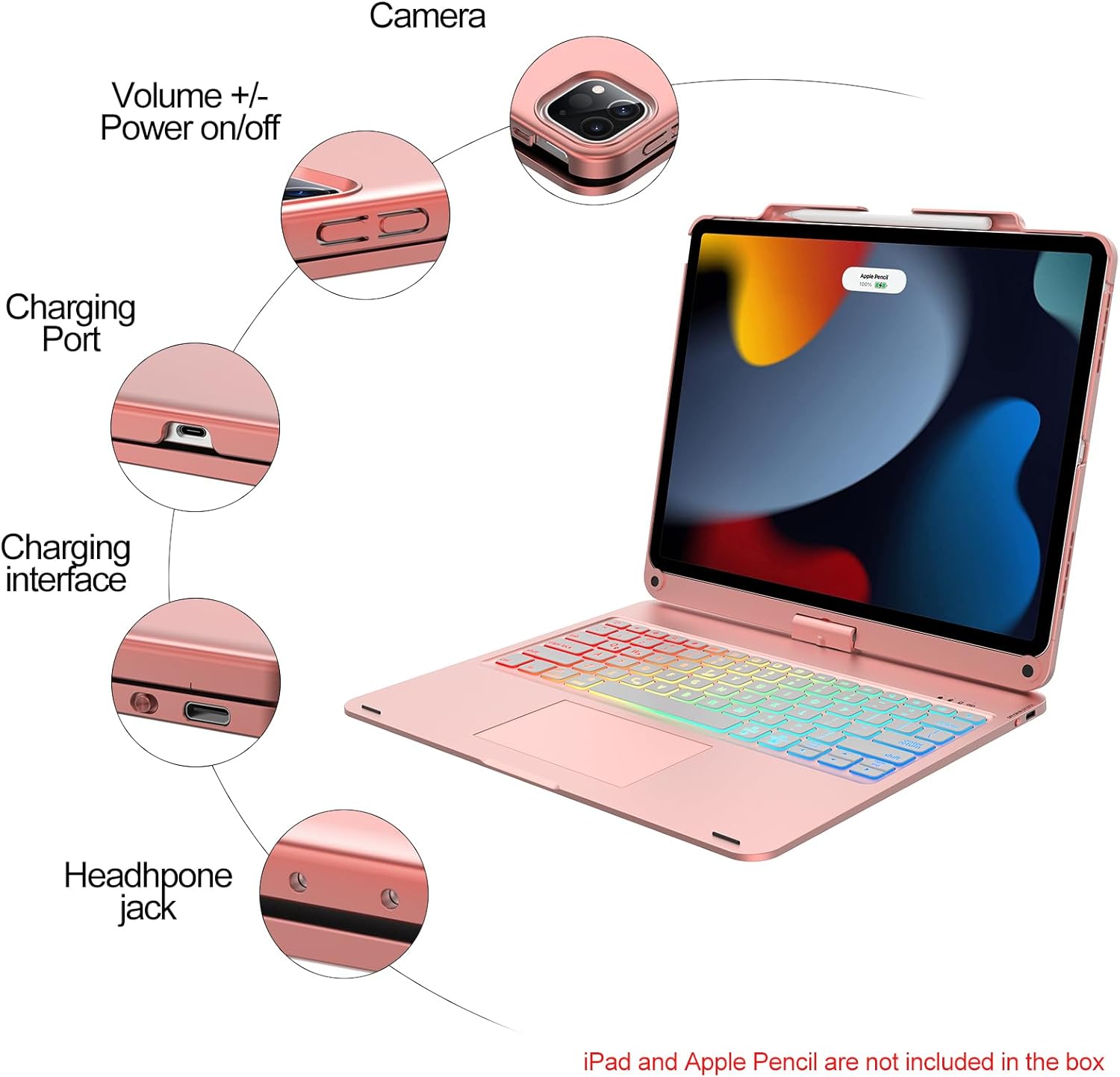
Maintenance
1. Cleaning
To clean the keyboard case, gently wipe it with a soft, damp cloth. Avoid using harsh chemicals or abrasive materials that could damage the surface.
2. Battery Life
The keyboard is equipped with a Lithium Ion battery. It offers up to 90 days of standby time and 90 hours of continuous work without the backlight. Battery life will vary with backlight usage.
Troubleshooting
- Keyboard not connecting: Ensure the keyboard is turned on and fully charged. Re-enter Bluetooth pairing mode and try connecting again from your iPad's Bluetooth settings.
- Keys not responding: Check the keyboard's battery level. If low, charge the keyboard. If fully charged, try re-pairing the Bluetooth connection.
- Trackpad not working: Verify that the trackpad is enabled by pressing Fn + Spacebar. If still unresponsive, try re-pairing the Bluetooth connection.
- Battery not charging: Ensure the USB-C cable is securely connected to both the keyboard and the power source. Try a different USB-C cable or power adapter if necessary.
If you encounter persistent issues, please refer to the warranty and support section for assistance.
Specifications
| Product Dimensions | 11.14 x 9.53 x 0.59 inches |
| Item Weight | 2.66 pounds |
| Manufacturer | SENGBIRCH |
| Item Model Number | IPAD12.9-6TH |
| Batteries | 1 Lithium Ion batteries required (included) |
| Connectivity Technology | Bluetooth |
| Keyboard Description | Wireless |
| Recommended Uses | Business, Education, Personal, Student |
| Special Features | Backlit, Ergonomic, Rechargeable, Trackpad |
| Color | 360 Rose Gold |
| Keyboard Backlighting | RGB |
| Style | Contemporary |
Warranty & Support
This product comes with a 12-month warranty period. Additionally, a 30-day return or exchange policy is offered for any reason.
Should you encounter any issues such as battery not charging, keys not working, touchpad not functioning, or Bluetooth connectivity problems, please do not hesitate to contact us. We are committed to replying and resolving your concerns within 12 hours.
For support, please visit the SENGBIRCH Store on Amazon or use the contact information provided in your purchase documentation.


