
1. Introduction
This manual provides essential information for the safe and efficient use of your aiwa Digital Android 12 10.1-inch Tablet PC, model JA2-TBA1002. Please read this manual thoroughly before operating the device and retain it for future reference. This tablet is a 10.1-inch entry model designed for both personal and business use, offering a balance of performance and cost-effectiveness with wireless LAN supporting 11ac.
2. Product Overview
Familiarize yourself with the key features and components of your aiwa tablet.
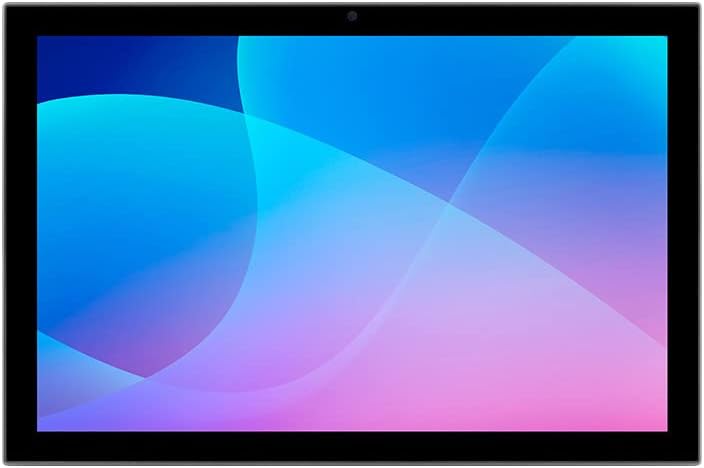
Figure 2.1: Front view of the aiwa 10.1-inch Tablet PC, displaying a vibrant abstract wallpaper.
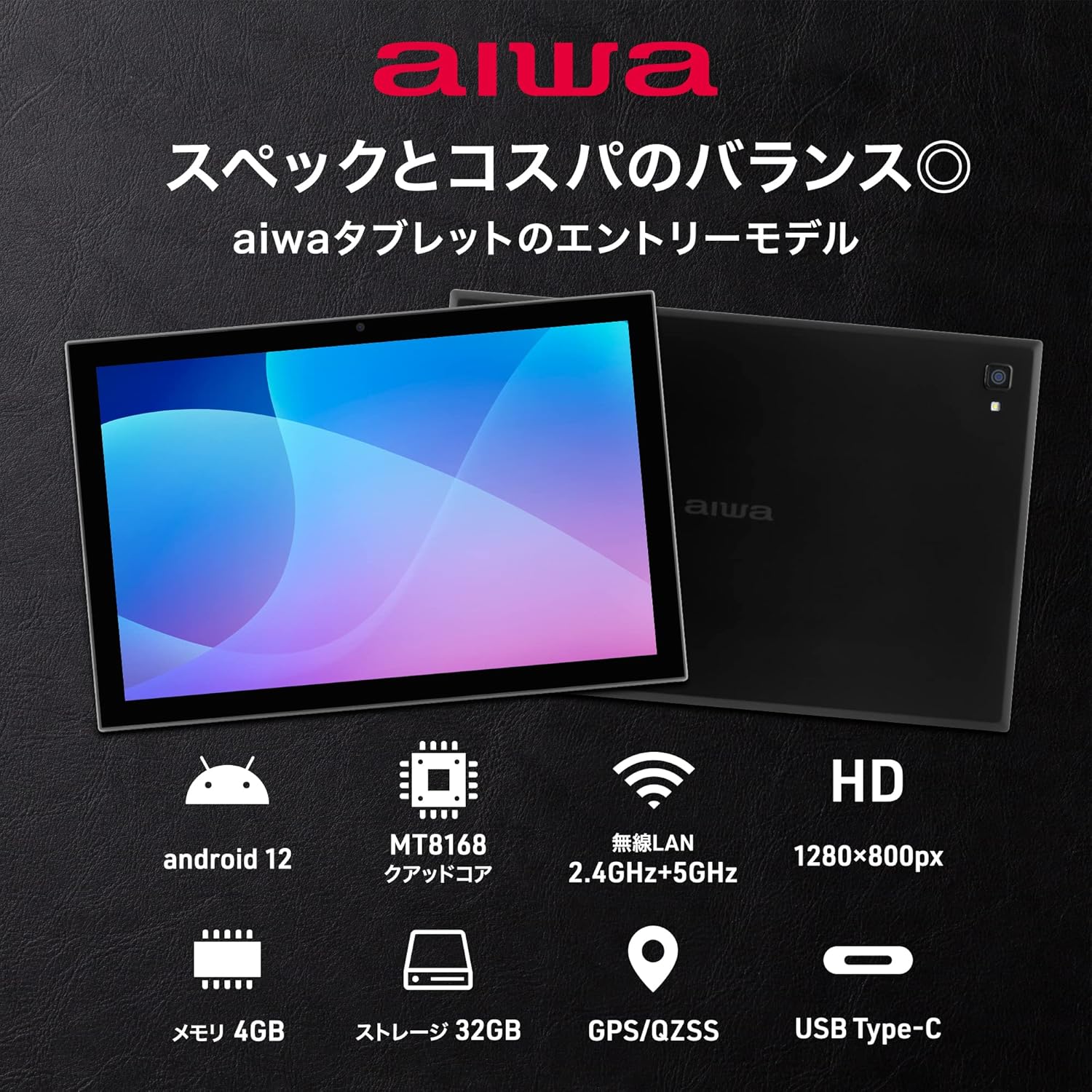
Figure 2.2: Overview of the tablet's core specifications, highlighting Android 12 operating system, MT8168B QuadCore processor, 2.4GHz+5GHz Wi-Fi, HD 1280x800px display, 4GB RAM, 32GB storage, GPS/QZSS support, and a USB Type-C port.

Figure 2.3: The tablet's screen showing the Android 12 interface, featuring Google apps and a clean layout, indicating compatibility with new functions.
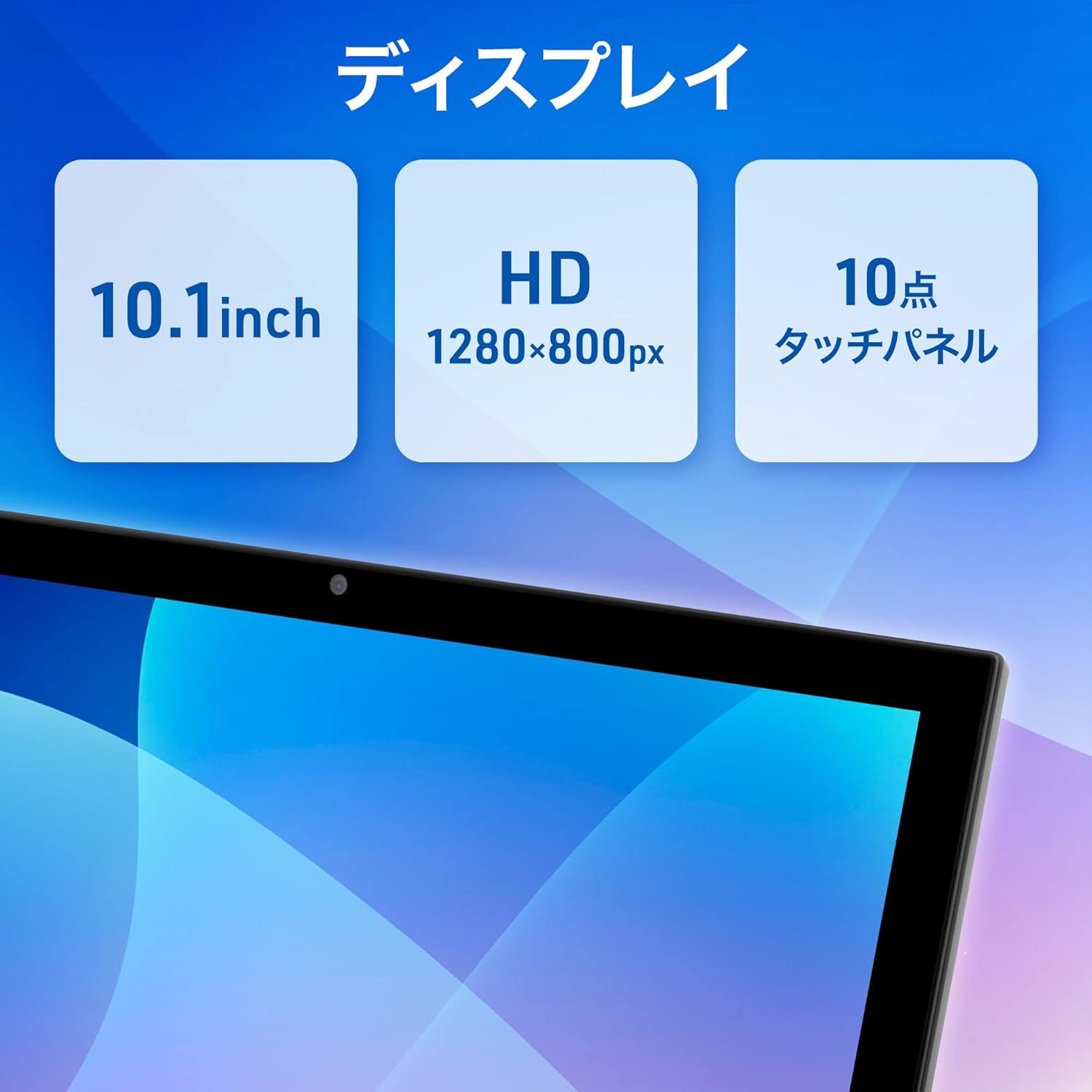
Figure 2.4: Details of the tablet's display, emphasizing its 10.1-inch size, HD 1280x800 pixel resolution, and 10-point multi-touch panel for responsive interaction.

Figure 2.5: Information regarding the tablet's power features, including a 5,300mAh battery and a convenient USB Type-C charging port.

Figure 2.6: Illustration of the tablet's GPS/QZSS compatibility, demonstrating its potential use as a car navigation system when tethered, with a satellite image in the background.

Figure 2.7: Details on the tablet's wireless connectivity, featuring dual-band Wi-Fi (2.4GHz and 5GHz) and Bluetooth 5.0 for seamless connections to networks and peripherals.
3. Setup
3.1 Initial Charging
Before first use, fully charge the tablet. Connect the included USB Type-C cable to the tablet's charging port and the other end to a compatible USB power adapter (not always included) or a computer's USB port. The battery indicator on the screen will show charging status.
3.2 Powering On/Off
- To Power On: Press and hold the Power button located on the side of the tablet until the aiwa logo appears.
- To Power Off: Press and hold the Power button until a power-off menu appears on the screen. Select 'Power off' and confirm.
- To Restart: From the power-off menu, select 'Restart'.
3.3 Initial Setup Wizard
Upon first power-on, the tablet will guide you through an initial setup process:
- Language Selection: Choose your preferred language.
- Wi-Fi Connection: Connect to an available Wi-Fi network to enable internet access. This is crucial for downloading apps and completing Google account setup.
- Google Account: Sign in with your existing Google account or create a new one. This is necessary for accessing the Google Play Store and other Google services.
- Date & Time: Set the correct date and time, or allow the network to set it automatically.
- Security: Set up a screen lock (PIN, pattern, or password) for device security.
3.4 Inserting a MicroSD Card (Optional)
If you wish to expand the tablet's storage, locate the microSD card slot (usually on the side or top edge). Carefully insert a compatible microSD card into the slot until it clicks into place. Ensure the tablet is powered off before inserting or removing the card.
4. Operating Instructions
4.1 Basic Navigation
The tablet uses a 10-point multi-touch display for interaction:
- Tap: Touch the screen once to select an item or open an app.
- Touch & Hold: Press and hold an item to access contextual menus or move icons.
- Swipe: Drag your finger across the screen to scroll through pages or lists.
- Pinch: Use two fingers to zoom in or out on images and web pages.
4.2 Connecting to Wi-Fi
- Go to Settings > Network & internet > Wi-Fi.
- Turn on Wi-Fi. The tablet will scan for available networks.
- Select your desired network from the list.
- Enter the network password if prompted, then tap Connect.
4.3 Bluetooth Pairing
To connect Bluetooth devices (e.g., headphones, speakers):
- Go to Settings > Connected devices > Connection preferences > Bluetooth.
- Turn on Bluetooth.
- Put your Bluetooth device into pairing mode.
- On the tablet, tap Pair new device and select your device from the list.
- Follow any on-screen prompts to complete pairing.
4.4 Using the Camera
Open the Camera app from the home screen or app drawer. Tap the shutter button to take photos or switch to video mode to record videos. You can switch between front and rear cameras using the icon on the screen.
4.5 Managing Applications
Download new apps from the Google Play Store. To uninstall an app, touch and hold its icon on the home screen or app drawer, then drag it to the 'Uninstall' option, or go to Settings > Apps > See all apps, select the app, and tap Uninstall.
5. Maintenance
5.1 Cleaning the Device
Use a soft, lint-free cloth to clean the screen and body of the tablet. For stubborn smudges, slightly dampen the cloth with water or a screen cleaner. Avoid using harsh chemicals or abrasive materials.
5.2 Battery Care
- Avoid extreme temperatures, as they can degrade battery life.
- Do not leave the tablet fully charged or completely depleted for extended periods.
- Use only approved chargers and cables.
5.3 Software Updates
Regularly check for and install software updates to ensure optimal performance, security, and access to new features. Go to Settings > System > System update.
5.4 Storage Management
To maintain performance, periodically review and delete unnecessary files, photos, and apps. You can check storage usage in Settings > Storage.
6. Troubleshooting
This section addresses common issues you might encounter with your tablet.
6.1 Device Not Turning On
- Ensure the battery is charged. Connect the tablet to a charger and wait a few minutes before attempting to power on.
- Press and hold the Power button for at least 10-15 seconds to force a restart.
6.2 Wi-Fi Connection Problems
- Check if Wi-Fi is enabled in Settings.
- Restart your Wi-Fi router and the tablet.
- Ensure you are entering the correct Wi-Fi password.
- Try connecting to a different Wi-Fi network to determine if the issue is with your tablet or the network.
6.3 Slow Performance
- Close unused applications running in the background.
- Clear cache data for frequently used apps (Settings > Apps > select app > Storage & cache > Clear cache).
- Free up storage space by deleting unnecessary files.
- Restart the tablet.
6.4 Battery Draining Quickly
- Reduce screen brightness.
- Turn off Wi-Fi, Bluetooth, and GPS when not in use.
- Limit background app activity.
- Check battery usage in Settings > Battery to identify power-hungry apps.
6.5 Factory Reset (Last Resort)
If problems persist, a factory reset may resolve them. Warning: This will erase all data on your tablet. Back up important data before proceeding. Go to Settings > System > Reset options > Erase all data (factory reset).
7. Specifications
| Model Number | JA2-TBA1002 |
| Operating System | Android 12 |
| CPU | MediaTek MT8168B QuadCore (2000 MHz) |
| RAM | 4GB |
| Internal Storage | 32GB |
| Display Size | 10.1 inches |
| Display Resolution | 1280 x 800 pixels |
| Wireless Connectivity | Wi-Fi 802.11ac (2.4GHz + 5GHz) |
| Bluetooth | Bluetooth 5.0 |
| Battery Capacity | 5300mAh (27 Watt Hours) |
| Battery Life (approx.) | Up to 5 hours |
| Ports | USB Type-C |
| Dimensions (W x H x D) | 16.18 x 24.33 x 0.97 cm |
| Weight | 490 g |
8. Warranty and Support
8.1 Warranty Information
Your aiwa Digital Android 12 10.1-inch Tablet PC is covered by a limited warranty. Please refer to the warranty card included in your product packaging for specific terms, conditions, and duration. Keep your proof of purchase for warranty claims.
8.2 Customer Support
For technical assistance, troubleshooting beyond this manual, or warranty service, please contact aiwa marketing customer support. Contact details can typically be found on the official aiwa marketing website or on the product packaging.