
1. Introduction
The CLEYVER Meeting Track Bar is a high-definition 4K video conferencing solution designed for professional communication. It integrates an 8MP camera, advanced AI features for voice and body tracking, and a 5-microphone array with intelligent noise suppression. This device delivers full duplex HD audio and a wide 118° field of view, making it suitable for various meeting environments. This manual provides essential information for setting up, operating, maintaining, and troubleshooting your Meeting Track Bar.
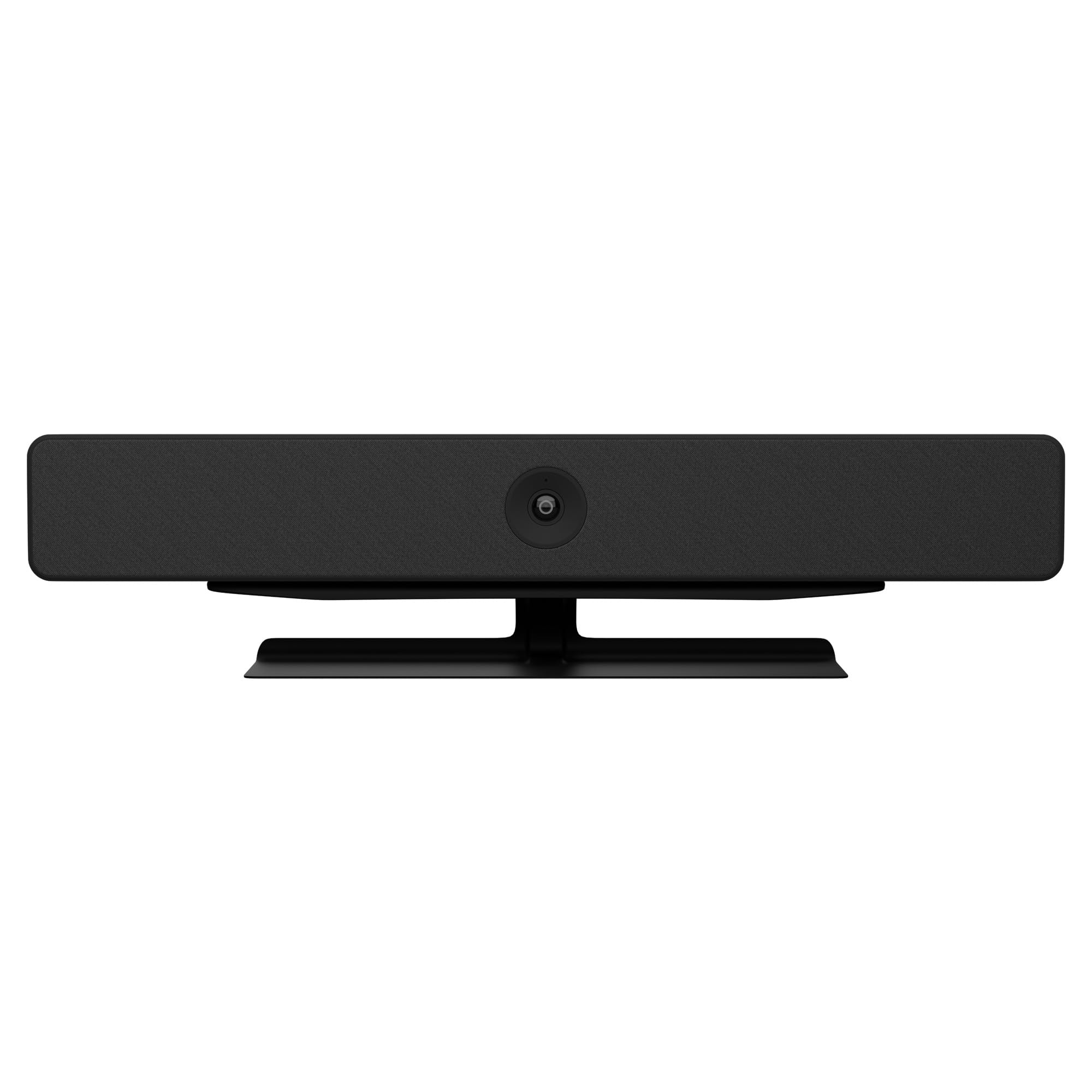
Image: The CLEYVER Meeting Track Bar, a sleek black video conferencing device with an integrated camera and speaker grille.
2. Package Contents
Please verify that all the following items are included in your package:
- CLEYVER Meeting Track Bar (Model: ODWCAMBAR60)
- Tiltable Base
- Remote Control
- USB-A to USB-C Cable
- Power Adapter
- User Manual (this document)
3. Setup
The CLEYVER Meeting Track Bar is designed for quick and simple Plug & Play installation. No specific drivers are required for most operating systems.
3.1 Placement Options
The device can be placed in various configurations to suit your meeting room setup:
- Desktop Placement: Position the bar on a flat surface, such as a table or desk, in front of your display.
- Under-Screen Mounting: Utilize the tiltable base to mount the bar directly below your meeting room display.
- Wall Mounting: The bar can be securely mounted to a wall, typically above or below the main display.

Image: Diagram illustrating desktop, wall mount, and hanging placement options for the video conferencing bar in a meeting room setting.
3.2 Connecting the Device
- Connect Power: Plug the power adapter into the power input port on the back of the Meeting Track Bar, then connect it to a 220V power outlet.
- Connect to Computer: Use the provided USB-A to USB-C cable to connect the USB-C port on the Meeting Track Bar to an available USB-A port on your PC or Mac.
- System Recognition: Your computer should automatically recognize the device. It will appear as a camera, microphone, and speaker option in your operating system's sound and video settings, as well as in your video conferencing software.

Image: A close-up view of the CLEYVER Meeting Track Bar mounted beneath a television screen, showing its integration into a meeting setup.
3.3 Software Compatibility
The CLEYVER Meeting Track Bar is compatible with all major softphones and video conferencing platforms, including but not limited to Skype for Business, GoToMeeting, and Zoom.
4. Operating Instructions
The Meeting Track Bar offers advanced features to enhance your conferencing experience.
4.1 Camera Features
- 4K HD Video: Delivers excellent 4K resolution at up to 30 frames per second for clear visuals.
- Wide Field of View: The 118° super wide-angle 8 MP lens captures a broad area, ensuring all participants are visible.
- Automatic Image Adjustment: Contrast, brightness, and white balance are automatically managed by the system for optimal video quality in varying lighting conditions.
- AI Tracking Technology: The camera utilizes AI for voice tracking and automatic participant framing, ensuring the active speaker or group is always in focus.

Image: A split image demonstrating the AI features: one panel shows speaker tracking focusing on an individual, and another shows close-up framing of multiple participants.

Image: A visual representation of the auto-framing feature, showing how the camera adjusts to include all participants within the frame.
4.2 Audio Features
- Full Duplex HD Sound: Integrated 5W HQ speakers provide clear audio output.
- 5 Noise-Canceling Microphones: An array of five microphones offers intelligent noise reduction, echo cancellation, and automatic voice enhancement.
- 360° Voice Pickup: The microphones can capture voices from up to 5 meters away in a 360° radius.

Image: A close-up diagram highlighting the five omnidirectional microphones integrated into the conferencing bar, designed for clear sound capture.
4.3 Remote Control Functions
The included remote control allows for convenient management of the Meeting Track Bar's functions:
- Call Management: Answer and end calls.
- Volume Control: Adjust speaker volume up or down.
- Mute: Mute or unmute the microphone.
- Camera Control: Turn the camera on or off.
- Zoom: Manually zoom in or out of the camera view.
- AI Tracking: Activate or deactivate the AI voice and body tracking feature.
- Frequency Adjustment: Switch between 50/60Hz to prevent screen flickering.
5. Maintenance
To ensure the longevity and optimal performance of your CLEYVER Meeting Track Bar, follow these maintenance guidelines:
- Cleaning: Use a soft, dry cloth to clean the exterior of the device. For the camera lens, use a specialized lens cleaning cloth. Avoid abrasive cleaners or solvents.
- Storage: When not in use for extended periods, store the device in a cool, dry place away from direct sunlight and extreme temperatures.
- Handling: Handle the device with care to avoid physical damage. Do not drop or expose it to excessive vibration.
6. Troubleshooting
If you encounter issues with your Meeting Track Bar, refer to the following common problems and solutions:
| Problem | Possible Cause | Solution |
|---|---|---|
| No video output | USB cable not connected properly; Camera not selected in software; Power issue. | Ensure USB cable is securely connected to both the bar and the computer. Verify the power adapter is connected and the device is powered on. Select the CLEYVER Meeting Track Bar as the video source in your conferencing application. |
| No audio (microphone or speaker) | Microphone/speaker not selected in software; Volume too low; Mute activated. | Select the CLEYVER Meeting Track Bar as the audio input/output device in your conferencing application and operating system settings. Check the volume levels and ensure the microphone is not muted (via remote or software). |
| AI tracking not working | Feature deactivated; Insufficient lighting; Participants too far or too many. | Ensure AI tracking is enabled via the remote control. Optimize room lighting. Ensure participants are within the recommended 5-meter range and the room size is appropriate (up to 6 participants). |
| Remote control unresponsive | Batteries depleted; Obstruction between remote and bar. | Replace the batteries in the remote control. Ensure there is a clear line of sight between the remote and the Meeting Track Bar. |
| Sound only from one side (e.g., left) | Audio settings misconfigured; Device characteristic. | Check your computer's audio balance settings. While the device features integrated speakers, some users have noted a preference for external audio solutions for stereo sound. This may be a characteristic of the device's internal speaker configuration. |
7. Specifications
Detailed technical specifications for the CLEYVER Meeting Track Bar:
| Feature | Detail |
|---|---|
| Brand | Cleyver |
| Model Name | Cleyver Meeting Track Bar |
| Model Number | ODWCAMBAR60 |
| Color | Black |
| Product Type | Video Conferencing Bar / Webcam |
| Connectivity Technology | USB |
| Video Resolution | 4K |
| Effective Still Resolution | 8 Megapixels |
| Field of View | 118° |
| Aperture | f/2 |
| Microphones | 5 omnidirectional, noise-canceling microphones |
| Voice Pickup Distance | Up to 5 meters (360°) |
| Speakers | Integrated HQ 5W speakers |
| Special Features | AI Voice & Body Tracking, Automatic Framing, Noise Suppression, Echo Cancellation, Microphone Input, USB Port |
| Product Dimensions (L x W x H) | 57 x 7.7 x 8.1 cm |
| Product Weight | 3.41 kg |
| Included Components | Tiltable base, remote control |
| Image Stabilization | No |
8. Warranty and Support
8.1 Manufacturer's Warranty
The CLEYVER Meeting Track Bar comes with a 2-year manufacturer's warranty. This warranty covers defects in materials and workmanship under normal use. Please retain your proof of purchase for warranty claims.
8.2 Technical Support
For technical assistance, troubleshooting beyond this manual, or warranty inquiries, please contact CLEYVER customer support through their official website or the retailer where the product was purchased. Have your model number (ODWCAMBAR60) and purchase date ready when contacting support.