
Introduction
Thank you for choosing the FINTIE Multi-Angle Viewing Protective Stand Cover. This manual provides essential information for the proper installation, operation, and maintenance of your new iPad case. Designed to offer superior protection and versatile functionality, this case enhances your iPad experience by providing multiple viewing angles, a secure pencil holder, and convenient storage.
Compatibility
This FINTIE case is exclusively designed for the following iPad models:
- iPad (A16) 11th Generation 11 Inch (2025) (Model Numbers: A3354 / A3355 / A3356)
- iPad 10th Generation 10.9 Inch (2022) (Model Numbers: A2696 / A2757 / A2777 / A3162)
Please verify your iPad model number before installation to ensure proper fit and functionality. The model number can typically be found on the back of your iPad or in the iPad's settings under General > About.

This image illustrates the compatible iPad models (11th Gen 11-inch and 10th Gen 10.9-inch) and provides a visual guide on how to locate your iPad's model number within the device settings.
Key Features
- Premium Material Construction: Built from a durable synthetic leather exterior and a soft microfiber interior, providing a snug fit and protective layer against scratches and impacts.
- Multi-Angle Viewing Stand: Allows you to adjust your iPad to multiple secure viewing angles for typing, watching, or drawing.
- Built-in Magnetic Strip: Supports the iPad's automatic sleep/wake function, conserving battery life.
- Integrated Apple Pencil Holder: Securely stores and protects your Apple Pencil (USB-C) or Apple Pencil 1st Gen. A convenient hole behind the holder allows for easy pushing out of the pencil.
- Document Card Pocket: Designed to store business cards, bank cards, notes, or bills, enhancing portability and convenience.
- Elastic Band Closure: Provides additional security, keeping the case firmly closed when not in use.

This image highlights the high-quality materials used in the case's construction, including the soft microfiber lining and the durable hard PC cover, ensuring both comfort and protection for your device.

The elastic band on the back of the case is shown, providing a secure closure mechanism to keep your iPad protected when not in use.
Setup & Installation
- Prepare Your iPad: Ensure your iPad is clean and free of any debris or existing screen protectors that might interfere with the case's fit.
- Align the iPad: Gently align your iPad with the hard PC cover frame of the case. Ensure the camera, ports, and buttons are correctly aligned with the case's cutouts.
- Secure the iPad: Press firmly around the edges of the iPad until it snaps securely into the hard PC cover. The case is designed for a snug fit to prevent accidental dislodgement.
- Check Fit: Once installed, gently tug on the iPad to ensure it is fully seated and secure within the case. Verify that all ports and buttons are accessible and functional.
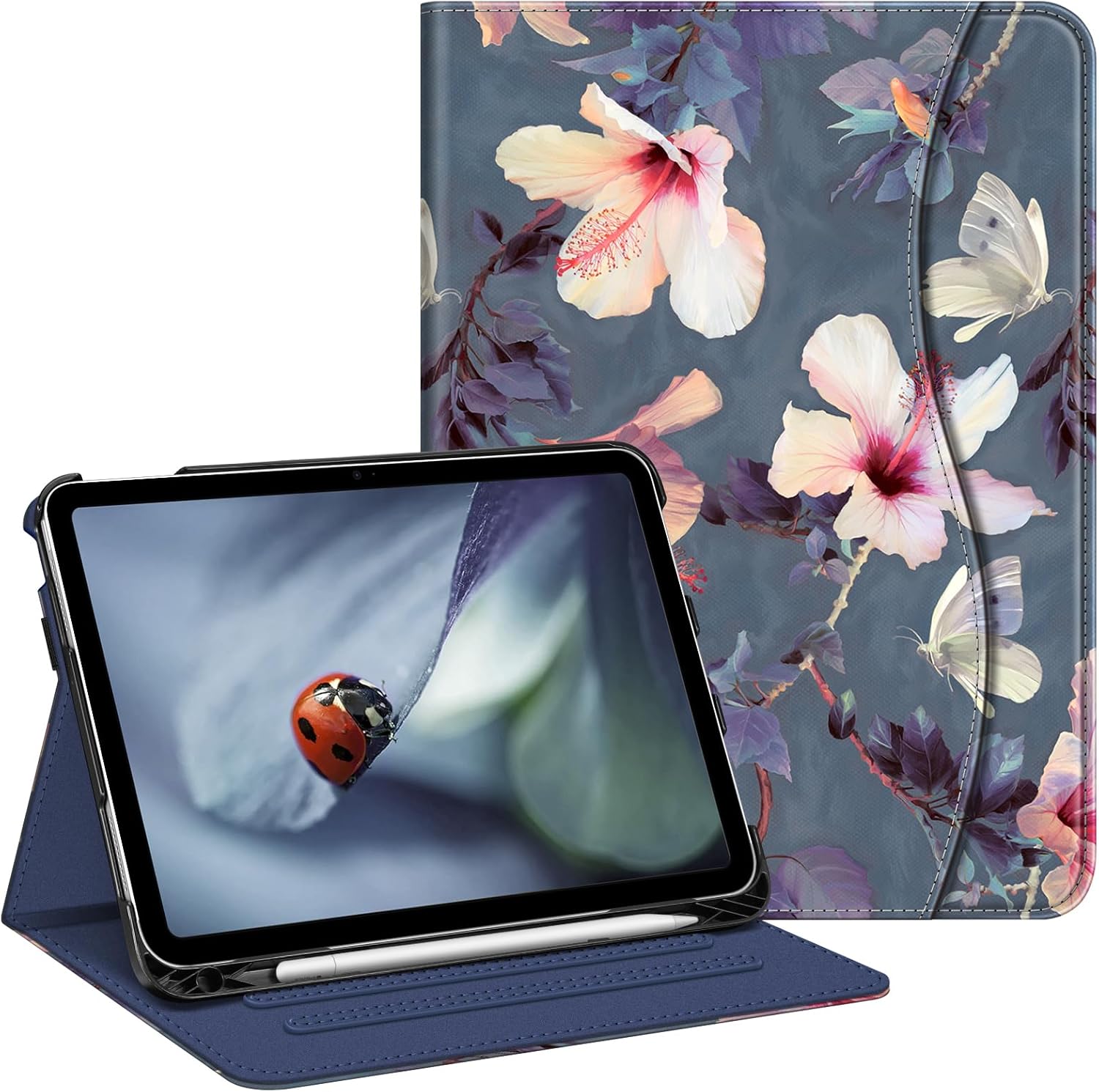
This image displays the FINTIE case with an iPad properly installed, showcasing the "Blooming Hibiscus" design and the overall fit of the device within the protective cover.
Operating Instructions
Multi-Angle Viewing
The case features an anti-slip stripe and grooves on the interior cover, allowing you to prop up your iPad at various angles. Simply fold the front cover back and align the edge of your iPad with one of the grooves to achieve your desired viewing or typing angle.
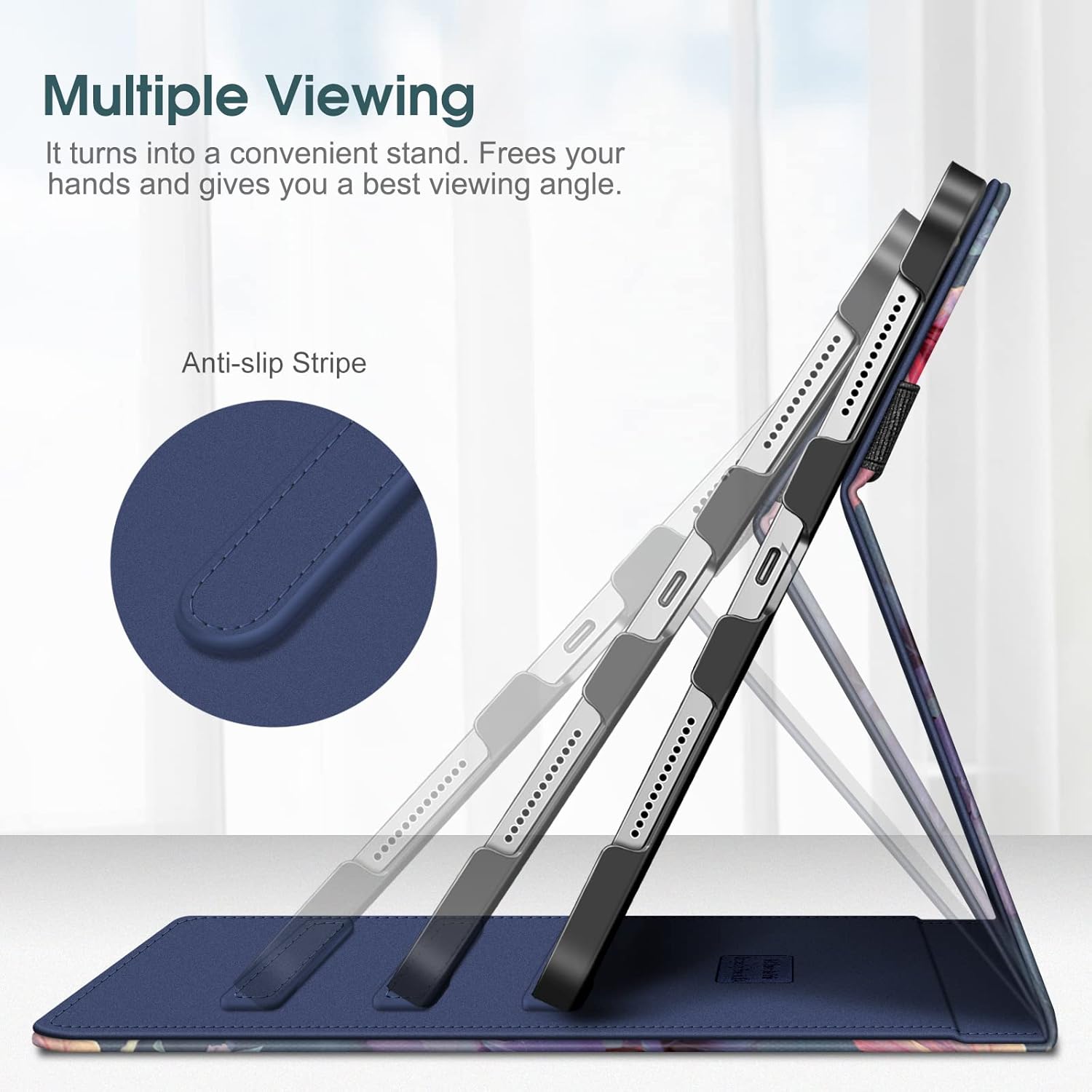
This image illustrates how the case can be folded to create a multi-angle stand, providing different viewing positions for the iPad.
Auto Sleep/Wake Function
The built-in magnetic strip automatically wakes your iPad when the cover is opened and puts it to sleep when the cover is closed. This feature helps conserve battery life.

This diagram visually explains the auto sleep/wake functionality, showing the iPad waking up when the cover is opened and sleeping when closed.
Using the Apple Pencil Holder
Insert your Apple Pencil (USB-C or 1st Gen) into the designated elastic loop on the side of the case. To easily remove the pencil, push it through the small hole located behind the holder.

This image demonstrates the integrated Apple Pencil holder and the small slot designed to easily push the pencil out when needed.
Utilizing the Document Pocket
The large pocket on the front cover can accommodate various small items such as business cards, bank cards, notes, or bills. Simply lift the flap to access the pocket.
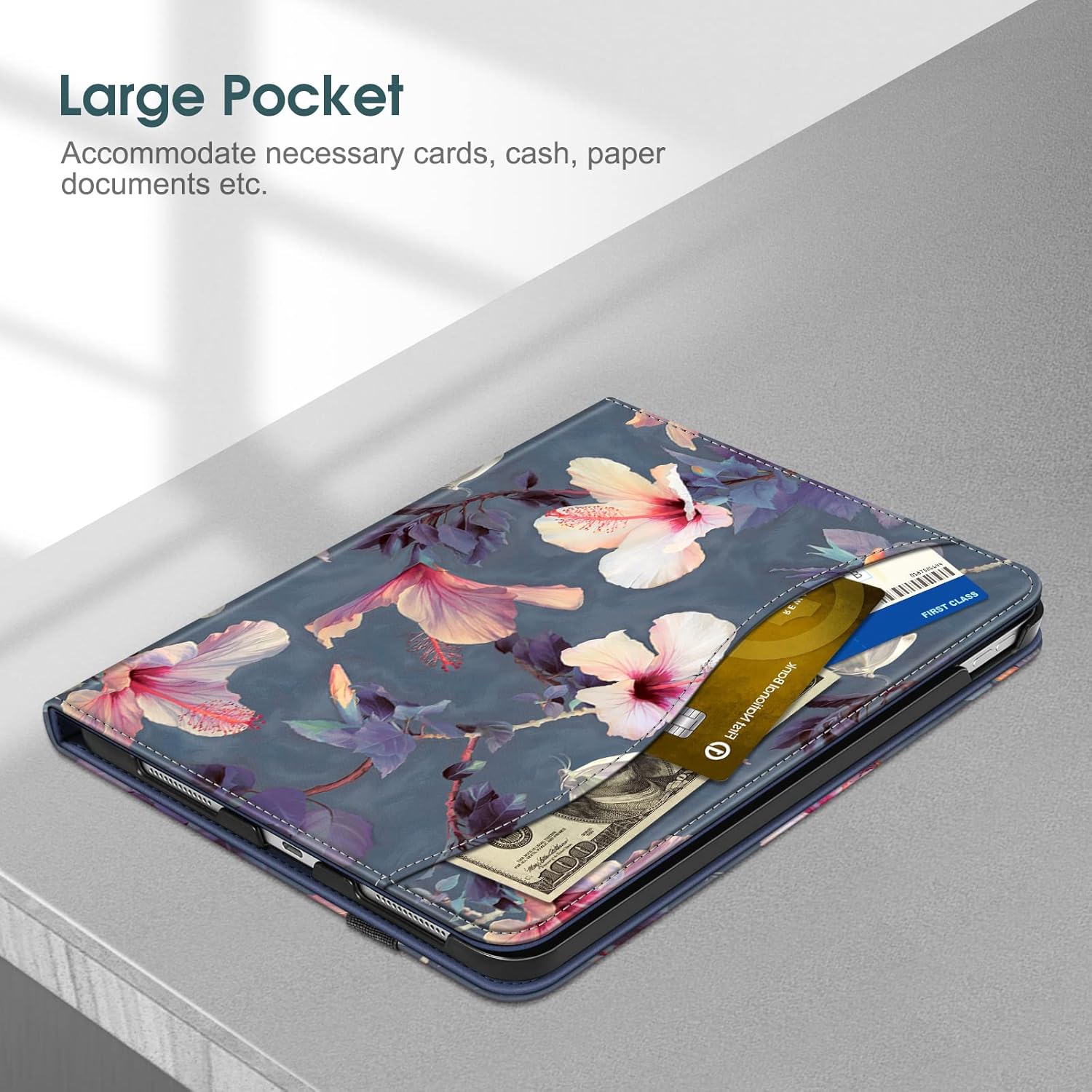
This image illustrates the spacious document pocket on the front cover, capable of holding various small items like cards and cash for convenience.
Touch ID Access
The case is designed with precise cutouts to ensure full access to all buttons, ports, and features, including Touch ID. You can securely unlock your iPad without removing it from the case.

This image demonstrates how the case provides unobstructed access to the iPad's Touch ID sensor, allowing for secure unlocking without removing the device.
Maintenance & Care
To ensure the longevity and appearance of your FINTIE case, follow these care instructions:
- Cleaning: Wipe the exterior with a soft, damp cloth. For stubborn stains, a mild soap solution can be used, but avoid harsh chemicals or abrasive cleaners.
- Drying: Allow the case to air dry completely. Do not use direct heat sources like hair dryers, as this may damage the material.
- Storage: Store the case in a cool, dry place away from direct sunlight when not in use for extended periods.
- Avoid Overfilling: Do not overfill the document pocket, as this may stretch the material or prevent the case from closing properly.
Troubleshooting
| Problem | Possible Cause | Solution |
|---|---|---|
| iPad does not fit securely. | Incorrect iPad model or improper installation. | Verify your iPad model number against the compatibility list. Ensure the iPad is pressed firmly into the case until it clicks into place. |
| Auto sleep/wake function not working. | iPad settings or magnetic interference. | Ensure "Lock/Unlock" is enabled in your iPad's settings (Settings > Display & Brightness > Lock/Unlock). Check for any external magnetic objects near the case. |
| Case stand is unstable. | iPad not properly seated in grooves or uneven surface. | Ensure the iPad's edge is fully seated within the anti-slip grooves. Use the case on a flat, stable surface. |
Specifications
| Attribute | Detail |
|---|---|
| Brand | FINTIE |
| Model Number | EPAS036 |
| Compatible Devices | iPad (A16) 11th Gen 11 Inch (2025), iPad 10th Gen 10.9 Inch (2022) |
| Material | Synthetic Leather Exterior, Microfiber Interior, Hard PC Cover |
| Color | Blooming Hibiscus |
| Item Weight | 14.9 ounces (approx. 422 grams) |
| Product Dimensions (LxWxH) | 10.04 x 7.68 x 0.79 inches (approx. 25.5 x 19.5 x 2 cm) |
| Special Features | Multi-Angle Viewing, Auto Sleep/Wake, Pencil Holder, Document Pocket |
Warranty & Support
FINTIE products are designed for quality and durability. For any questions regarding your product, technical support, or warranty claims, please contact our reliable customer support team. You can find contact information on the official FINTIE website or through your purchase platform.
For more information, visit the FINTIE Store on Amazon.