
Gawfolk GF270D
Gawfolk 2K 165Hz Curved Monitor User Manual
Model: GF270D
1. Introduction
Thank you for choosing the Gawfolk 2K 165Hz Curved Monitor. This manual provides essential information for setting up, operating, maintaining, and troubleshooting your new monitor. Please read it thoroughly to ensure optimal performance and longevity of your device.
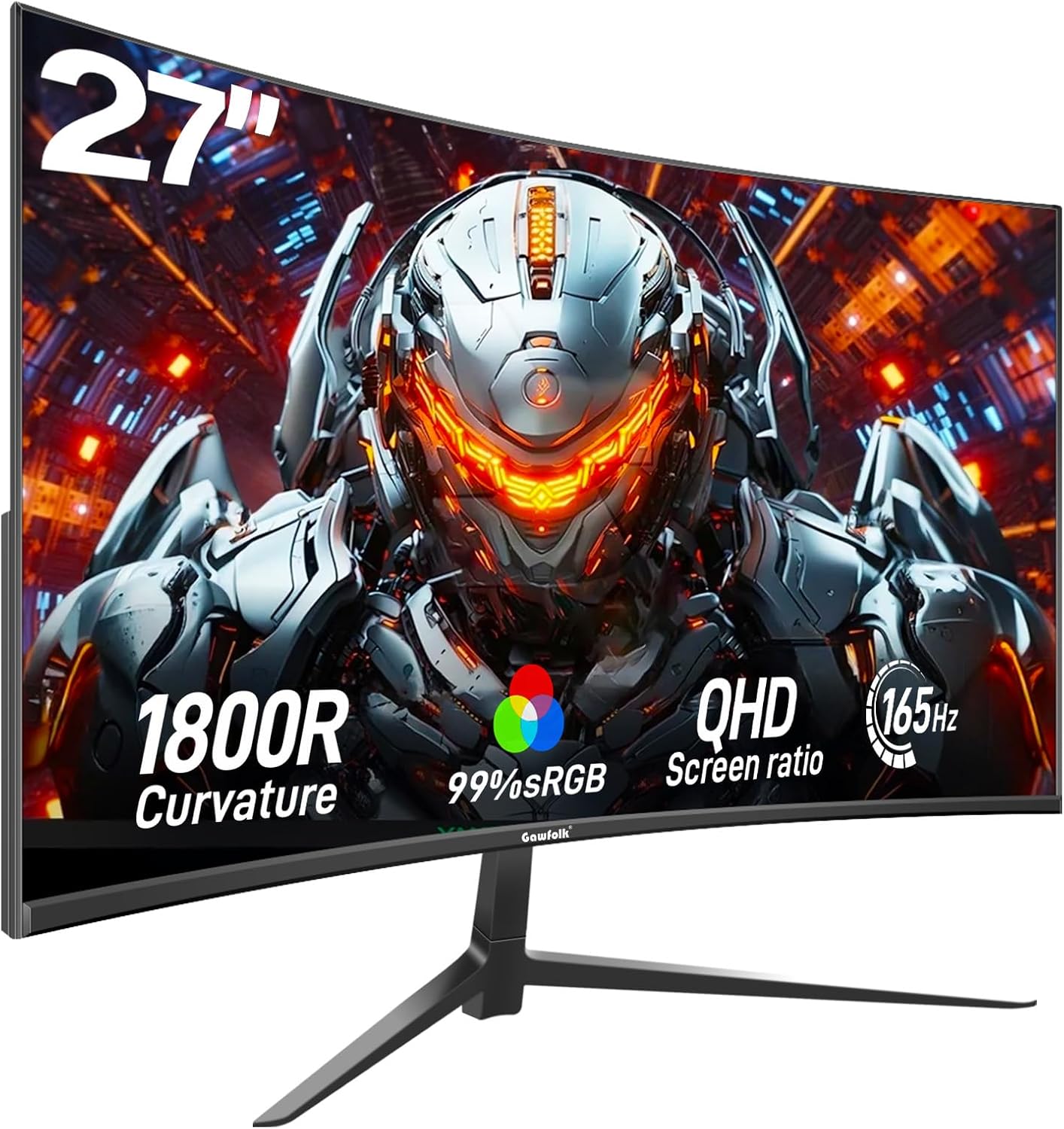
This gaming monitor features a trendy 1800R VA screen design, an ultrafast 165Hz refresh rate, and QHD (2560 x 1440) resolution. A 1ms (GTG) response time delivers clear pictures, smooth videos, and the fastest moving scenes, enhancing your usage experience in any demanding moment. Advanced technical features include Flicker-Free technology for clear visuals without tearing and stuttering, and Low Blue Light to reduce eye strain.
The desktop display boasts a widescreen VA panel covering 16.7 million color numbers and 8-bit gray level, with 4000:1 dynamic contrast and 99% sRGB to restore true colors and maintain image clarity.

2. Setup Guide
2.1. Unboxing
Carefully remove all components from the packaging. Ensure all items listed in the 'What's in the Box' section are present.
2.2. Stand Assembly
Attach the monitor stand to the back of the display. Ensure it is securely fastened using the provided screws.

2.3. Connectivity
Connect the monitor to your computer using the appropriate cables. The monitor supports multiple interfaces:
- 2 x HDMI 2.0 ports (up to 144Hz)
- 2 x DisplayPort 1.4 ports (up to 165Hz)
- 1 x Audio Out
- 1 x USB Port
Ensure you connect the video cable to the dedicated graphics card output on your computer, not the integrated motherboard graphics ports, for optimal performance.

3. Operating Instructions
3.1. Initial Power-On and Protective Film Removal
After connecting the monitor, press the power button. You may need to remove a protective film from the screen for the best viewing experience.
3.2. On-Screen Display (OSD) Controls
The monitor features intuitive controls, typically a joystick or buttons located on the back or bottom, to navigate the On-Screen Display (OSD) menu. This menu allows you to adjust various settings such as brightness, contrast, color temperature, input source, and gaming features like FreeSync and crosshair functions.


3.3. Removing On-Screen Numbers/Letters
If numbers or letters appear on the screen, often from factory testing, they can typically be removed via the OSD menu or by following specific instructions.
4. Maintenance
To maintain optimal performance and appearance, regularly clean the monitor screen with a soft, lint-free cloth. Avoid abrasive cleaners or solvents. Ensure proper ventilation around the monitor to prevent overheating. Do not spray cleaning liquids directly onto the screen.
5. Troubleshooting
If you encounter any issues with your Gawfolk monitor, please refer to the common problems and solutions below. If the problem persists, contact Gawfolk customer support.
Common Issues:
- No Signal: Ensure all cables (power, HDMI/DisplayPort) are securely connected to both the monitor and the computer. Verify the correct input source is selected on the monitor's OSD menu.
- No Power: Check if the power adapter is correctly plugged into the monitor and a working power outlet.
- Display Artifacts/Flickering: Ensure your graphics card drivers are up to date. Check the cable connection for any damage. Enable or disable FreeSync in the OSD menu to see if it resolves the issue.
- Dead Pixels/Bright Dots: Refer to the warranty section for information on bright dot coverage.
6. Specifications
| Feature | Detail |
|---|---|
| Model Number | GF270D |
| Screen Size | 27 Inches |
| Screen Resolution | 2560 x 1440 (QHD Wide 1440p) |
| Max Refresh Rate | 165Hz (via DisplayPort) |
| Response Time | 1ms (GTG) |
| Curvature | 1800R |
| Panel Type | VA |
| Color Gamut | 99% sRGB |
| Dynamic Contrast Ratio | 4000:1 |
| Aspect Ratio | 16:9 |
| Connectivity | 2x HDMI 2.0, 2x DisplayPort 1.4, 1x Audio Out, 1x USB Port |
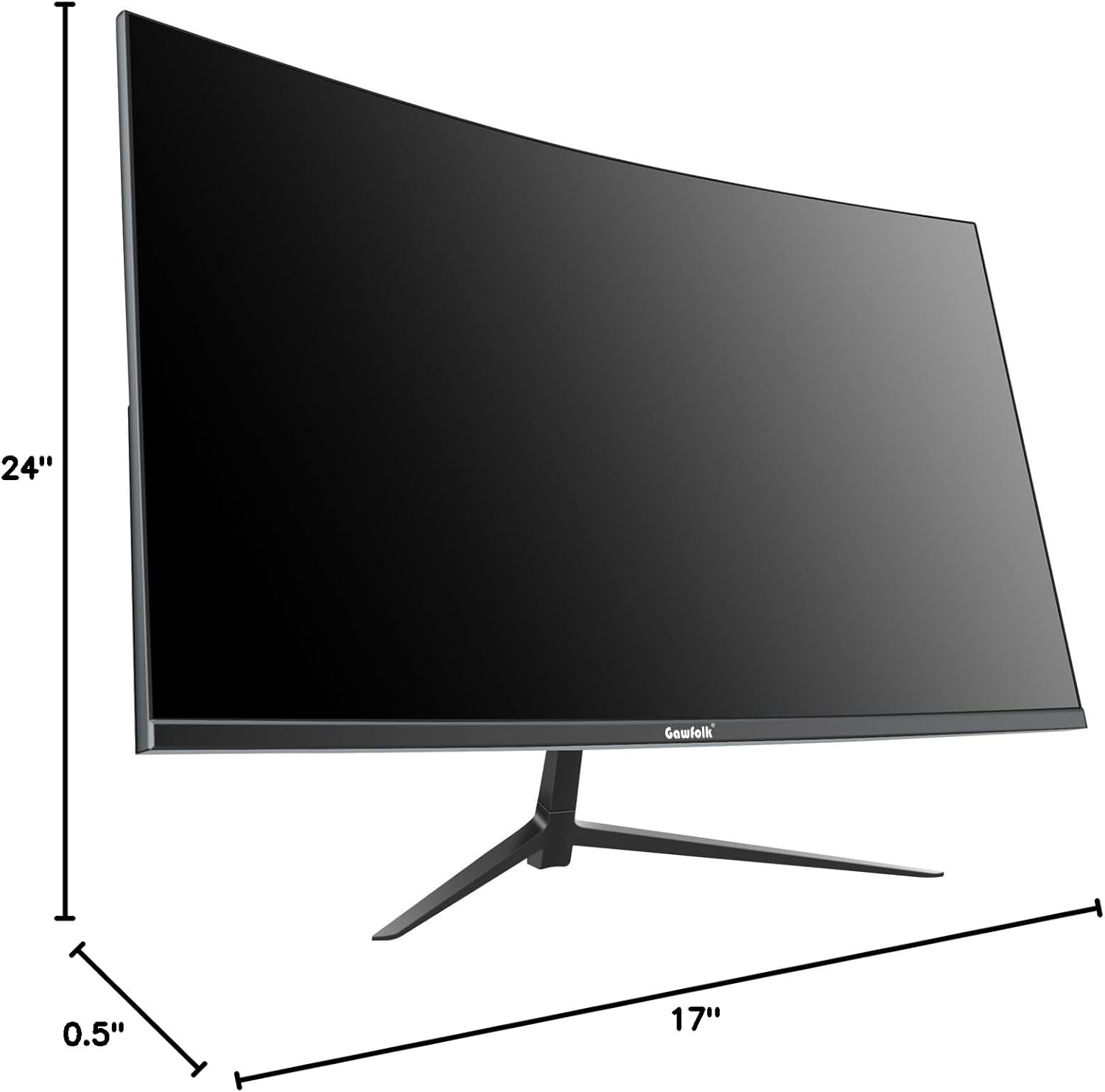
| Dimensions (LxWxH) | 5.5 x 27.28 x 17.5 inches |
| Item Weight | 9.83 pounds |
| VESA Compatibility | 100x100mm |
| Country of Origin | China |
7. Warranty and Support
Gawfolk provides high-quality computer monitors and premium services. We are committed to ensuring your satisfaction.
7.1. Warranty Coverage
- Bright Dot/Dead Pixel Policy: For all Gawfolk Gaming monitors, if a bright dot or dead pixel develops within 1 year of purchase, we will replace it for free.
- Accidental Damage: Within the first year of purchase, if damage occurs that is not due to human error, we are able to replace the unit.
- Advance Replacement: If your monitor needs to be replaced, we ship you a replacement monitor as soon as the Return Merchandise Authorization (RMA) is authorized, even before you ship the damaged monitor back to us. This reduces wait times and gets you back to your activities as soon as possible.
- Extended Warranty: A 2-year extendable warranty is available.
- Money-Back Guarantee: Enjoy a 30-day money-back guarantee.
7.2. Customer Support
If you find any damage, malfunction, or missing accessories, please contact us. We will try our best to help you.
For support inquiries, please visit the official Gawfolk website or contact our customer service team directly.
Ask a question about this manual
Ask about setup, troubleshooting, compatibility, parts, safety, or missing instructions. Manuals+ will review the question and use this page’s manual context to help answer it.