
1. Introduction
Thank you for purchasing the Camnoon 4K 30FPS Head Mounted Camera. This manual provides essential information for setting up, operating, and maintaining your device. Please read it thoroughly before use to ensure optimal performance and safety.

Image: The Camnoon 4K Head Mounted Camera, a compact device designed for wearable video recording.
2. What's in the Box
Verify that all items are present in the package:
- User Manual
- Battery (built-in)
- USB Cable (Type-C)
- Head Mount Bracket

Image: Contents of the product package, including the camera, head mount, USB cable, and user manual.
3. Product Overview
The Camnoon 4K Head Mounted Camera features a compact design with intuitive controls and a flexible head mount for first-person perspective recording.
3.1. Components and Controls
- Camera Lens: Front-facing lens for capturing video and photos.
- Power Button: Used to turn the device on/off.
- Record Button: Initiates and stops video recording.
- Photo Button: Captures still images.
- USB Type-C Port: For charging and data transfer.
- TF Card Slot: For inserting a Micro SD card (not included) for storage.
- Indicator Lights: Provide status information (e.g., power, recording, WiFi).
- Head Mount: Flexible bracket for wearing the camera on your head.
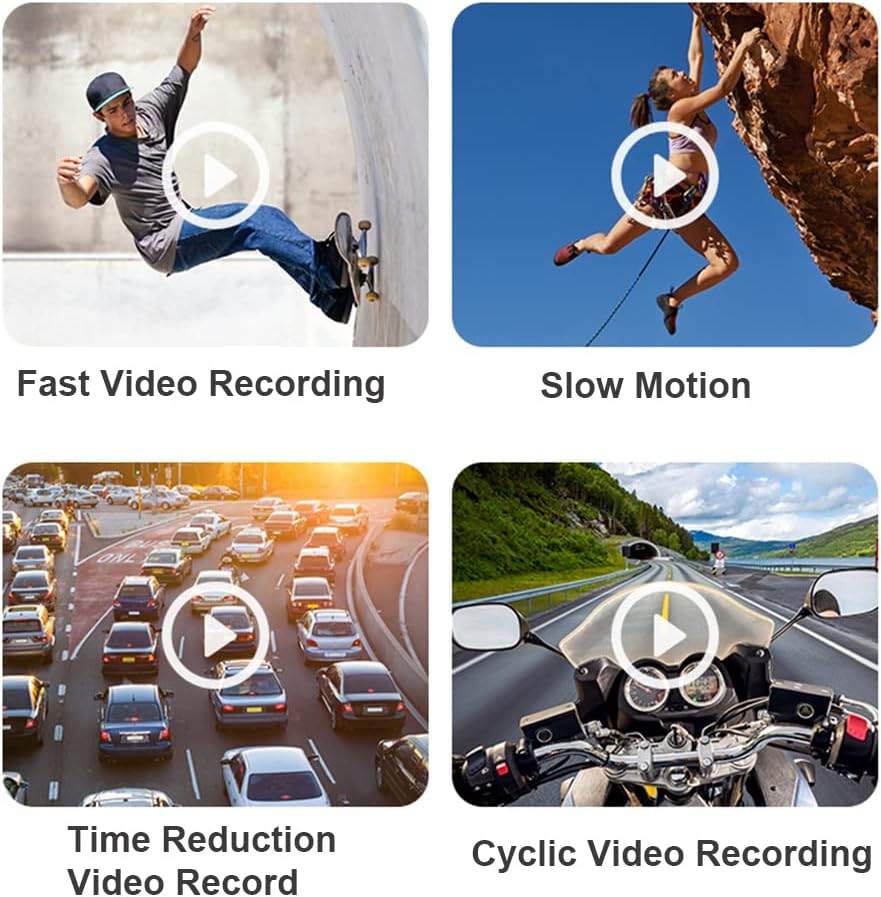
Image: The camera attached to its head mount, ready for use.
4. Setup
4.1. Charging the Battery
The camera has a built-in 2200mAh rechargeable lithium battery. Before first use, fully charge the device.
- Connect the provided USB Type-C cable to the camera's charging port.
- Connect the other end of the USB cable to a compatible USB power adapter (not included) or a computer's USB port.
- The indicator light will show charging status. A full charge provides approximately 5 hours of working time.

Image: Illustration highlighting the built-in 2200mAh rechargeable battery and Type-C charging port.
4.2. Inserting a TF Card
A Micro SD card (TF card) is required for storing recordings. The camera supports 8GB to 512GB TF cards (not included).
- Locate the TF card slot on the camera.
- Gently insert the TF card into the slot until it clicks into place. Ensure the card is inserted in the correct orientation.
- If the card is new, it may need to be formatted via the camera's settings or the companion app.
4.3. Attaching the Camera to the Head Mount
The camera is designed to be easily attached to the flexible head mount.
- Align the camera with the mounting point on the head mount.
- Securely fasten the camera to the mount. The design allows for a stable, first-person perspective.
5. Operating Instructions
5.1. Power On/Off
- To Power On: Press and hold the Power button until the indicator light illuminates and you hear a startup sound.
- To Power Off: Press and hold the Power button until the indicator light turns off.
5.2. Video Recording
The camera supports 4K/30fps video resolution and features EIS 2.0 Super Anti-shake technology for stable footage.
- Start Recording: Press the Record button once. The indicator light will change to indicate recording is in progress.
- Stop Recording: Press the Record button again to stop recording. The indicator light will return to standby mode.
- Cyclic Video Recording: When enabled, the camera will automatically delete the oldest files to make space for new recordings once the TF card is full.
- EIS 2.0 Anti-shake: This feature helps reduce camera shake for smoother video. Ensure it is enabled in the app settings for best results.

Image: Visual comparison demonstrating the effectiveness of EIS 2.0 Super Anti-shake technology.
5.3. Photo Taking
Capture high-resolution still images up to 30MP.
- Take Photo: Press the Photo button once to capture a still image.
5.4. APP Wireless Remote Control (QSCamera)
Control your camera and access advanced features via the QSCamera app on your smartphone.
- Download App: Search for "QSCamera" in your smartphone's app store and install it.
- Enable WiFi: Turn on the camera's WiFi function (refer to the manual for specific button presses or app instructions).
- Connect to Camera: On your smartphone, go to WiFi settings and connect to the camera's WiFi network. The network name and password can be found in the camera's settings or manual.
- App Functions: Once connected, you can use the app to:
- Initiate/stop photo and video recording.
- Select recording modes (e.g., time reduction photograph, time reduction video record, slow motion).
- Adjust resolution and other settings.
- View and manage recorded files.
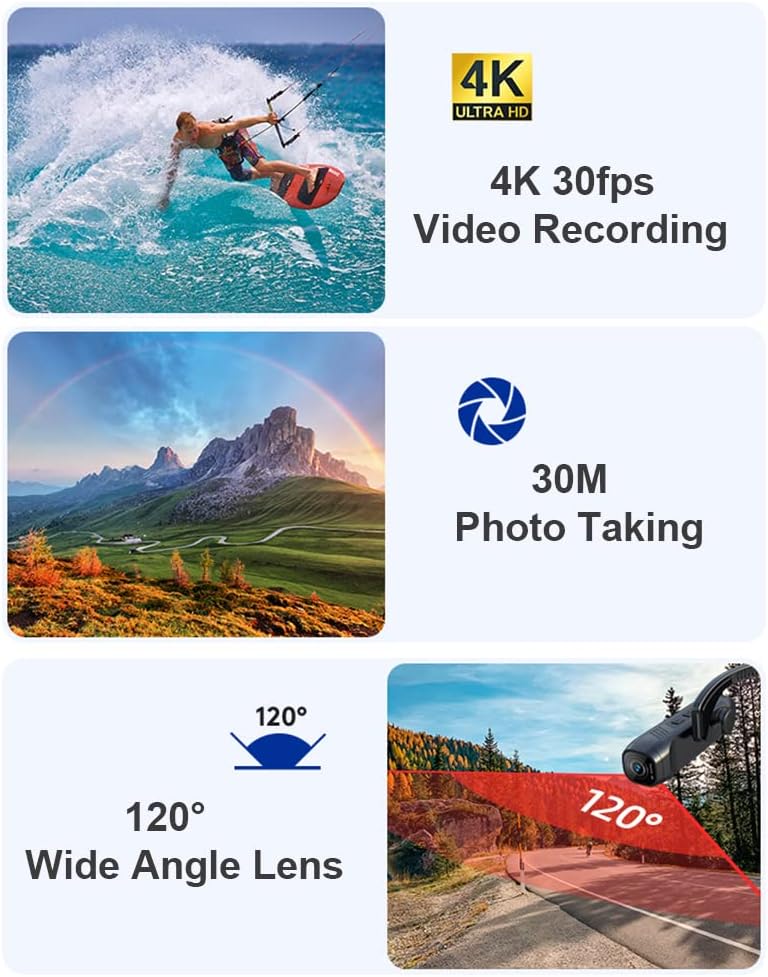
Image: A smartphone screen showing the live view from the camera, demonstrating WiFi connectivity and app control.
5.5. Data Transfer
To transfer files from your camera to a computer:
- Power off the camera.
- Remove the TF card from the camera.
- Insert the TF card into a compatible card reader (not included) and connect it to your computer.
- Alternatively, connect the camera directly to your computer using the USB Type-C cable. The camera should appear as a removable disk.
6. Maintenance
- Keep the camera and lens clean. Use a soft, dry cloth for cleaning. Avoid abrasive materials or harsh chemicals.
- Store the camera in a cool, dry place away from direct sunlight and extreme temperatures.
- Ensure the USB port and TF card slot covers are properly sealed to prevent dust and moisture ingress.
7. Troubleshooting
- Camera not powering on: Ensure the battery is charged. Connect the camera to a power source and try again.
- Cannot connect to WiFi/App:
- Ensure the camera's WiFi is enabled.
- Check your smartphone's WiFi settings to ensure it's connected to the camera's network.
- Restart both the camera and your smartphone.
- Verify that the QSCamera app is updated to the latest version.
- Recording issues (e.g., poor quality, stops unexpectedly):
- Ensure a compatible TF card is inserted and has sufficient free space.
- Format the TF card if issues persist.
- Check battery level; low battery can affect recording performance.
- Camera not recognized by computer: Try a different USB port or cable. Ensure the camera is powered on when connected.
8. Specifications
| Feature | Specification |
|---|---|
| Brand | Camnoon |
| Model Number | SFA7911026464569OR |
| Video Resolution | 4K/30fps |
| Photo Resolution | Up to 30MP |
| Lens Angle | 120° Wide Angle |
| Anti-Shake | EIS 2.0 Super Anti-shake |
| Battery Capacity | 2200mAh (Built-in) |
| Working Time | Approx. 5 hours (after full charge) |
| Storage | TF Card (8GB-512GB, not included) |
| Connectivity | WiFi, USB Type-C |
| Item Weight | 2.65 ounces |
| Product Dimensions | 1.06 x 4.06 x 1.06 inches |
9. Warranty and Support
Information regarding product warranty and customer support was not provided in the available data. Please refer to the product packaging or the manufacturer's official website for details on warranty coverage and how to contact customer support.