
KONKA KDG50 UDG50QR680LN
Konka Smart TV LED 50" UHD 4K User Manual
Model: KDG50 UDG50QR680LN
1. Introduction
Welcome to the user manual for your new Konka Smart TV LED 50" UHD 4K. This manual provides essential information for setting up, operating, and maintaining your television. Please read it thoroughly before using the product to ensure proper and safe operation.
The Konka KDG50 Smart TV offers a complete entertainment experience with its 4K UHD display, borderless design, voice command capabilities, Google Assistant, and Android TV with Bluetooth connectivity.
2. Important Safety Information
Always follow basic safety precautions when using this product to reduce the risk of fire, electric shock, and injury to persons.
- Do not expose the TV to rain or moisture.
- Do not block ventilation openings.
- Ensure proper grounding for the power cord.
- Do not place the TV on an unstable cart, stand, tripod, bracket, or table.
- Unplug the TV during lightning storms or when unused for long periods.
- Refer all servicing to qualified service personnel.
3. Package Contents
Verify that all items are present and in good condition upon opening the package.
- Konka Smart TV LED 50" UHD 4K
- Remote Control
- TV Stands (feet)
- Power Cord
- User Manual (this document)

Image: Front view of the Konka 50-inch Smart TV, highlighting its key features like 4K resolution, HDMI connectivity, Android operating system, Wi-Fi, and Google Assistant integration.
4. Setup
4.1 Attaching the TV Stands
Carefully place the TV face down on a soft, clean surface to prevent screen damage. Align the stands with the screw holes on the bottom of the TV and secure them with the provided screws.
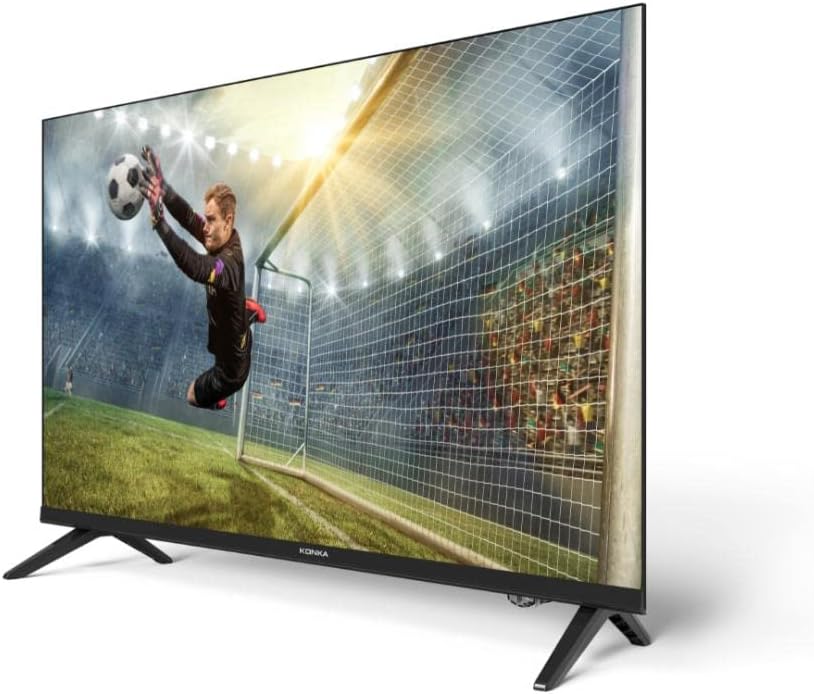
Image: Side profile of the Konka 50-inch Smart TV, illustrating the slim design and how the included stands are attached to the base.
4.2 Connecting Peripherals
The Konka Smart TV features multiple connectivity options. Refer to the image below for port locations.

Image: Rear view of the Konka 50-inch Smart TV, detailing the arrangement of input ports including HDMI, USB, and other audio/video connections.
- HDMI: Connect external devices like Blu-ray players, game consoles, or set-top boxes. The TV has 3 HDMI inputs.
- USB: Connect USB drives for media playback. The TV has 2 USB inputs.
- Antenna/Cable: Connect an antenna or cable TV source.
- Ethernet (LAN): For wired internet connection.
- Audio Out: For connecting external audio systems.
4.3 Powering On
After connecting all necessary cables, plug the power cord into a wall outlet. Press the power button on the remote control or on the TV itself to turn on the TV.
5. Operating Your Smart TV
5.1 Initial Setup and Android TV
Upon first power-on, the TV will guide you through the initial setup process, including language selection, network connection (Wi-Fi or Ethernet), and Google account sign-in. The TV runs on the Android operating system, providing access to a vast array of applications from the Google Play Store.

Image: Infographic detailing key features of the Konka Series 680 Smart TV, such as Android 11, stereo audio, Bluetooth connectivity, Google Assistant, built-in Chromecast, and pre-installed YouTube, Netflix, and Prime Video applications.
5.2 Voice Control with Google Assistant
Your Konka Smart TV supports voice commands via Google Assistant. To use this feature, ensure your TV is connected to the internet and you are signed into your Google account. Press the Google Assistant button on your remote and speak your command. You can open apps, search for content, control smart home devices, and more.
Note: To fully utilize Google Assistant, download the Google Home app on your smartphone and connect it to your Konka TV.
5.3 Chromecast Built-in
The built-in Google Chromecast allows you to cast content (videos, photos, music) from your smartphone, tablet, or laptop directly to your TV. Ensure your device and TV are on the same Wi-Fi network, then select the Cast icon within compatible applications.
5.4 Bluetooth Connectivity
Connect Bluetooth-enabled devices such as headphones, soundbars, or game controllers to your TV for an enhanced experience. Navigate to the TV's settings menu, select "Remotes & Accessories," and then "Add accessory" to pair new devices.
6. Key Features
- UHD 4K Resolution: Experience stunning clarity and detail with 3840x2160 pixel resolution.
- HDR (High Dynamic Range): Enjoy vivid colors, improved brightness, and enhanced contrast for a more realistic viewing experience.
- Borderless Design: A modern, immersive design with minimal bezels.
- Android TV: Access thousands of apps, games, and streaming services from the Google Play Store.
- Quad-Core Processor (CA55): Ensures smooth navigation and multitasking between applications.
- Pre-installed Apps: Comes with popular streaming services like YouTube, Netflix, and Prime Video.
- Multiple Connectivity: Equipped with HDMI and USB ports for versatile connections.
- Remote Control with Shortcut Keys: Convenient access to popular applications.

Image: A family enjoying a soccer game on the Konka 50-inch Smart TV, demonstrating the immersive viewing experience.
7. Maintenance
7.1 Cleaning the Screen
Gently wipe the screen with a soft, lint-free cloth. For stubborn marks, lightly dampen the cloth with water or a specialized screen cleaner. Avoid using harsh chemicals or abrasive materials.
7.2 Cleaning the Cabinet
Wipe the TV cabinet with a soft, dry cloth. Do not use any liquid cleaners or sprays directly on the TV.
7.3 Software Updates
Your Konka Smart TV may receive software updates periodically. Ensure your TV is connected to the internet to receive these updates, which can improve performance and add new features. You can usually check for updates in the TV's settings menu under "About" or "System updates."
8. Troubleshooting
| Problem | Possible Cause / Solution |
|---|---|
| No power | Check if the power cord is securely plugged into the TV and the wall outlet. Try a different outlet. |
| No picture, but sound is present | Ensure the correct input source is selected. Check cable connections to external devices. |
| No sound, but picture is present | Check volume level and mute settings. Verify audio cable connections. |
| Remote control not working | Replace batteries. Ensure no obstructions between remote and TV. |
| Cannot connect to Wi-Fi | Check Wi-Fi password. Restart your router. Ensure TV is within range of the router. |
| Apps are slow or freezing | Close unused apps. Clear app cache. Restart the TV. Ensure sufficient internet speed. |
9. Specifications
| Feature | Detail |
|---|---|
| Brand | KONKA |
| Model | KDG50 UDG50QR680LN |
| Screen Size | 50 Inches (127 cm diagonal) |
| Display Type | LED |
| Resolution | 4K UHD (3840x2160 MP) |
| Aspect Ratio | 16:9 |
| Contrast Ratio | 5,000:1 |
| Response Time | 8 Milliseconds |
| Refresh Rate | 60 Hz |
| Operating System | Android TV |
| Processor | CA55 Quad Core |
| Connectivity | Bluetooth, Wi-Fi, Ethernet |
| HDMI Ports | 3 |
| USB Ports | 2 |
| Power Source | AC/DC |
| Product Weight | 11.5 Kilograms |
| Product Dimensions (LxWxH) | 2 x 111 x 70 cm |
10. Warranty and Support
Your Konka Smart TV comes with a 1-year manufacturer's warranty. For warranty claims or technical support, please contact the manufacturer's authorized service center.
For further assistance, you may also visit the official KONKA store on Amazon: KONKA Amazon Store.
Related documentsKDG50 UDG50QR680LN


Ask a question about this manual
Ask about setup, troubleshooting, compatibility, parts, safety, or missing instructions. Manuals+ will review the question and use this page’s manual context to help answer it.