
1. Introduction
The GOOJODOQ GD13 iPad Pencil 2nd Generation is an advanced stylus designed to enhance your iPad experience. Featuring magnetic wireless charging, tilt sensitivity, and palm rejection, it offers a seamless and intuitive way to write, draw, and navigate on your compatible iPad device. This manual provides detailed instructions to help you get the most out of your new stylus.
2. Compatibility
The GD13 iPad Pencil is compatible with specific iPad models that support magnetic wireless charging and stylus functionality. Please verify your iPad model number before use to ensure full compatibility.
Compatible iPad Models:
- iPad Pro 12.9-inch (3rd, 4th, 5th and 6th generation)
- iPad Pro 11-inch (1st, 2nd, 3rd, 4th generation)
- iPad Air (4th, 5th generation)
- iPad Mini (6th generation)
Note: This stylus is not compatible with iPad models released in 2024 or earlier generations not listed above. Please check the model number on the back of your iPad.

Image: Visual guide to compatible iPad models, including specific model numbers for iPad Air, iPad Pro 12.9, iPad Pro 11, and iPad mini.
3. Key Features
- Magnetic Wireless Charging & Real-Time Power Display: The GD13 pencil attaches magnetically to the side of your compatible iPad for charging. You can check the battery power directly on your iPad desktop. No charging cable or Bluetooth pairing is required for charging.
- Tilt Function & High Sensitivity: Designed with the latest tilt function, the GD13 Active Pencil allows for varied line thickness in writing and drawing, depending on the angle at which the stylus is held. Note: The stylus does not have pressure sensitivity.
- Palm Rejection & Easy to Use: The stylus features palm rejection, allowing you to rest your hand naturally on the iPad screen while writing or drawing without accidental marks. This makes note-taking, marking up documents, and painting smooth and comfortable.
- Smart Indicator and Nib Compatible: The stylus has an indicator light that shows the current battery level (Red: 0-20%, Blue: 20-80%, Green: 80-100%). The nib is compatible with Apple Pencil 1st/2nd generation tips, and two extra nibs are included for replacement.
- Performance and Compatibility: The stylus charges in about 1.5 hours and offers up to 10 hours of continuous use, with 365 days of standby time. It automatically enters sleep mode after 5 minutes of inactivity.

Image: The GD13 stylus magnetically charging on the side of an iPad, with the iPad screen displaying battery levels for both the iPad and the stylus.
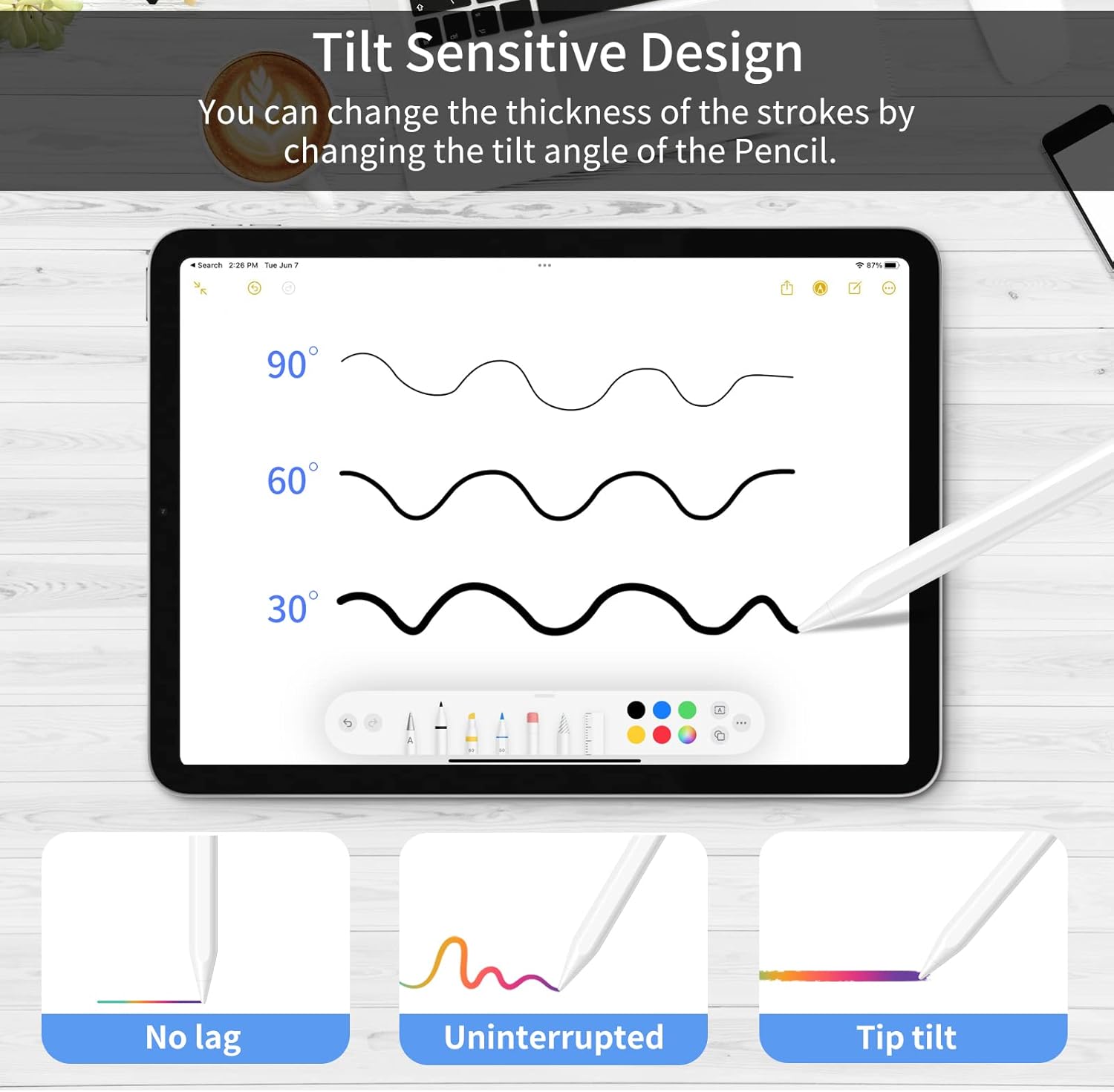
Image: A visual representation of the tilt-sensitive design, showing how different angles (90°, 60°, 30°) of the stylus create lines of varying thickness on the iPad screen.

Image: A user's hand resting on the iPad screen while using the stylus, illustrating the palm rejection feature for natural writing.
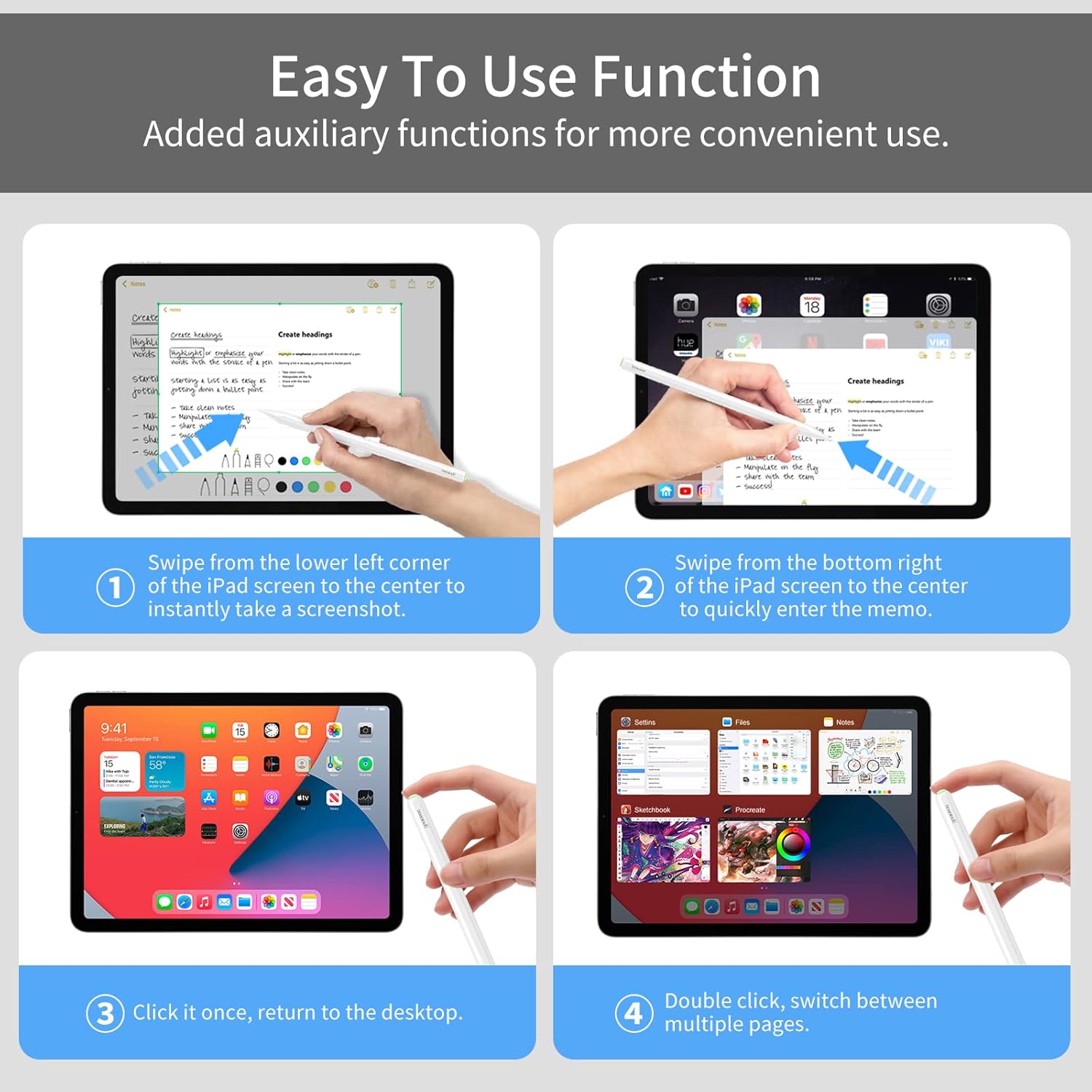
Image: A graphic detailing the Smart Touch Switch, indicator light, and magnetic charging capabilities, with a color-coded battery level display (red for low, blue for medium, green for high).
Video: An official product video demonstrating the GOOJODOQ GD13 iPad Pencil's features, including tilt function, palm rejection, and magnetic charging.
4. Setup Guide
Follow these steps to set up your GD13 iPad Pencil for the first time:
- Charge the Stylus: Attach the GD13 Pencil magnetically to the side of your compatible iPad. The stylus will begin charging automatically. Ensure your iPad's battery is sufficiently charged.
- Power On: Press and hold the top of the stylus for 3 seconds to turn it on/off. The indicator light will illuminate.
- Bluetooth Connection (for battery display): While the stylus functions without Bluetooth for writing, connecting via Bluetooth allows you to view the battery level on your iPad. If you have an Apple Pencil previously paired, unpair it first from iPad Settings > Bluetooth. Then, find "GD13 pencil" in the Bluetooth list and tap to connect.

Image: Step-by-step guide on how to connect the GD13 stylus via Bluetooth on an iPad, including unpairing previous Apple Pencils and finding the GD13 device.
5. Operating Instructions
The GD13 iPad Pencil offers several convenient functions for daily use:
- Writing and Drawing: Simply touch the stylus tip to the iPad screen to begin writing or drawing. The tilt function allows for varying line thickness.
- Quick Notes: Double-tap the iPad screen with the GD13 Pencil to quickly wake up the iPad and open the Notes app.
- Screenshot: Swipe from the lower left corner of the iPad screen to the center to instantly take a screenshot.
- Memo: Swipe from the bottom right of the iPad screen to the center to quickly enter the memo function.
- Return to Desktop: Click the top of the stylus once to return to the desktop.
- Switch Pages: Double-click the top of the stylus to switch between multiple open pages or applications.

Image: A visual guide to the auxiliary functions of the GD13 stylus, showing gestures for taking screenshots, accessing memos, returning to the desktop, and switching between applications.
6. Maintenance and Care
To ensure the longevity and optimal performance of your GD13 iPad Pencil, follow these maintenance guidelines:
- Nib Replacement: The stylus comes with two extra nibs. If the tip becomes worn or damaged, gently unscrew the old nib and screw on a new one. Ensure it is securely fastened.
- Cleaning: Use a soft, dry, lint-free cloth to clean the stylus body. Avoid using abrasive materials or harsh chemicals.
- Storage: When not in use, store the stylus magnetically attached to your iPad or in a protective case to prevent damage.
- Battery Care: Avoid completely draining the battery frequently. Charge the stylus regularly, especially if it will be stored for an extended period.
7. Troubleshooting
If you encounter any issues with your GD13 iPad Pencil, please refer to the following common solutions:
| Problem | Possible Cause | Solution |
|---|---|---|
| Stylus not responding | Battery is low or dead; Stylus is off; Not properly paired (if applicable); Incompatible iPad model. | Charge the stylus; Press and hold the top for 3 seconds to turn on; Ensure Bluetooth is connected (if desired for battery display); Verify iPad model compatibility. |
| Charging issues | Not properly aligned on iPad; iPad battery is low; Stylus defect. | Ensure the stylus is correctly aligned on the iPad's magnetic charging strip; Charge your iPad; If issues persist, contact customer support. |
| Palm rejection not working | Software glitch; Incompatible app. | Restart your iPad; Ensure the app you are using supports palm rejection with third-party styluses. |
| Line thickness not changing with tilt | App does not support tilt sensitivity; Stylus defect. | Try a different drawing/note-taking app that explicitly supports tilt sensitivity; Contact customer support if the issue persists across multiple apps. |
8. Technical Specifications
- Model Number: GD13
- Product Dimensions: 7.09 x 2.36 x 0.67 inches
- Item Weight: 2.08 ounces (0.06 Kilograms)
- Material: Plastic
- Battery Average Life Standby: 365 days
- Charging Time: Approximately 1.5 hours
- Usage Time: Up to 10 hours (continuous)
- Manufacturer: GOOJODOQ
- Country of Origin: China
9. Warranty and Support
For warranty information or technical support, please contact GOOJODOQ customer service through the retailer where you purchased the product or visit the official GOOJODOQ website. Please have your product model number (GD13) and purchase details ready when contacting support.